XGRIDSDocs
  • 简体中文
  • English
  • 繁體中文
  • 日本語
  • Deutsch
  • Español
  • Italiano
  • Français
  • Русский
  • Polski
  • Nederlands
  • 简体中文
  • English
  • 繁體中文
  • 日本語
  • Deutsch
  • Español
  • Italiano
  • Français
  • Русский
  • Polski
  • Nederlands
  • Lixel PortalCam Series

    • PortalCam P1

      • Product Overview
      • Basic Operation
      • Using the LCC Scan App
      • Maintenance and Care
      • FAQ
  • Lixel K Series

    • Lixel K1

      • Product Overview
      • Basic Operation
      • Device Activation and Connection
      • Scanning Workflow
      • Acquire Point Cloud Data with Absolute Coordinate
      • Map Fusion
      • Route Planning Suggestions for Typical Scenes
      • Precautions
      • FAQ
    • Lixel K2

      • Product Overview
      • Basic Operation
      • Device Activation and Connection
      • Scanning Workflow
      • Acquire Point Cloud Data with Absolute Coordinate
      • Map Fusion
      • Route Planning Suggestions for Typical Scenes
      • Precautions
      • FAQ
  • Lixel L Series

    • Lixel L2 Pro

      • Product Overview
      • Basic Operation
      • Device Activation and Connection
      • Scanning Workflow
      • Acquire Point Cloud Data with Absolute Coordinate
      • Measure Point
      • Appendix
      • FAQ
    • Lixel L3

      • Product Overview
      • Basic Device Functions
      • Device Activation and Connection
      • Data Capture
      • Capturing Absolute Coordinates
      • Appendix
  • Lixel Studio

    • Version and Copyright
    • Installation and Activation
    • Software Interface
    • File Operations
    • Project Processing
    • Tools
    • 2D Drawing
    • Applications
    • Settings
    • Device Connection
    • FAQ
  • Lixel CyberColor

    • LCC Studio

      • Getting Started
      • Version and Updates
      • Download and Installation
      • Interface Overview and Navigation
      • Before Reconstruction
      • Model Reconstruction
      • Single Model Reconstruction
      • Map Fusion
      • Aerial-Ground Fusion
      • Aerial Reconstruction
      • My Models
      • Other Features
      • Settings and Account
      • Converter
      • Video Reconstruction
      • FAQ
    • LCC Scene Editor

      • Version & Updates
      • Account & Login
      • Product Overview & Home
      • Editor Interface
      • Scene Navigation Modes
      • File
      • Settings
      • Edit Operations
      • Window
      • Global Toolbar
      • Assets & Properties
      • Left Toolbar
      • Viewpoints
      • Portal
      • Skybox
      • Annotations
      • Measurement
      • Flythrough
      • Scene Report
      • 3D Layout
      • Mini-Map
      • Preview Mode (Viewer)
      • Help
      • FAQ
      • Spawn Point
    • LCC Model Editor

      • Version and Updates
      • User Guide
      • Overview and Interface
      • File Operations
      • Selectors
      • Editing Models
      • Measurement
      • Color Grading
      • Asset Management
      • Settings and Help
      • FAQ
    • Capture Guide

      • Overview
      • Capture Devices Overview
      • General Capture Principles
      • Indoor Scene Capture
      • Outdoor Scene Capture
      • Large-Scale Capture (Map Fusion)
      • Aerial-Ground Map Fusion Capture
      • Object Capture
      • People Capture
      • Video Reconstruction Capture
      • HD Enhancement
      • Control Points (Lixel P1)
      • FAQ and Troubleshooting
    • LCC Studio Linux

      • Product Overview
      • Architecture Guide
      • Installation and Deployment Guide
      • Container Startup Parameters Guide
      • CodeMeter Offline Licensing Deployment Guide
      • API Reference
      • Appendix - Developer Data Guide
      • Appendix - Error Code List
      • Single-Machine Multi-GPU Cluster Deployment QuickStart
    • Best Practices

      • Merging Multiple Large 3DGS Models
    • Version History
  • Plugin & SDK

    • Unreal

      • Introduction
      • Quick Start - Windows
      • Quick Start - Linux
      • Quick Start - Quest3
      • Editions and Licensing
      • Rendering
      • Tiled Rasterization (Experimental)
      • Visual Settings
      • Normals and Lighting
      • Scene Editing
      • Performance Parameters
      • Performance Guide
      • Third-party and Engine Plugin Integration
      • Proxy Mesh
      • Loading Animation
      • Collision
      • Navigation System Support
      • Single Layer Water Support
      • Localization
      • FAQ
      • Troubleshooting
      • Logging and Diagnostics
      • Contact Us
      • Best Practices

        • Relighting 3DGS with a LixelStudio Mesh
        • Per-camera Independent Rendering
      • API Reference

        • ALCCActorBase
        • ULCCComponentBase
        • ULCCComponent
        • ULCC2Component
        • SOG / SPZ / PLY Actors
        • ALCC2ProxyMesh
        • ALCCClippingVolume
        • ALCCSectionPlane
        • ALCCLoadVolume
        • ULCCUtilLibrary
        • Enums
        • Structs
      • Changelog

        • v3.5.0
        • v3.4.0
        • v3.3.1
        • v3.0.0
        • v2.2.1
        • v1.0.0
        • v0.9.0
        • v0.8.0
        • v0.7.1
        • v0.6.1
        • v0.5.2
        • v0.4.1
        • v0.4.0
        • v0.3.0
        • v0.0.5
        • v0.0.4
        • v0.0.3
        • v0.0.2
        • v0.0.1
    • Unity

      • Unity SDK Introduction
      • Technical Features
      • Development Environment Requirements
      • PC Quick Start Guide
      • Project Settings Optimization Guide
      • Pico 4 Ultra Development Guide
      • Pico 4 Ultra PC Streaming Guide
      • Quest 3 Development Guide
      • Quest 3 PC Streaming Guide
      • OpenXR Development Guide
      • Pico 4 Ultra Business Streaming Guide
      • Glossary
      • FAQ
      • Contact Us
      • Feature Development Guide

        • Multi-Scene Mixed Rendering Development Guide
        • Shadow Receiving Development Guide
        • Real-Time Lighting Development Guide
        • Multi-Camera Rendering Development Guide
        • High-Resolution Image Rendering Development Guide
        • LCC and LCC2 Data Format Compatibility Development Guide
        • Loading Effect Development Guide
        • Mip Rendering Mode Switching Development Guide
        • Edge and Corner Snapping Development Guide
        • Projected Decal Development Guide
        • Video Projected Decal Development Guide
        • Highlight Development Guide
        • Real-Time Clipping Development Guide
        • Color Adjustment Development Guide
        • Getting Scene Mesh Data Development Guide
        • Editor Mode Development Guide
        • Render Performance Parameter Configuration Guide
        • Application and Data Co-packaging Development Guide
        • Collision System Development Guide
        • macOS Development Permission Issue Guide
        • iOS Device Compilation and Packaging Development Guide
      • API Reference

        • LCCManager
        • Renderer
        • Data Types
      • Changelog

        • v2.3.0
        • v2.2.10
        • v2.2.0
        • v2.1.19
        • v2.0.14
    • Web

      • Introduction
      • Rendering Performance Optimization Guide
      • Graphics Configuration
      • WebGPU Development Guide
      • FAQ
      • API Reference

        • LCCObject::checkRenderNextFrame
        • LCCObject::clearRenderNextFrame
        • LCCObject::ecef2Prj
        • LCCObject::getBounds
        • LCCObject::getEnvInstancedMesh
        • LCCObject::getInstancedMesh
        • LCCObject::getLodInfos
        • LCCObject::getOriginPosition
        • LCCObject::getProjectionCoordinateSystemInfos
        • LCCObject::hasCollision
        • LCCObject::hasEnvironment
        • LCCObject::hasShcoef
        • LCCObject::intersectsCapsule
        • LCCObject::intersectsRayExt
        • LCCObject::intersectsRayFromOriginExt
        • LCCObject::intersectsSphere
        • LCCObject::lowerToBottom
        • LCCObject::prj2Ecef
        • LCCObject::raiseToTop
        • LCCObject::raycast
        • LCCObject::raycastFromOrigin
        • LCCObject::setAlpha
        • LCCObject::setClipBox
        • LCCObject::setClipPlane
        • LCCObject::setClipPrism
        • LCCObject::setEndLod
        • LCCObject::setLodAutoLevelUp
        • LCCObject::setMaxDistance
        • LCCObject::setMaxNodeSplats
        • LCCObject::setMaxSplats
        • LCCObject::setMipFilter
        • LCCObject::setOriginPosition
        • LCCObject::setPointsColor
        • LCCObject::setRenderState
        • LCCObject::setRotation
        • LCCObject::setScale
        • LCCObject::setSemantic
        • LCCObject::setSemanticColor
        • LCCObject::setSmooth
        • LCCObject::setStartLod
        • LCCObject::setTranslation
        • LCCObject::setVisible
        • LCCObject::togglePointsDisplayMode
        • LCCObject::useEnvironment
        • LCCObject::useShcoef
        • LCCRender::clearIndexDB
        • LCCRender::dispose
        • LCCRender::load
        • LCCRender::setCamera
        • LCCRender::unload
        • LCCRender::update
      • Changelog

        • v0.6.4
        • v0.6.3
        • v0.6.2
        • v0.6.1
        • v0.6.0
        • v0.5.5
        • v0.5.4
        • v0.5.3
        • v0.5.2
        • v0.5.1
        • v0.5.0
        • v0.4.1
        • v0.4.0
        • v0.3.1
        • v0.3.0
        • v0.2.0
    • Lixel OpenAPI

      • Overview
      • Connection & Authentication
      • Message Model & Codec
      • Interface Catalog
      • Real-time Data
      • Project File Access
      • Error Codes
      • Python

        • Quick Start
        • Client Wrapper & Tools
        • FAQ
      • C++

        • Quick Start
        • Client & Examples
        • FAQ
  • API

    • Structured Spatial Modeling

      • Access Guide
      • Modeling Workflow
      • API Reference
      • Temporary Upload Credentials
      • Error Codes

Editions and Licensing: Free Edition vs Pro Edition

The plugin comes in a free edition and a Pro edition. The free edition loads and renders all supported data formats normally. Some features require registering an App Key to license the Pro edition before they can be used.

Pro-only Features

Only the features below require a license; everything else is available in the free edition.

FeatureFree editionPro editionNotes
Tiled rasterization (experimental)—✓Can raise rendering performance, the gain depends on the scene; falls back to Pipeline without a license
ProxyMesh physically based relighting—✓Falls back to the Fixed normal mode without a license
Self-shadowing for Gaussian splats—✓Occlusion shadows cast by the 3DGS itself
More realistic lighting and shadow interaction—✓Lighting response driven by real normals
Working color space conversion—✓Required for film, broadcast and virtual production workflows
ACES workflow support—✓Takes effect together with working color space conversion
Color matching between captured environments and CG elements—✓Same as above
Load volumes—✓Data loads over its full extent without a license
Clipping volumes and section planes50 of each typeUnlimitedThe free quota covers everyday use; heavy use needs a license
Automatic collision generation for single-file models—✓Derives a collision mesh from the Gaussians for PLY / SPZ / SOG; without a license you build collision yourself

Using a restricted feature without a license does not cause a load failure or an error. The plugin falls back to free edition behavior automatically.

Full Feature Comparison

The Pro edition includes every free edition feature. The rows that show a difference below are exactly the licensed scope.

FeatureFree editionPro edition
Data format support
All formats: .lcc2 / .lcc / .sog / .spz / .ply✓✓
3DGS scene loading with no point-count limit✓✓
Rendering and performance
Tiled rasterization (experimental)—✓
Performance control system✓✓
Depth rendering support✓✓
NVIDIA DLSS support✓✓
Native collision for XGRIDS scans✓✓
3DGS and point cloud render modes✓✓
Perspective and orthographic projection✓✓
SH band adjustment✓✓
Point cloud data and elevation coloring✓✓
Full load rendering✓✓
Scene editing
Basic 3DGS relighting✓✓
Mixed rendering of 3DGS, meshes and effects✓✓
Clipping volumes and section planes50 of each typeUnlimited
Load volumes—✓
Native collision for XGRIDS scans✓✓
Automatic collision generation for single-file models—✓
Navigation System support✓✓
Loading animation✓✓
Single Layer Water support✓✓
Physically based relighting
ProxyMesh physically based relighting—✓
Self-shadowing for Gaussian splats—✓
More realistic lighting and shadow interaction—✓
Post-processing
Depth of Field✓✓
Model exposure control✓✓
Color Correction Region support✓✓
Post Process Volume support✓✓
Color adjustment✓✓
Professional color management
Working color space conversion (film, broadcast, virtual production)—✓
ACES workflow support—✓
Color matching between captured environments and CG elements—✓
OpenColorIO color management✓✓
XR and virtual production
High-fidelity VR streaming✓✓
Native nDisplay support✓✓
Multi-camera / SceneCapture support✓✓
360-degree panoramic output✓✓
Digital twins and simulation
Cesium for Unreal support✓✓
CARLA simulator support✓✓
Platforms
Windows / Linux packaging✓✓

Working Color Space Conversion

Before 3DGS colors are composited back into the image, they go through the SRGB → Linear → InverseACES → working color space conversion chain. Converting to the engine Working Color Space is a Pro edition feature, and both pipelines are subject to this restriction.

Without a license, this step is skipped and the colors are composited without conversion. The engine default working color space is sRGB, where the results before and after conversion are identical, so the free edition and the Pro edition look the same. After the working color space is changed to a gamut other than sRGB (for example to match an ACES workflow or OpenColorIO), unlicensed 3DGS colors deviate from regular objects in the scene.

Register an App Key

The free edition requires no registration, so this section can be skipped.

  1. Click the LCC button on the editor toolbar to open the LCC4Unreal Panel.
  2. Click to copy the AppId in the Pro area.
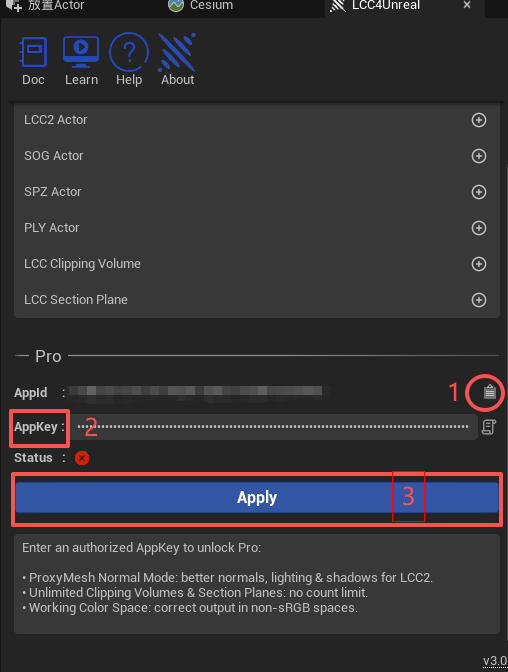
Register the App Key in the LCC4Unreal panel

Enter and apply the App Key in the LCC4Unreal panel

  1. Go to the XGrids developer platform to request an APP KEY. After signing in, follow these steps on the platform:

    1. Open the Console from the user-avatar menu in the top-right corner.
    2. Under SDK Authorization on the left, click New.
    3. In the Application Authorization Request dialog, set the application type to UE and set Authorization Type to Online.
    4. In the Application ID field, paste the AppId copied from the plugin in the previous step.
    5. After the platform generates the APP KEY, click the copy button on the right.
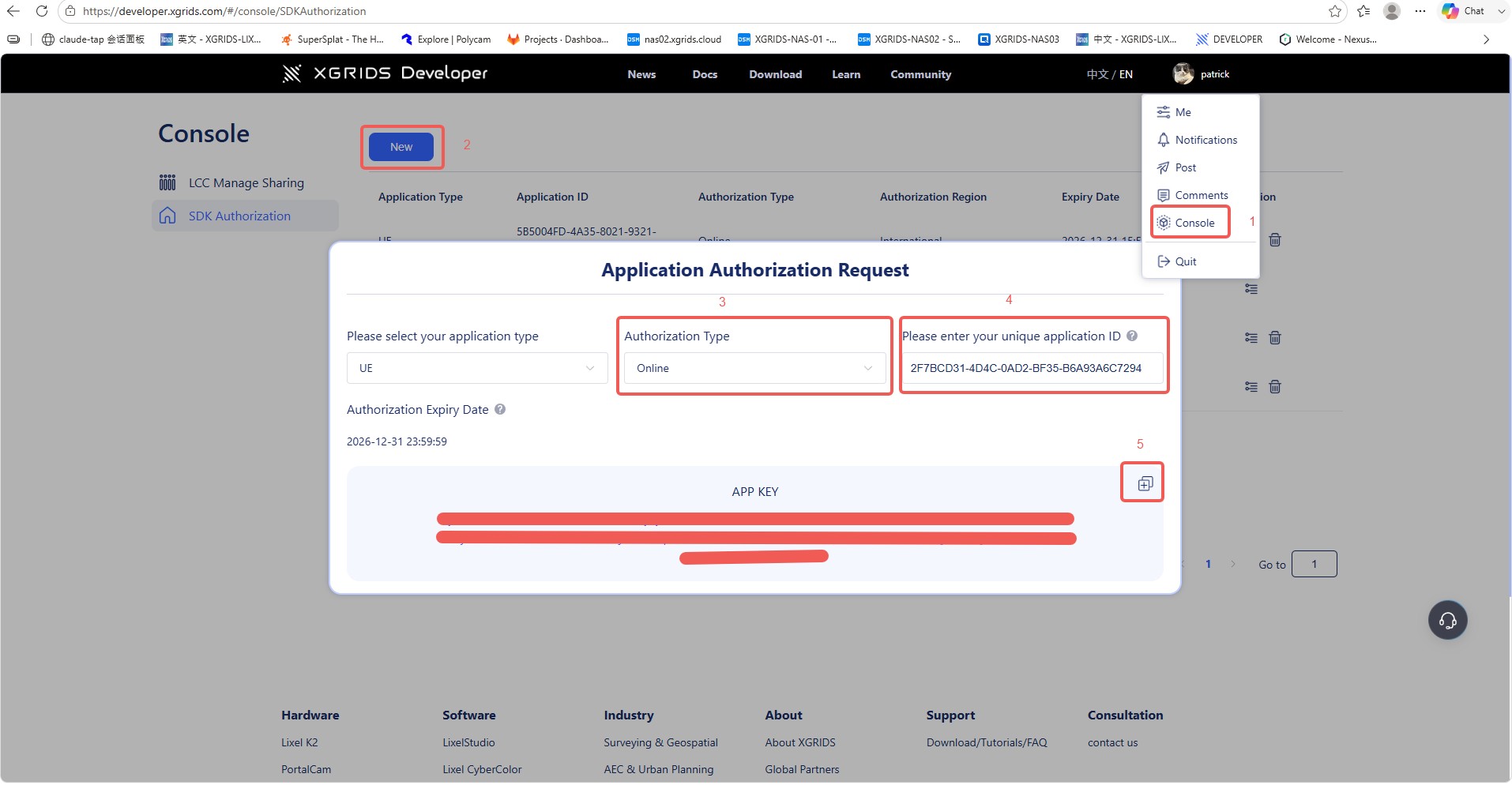
    Request an APP KEY on the XGRIDS developer platform

    Request and copy the APP KEY under SDK Authorization in the XGRIDS developer platform Console

  2. Return to the plugin and paste the received key in the App Key area.

  3. Click Apply.

The App Key is bound to the AppId and is saved in the project configuration after registration. The same project uses it on Windows, Linux, and Quest3, with no need to register again per platform.

Note: confirm the license is still valid before packaging for release, otherwise the restricted features in the packaged output fall back to free edition behavior.

Verify the License Status

Once the license takes effect, the Pro area of the LCC4Unreal Panel shows a licensed state.