XGRIDSDocs
  • 简体中文
  • English
  • 繁體中文
  • 日本語
  • Deutsch
  • Español
  • Italiano
  • Français
  • Русский
  • Polski
  • Nederlands
  • 简体中文
  • English
  • 繁體中文
  • 日本語
  • Deutsch
  • Español
  • Italiano
  • Français
  • Русский
  • Polski
  • Nederlands
  • Lixel PortalCam Series

    • PortalCam P1

      • Product Overview
      • Basic Operation
      • Using the LCC Scan App
      • Maintenance and Care
      • FAQ
  • Lixel K Series

    • Lixel K1

      • Product Overview
      • Basic Operation
      • Device Activation and Connection
      • Scanning Workflow
      • Acquire Point Cloud Data with Absolute Coordinate
      • Map Fusion
      • Route Planning Suggestions for Typical Scenes
      • Precautions
      • FAQ
    • Lixel K2

      • Product Overview
      • Basic Operation
      • Device Activation and Connection
      • Scanning Workflow
      • Acquire Point Cloud Data with Absolute Coordinate
      • Map Fusion
      • Route Planning Suggestions for Typical Scenes
      • Precautions
      • FAQ
  • Lixel L Series

    • Lixel L2 Pro

      • Product Overview
      • Basic Operation
      • Device Activation and Connection
      • Scanning Workflow
      • Acquire Point Cloud Data with Absolute Coordinate
      • Measure Point
      • Appendix
      • FAQ
    • Lixel L3

      • Product Overview
      • Basic Device Functions
      • Device Activation and Connection
      • Data Capture
      • Capturing Absolute Coordinates
      • Appendix
      • FAQ
  • Accessories

    • Stick Light

      • Installation Guide
      • Basic Operation
      • FAQ
  • Lixel Studio

    • Version and Copyright
    • Installation and Activation
    • Software Interface
    • File Operations
    • Project Processing
    • Tools
    • 2D Drawing
    • Applications
    • Settings
    • Device Connection
    • FAQ
    • Usage Tips

      • Data Flow Overview
      • Software Licensing Guide
      • Understanding Scanner Accuracy Specifications
  • Lixel CyberColor

    • LCC Studio

      • Getting Started
      • Version and Updates
      • Download and Installation
      • Interface Overview and Navigation
      • Before Reconstruction
      • Model Reconstruction
      • Single Model Reconstruction
      • Map Fusion
      • Aerial-Ground Fusion
      • Aerial Reconstruction
      • My Models
      • Other Features
      • Settings and Account
      • Converter
      • Publish to Third-Party Platforms
      • Video Reconstruction
      • FAQ
    • LCC Scene Editor

      • Version & Updates
      • Account & Login
      • Product Overview & Home
      • Editor Interface
      • Scene Navigation Modes
      • File
      • Settings
      • Edit Operations
      • Window
      • Global Toolbar
      • Assets & Properties
      • Left Toolbar
      • Viewpoints
      • Portal
      • Skybox
      • Annotations
      • Measurement
      • Flythrough
      • Scene Report
      • 3D Layout
      • Mini-Map
      • Preview Mode (Viewer)
      • Help
      • FAQ
      • Spawn Point
    • LCC Model Editor

      • Version and Updates
      • User Guide
      • Overview and Interface
      • File Operations
      • Selectors
      • Editing Operations
      • Measurement
      • Color Grading
      • Asset Management
      • Settings and Help
      • FAQ
    • Capture Guide

      • Overview
      • Capture Devices Overview
      • General Capture Principles
      • Indoor Scene Capture
      • Outdoor Scene Capture
      • Large-Scale Capture (Map Fusion)
      • Aerial-Ground Map Fusion Capture
      • Object Capture
      • People Capture
      • Video Reconstruction Capture
      • HD Enhancement
      • Control Points (Lixel P1)
      • FAQ and Troubleshooting
    • LCC Studio Linux

      • Product Overview
      • Architecture Guide
      • Installation and Deployment Guide
      • Container Startup Parameters Guide
      • CodeMeter Offline Licensing Deployment Guide
      • API Reference
      • Appendix - Developer Data Guide
      • Appendix - Error Code List
      • Single-Machine Multi-GPU Cluster Deployment QuickStart
    • Best Practices

      • Merging Multiple Large 3DGS Models
      • Aerial-Ground Map Fusion Workflow
      • Data Flow Overview
      • Software Licensing Guide
    • Version History
  • Plugin & SDK

    • Unreal

      • Introduction
      • Quick Start - Windows
      • Quick Start - Linux
      • Quick Start - Quest3
      • Editions and Licensing
      • Rendering
      • Tiled Rasterization (Experimental)
      • Visual Settings
      • Normals and Lighting
      • Scene Editing
      • Performance Parameters
      • Performance Guide
      • Third-party and Engine Plugin Integration
      • Proxy Mesh
      • Loading Animation
      • Collision
      • Navigation System Support
      • Single Layer Water Support
      • Localization
      • FAQ
      • Troubleshooting
      • Logging and Diagnostics
      • Contact Us
      • Best Practices

        • Relighting 3DGS with a LixelStudio Mesh
        • Per-camera Independent Rendering
      • API Reference

        • ALCCActorBase
        • ULCCComponentBase
        • ULCCComponent
        • ULCC2Component
        • SOG / SPZ / PLY Actors
        • ALCC2ProxyMesh
        • ALCCClippingVolume
        • ALCCSectionPlane
        • ALCCLoadVolume
        • ULCCUtilLibrary
        • Enums
        • Structs
      • Changelog

        • v3.5.0
        • v3.4.0
        • v3.3.1
        • v3.0.0
        • v2.2.1
        • v1.0.0
        • v0.9.0
        • v0.8.0
        • v0.7.1
        • v0.6.1
        • v0.5.2
        • v0.4.1
        • v0.4.0
        • v0.3.0
        • v0.0.5
        • v0.0.4
        • v0.0.3
        • v0.0.2
        • v0.0.1
    • Unity

      • Unity SDK Introduction
      • Technical Features
      • Development Environment Requirements
      • PC Quick Start Guide
      • Project Settings Optimization Guide
      • Pico 4 Ultra Development Guide
      • Pico 4 Ultra PC Streaming Guide
      • Quest 3 Development Guide
      • Quest 3 PC Streaming Guide
      • OpenXR Development Guide
      • Pico 4 Ultra Business Streaming Guide
      • Glossary
      • FAQ
      • Contact Us
      • Feature Development Guide

        • Multi-Scene Mixed Rendering Development Guide
        • Shadow Receiving Development Guide
        • Real-Time Lighting Development Guide
        • Multi-Camera Rendering Development Guide
        • High-Resolution Image Rendering Development Guide
        • LCC and LCC2 Data Format Compatibility Development Guide
        • Loading Effect Development Guide
        • Mip Rendering Mode Switching Development Guide
        • Edge and Corner Snapping Development Guide
        • Projected Decal Development Guide
        • Video Projected Decal Development Guide
        • Highlight Development Guide
        • Real-Time Clipping Development Guide
        • Color Adjustment Development Guide
        • Getting Scene Mesh Data Development Guide
        • Editor Mode Development Guide
        • Render Performance Parameter Configuration Guide
        • Application and Data Co-packaging Development Guide
        • Collision System Development Guide
        • macOS Development Permission Issue Guide
        • iOS Device Compilation and Packaging Development Guide
      • API Reference

        • LCCManager
        • Renderer
        • Data Types
      • Changelog

        • v2.3.0
        • v2.2.10
        • v2.2.0
        • v2.1.19
        • v2.0.14
    • Web

      • Introduction
      • Rendering Performance Optimization Guide
      • Graphics Configuration
      • WebGPU Development Guide
      • FAQ
      • API Reference

        • LCCObject::checkRenderNextFrame
        • LCCObject::clearRenderNextFrame
        • LCCObject::ecef2Prj
        • LCCObject::getBounds
        • LCCObject::getEnvInstancedMesh
        • LCCObject::getInstancedMesh
        • LCCObject::getLodInfos
        • LCCObject::getOriginPosition
        • LCCObject::getProjectionCoordinateSystemInfos
        • LCCObject::hasCollision
        • LCCObject::hasEnvironment
        • LCCObject::hasShcoef
        • LCCObject::intersectsCapsule
        • LCCObject::intersectsRayExt
        • LCCObject::intersectsRayFromOriginExt
        • LCCObject::intersectsSphere
        • LCCObject::lowerToBottom
        • LCCObject::prj2Ecef
        • LCCObject::raiseToTop
        • LCCObject::raycast
        • LCCObject::raycastFromOrigin
        • LCCObject::setAlpha
        • LCCObject::setClipBox
        • LCCObject::setClipPlane
        • LCCObject::setClipPrism
        • LCCObject::setEndLod
        • LCCObject::setLodAutoLevelUp
        • LCCObject::setMaxDistance
        • LCCObject::setMaxNodeSplats
        • LCCObject::setMaxSplats
        • LCCObject::setMipFilter
        • LCCObject::setOriginPosition
        • LCCObject::setPointsColor
        • LCCObject::setRenderState
        • LCCObject::setRotation
        • LCCObject::setScale
        • LCCObject::setSemantic
        • LCCObject::setSemanticColor
        • LCCObject::setSmooth
        • LCCObject::setStartLod
        • LCCObject::setTranslation
        • LCCObject::setVisible
        • LCCObject::togglePointsDisplayMode
        • LCCObject::useEnvironment
        • LCCObject::useShcoef
        • LCCRender::clearIndexDB
        • LCCRender::dispose
        • LCCRender::load
        • LCCRender::setCamera
        • LCCRender::unload
        • LCCRender::update
      • Changelog

        • v0.6.4
        • v0.6.3
        • v0.6.2
        • v0.6.1
        • v0.6.0
        • v0.5.5
        • v0.5.4
        • v0.5.3
        • v0.5.2
        • v0.5.1
        • v0.5.0
        • v0.4.1
        • v0.4.0
        • v0.3.1
        • v0.3.0
        • v0.2.0
    • Lixel OpenAPI

      • Overview
      • Connection & Authentication
      • Message Model & Codec
      • Interface Catalog
      • Real-time Data
      • Project File Access
      • Error Codes
      • Python

        • Quick Start
        • Client Wrapper & Tools
        • FAQ
      • C++

        • Quick Start
        • Client & Examples
        • FAQ
  • API

    • Structured Spatial Modeling

      • Access Guide
      • Modeling Workflow
      • API Reference
      • Temporary Upload Credentials
      • Error Codes

Viewpoints

The Viewpoints module lets you preset key observation points and automatic roaming paths in the scene. Three types are supported: Tour / Roaming / Zone Viewpoints.

Note: Viewpoint data from previous versions is not compatible with the current version. If a project contains legacy viewpoint data, a warning will appear indicating the data cannot be read and must be recreated.
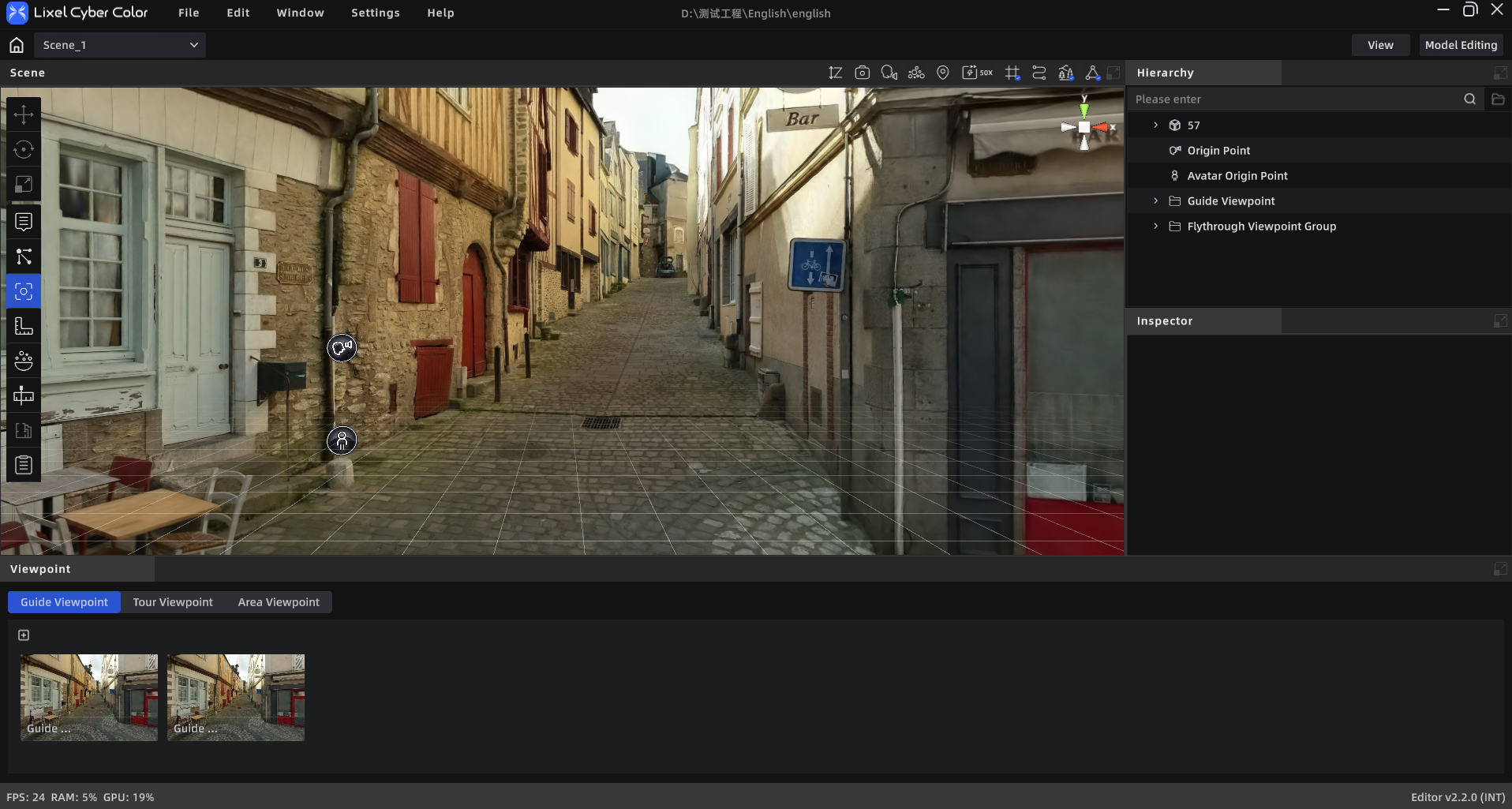
Viewpoints Module

Viewpoints Module

Opening the Viewpoints Editor

Click the "Viewpoints" icon in the left toolbar to open the bottom sidebar. The sidebar has three tabs: Tour, Roaming, and Zone Viewpoints.


Tour

Preset multiple observation points in the scene. In Preview Mode, clicking a point instantly jumps to that preset angle.

Creating a Tour Point

  1. Switch to the "Tour" tab
  2. Adjust the camera to the desired position and orientation
  3. Click "Add Point"
  4. Set parameters in the properties panel

Tour Point Properties

PropertyDescription
Point NameRequired, ≤50 characters
Intro TitleOptional, ≤50 characters
Intro TextOptional, ≤300 characters
Camera MotionStatic (default) / Left to Right / Right to Left
Motion Angle0°–360°
Positionx, y, z
Lock PointWhen locked, unaffected by "Apply to All Tour Points"
  • Click "Apply this point's settings to all tour points" to batch-apply current settings to other unlocked points.

Tour in Preview Mode

  • Markers in the scene represent tour viewpoints
  • Hover to show the title
  • Click to move the camera to that viewpoint

Roaming

Draw a continuous path and generate an automatic roaming animation.

Automatically Generate Roaming Viewpoints and Routes (New in V2.3.0)

Select POV viewpoints and place markers in LixelGO or LCC Scan. After reconstruction is complete, Scene Editor automatically generates roaming viewpoints and routes from the marker data, reducing the need to create path points manually.

Device Compatibility: K1 and L2 Pro devices do not currently support this feature.

After generation, you can view the viewpoints and route in the roaming route list, then adjust the point order and properties as needed.

Route Management

  • All roaming routes are listed vertically
  • Click "New Route" at the top to create one; up to 10 routes
  • Hover over a route to reveal a delete button (requires confirmation)

Route Properties

PropertyDescription
Route Name≤50 characters

Drawing a Roaming Path

  1. Select a route
  2. Manually move the camera to the desired position and orientation
  3. Click "Add Point" to save the current angle as a path point (a thumbnail is captured automatically)
  4. Repeat steps 2–3 to add more points
  • New points are appended to the end of the route and smoothly connected to the previous point.

Point List

  • A horizontally scrollable thumbnail list appears at the bottom of the sidebar
  • Click a thumbnail: camera flies to that viewpoint
  • Long-press and drag: reorder points
  • Hover to reveal a delete button

Roaming Point Properties

CategoryPropertyDescription
BasicPoint Name≤50 characters, required
IntroTitleOptional, ≤50 characters
IntroIntro TextOptional, ≤300 characters
RoamingDwell DurationNumber input (seconds), min 0.1, default 3
RoamingTransition DurationTransition time from this point to the next
RoamingTransition TypeLinear (smooth) / Instant (cut)
CameraCamera MotionStatic / Left to Right / Right to Left
CameraMotion Angle0°–360°
—Lock PointWhen locked, unaffected by batch apply

Shortcuts:

ShortcutAction
SpacePlay / Pause from the current position
→ (Right arrow)Jump to the start of the next shot
← (Left arrow)Jump to the start of the previous shot

Render Video

After selecting a route, export the roaming path as a video file.

ParameterOptions
Resolution1080p / 2K / 4K
Frame Rate30 / 60 FPS
Export FormatMP4
CodecH.264 / H.265
Save LocationLocal folder / Media render group
ModeGaussian / Point cloud

Note: The Render button is grayed out when no points have been added to the route.

Roaming in Preview Mode

  • The roaming path plays automatically when entering Preview Mode (if one exists)
  • To pause: click the pause button
  • Resume from breakpoint: after pausing, click play to continue from the nearest point
  • Loop: automatically restarts from the beginning after the last viewpoint

Note: Roaming playback and annotation features are mutually exclusive; annotation functions are automatically disabled during playback.


Zone Viewpoints

Record positioned views that include a line-of-sight range. Can be used as screenshot sources for scene reports.

Zone Viewpoint Properties

PropertyDescription
Title≤50 characters
Positionx, y, z
Zone Length / WidthNumber stepper
AreaRead-only, auto-calculated