
Color Grading
Color Grading adjusts the color appearance of a model or selection. It uses a real-time preview plus Apply workflow. Moving a slider does not immediately modify the model data.
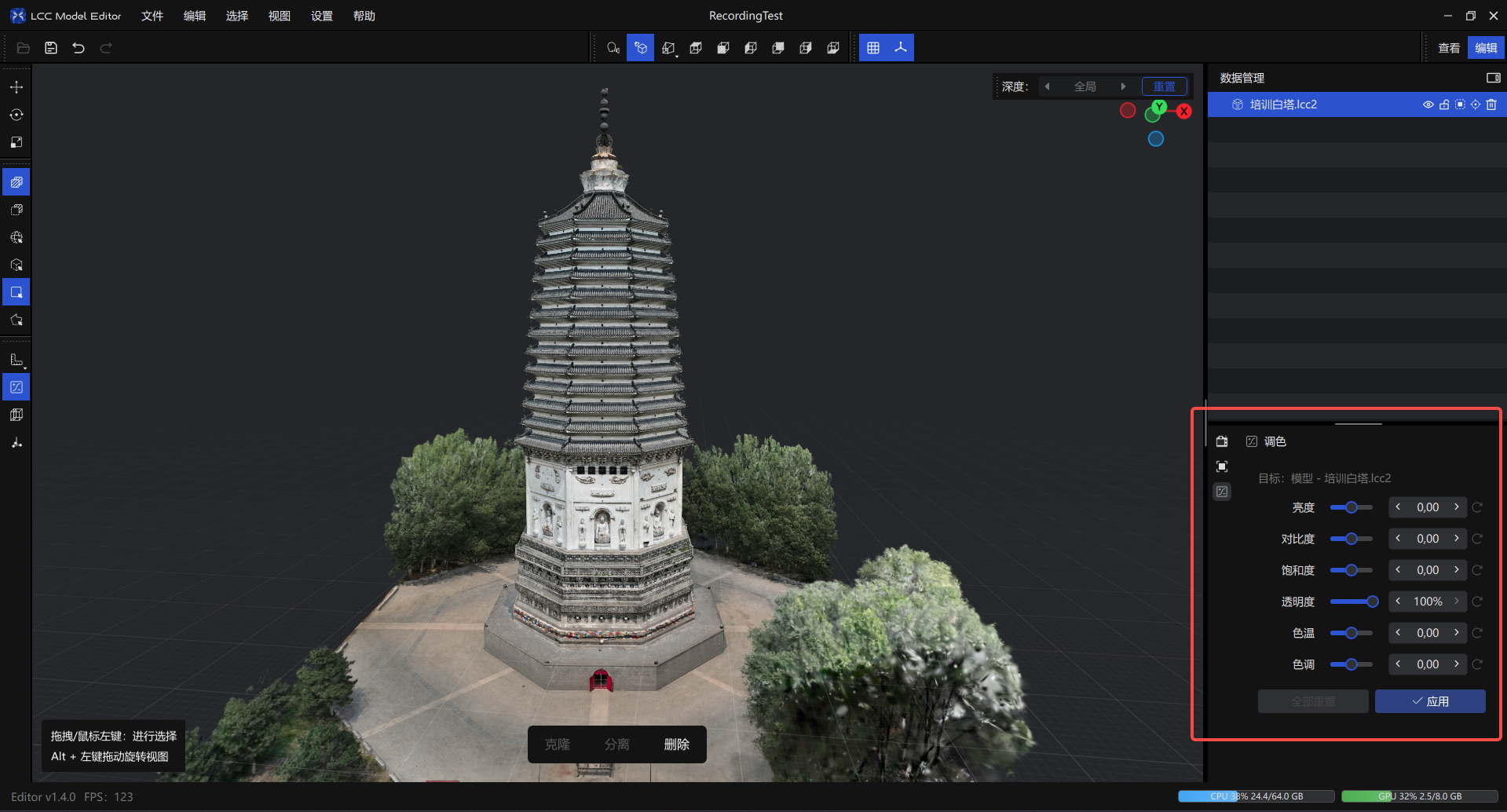
Color grading panel
Entry
In Edit mode, click Color Grading in the top toolbar to open the color grading panel.
Color Grading supports two types of targets:
- Selection grading: When a valid editable selection exists, grading applies only to the selection. The selection takes priority over a model selected in the asset list.
- Model grading: When there is no valid selection, grading applies to a single model or group selected in the asset list.
The following cannot be valid color grading targets:
- Multiple valid models are selected.
- The selected model is locked.
- The model is empty, or all Gaussian points in the model have been deleted.
- The selected group contains no editable child model.
Color Grading Properties
| Property | Default | Range |
|---|---|---|
| Brightness | 0 | -1.00 ~ 1.00 |
| Contrast | 0 | -1.00 ~ 1.00 |
| Saturation | 0 | -1.00 ~ 1.00 |
| Opacity | 100% | 0% ~ 100% |
| Temperature | 0 | -1.00 ~ 1.00 |
| Tint | 0 | -1.00 ~ 1.00 |
How to Use
- Enter Edit mode and confirm that a model has been imported.
- Select a model or use a selector to create a selection.
- Click Color Grading in the top toolbar to open the panel.
- Drag the sliders to adjust the properties. The model displays the preview in real time.
- Click Apply to write the preview result to the model data.
Handling the Preview
- Apply: Applies the current color grading result and writes it to the edit history.
- Reset: Restores the current preview to the default parameters and discards the unapplied color grading result.
- Cancel: Cancels the current switch operation, keeps the current preview, and returns to the Color Grading tool for continued editing.
- If an unapplied preview exists before saving, exporting, undoing, redoing, or switching to another tool, the system asks you to choose Apply or Reset.
- Click Apply when color grading is complete. Adjusting sliders alone does not automatically save the result to model data.
Color Grading Rules
- When grading a selection, only the selected editable Gaussian points are modified.
- When grading a model or group, the operation applies to editable content in the target model.
- Locked models cannot be grading targets. Locked child models in a group are skipped.
- After the selection is cleared, the grading target is recalculated from valid selections in the asset list.
- Undo or redo can change the selection and color grading target. The system refreshes the color grading panel for the current target.
Use Cases
Single-Model Grading
Select one editable model in the asset list, open Color Grading, and adjust the parameters.
Use case: Correcting an overall color cast, unifying the scene style, or adjusting the opacity of one model.
Region Grading
Use a selector to select a local region, then open Color Grading and adjust the parameters.
Use case: Local color correction, correcting exposure differences between regions, or applying a local style adjustment.