XGRIDSDocs
  • 简体中文
  • English
  • 繁體中文
  • 日本語
  • Deutsch
  • Español
  • Italiano
  • Français
  • Русский
  • Polski
  • Nederlands
  • 简体中文
  • English
  • 繁體中文
  • 日本語
  • Deutsch
  • Español
  • Italiano
  • Français
  • Русский
  • Polski
  • Nederlands
  • Lixel PortalCam Series

    • PortalCam P1

      • Product Overview
      • Basic Operation
      • Using the LCC Scan App
      • Maintenance and Care
      • FAQ
  • Lixel K Series

    • Lixel K1

      • Product Overview
      • Basic Operation
      • Device Activation and Connection
      • Scanning Workflow
      • Acquire Point Cloud Data with Absolute Coordinate
      • Map Fusion
      • Route Planning Suggestions for Typical Scenes
      • Precautions
      • FAQ
    • Lixel K2

      • Product Overview
      • Basic Operation
      • Device Activation and Connection
      • Scanning Workflow
      • Acquire Point Cloud Data with Absolute Coordinate
      • Map Fusion
      • Route Planning Suggestions for Typical Scenes
      • Precautions
      • FAQ
  • Lixel L Series

    • Lixel L2 Pro

      • Product Overview
      • Basic Operation
      • Device Activation and Connection
      • Scanning Workflow
      • Acquire Point Cloud Data with Absolute Coordinate
      • Measure Point
      • Appendix
      • FAQ
    • Lixel L3

      • Product Overview
      • Basic Device Functions
      • Device Activation and Connection
      • Data Capture
      • Capturing Absolute Coordinates
      • Appendix
  • Lixel Studio

    • Version and Copyright
    • Installation and Activation
    • Software Interface
    • File Operations
    • Project Processing
    • Tools
    • 2D Drawing
    • Applications
    • Settings
    • Device Connection
    • FAQ
  • Lixel CyberColor

    • LCC Studio

      • Getting Started
      • Version and Updates
      • Download and Installation
      • Interface Overview and Navigation
      • Before Reconstruction
      • Model Reconstruction
      • Single Model Reconstruction
      • Map Fusion
      • Aerial-Ground Fusion
      • Aerial Reconstruction
      • My Models
      • Other Features
      • Settings and Account
      • Converter
      • Video Reconstruction
      • FAQ
    • LCC Scene Editor

      • Version & Updates
      • Account & Login
      • Product Overview & Home
      • Editor Interface
      • Scene Navigation Modes
      • File
      • Settings
      • Edit Operations
      • Window
      • Global Toolbar
      • Assets & Properties
      • Left Toolbar
      • Viewpoints
      • Portal
      • Skybox
      • Annotations
      • Measurement
      • Flythrough
      • Scene Report
      • 3D Layout
      • Mini-Map
      • Preview Mode (Viewer)
      • Help
      • FAQ
      • Spawn Point
    • LCC Model Editor

      • Version and Updates
      • User Guide
      • Overview and Interface
      • File Operations
      • Selectors
      • Editing Models
      • Measurement
      • Color Grading
      • Asset Management
      • Settings and Help
      • FAQ
    • Capture Guide

      • Overview
      • Capture Devices Overview
      • General Capture Principles
      • Indoor Scene Capture
      • Outdoor Scene Capture
      • Large-Scale Capture (Map Fusion)
      • Aerial-Ground Map Fusion Capture
      • Object Capture
      • People Capture
      • Video Reconstruction Capture
      • HD Enhancement
      • Control Points (Lixel P1)
      • FAQ and Troubleshooting
    • LCC Studio Linux

      • Product Overview
      • Architecture Guide
      • Installation and Deployment Guide
      • Container Startup Parameters Guide
      • CodeMeter Offline Licensing Deployment Guide
      • API Reference
      • Appendix - Developer Data Guide
      • Appendix - Error Code List
      • Single-Machine Multi-GPU Cluster Deployment QuickStart
    • Best Practices

      • Merging Multiple Large 3DGS Models
    • Version History
  • Plugin & SDK

    • Unreal

      • Introduction
      • Quick Start - Windows
      • Quick Start - Linux
      • Quick Start - Quest3
      • Editions and Licensing
      • Rendering
      • Tiled Rasterization (Experimental)
      • Visual Settings
      • Normals and Lighting
      • Scene Editing
      • Performance Parameters
      • Performance Guide
      • Third-party and Engine Plugin Integration
      • Proxy Mesh
      • Loading Animation
      • Collision
      • Navigation System Support
      • Single Layer Water Support
      • Localization
      • FAQ
      • Troubleshooting
      • Logging and Diagnostics
      • Contact Us
      • Best Practices

        • Relighting 3DGS with a LixelStudio Mesh
        • Per-camera Independent Rendering
      • API Reference

        • ALCCActorBase
        • ULCCComponentBase
        • ULCCComponent
        • ULCC2Component
        • SOG / SPZ / PLY Actors
        • ALCC2ProxyMesh
        • ALCCClippingVolume
        • ALCCSectionPlane
        • ALCCLoadVolume
        • ULCCUtilLibrary
        • Enums
        • Structs
      • Changelog

        • v3.5.0
        • v3.4.0
        • v3.3.1
        • v3.0.0
        • v2.2.1
        • v1.0.0
        • v0.9.0
        • v0.8.0
        • v0.7.1
        • v0.6.1
        • v0.5.2
        • v0.4.1
        • v0.4.0
        • v0.3.0
        • v0.0.5
        • v0.0.4
        • v0.0.3
        • v0.0.2
        • v0.0.1
    • Unity

      • Unity SDK Introduction
      • Technical Features
      • Development Environment Requirements
      • PC Quick Start Guide
      • Project Settings Optimization Guide
      • Pico 4 Ultra Development Guide
      • Pico 4 Ultra PC Streaming Guide
      • Quest 3 Development Guide
      • Quest 3 PC Streaming Guide
      • OpenXR Development Guide
      • Pico 4 Ultra Business Streaming Guide
      • Glossary
      • FAQ
      • Contact Us
      • Feature Development Guide

        • Multi-Scene Mixed Rendering Development Guide
        • Shadow Receiving Development Guide
        • Real-Time Lighting Development Guide
        • Multi-Camera Rendering Development Guide
        • High-Resolution Image Rendering Development Guide
        • LCC and LCC2 Data Format Compatibility Development Guide
        • Loading Effect Development Guide
        • Mip Rendering Mode Switching Development Guide
        • Edge and Corner Snapping Development Guide
        • Projected Decal Development Guide
        • Video Projected Decal Development Guide
        • Highlight Development Guide
        • Real-Time Clipping Development Guide
        • Color Adjustment Development Guide
        • Getting Scene Mesh Data Development Guide
        • Editor Mode Development Guide
        • Render Performance Parameter Configuration Guide
        • Application and Data Co-packaging Development Guide
        • Collision System Development Guide
        • macOS Development Permission Issue Guide
        • iOS Device Compilation and Packaging Development Guide
      • API Reference

        • LCCManager
        • Renderer
        • Data Types
      • Changelog

        • v2.3.0
        • v2.2.10
        • v2.2.0
        • v2.1.19
        • v2.0.14
    • Web

      • Introduction
      • Rendering Performance Optimization Guide
      • Graphics Configuration
      • WebGPU Development Guide
      • FAQ
      • API Reference

        • LCCObject::checkRenderNextFrame
        • LCCObject::clearRenderNextFrame
        • LCCObject::ecef2Prj
        • LCCObject::getBounds
        • LCCObject::getEnvInstancedMesh
        • LCCObject::getInstancedMesh
        • LCCObject::getLodInfos
        • LCCObject::getOriginPosition
        • LCCObject::getProjectionCoordinateSystemInfos
        • LCCObject::hasCollision
        • LCCObject::hasEnvironment
        • LCCObject::hasShcoef
        • LCCObject::intersectsCapsule
        • LCCObject::intersectsRayExt
        • LCCObject::intersectsRayFromOriginExt
        • LCCObject::intersectsSphere
        • LCCObject::lowerToBottom
        • LCCObject::prj2Ecef
        • LCCObject::raiseToTop
        • LCCObject::raycast
        • LCCObject::raycastFromOrigin
        • LCCObject::setAlpha
        • LCCObject::setClipBox
        • LCCObject::setClipPlane
        • LCCObject::setClipPrism
        • LCCObject::setEndLod
        • LCCObject::setLodAutoLevelUp
        • LCCObject::setMaxDistance
        • LCCObject::setMaxNodeSplats
        • LCCObject::setMaxSplats
        • LCCObject::setMipFilter
        • LCCObject::setOriginPosition
        • LCCObject::setPointsColor
        • LCCObject::setRenderState
        • LCCObject::setRotation
        • LCCObject::setScale
        • LCCObject::setSemantic
        • LCCObject::setSemanticColor
        • LCCObject::setSmooth
        • LCCObject::setStartLod
        • LCCObject::setTranslation
        • LCCObject::setVisible
        • LCCObject::togglePointsDisplayMode
        • LCCObject::useEnvironment
        • LCCObject::useShcoef
        • LCCRender::clearIndexDB
        • LCCRender::dispose
        • LCCRender::load
        • LCCRender::setCamera
        • LCCRender::unload
        • LCCRender::update
      • Changelog

        • v0.6.4
        • v0.6.3
        • v0.6.2
        • v0.6.1
        • v0.6.0
        • v0.5.5
        • v0.5.4
        • v0.5.3
        • v0.5.2
        • v0.5.1
        • v0.5.0
        • v0.4.1
        • v0.4.0
        • v0.3.1
        • v0.3.0
        • v0.2.0
    • Lixel OpenAPI

      • Overview
      • Connection & Authentication
      • Message Model & Codec
      • Interface Catalog
      • Real-time Data
      • Project File Access
      • Error Codes
      • Python

        • Quick Start
        • Client Wrapper & Tools
        • FAQ
      • C++

        • Quick Start
        • Client & Examples
        • FAQ
  • API

    • Structured Spatial Modeling

      • Access Guide
      • Modeling Workflow
      • API Reference
      • Temporary Upload Credentials
      • Error Codes

3DGS Scene Clipping and Sectioning

The three tools act at different stages: clipping volumes and section planes only change the final rendering, and the data loads as usual; a load volume acts before loading, so excluded areas are never read at all.

ToolStageReduces load amount and video memoryBorder precision
Load volumesFiltering before loadYesPer node, conservative border
Clipping volumesFinal renderingNoPer splat, precise border
Section planesFinal renderingNoPer splat, precise border

Note: clipping volumes and section planes clip the rendered image only by default; collision in the clipped-away areas is still kept. When collision should be removed along with the clipping (so a character does not run into an invisible wall), enable Clip Collision; see Collision - Clip Collision Regions.

Clipping Volumes

A clipping volume can be scaled, moved, and rotated freely, which helps developers clip an LCC scene spatially.

  • A single Actor supports up to 65536 clipping volumes, limited to 50 in the free edition; see Editions and Licensing
  • Box and sphere shapes are supported, and both can be scaled, moved, and rotated

Note: clipping only affects the final rendering. Clipped-away areas still take part in node traversal, load, and video memory upload as usual. Clipping therefore cannot reduce the load amount or video memory usage; use the methods in the Performance Guide to control those costs.

Steps

  1. Place an LCCActor/LCC2Actor and load the scene.
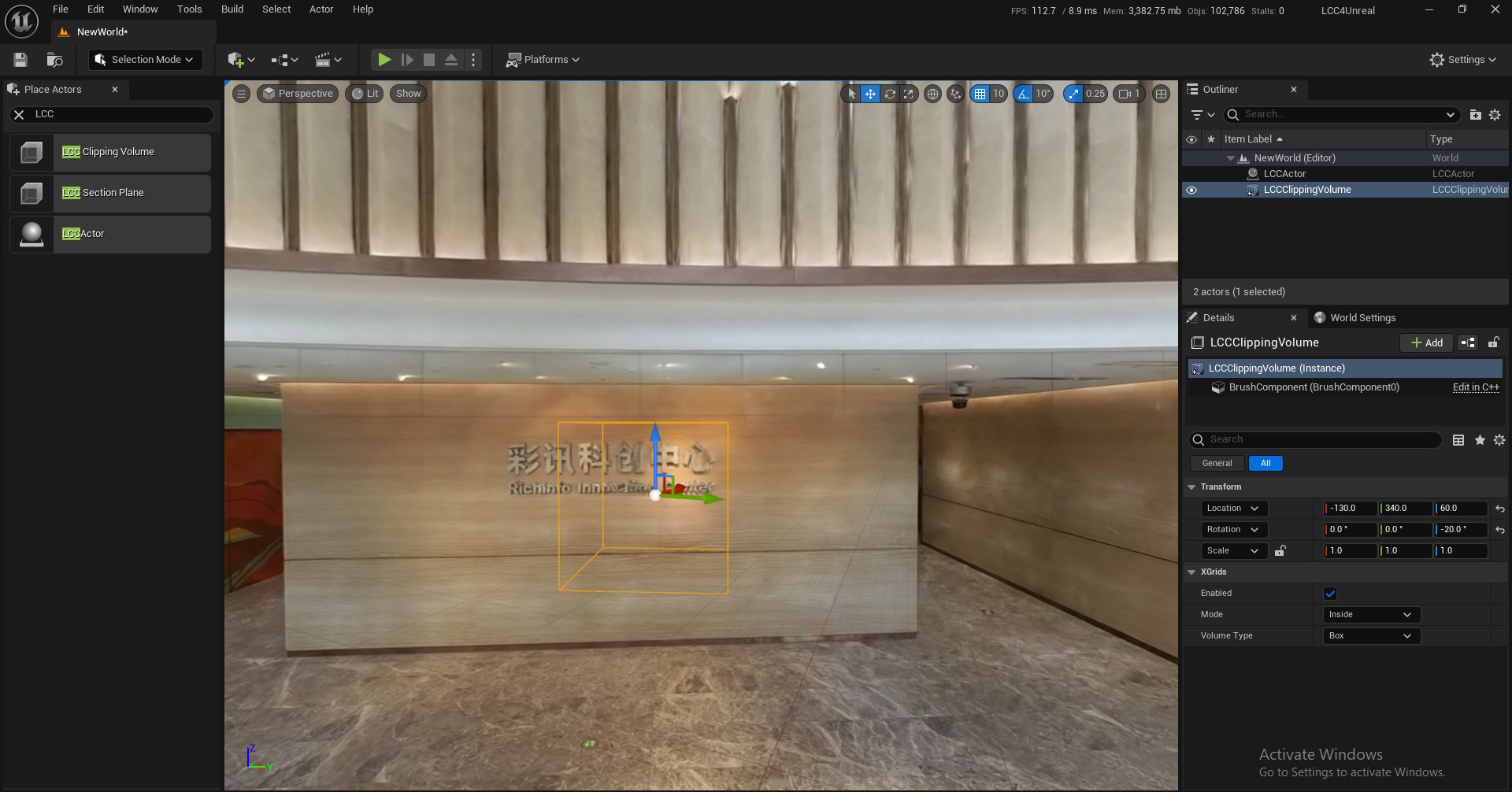
  2. Drag LCC Clipping Volume into the scene.
Placing an LCC Clipping Volume into the scene

Dragging an LCC Clipping Volume into the scene

  1. Move the clipping volume to the target position.
  2. Add the Clipping Volume to the ClippingVolumes array in the Details panel of the Actor.
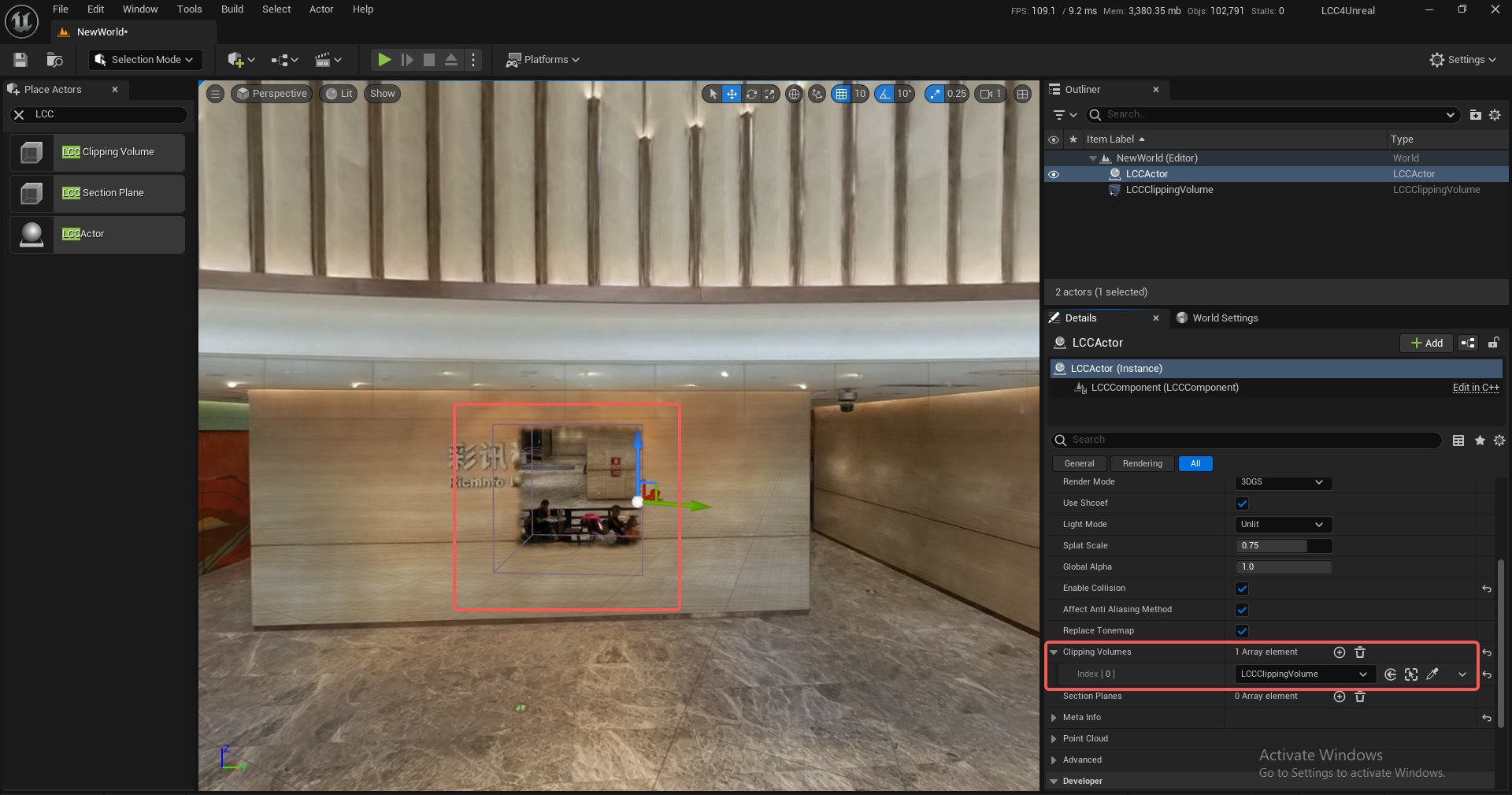
Inside clipping result of a clipping volume

The Inside clipping result of a clipping volume

Demo
Moving a clipping volume and the resulting clipping

Moving a clipping volume and observing the clipping in real time

Properties

PropertyDescription
bEnabledWhether it is enabled
ModeInside (clip inside) or Outside (clip outside)
VolumeTypeBox or Sphere

Blueprint Methods

LCCComponent → AddClippingVolume
LCCComponent → RemoveClippingVolume

Note: Refresh and SetUpdateComponent are deprecated. Clipping data is read every frame, so changing a property or moving a clipping volume takes effect on the next frame without calling them.
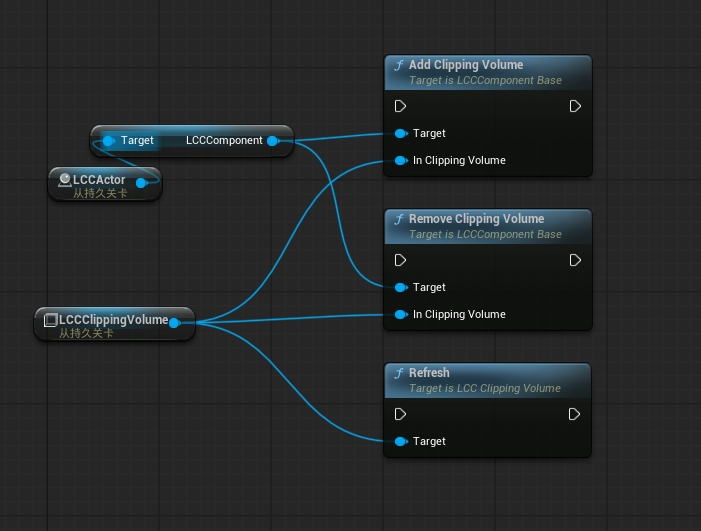
Blueprint nodes for adding, removing, and refreshing a clipping volume

Adding, removing, and refreshing a clipping volume with Blueprint nodes


Section Planes

A section plane can be scaled, moved, and rotated freely to section the scene along a plane.

  • A single Actor supports up to 65536 section planes, limited to 50 in the free edition; see Editions and Licensing
  • Sectioning upward or downward is supported, and the count is tracked separately from clipping volumes

Note: sectioning only affects the final rendering. Sectioned-away areas still take part in node traversal, load, and video memory upload as usual. Sectioning therefore cannot reduce the load amount or video memory usage.

Steps

  1. Place an LCCActor/LCC2Actor and load the scene.
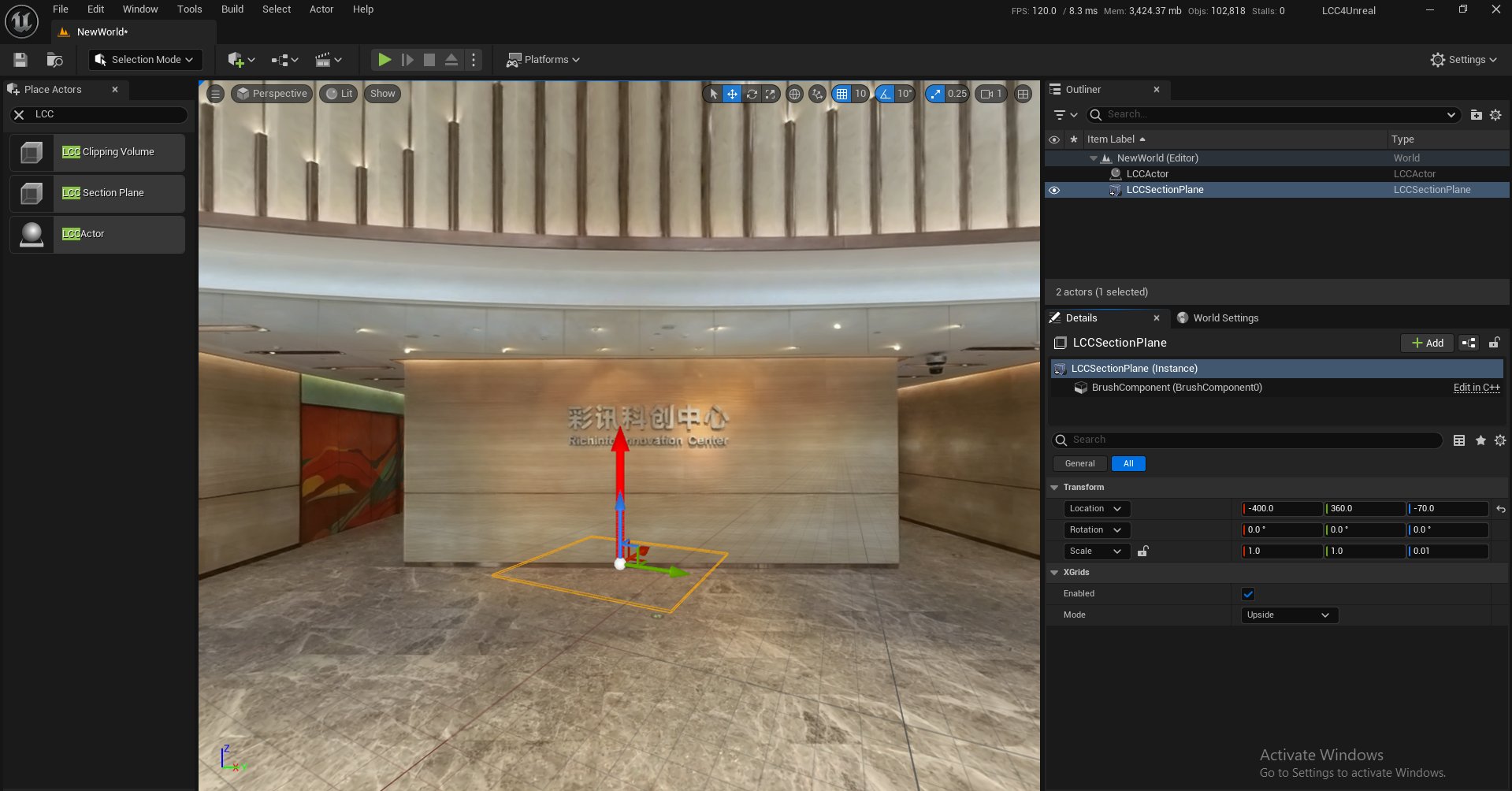
  2. Drag LCC Section Plane into the scene.
Placing an LCC Section Plane into the scene

Dragging an LCC Section Plane into the scene

  1. Move it to the target position.
  2. Add the Section Plane to the SectionPlanes array in the Details panel of the Actor.

Demo
Moving a section plane and the resulting sectioning

Moving a section plane and observing the sectioning in real time

Properties

PropertyDescription
bEnabledWhether it is enabled
ModeUpside (section upward) or Downside (section downward)

Blueprint Methods

LCCComponent → AddSectionPlane
LCCComponent → RemoveSectionPlane

Note: Refresh and SetUpdateComponent are deprecated, for the same reason as above.
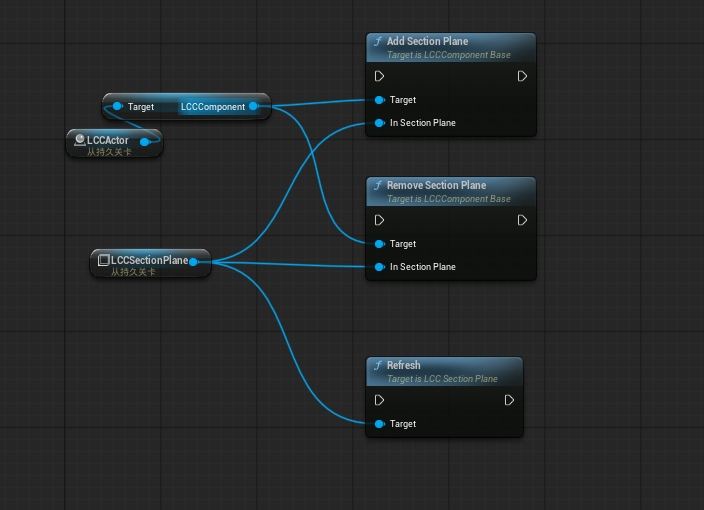
Blueprint nodes for adding, removing, and refreshing a section plane

Adding, removing, and refreshing a section plane with Blueprint nodes


Load Volumes

A load volume filters the data before it enters memory: node traversal only keeps the nodes it selects, and the data in rejected areas is never read. It is therefore the only one of the three tools in this document that genuinely reduces the load amount and video memory usage, which suits taking a small part out of a large scene.

  • Box and sphere shapes are supported, and both can be scaled, moved, and rotated freely
  • One load volume can affect multiple LCC Actors in the scene at the same time
  • A Pro edition feature; without a license it has no effect and the data loads over its full extent. See Editions and Licensing

Note: filtering works per node, so the border is coarser than a clipping volume's. When a precise border is needed, stack a clipping volume with the same transform on top: the load volume reduces the load amount and the clipping volume trims the edge.

Steps

  1. Place an LCCActor/LCC2Actor.
  2. Drag LCC Load Volume into the scene.
  3. Adjust position, rotation, and scale so the volume frames the range to keep.
  4. Add the Load Volume to the LoadVolumes array in the Details panel of the Actor.
  5. Load the scene.

Note: filtering happens at load time. After loading has finished, changing the load volume requires reloading before the change is visible.

Properties

PropertyDescription
bEnabledWhether it is enabled
ModeInside (load only what is inside) or Outside (exclude what is inside)
VolumeTypeBox or Sphere

The two modes use different border tests:

ModeTestBorder behavior
InsideA node loads only when it lies entirely inside the volumeEdge nodes are dropped, so the kept range is slightly smaller than the volume
OutsideA node is excluded as soon as it overlaps the volumeEdge nodes are dropped, so the excluded range is slightly larger than the volume

Both modes are deliberately conservative, which keeps areas from popping in and out while the camera moves and the LOD switches between parent and child nodes.

Blueprint Methods

LCCComponent → AddLoadVolume
LCCComponent → RemoveLoadVolume