
Walking in a 3DGS Scene: Collision Support
LCC4Unreal supports dynamic collision data loading, so characters can move and interact freely in the 3DGS world.
Prerequisites
Collision relies on the collision file shipped with the data, and the requirements differ per format:
| Format | Collision data | Support |
|---|---|---|
.lcc | collision.lci in the data directory, collision.bin in older versions | Supported |
.lcc2 | .ply files in data/mesh/ under the data directory | Supported |
.sog / .spz / .ply | None natively; the Pro edition can derive it from the Gaussians | Supported (Pro edition) |
For .lcc and .lcc2, the plugin checks the collision file shipped with the data in the order collision.lci → collision.bin → data/mesh/*.ply, and prints a warning and disables collision when none of them exist.
Single-file formats (.sog / .spz / .ply) carry no collision data of their own. The Pro edition can automatically derive a collision mesh from the Gaussians, see Automatic Collision Generation for Single-file Models; the free edition requires building collision yourself.
After loading data, use HaveValidCollisionData() to confirm whether the current data contains usable collision data.
Note:
collision.lcirequires export from LCC Studio v1.6.1 or above; data exported by earlier versions usescollision.bin.
Loading Mechanism
Collision data is stored in spatial chunks just like render data. The plugin does not load all collision at once: it loads only the chunks within a certain range around the camera and swaps them in and out dynamically as the camera moves.
Camera position changes
      │
      ▼
Compute the set of collision chunks that should be loaded in range
      │
      ▼
Compare with the previous set ── same ──▶ skip, do nothing
      │ different
      ▼
Load the new chunks → hand them to the physics system for baking → generate collision bodies
A few implementation points:
- The load range is controlled by
Max Load Collision Distance(m), and areas beyond that distance have no collision - The first load is synchronous, which prevents the character from falling through the ground before collision is ready; every later update is asynchronous and does not block the main thread
- Updates are throttled, so collision is not rebuilt every frame while the camera moves continuously
- Updates are skipped when the visible chunk set is unchanged, so small movements in place do not trigger a rebuild
- Only the main camera is used for the calculation, and SceneCapture does not take part in collision loading
Advantages
- Memory usage depends only on the load range, not on the total data size, so collision works even for large scenes
- The number of collision bodies the physics system has to process stays under control and does not slow physics down as the scene grows
Costs and Mitigations
| Issue | Cause | Mitigation |
|---|---|---|
| The character falls through the ground the instant the game starts | Collision is not built yet | Raise PlayerStart a little, or enable character movement only after collision is ready |
| Stutter when the character enters the 3DGS scene range from far away | The character spawned outside the collision load range; the first synchronous load is triggered on entry | Place the spawn point within the collision load range, or load all collision at once |
| No collision in the distance, so line traces miss | Areas beyond the load range have no collision bodies | Raise Max Load Collision Distance(m), or switch to a check that does not rely on collision |
| No collision for a short time after teleporting or moving fast | The collision chunks of the new area are still loading | Load all collision at once |
Stutter while moving, with a high Update Collision cost | Collision chunks are swapped in and out and rebaked frequently | Reduce the load range, or confirm collision is really needed |
| The navigation mesh keeps rebuilding when used with navigation | Collision changes trigger NavMesh updates | Raise the load range so the target area loads in one pass, and use Static baking, see Navigation System Support |
Loading All Collision at Once
Most of the costs above come from swapping chunks in and out at runtime. When the scene size is limited and memory allows, raise Max Load Collision Distance(m) high enough to cover the whole scene, so all collision is built in one pass while the data loads.
Runtime swapping of collision chunks then disappears, and none of the earlier issues occur: falling through the ground, missing collision after teleporting, stutter while moving, and repeated navigation rebuilds. This is especially recommended when using the navigation system.
The cost is a longer load time at startup and a fixed memory usage equal to the collision of the whole scene. To judge whether it is feasible, check Collision Data Usage in stat xgrids and confirm the memory usage after a full load is acceptable.
Enabling
LCCComponent->SetLCCCollisionEnable(true);
Or tick bEnableCollision in the Details panel.
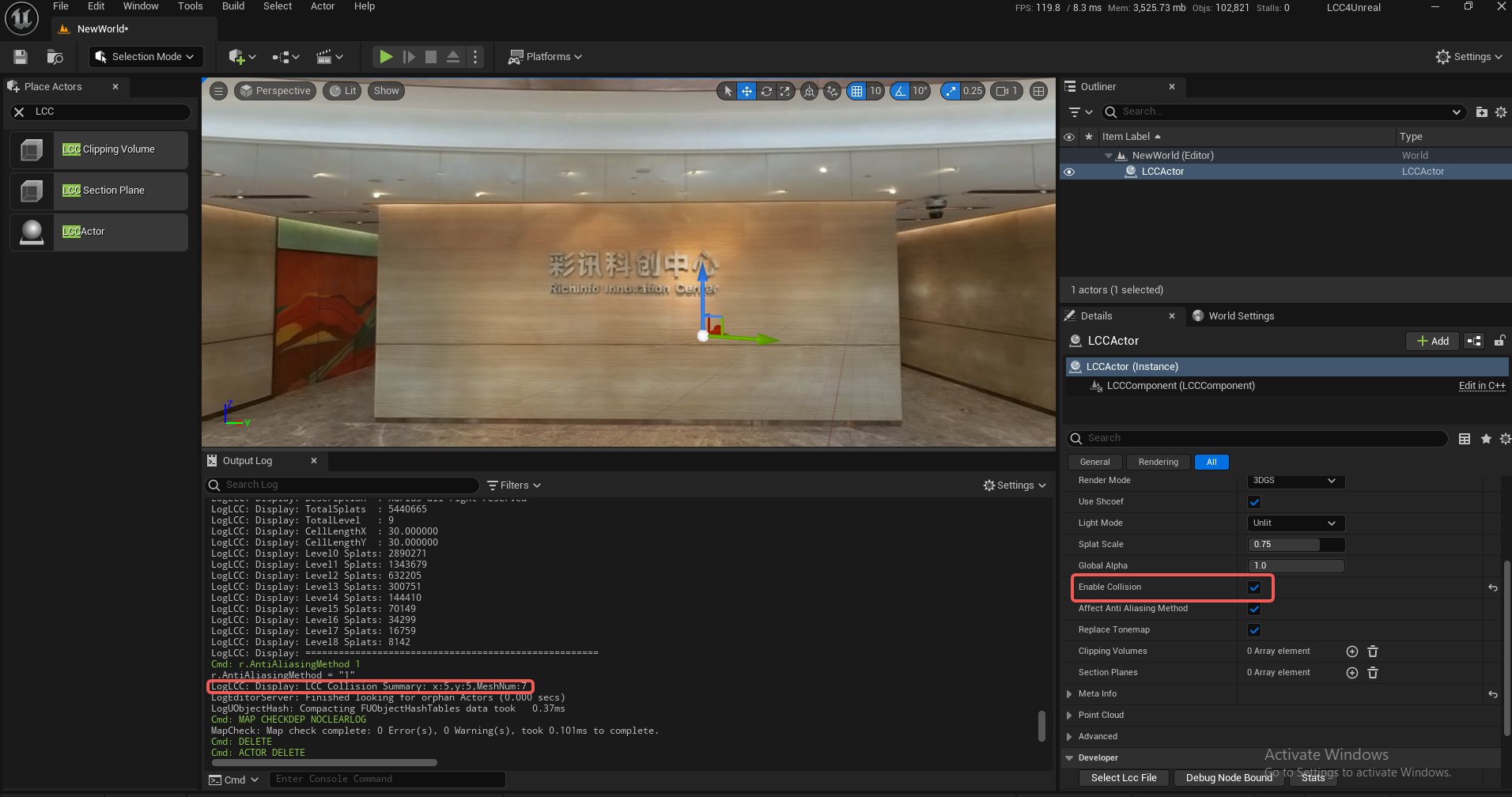
Enabling LCC collision in the Details panel
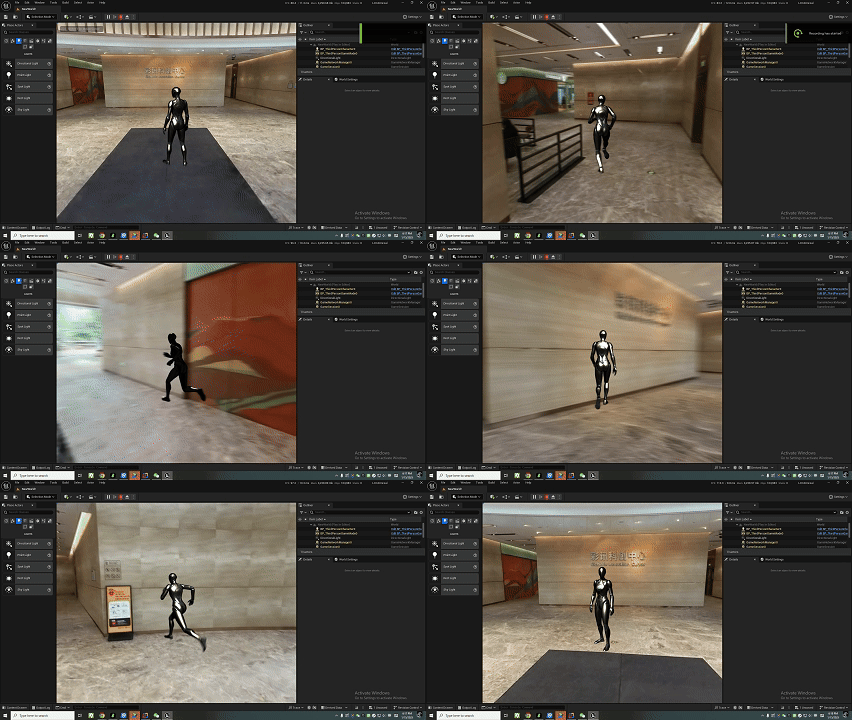
Dynamic collision of a character in an LCC scene
Verification
Use the view mode settings and select player collision or visibility collision to observe whether collision is enabled.
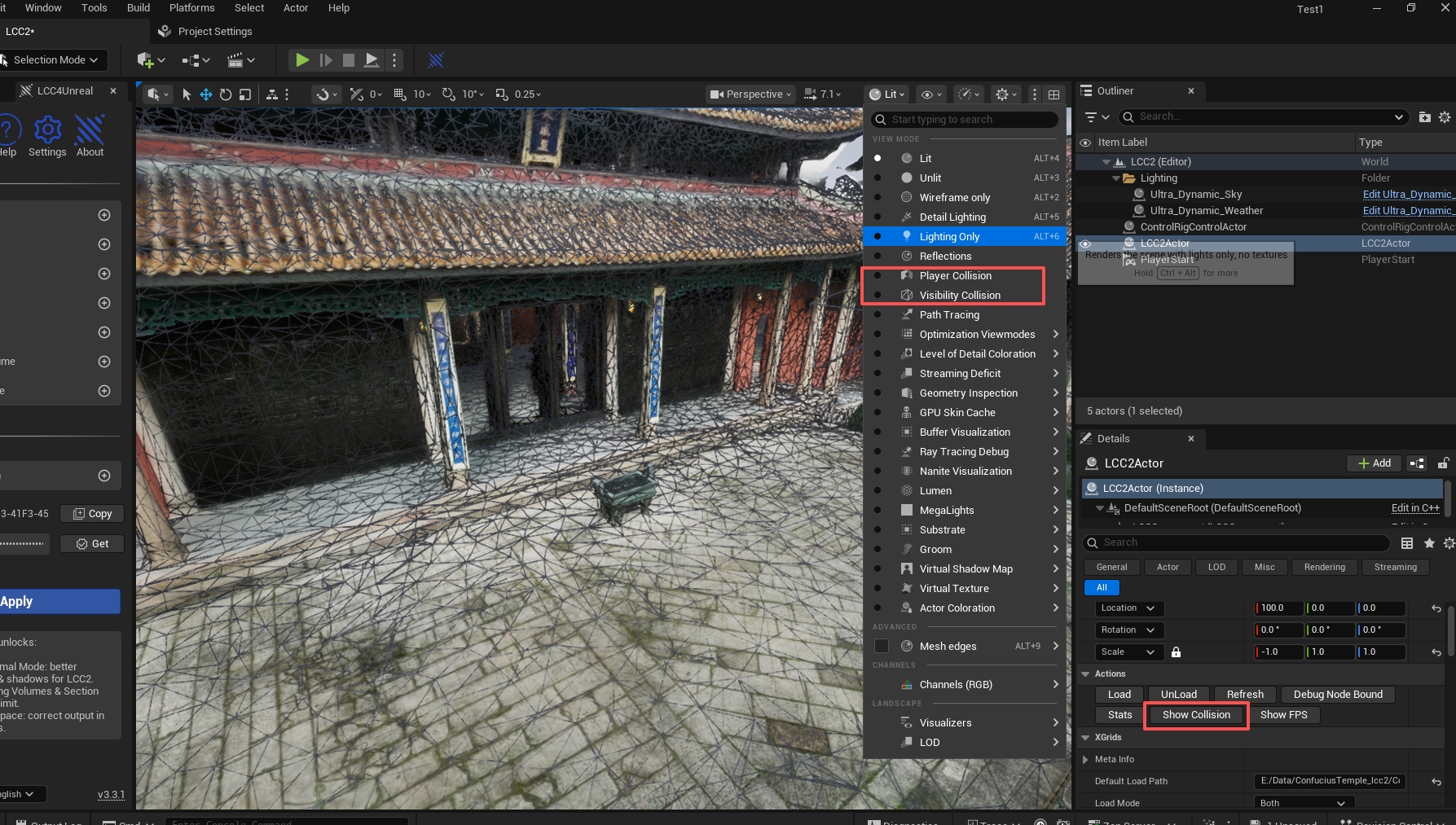
Verifying collision bodies with the player collision or visibility collision mode
Related Properties
| Property | Description |
|---|---|
| bEnableCollision | Enables collision |
| CollisionLoadMaxDistance | Maximum load distance of collision data (300 meters by default) |
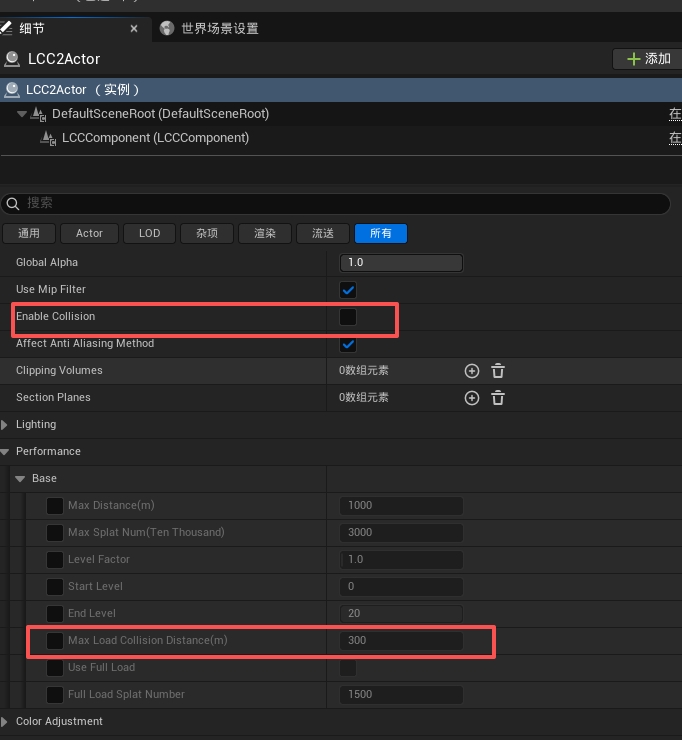
Configuring the collision enable state and the maximum load distance
Automatic Collision Generation for Single-file Models
A Pro edition feature. Single-file models (.ply / .spz / .sog) carry no collision data of their own. The plugin derives a collision mesh from the Gaussians themselves, caches it as <name>.collision.ply next to the model, and then loads and reuses it through the existing PLY collision path.
This is a Pro edition feature and only generates after an App Key is registered; see Editions and Licensing. Without a license no collision mesh is generated, and you need to build collision yourself as described in Manual Approach Without Automatic Generation.
Steps
- Tick bEnableCollision in the LCC Actor panel.
- Load a single-file model (
.ply/.spz/.sog). - The first load enters the
Generatingstate and builds the collision mesh on the spot. This takes from a few seconds to a few minutes depending on the data size; once finished it moves toLoadedand writes<name>.collision.plynext to the model. - On a later load of the same model, if the cache file exists it goes straight to
Loadedand skips generation.
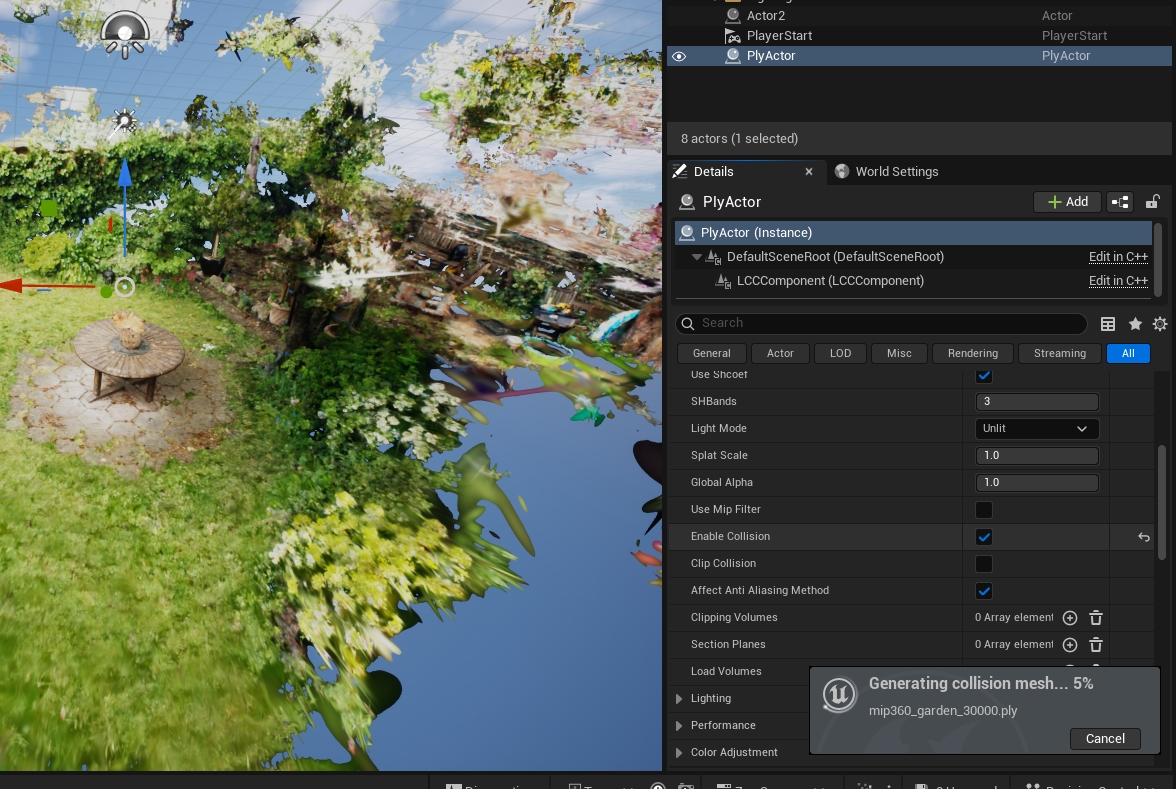
With collision enabled, a prompt appears in the bottom-right corner on the first load of a single-file model while the collision mesh is being generated
The generation and collision state can be queried with GetCollisionState() or by listening to the OnCollisionStateChanged event; for the values see ULCCComponentBase - State Query.
Tip: to avoid generation at runtime, distribute or package the generated
<name>.collision.plytogether with the model; at runtime the cache is reused directly once detected.Tip: there is no built-in UI prompt when collision is generated in a packaged game. To tell the player "generating collision", listen for the
Generatingstate ofOnCollisionStateChangedand show it yourself.Tip: a failed generation moves to the
Failedstate; the specific cause is in the Output Log, and toggling collision off and on retries it. To re-test the generation process, delete the.collision.plycache file next to the model first.
Manual Approach Without Automatic Generation
To fully control the collision shape, or when the data is not suited to derivation, you can leave automatic generation off and build collision in the scene yourself:
- Blocking Volume: use engine blocking volumes to build the ground, walls, and other areas that need to block. Suited to regular shapes and the cheapest option
- Approximate mesh: place a mesh that matches the 3DGS shape and enable its collision. Suited to scenes with complex shapes. This mesh can reuse the proxy mesh by changing its collision preset to block
Neither manual approach involves the LCC collision loading mechanism, so they are unaffected by CollisionLoadMaxDistance and are not swapped in and out as the camera moves.
Clip Collision Regions
Collision can be clipped together with clipping volumes and section planes, so the collision range matches the rendered image. A clipping volume affects rendering only by default: the clipped-away area disappears from the image but collision remains, and a character runs into an invisible wall. With Clip Collision enabled, collision is removed in the clipped region as well.
Steps
- Add and configure a clipping volume or section plane on the LCC Actor as described in Scene Editing, and confirm the rendered image is clipped as expected.
- Tick Enable Collision (bEnableCollision) in the LCC Actor panel.
- Tick Clip Collision in the panel; collision is then clipped by the clipping volume and no collision bodies are generated in the clipped-away area.
The images below use the visibility collision view mode to compare the collision wireframe before and after enabling Clip Collision. When off, collision covers the full area:
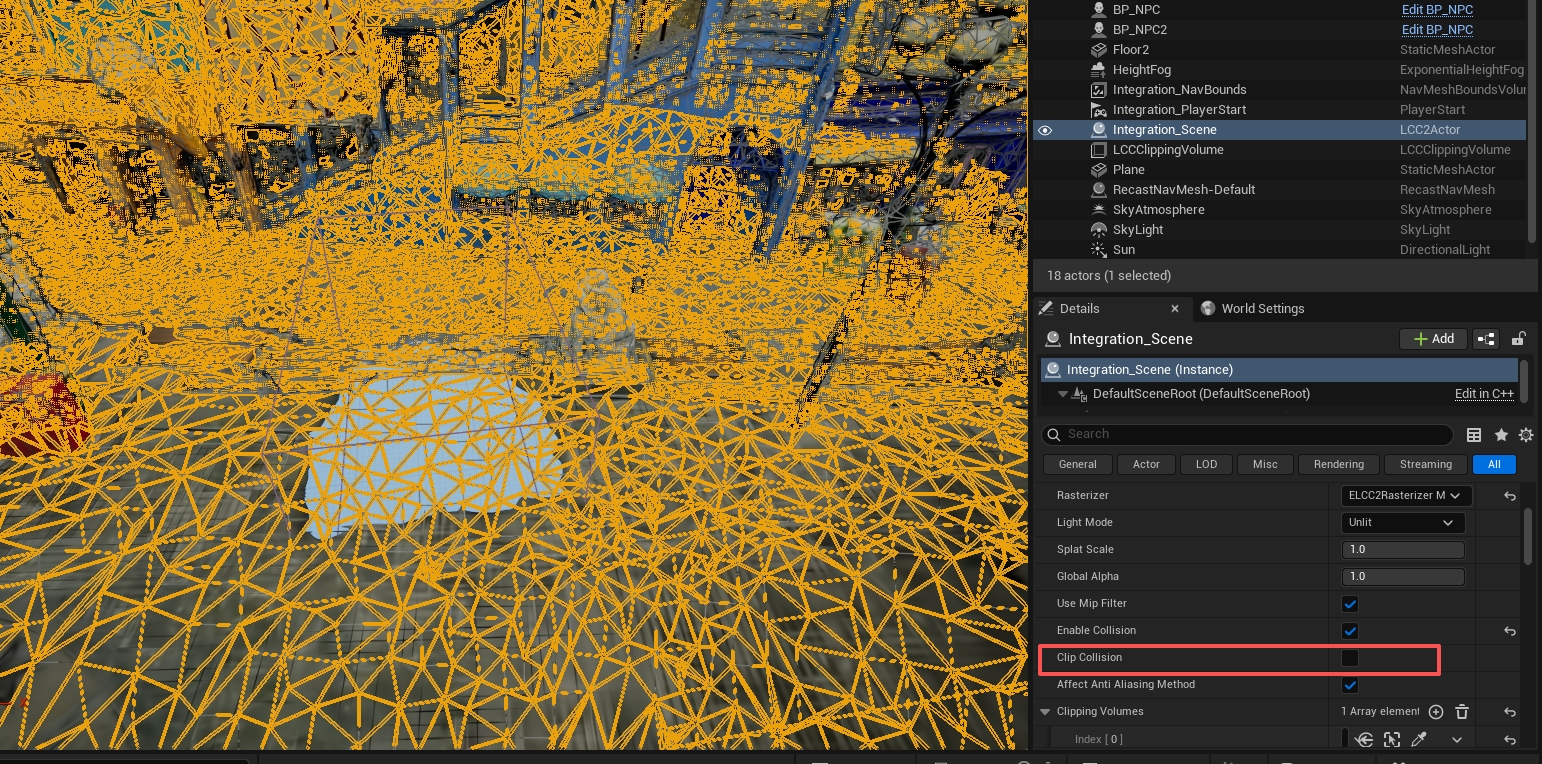
Clip Collision unchecked: the collision wireframe covers the full area
When on, the collision inside the clipping volume is clipped away as well, consistent with the rendering:
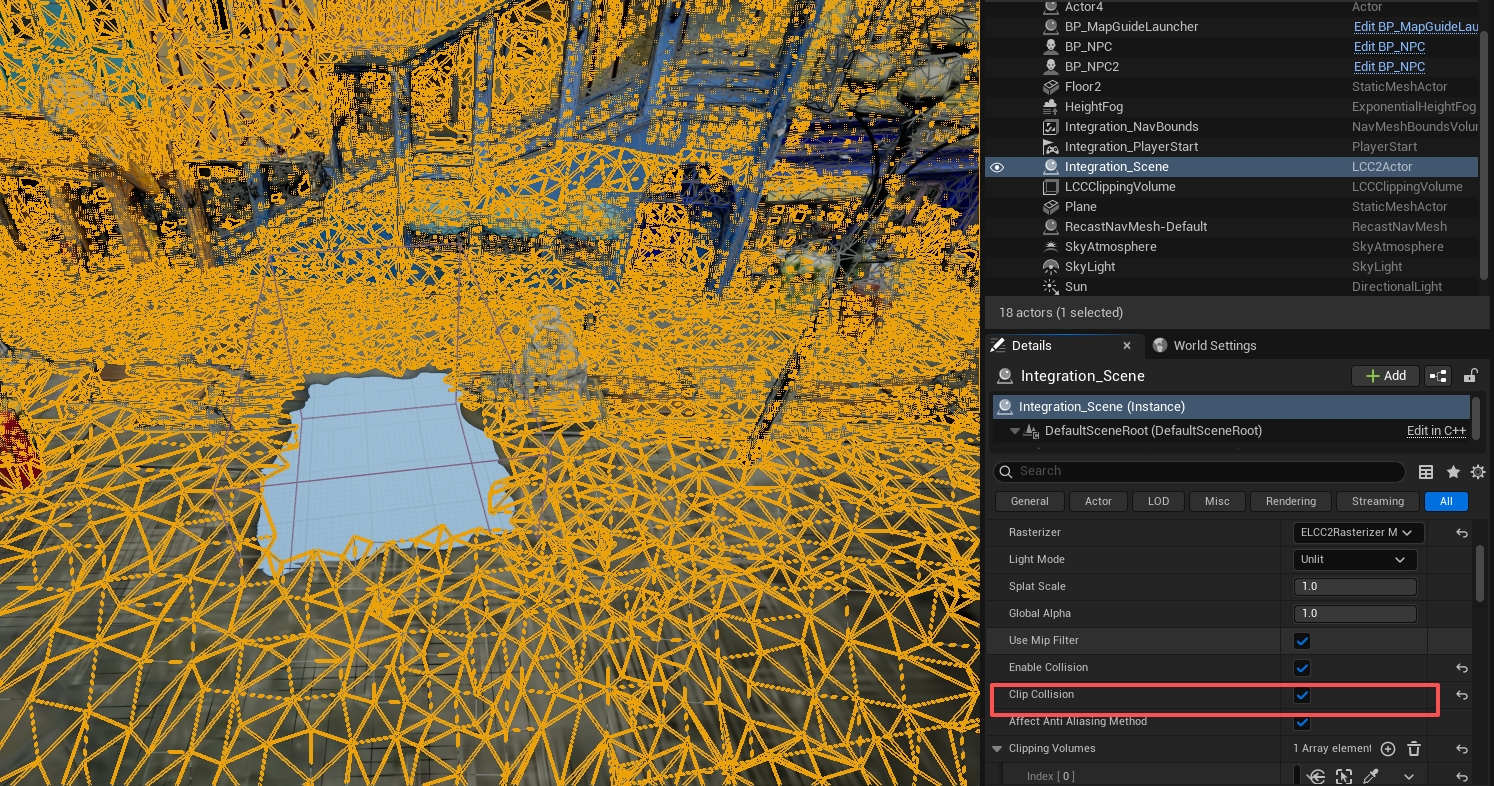
Clip Collision checked: the collision inside the clipped region is clipped away as well
Tip: Clip Collision requires collision to be enabled first, and it also applies to collision automatically generated for single-file models.
Collision State Query and Events
You can query the current collision state, or listen for collision state changes, for logic such as "spawn the character only when collision is ready" or "show progress while generating":
GetCollisionState()returns the current state:NoCollision(off or no model) /Generating(a single-file model is generating its collision mesh) /Loading(collision near the camera is loading/cooking) /Loaded(collision near the camera is in place) /Failed(cannot be provided).- The
OnCollisionStateChangedevent is dispatched when the state changes, so you can enable character movement only afterLoaded, or show a prompt whileGenerating.
For the full interface and usage conventions, see ULCCComponentBase - State Query.
Tip:
Loadedmeans collision near the camera is in place, not that the whole model has collision — collision keeps streaming as the camera moves. For "no falling through the ground underfoot", waiting forLoadedis enough; for collision in the distance, raise the load distance.
Notes
- Once collision is enabled, the LineTrace of the Unreal Engine itself can be used for ray tests against collision bodies, and the test range is limited by the load range as well
- The memory used by collision data can be viewed in
Collision Data Usageofstat xgrids, the update cost inUpdate Collision, and the meaning of the items in Performance Parameters