XGRIDSDocs
  • 简体中文
  • English
  • 繁體中文
  • 日本語
  • Deutsch
  • Español
  • Italiano
  • Français
  • Русский
  • Polski
  • Nederlands
  • 简体中文
  • English
  • 繁體中文
  • 日本語
  • Deutsch
  • Español
  • Italiano
  • Français
  • Русский
  • Polski
  • Nederlands
  • Lixel PortalCam Series

    • PortalCam P1

      • Product Overview
      • Basic Operation
      • Using the LCC Scan App
      • Maintenance and Care
      • FAQ
  • Lixel K Series

    • Lixel K1

      • Product Overview
      • Basic Operation
      • Device Activation and Connection
      • Scanning Workflow
      • Acquire Point Cloud Data with Absolute Coordinate
      • Map Fusion
      • Route Planning Suggestions for Typical Scenes
      • Precautions
      • FAQ
    • Lixel K2

      • Product Overview
      • Basic Operation
      • Device Activation and Connection
      • Scanning Workflow
      • Acquire Point Cloud Data with Absolute Coordinate
      • Map Fusion
      • Route Planning Suggestions for Typical Scenes
      • Precautions
      • FAQ
  • Lixel L Series

    • Lixel L2 Pro

      • Product Overview
      • Basic Operation
      • Device Activation and Connection
      • Scanning Workflow
      • Acquire Point Cloud Data with Absolute Coordinate
      • Measure Point
      • Appendix
      • FAQ
    • Lixel L3

      • Product Overview
      • Basic Device Functions
      • Device Activation and Connection
      • Data Capture
      • Capturing Absolute Coordinates
      • Appendix
      • FAQ
  • Accessories

    • Stick Light

      • Installation Guide
      • Basic Operation
      • FAQ
  • Lixel Studio

    • Version and Copyright
    • Installation and Activation
    • Software Interface
    • File Operations
    • Project Processing
    • Tools
    • 2D Drawing
    • Applications
    • Settings
    • Device Connection
    • FAQ
    • Usage Tips

      • Data Flow Overview
      • Software Licensing Guide
      • Understanding Scanner Accuracy Specifications
  • Lixel CyberColor

    • LCC Studio

      • Getting Started
      • Version and Updates
      • Download and Installation
      • Interface Overview and Navigation
      • Before Reconstruction
      • Model Reconstruction
      • Single Model Reconstruction
      • Map Fusion
      • Aerial-Ground Fusion
      • Aerial Reconstruction
      • My Models
      • Other Features
      • Settings and Account
      • Converter
      • Publish to Third-Party Platforms
      • Video Reconstruction
      • FAQ
    • LCC Scene Editor

      • Version & Updates
      • Account & Login
      • Product Overview & Home
      • Editor Interface
      • Scene Navigation Modes
      • File
      • Settings
      • Edit Operations
      • Window
      • Global Toolbar
      • Assets & Properties
      • Left Toolbar
      • Viewpoints
      • Portal
      • Skybox
      • Annotations
      • Measurement
      • Flythrough
      • Scene Report
      • 3D Layout
      • Mini-Map
      • Preview Mode (Viewer)
      • Help
      • FAQ
      • Spawn Point
    • LCC Model Editor

      • Version and Updates
      • User Guide
      • Overview and Interface
      • File Operations
      • Selectors
      • Editing Operations
      • Measurement
      • Color Grading
      • Asset Management
      • Settings and Help
      • FAQ
    • Capture Guide

      • Overview
      • Capture Devices Overview
      • General Capture Principles
      • Indoor Scene Capture
      • Outdoor Scene Capture
      • Large-Scale Capture (Map Fusion)
      • Aerial-Ground Map Fusion Capture
      • Object Capture
      • People Capture
      • Video Reconstruction Capture
      • HD Enhancement
      • Control Points (Lixel P1)
      • FAQ and Troubleshooting
    • LCC Studio Linux

      • Product Overview
      • Architecture Guide
      • Installation and Deployment Guide
      • Container Startup Parameters Guide
      • CodeMeter Offline Licensing Deployment Guide
      • API Reference
      • Appendix - Developer Data Guide
      • Appendix - Error Code List
      • Single-Machine Multi-GPU Cluster Deployment QuickStart
    • Best Practices

      • Merging Multiple Large 3DGS Models
      • Aerial-Ground Map Fusion Workflow
      • Data Flow Overview
      • Software Licensing Guide
    • Version History
  • Plugin & SDK

    • Unreal

      • Introduction
      • Quick Start - Windows
      • Quick Start - Linux
      • Quick Start - Quest3
      • Editions and Licensing
      • Rendering
      • Tiled Rasterization (Experimental)
      • Visual Settings
      • Normals and Lighting
      • Scene Editing
      • Performance Parameters
      • Performance Guide
      • Third-party and Engine Plugin Integration
      • Proxy Mesh
      • Loading Animation
      • Collision
      • Navigation System Support
      • Single Layer Water Support
      • Localization
      • FAQ
      • Troubleshooting
      • Logging and Diagnostics
      • Contact Us
      • Best Practices

        • Relighting 3DGS with a LixelStudio Mesh
        • Per-camera Independent Rendering
      • API Reference

        • ALCCActorBase
        • ULCCComponentBase
        • ULCCComponent
        • ULCC2Component
        • SOG / SPZ / PLY Actors
        • ALCC2ProxyMesh
        • ALCCClippingVolume
        • ALCCSectionPlane
        • ALCCLoadVolume
        • ULCCUtilLibrary
        • Enums
        • Structs
      • Changelog

        • v3.5.0
        • v3.4.0
        • v3.3.1
        • v3.0.0
        • v2.2.1
        • v1.0.0
        • v0.9.0
        • v0.8.0
        • v0.7.1
        • v0.6.1
        • v0.5.2
        • v0.4.1
        • v0.4.0
        • v0.3.0
        • v0.0.5
        • v0.0.4
        • v0.0.3
        • v0.0.2
        • v0.0.1
    • Unity

      • Unity SDK Introduction
      • Technical Features
      • Development Environment Requirements
      • PC Quick Start Guide
      • Project Settings Optimization Guide
      • Pico 4 Ultra Development Guide
      • Pico 4 Ultra PC Streaming Guide
      • Quest 3 Development Guide
      • Quest 3 PC Streaming Guide
      • OpenXR Development Guide
      • Pico 4 Ultra Business Streaming Guide
      • Glossary
      • FAQ
      • Contact Us
      • Feature Development Guide

        • Multi-Scene Mixed Rendering Development Guide
        • Shadow Receiving Development Guide
        • Real-Time Lighting Development Guide
        • Multi-Camera Rendering Development Guide
        • High-Resolution Image Rendering Development Guide
        • LCC and LCC2 Data Format Compatibility Development Guide
        • Loading Effect Development Guide
        • Mip Rendering Mode Switching Development Guide
        • Edge and Corner Snapping Development Guide
        • Projected Decal Development Guide
        • Video Projected Decal Development Guide
        • Highlight Development Guide
        • Real-Time Clipping Development Guide
        • Color Adjustment Development Guide
        • Getting Scene Mesh Data Development Guide
        • Editor Mode Development Guide
        • Render Performance Parameter Configuration Guide
        • Application and Data Co-packaging Development Guide
        • Collision System Development Guide
        • macOS Development Permission Issue Guide
        • iOS Device Compilation and Packaging Development Guide
      • API Reference

        • LCCManager
        • Renderer
        • Data Types
      • Changelog

        • v2.3.0
        • v2.2.10
        • v2.2.0
        • v2.1.19
        • v2.0.14
    • Web

      • Introduction
      • Rendering Performance Optimization Guide
      • Graphics Configuration
      • WebGPU Development Guide
      • FAQ
      • API Reference

        • LCCObject::checkRenderNextFrame
        • LCCObject::clearRenderNextFrame
        • LCCObject::ecef2Prj
        • LCCObject::getBounds
        • LCCObject::getEnvInstancedMesh
        • LCCObject::getInstancedMesh
        • LCCObject::getLodInfos
        • LCCObject::getOriginPosition
        • LCCObject::getProjectionCoordinateSystemInfos
        • LCCObject::hasCollision
        • LCCObject::hasEnvironment
        • LCCObject::hasShcoef
        • LCCObject::intersectsCapsule
        • LCCObject::intersectsRayExt
        • LCCObject::intersectsRayFromOriginExt
        • LCCObject::intersectsSphere
        • LCCObject::lowerToBottom
        • LCCObject::prj2Ecef
        • LCCObject::raiseToTop
        • LCCObject::raycast
        • LCCObject::raycastFromOrigin
        • LCCObject::setAlpha
        • LCCObject::setClipBox
        • LCCObject::setClipPlane
        • LCCObject::setClipPrism
        • LCCObject::setEndLod
        • LCCObject::setLodAutoLevelUp
        • LCCObject::setMaxDistance
        • LCCObject::setMaxNodeSplats
        • LCCObject::setMaxSplats
        • LCCObject::setMipFilter
        • LCCObject::setOriginPosition
        • LCCObject::setPointsColor
        • LCCObject::setRenderState
        • LCCObject::setRotation
        • LCCObject::setScale
        • LCCObject::setSemantic
        • LCCObject::setSemanticColor
        • LCCObject::setSmooth
        • LCCObject::setStartLod
        • LCCObject::setTranslation
        • LCCObject::setVisible
        • LCCObject::togglePointsDisplayMode
        • LCCObject::useEnvironment
        • LCCObject::useShcoef
        • LCCRender::clearIndexDB
        • LCCRender::dispose
        • LCCRender::load
        • LCCRender::setCamera
        • LCCRender::unload
        • LCCRender::update
      • Changelog

        • v0.6.4
        • v0.6.3
        • v0.6.2
        • v0.6.1
        • v0.6.0
        • v0.5.5
        • v0.5.4
        • v0.5.3
        • v0.5.2
        • v0.5.1
        • v0.5.0
        • v0.4.1
        • v0.4.0
        • v0.3.1
        • v0.3.0
        • v0.2.0
    • Lixel OpenAPI

      • Overview
      • Connection & Authentication
      • Message Model & Codec
      • Interface Catalog
      • Real-time Data
      • Project File Access
      • Error Codes
      • Python

        • Quick Start
        • Client Wrapper & Tools
        • FAQ
      • C++

        • Quick Start
        • Client & Examples
        • FAQ
  • API

    • Structured Spatial Modeling

      • Access Guide
      • Modeling Workflow
      • API Reference
      • Temporary Upload Credentials
      • Error Codes

FAQ

This article collects common questions encountered when using Lixel L3. For product introduction, device operation, and technical specifications, refer to the L3 manual. For more external parameters, refer to the official product page.

Hardware, Firmware, and Parameters

1. What does the L3 standard package include?

The L3 series standard package is a dual-battery standard package (the 16-channel and 32-channel models have the same configuration) and includes the following items:

No.ItemQtyPhoto
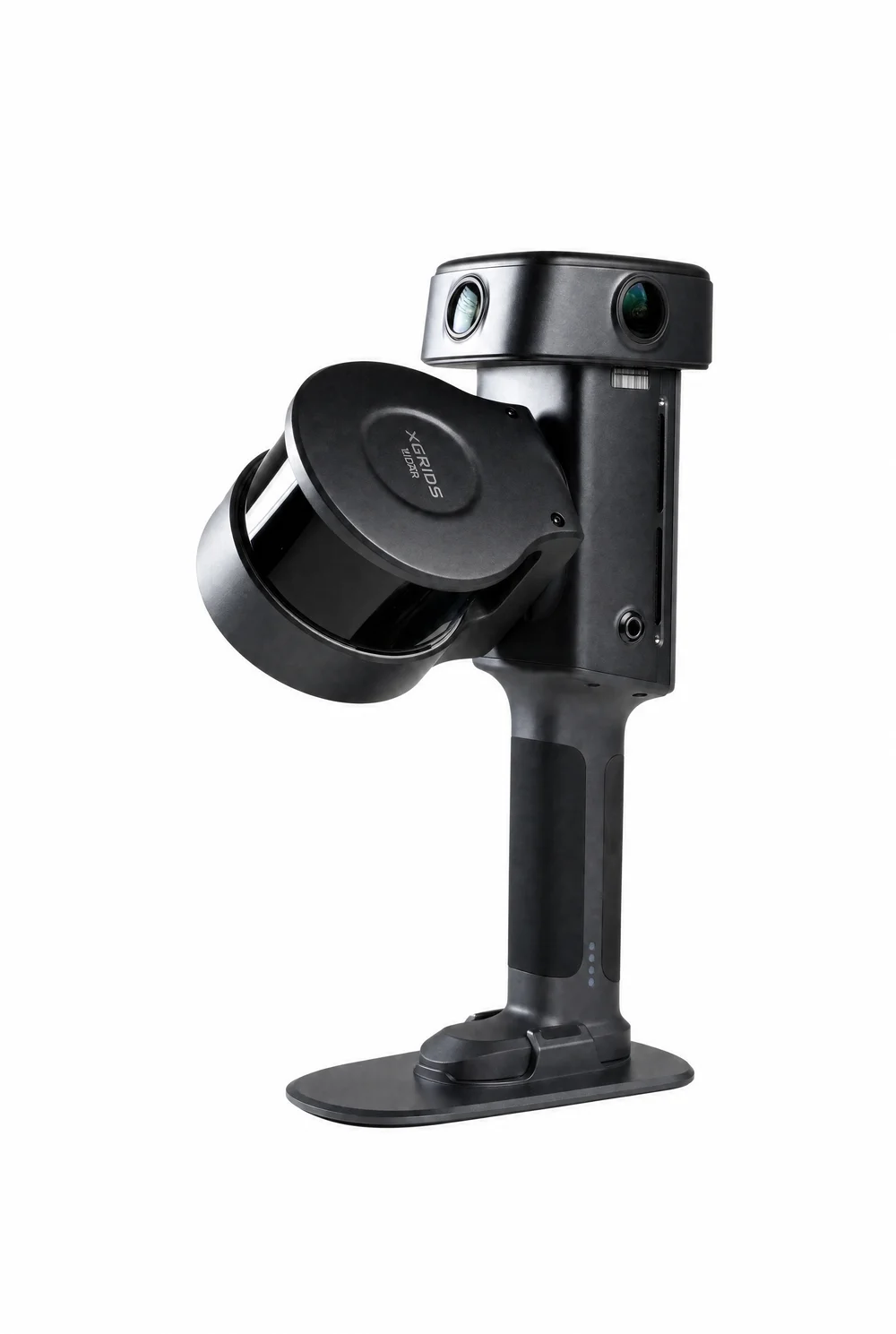
1Scanner main unit1Scanner main unit
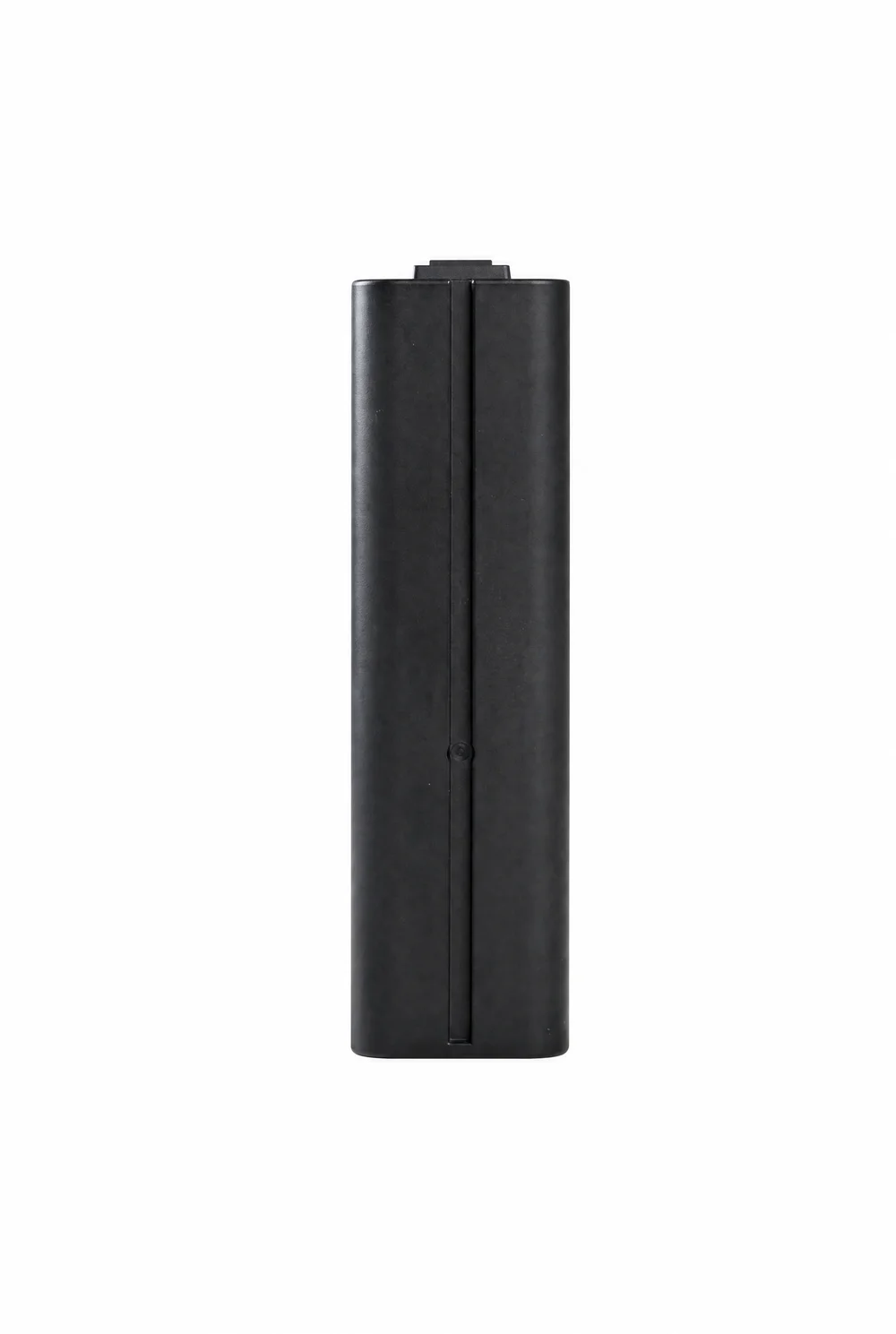
2Clip-on battery2Clip-on battery
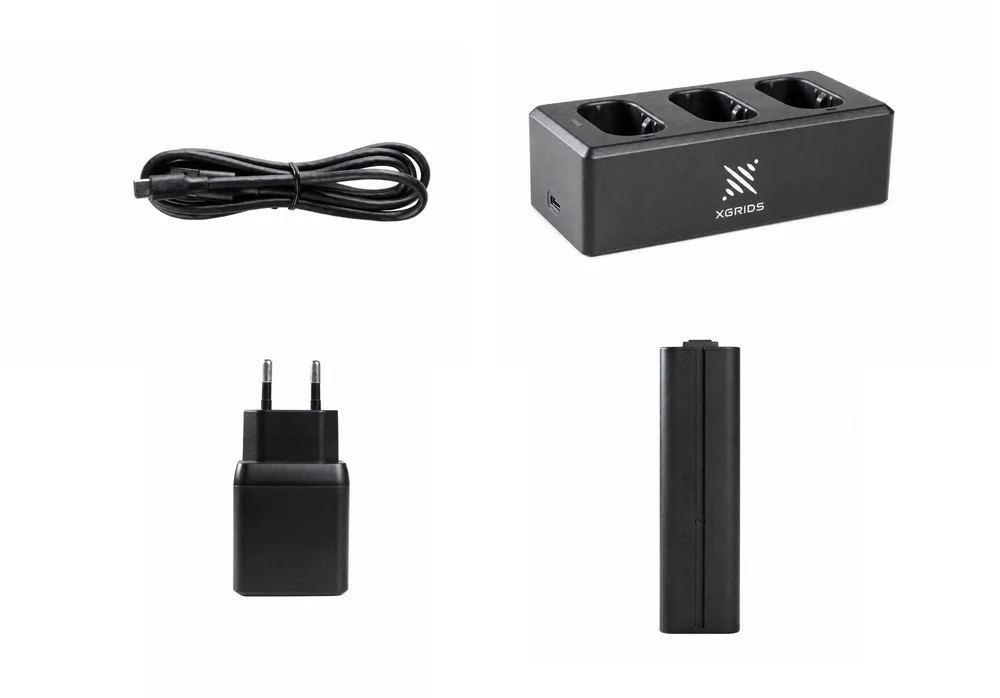
3Charging hub + charger + C2C cable1Charging hub
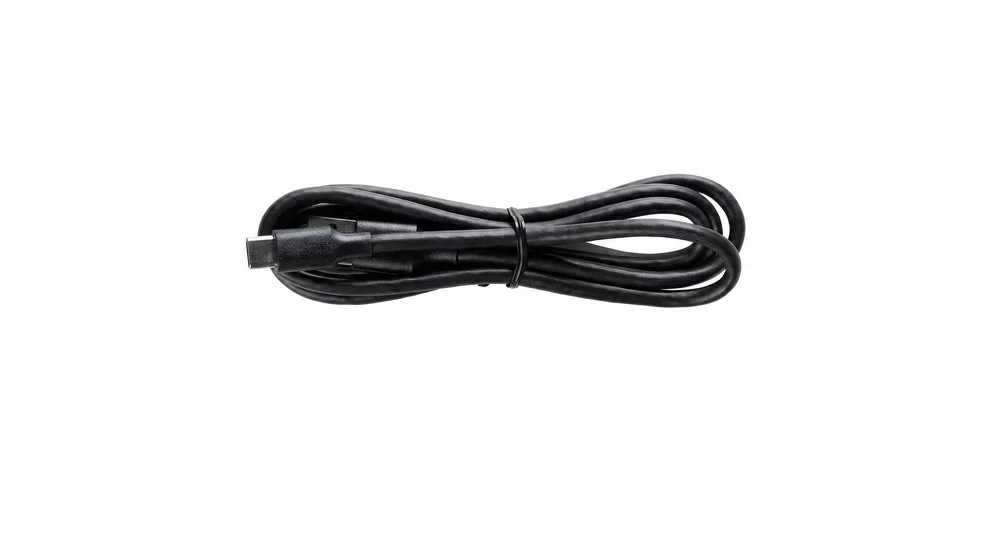
4TYPE-C cable (A2C cable)1TYPE-C cable
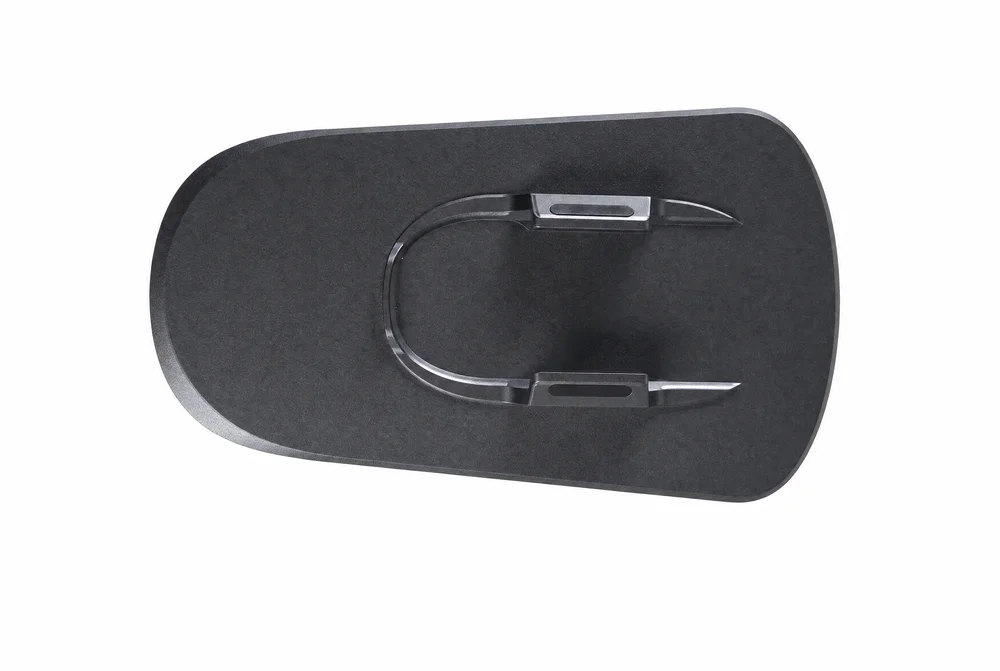
5Base1Base
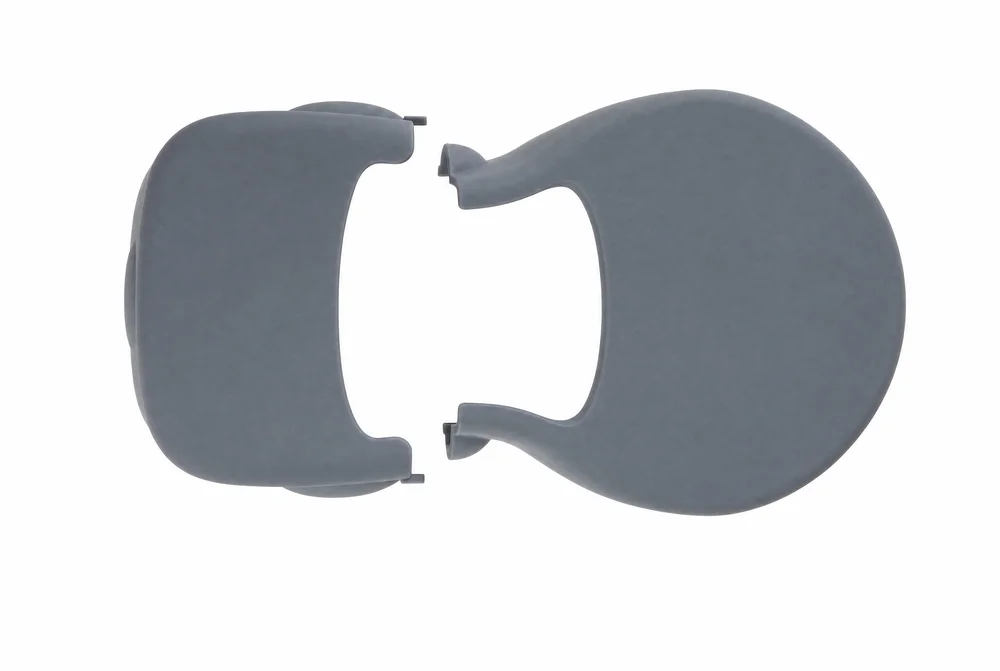
6Device protective cover (camera and LiDAR protection)1Device protective cover
7Quick start guide1—
8Warranty card1—
9Certificate of conformity1—
10Cleaning cloth1—
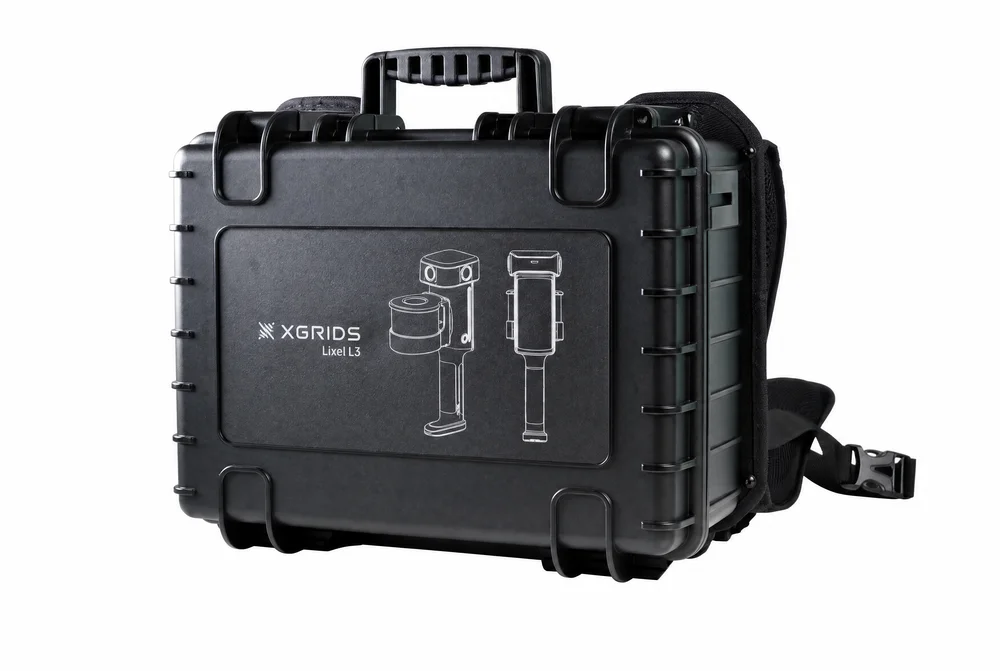
11Protective case (case + case backpack system)1Protective case
12Target sheets30Target sheets

The package contains 2 batteries. For single-battery runtime and charging time, refer to the L3 manual.

2. Can the charging hub charge multiple batteries at the same time?

No, it cannot charge them simultaneously. The charging hub holds up to 3 batteries but charges them one by one in sequence. When multiple batteries are inserted at the same time, they are charged in order from the highest charge level to the lowest.

3. Why doesn't the indicator light turn on when a battery is inserted into the L3 charging hub?

There are two versions of the charging hub: the old version has a white XGRIDS logo, and the new version has a black XGRIDS logo. On the old version, the indicator does not light up when the battery is fully charged; on the new version, it shows a green light.

The indicator states, Charge mode, and Storage mode of the new charging hub are shown below:
New charging hub indicator states and modes
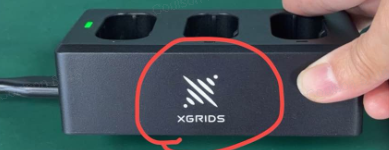
New charging hub indicator states and modes

Old charging hub logo

Old charging hub logo

Note:

  • Storage mode is recommended for long-term storage. Simply slide the side switch to Storage. The charging hub needs to stay connected to power with the battery left on it.
  • When multiple batteries are inserted at the same time, they are charged in order from the highest charge level to the lowest.
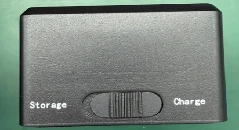
Mode switch

Mode switch

4. Can a power bank charge the L3 battery? Can the main unit be charged directly?

Neither is supported. Use only the official standard charging hub.

Battery damage caused by using a non-official charging hub or charger is not covered by warranty. The L3 main unit cannot be charged directly; remove the battery and charge it with the charging hub.

5. How do I perform a firmware upgrade?

Firmware upgrades can be done online or offline.

Online upgrade

  1. On the device display, go to Settings and connect to WiFi.
  2. Follow the firmware upgrade prompt to upgrade.

Offline upgrade

  1. Download the required firmware from the official website (a full firmware package is generally larger than 1 GB).
  2. Connect the device to the computer with a USB cable and enable USB drive mode on the device screen.
  3. Copy the upgrade package to the device disk, placing it in the root directory at the same level as the model folder.
  4. Disable USB drive mode. The device will automatically detect the upgrade package and pop up a prompt; tap Confirm to start the upgrade.
  5. Do not operate the device during the upgrade; wait for it to restart automatically.
  6. After the restart, wait for the indicator to turn green, then go to the Settings page to check the firmware version. A version number matching the upgrade package indicates a successful upgrade.

Upgrade troubleshooting

  1. Keep the battery level above 70% before upgrading.
  2. If the upgrade cannot be triggered, restart the device and wait for it to recognize the upgrade package.
  3. If the version number does not appear on the Settings page, exit and try again.

6. The L3 is rated at 1TB of storage, so why is the actual usable capacity only about 888GB?

The device system itself occupies part of the storage space, so the usable capacity is lower than the nominal capacity. This is normal.

7. Is the L3 RTK the same grade as the L2 Pro Survey Grade RTK?

The RTK positioning accuracy is the same. The difference is the maximum antenna gain: 4.0 dBi for the L3, and 5.5 dBi for the L2 Pro Survey Grade RTK (2.8 dBi for the L2 Pro standard RTK).

8. Can the L3 still be used if its built-in screen is damaged?

Yes. The L3 can be connected and controlled via LixelGO, so scanning can still be operated from the phone when the screen is faulty.

9. Does the L3 camera have a minimum shooting distance?

Yes. Keep the minimum distance for the front camera at 0.7 m, and the minimum side distance for the fisheye camera at 0.5 m. For key areas, it is recommended to use the front or fisheye camera and capture in a saturated manner, statically or slowly.

Capture and Use

10. Can the L3 scan upside down? How do I collect control points on walls or overhead?

The L3 does not support upside-down scanning. For safety reasons, it is also not recommended to point the LiDAR directly at people. However, you can briefly invert the device to collect control points on walls or overhead, as follows:

  1. Enter the control point name on the screen first.
  2. Rotate the device slowly clockwise toward the target control point.
  3. Place the handle base against the wall or overhead surface and align the tip with the control point.
  4. Tap Add on the screen.

After collecting, slowly rotate back to the normal capture posture. Rotating quickly causes a loss of accuracy, and accuracy may also decrease in this method. More scanning postures will be enabled gradually in the future.

11. How does the L3 connect to the network during RTK capture? Does it need Bluetooth or a SIM card?

  1. The L3 does not support a SIM card for network access.
  2. The L3 connects to the network through a hotspot provided by a phone; no Bluetooth is required.
  3. During RTK recording, keep the phone hotspot on at all times to ensure a stable network connection for the L3.

12. After a long scan, data saving takes a while before the next segment can start. Is this normal?

Yes. After scanning ends, the device first stores the data and then generates a visualized point cloud model. The time it takes depends on the size of the scanned scene—the larger the scene, the longer the wait. Do not cut the power during saving, to avoid file loss or incomplete saving.

13. How should the LiDAR parameters be set when processing indoor scenes?

For indoor scenes, it is recommended to enable the LiDAR threshold filter, set the parameters to a minimum of 0.7 and a maximum of 50, and enable filter enhancement.

Data Processing and Accuracy

14. Which software version is required to process L3 data?

  • Lixel Studio: version 4.1.1.0 and above support L3 data processing.
  • LCC Studio: version 2.6.1 and above; single scene only. The Professional edition supports HD Enhancement and Spatial Recognition.
  • LCC Cloud: version 1.7.1 and above; single scene only. The Professional edition supports HD Enhancement and Spatial Recognition.

Importing L3 data with a software version lower than the above may cause issues such as the data not being recognized or a prompt that the project is corrupted. Upgrade the software first.

15. If no control points were collected or re-capture is not possible, can multi-segment scan data still be stitched together?

Yes. Lixel Studio supports tie-point-free Map Fusion, aligning and merging multi-segment scan data through region-selection feature matching. This applies when no control points were collected on site, as well as to segmented capture and large-scene data merging.

16. The L3's relative accuracy and absolute accuracy differ greatly; can the values be compared directly?

No. Relative accuracy and absolute accuracy have different definitions in surveying and apply to different scenarios, so their numerical values cannot be compared directly.

  • Relative accuracy: the deviation of the measured distance between any two points within the point cloud from the true value, reflecting the accuracy of the point cloud's own dimensional reproduction.
  • Absolute accuracy: the deviation of a point's coordinates from its true coordinates, which relies on RTK or control points to provide an external reference.

For the test conditions, statistical basis, and validation method of the L3 accuracy metrics, see the Lixel L3 Accuracy Validation White Paper.

17. Does the L3's stated 5 mm accuracy refer to Accuracy or Precision?

The 5 mm figure refers to Accuracy. It is obtained by directly comparing the measured distance between points in the point cloud with the true distance established by a total station, answering the question of "how accurately the actual dimensions are measured."

Accuracy reflects how close a measurement is to the true value, while Precision reflects whether repeated measurements are consistent. A thin point cloud or tightly clustered repeated measurements does not necessarily mean the result is equally close to the true value. When comparing products, confirm which category the millimeter-level metrics claimed by other products belong to.

18. Is the accuracy of the real-time direct point cloud the same as the post-processed result?

No. The real-time direct point cloud can be exported and measured immediately after capture; its accuracy is 1 cm relative and 2.5 cm absolute (RMSE). The 5 mm relative accuracy can only be achieved through Lixel Studio post-processing. For projects with higher accuracy requirements, use the post-processed result.

19. What is the maximum resolution of the panorama the L3 can export?

After Lixel Studio post-processing, the maximum panorama resolution for the L3 is 10600 × 5300.