XGRIDSDocs
  • 简体中文
  • English
  • 繁體中文
  • 日本語
  • Deutsch
  • Español
  • Italiano
  • Français
  • Русский
  • 简体中文
  • English
  • 繁體中文
  • 日本語
  • Deutsch
  • Español
  • Italiano
  • Français
  • Русский
  • PortalCam

    • Product Overview
    • Basic Operation
    • Using the LCC Scan App
    • Maintenance and Care
    • FAQ
  • Lixel K Series

    • Lixel K1

      • Product Overview
      • Basic Operation
      • Device Activation and Connection
      • Scanning Workflow
      • Acquire Point Cloud Data with Absolute Coordinate
      • Map Fusion
      • Route Planning Suggestions for Typical Scenes
      • Precautions
      • FAQ
    • Lixel K2

      • Product Overview
      • Basic Operation
      • Device Activation and Connection
      • Scanning Workflow
      • Acquire Point Cloud Data with Absolute Coordinate
      • Map Fusion
      • Route Planning Suggestions for Typical Scenes
      • Precautions
      • FAQ
  • Lixel L Series

    • Lixel L2 Pro

      • Product Overview
      • Basic Operation
      • Device Activation and Connection
      • Scanning Workflow
      • Acquire Point Cloud Data with Absolute Coordinate
      • Measure Point
      • Appendix
      • FAQ
  • Lixel Studio

    • Version and Copyright
    • Installation and Activation
    • Software Interface
    • File Operations
    • Project Processing
    • Tools
    • 2D Drawing
    • Applications
    • Settings
    • Device Connection
  • Lixel CyberColor

    • LCC Studio

      • Getting Started
      • Version and Updates
      • Download and Installation
      • Interface Overview and Navigation
      • Before Reconstruction
      • Model Reconstruction
      • Single Model Reconstruction
      • Map Fusion
      • Aerial-Ground Fusion
      • Aerial Reconstruction
      • My Models
      • Other Features
      • Settings and Account
      • Converter
      • Video Reconstruction
      • FAQ
    • LCC Scene Editor

      • Version & Updates
      • Account & Login
      • Product Overview & Home
      • Editor Interface
      • Scene Navigation Modes
      • File
      • Settings
      • Edit Operations
      • Window
      • Global Toolbar
      • Assets & Properties
      • Left Toolbar
      • Viewpoints
      • Portal
      • Skybox
      • Annotations
      • Measurement
      • Flythrough
      • Scene Report
      • 3D Layout
      • Mini-Map
      • Preview Mode (Viewer)
      • Help
      • FAQ
      • Spawn Point
    • LCC Model Editor

      • Version and Updates
      • User Guide
      • Overview and Interface
      • File Operations
      • Selectors
      • Editing Models
      • Measurement
      • Color Grading
      • Asset Management
      • Settings and Help
      • FAQ
    • Capture Guide

      • Overview
      • Capture Devices Overview
      • General Capture Principles
      • Indoor Scene Capture
      • Outdoor Scene Capture
      • Large-Scale Capture (Map Fusion)
      • Aerial-Ground Map Fusion Capture
      • Object Capture
      • People Capture
      • Video Reconstruction Capture
      • HD Enhancement
      • Control Points (Lixel P1)
      • FAQ and Troubleshooting
    • Version History
  • Plugin & SDK

    • Unreal

      • Introduction
      • Quick Start - Windows
      • Quick Start - Linux
      • Quick Start - Quest3
      • Editions and Licensing
      • Rendering
      • Visual Settings
      • Normals and Lighting
      • Scene Editing
      • Performance Parameters
      • Performance Guide
      • Third-party and Engine Plugin Integration
      • Proxy Mesh
      • Loading Animation
      • Collision
      • Navigation System Support
      • Single Layer Water Support
      • Localization
      • FAQ
      • Troubleshooting
      • Logging and Diagnostics
      • Contact Us
      • API Reference

        • ALCCActorBase
        • ULCCComponentBase
        • ULCCComponent
        • ULCC2Component
        • SOG / SPZ / PLY Actors
        • ALCC2ProxyMesh
        • ALCCClippingVolume
        • ALCCSectionPlane
        • ULCCUtilLibrary
        • Enums
        • Structs
      • Changelog

        • v3.3.1
        • v3.0.0
        • v2.2.1
        • v1.0.0
        • v0.9.0
        • v0.8.0
        • v0.7.1
        • v0.6.1
        • v0.5.2
        • v0.4.1
        • v0.4.0
        • v0.3.0
        • v0.0.5
        • v0.0.4
        • v0.0.3
        • v0.0.2
        • v0.0.1

Color Grading

Color Grading adjusts brightness, contrast, saturation, temperature, tint, and more to refine a scene's look. All adjustments support real-time preview and reset to default.
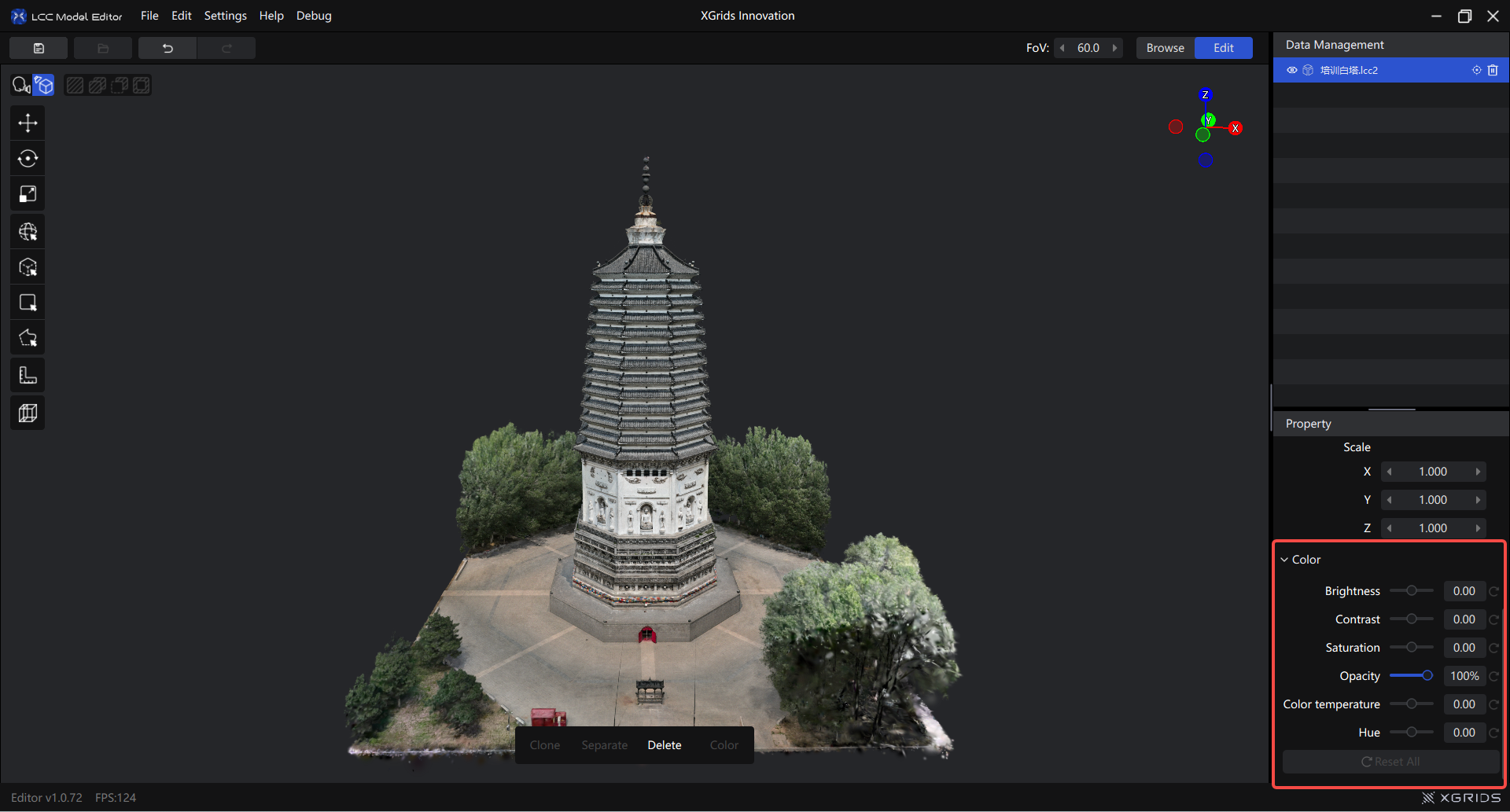
Color grading panel

Color grading panel

Entry

Three entry points (active after selecting a model or selection):

  • Left toolbar → Color grading
  • Menu bar → Edit → Color grading
  • Right Properties panel

Properties

PropertyDefaultRange
Brightness0-1.00 ~ 1.00
Contrast0-1.00 ~ 1.00
Saturation0-1.00 ~ 1.00
Highlights0-1.00 ~ 1.00
Shadows0-1.00 ~ 1.00
Opacity100%0% ~ 100%
Temperature0-1.00 ~ 1.00
Tint0-1.00 ~ 1.00

How to Use

  1. Click Color grading in the toolbar to open the panel
  2. Drag a slider; the view updates in real time
  3. Adjustments save automatically when you're done

Tip: Adjust in moderation. Pushing brightness or contrast too far can lose detail.

Rules

  • Whole-model grading: with a model selected, grading applies to the entire model
  • Local grading: with a selection active, grading applies only to the selected content
  • Add carries grading: adding a new region automatically applies the same grading as the current selection
  • Subtract resets grading: subtracting a region resets the removed part to default values
  • Grading stacks: grading a model overall and a local region separately stacks the effects

Use Cases

Single-model grading

Select a model and adjust the color values in the Properties panel.

Use case: Correcting an overall color cast, unifying scene style.

Region grading

Use a selector to pick a local region and grade it on its own.

Use case: Local correction — brightening shadows, fixing a local color cast, or correcting exposure / white-balance mismatches between data batches.

Prev
Measurement
Next
Asset Management