
Publish to Third-Party Platforms
Online publishing to third-party platforms is available only in the international version of LCC Studio.
Before publishing, register an account on the corresponding platform and obtain the required credential. This is a one-time setup. After the credential is verified and saved locally, you do not need to configure it again for later publishing.
Publish to SuperSplat
SuperSplat is one of the world's largest online platforms for viewing 3D Gaussian Splatting (3DGS) models. It is provided by PlayCanvas and supports viewing and sharing 3DGS models directly in a browser.
Obtain a token
- Open a browser, visit
playcanvas.com, and register or sign in to your account. - Click your profile picture in the upper-right corner to open the Account page.
- Open the API Tokens tab, create a new token, and copy it.
Verify the token in LCC Studio
- In My Models, right-click the model you want to publish.
- Select Publish → Third-Party Platform → SuperSplat.
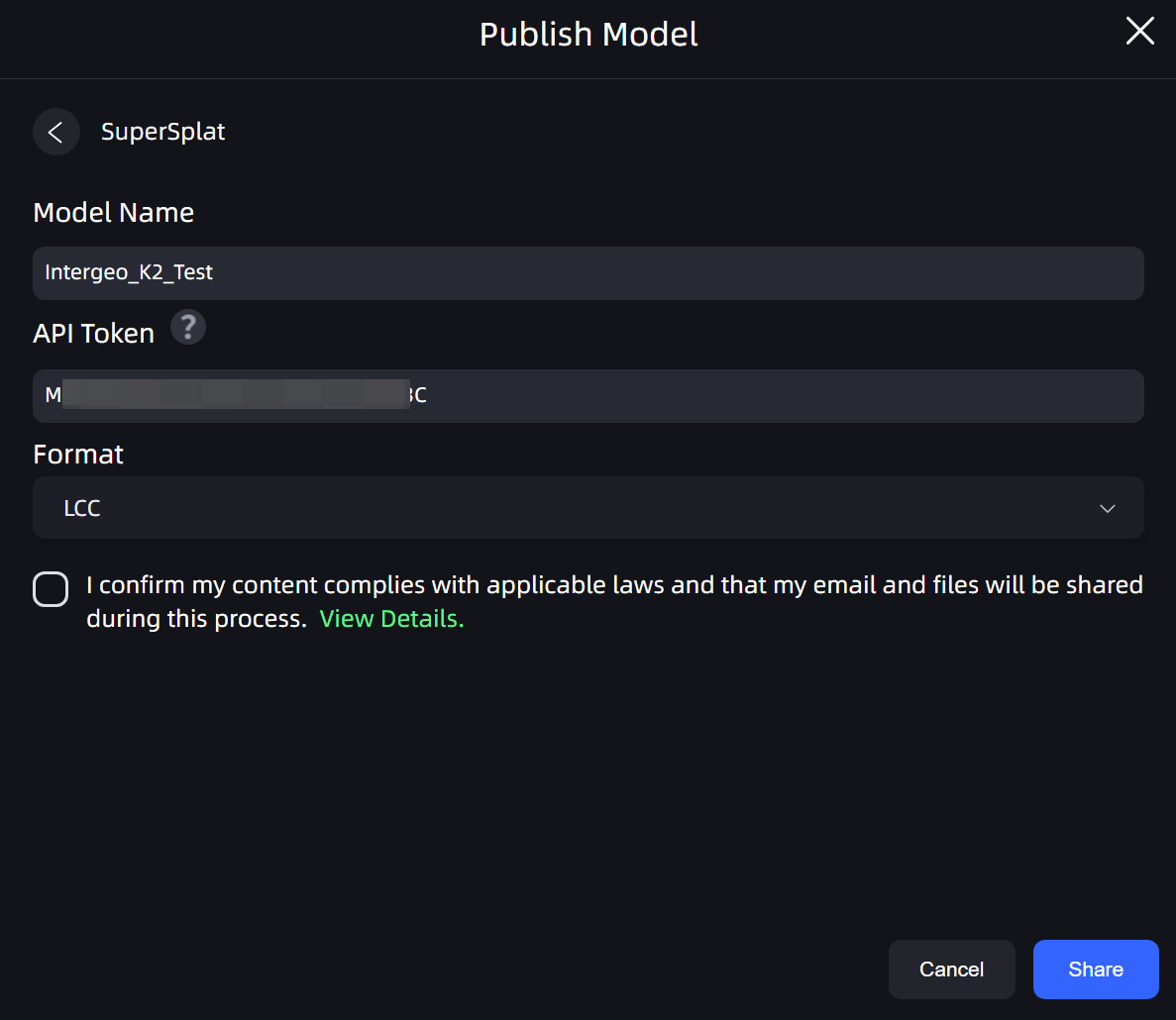
- Paste the token and click Verify.
- After verification succeeds, the token is encrypted and saved locally. You do not need to enter it again for later publishing.
Publish the model
- Confirm the model name.
- Select a publishing format:
- LCC2 (SOG): Recommended. It produces a smaller file and loads faster.
- LCC: Legacy format.
- Select the compliance confirmation checkbox and click Publish.
- Wait for the upload and platform processing to finish. The dialog displays a Viewer link when the process is complete. Copy the link and share it with others. Anyone can open it in a browser to view the 3D model.
Publish to Arrival.Space
Arrival.Space is a 3D space presentation platform for the architecture, real-estate, and exhibition industries. It supports collision detection and immersive navigation, allowing viewers to move through a model as if they were inside the real space.
Obtain an API key
- Open a browser, visit the Arrival.Space platform, and register or sign in.
- Go to Account → API Keys.
- Create an API key and copy it.
Verify the connection in LCC Studio
- In My Models, right-click the model you want to publish.
- Select Online Publish → Third-Party Platform → Arrival.Space.
- Paste the API key and click Verify. After verification succeeds, the key is saved locally.
Publish the model
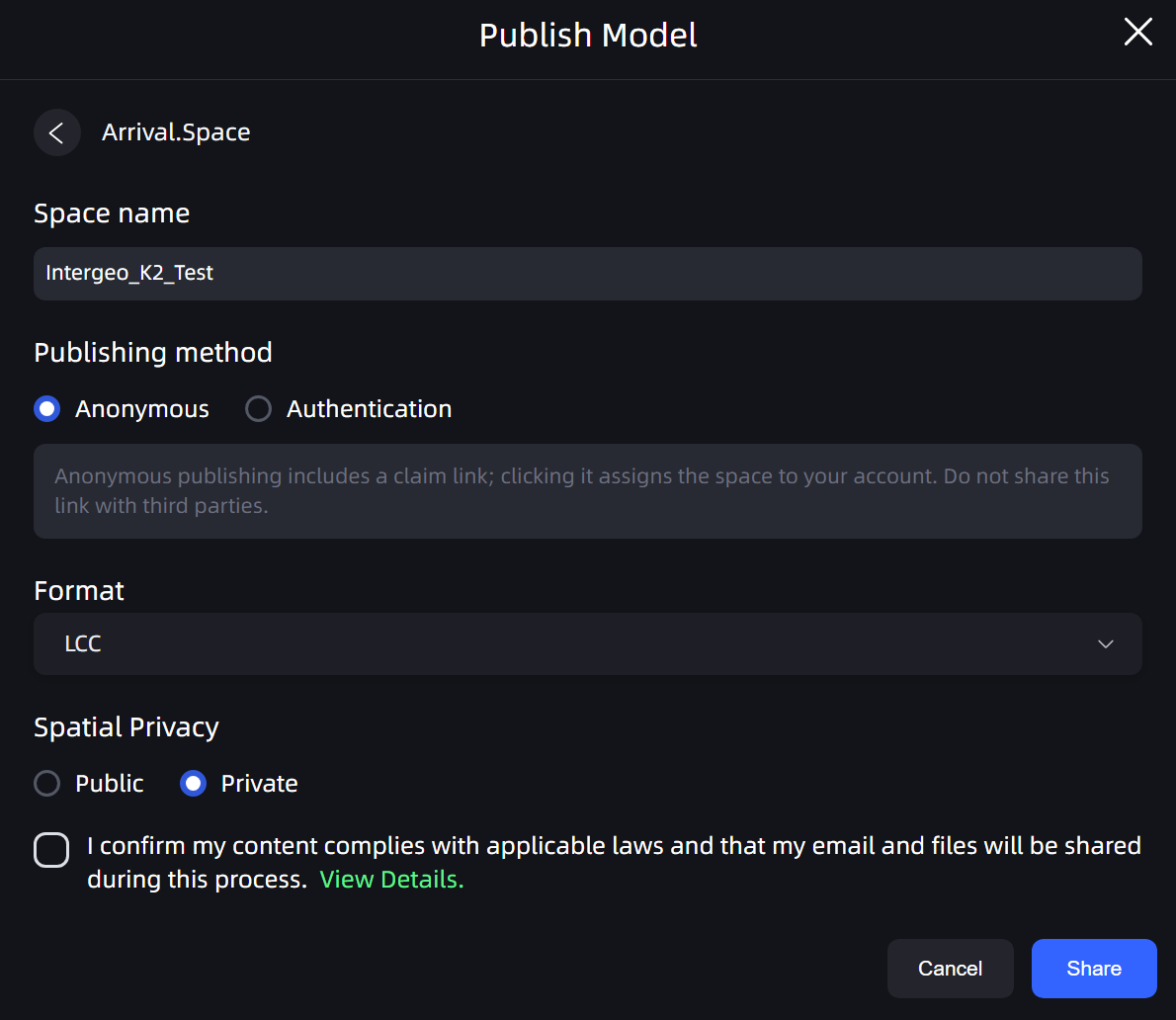
- Confirm the Space name. The project name is used by default, but you can change it.
- Select a publishing format. LCC2 (SOG) is recommended.
- Select the compliance confirmation checkbox and click Publish.
- When the upload is complete, the dialog displays a Space link. Open the link to view the 3D space in Arrival.Space.
Summary
The process has three steps: register on the platform and obtain a token or API key, paste it into LCC Studio and verify it, then right-click the model and publish it. After the one-time setup, later publishing requires only the final publish step.