
Installation and Activation
This chapter covers the system requirements, installation steps, and the offline activation method for Lixel Studio.
System Requirements
Download the installer from the official XGRIDS website before installing.
| Item | Minimum | Recommended |
|---|---|---|
| OS | Windows 10/11 Professional or Home | Windows 10/11 Professional or Home |
| CPU | Intel i7 11th gen | Intel i9 12th gen |
| GPU | RTX 3060 or higher | RTX 3070 or higher |
| Memory | 64 GB | 64 GB |
| Storage | 1 TB | 1 TB (SSD) |
Installation Steps
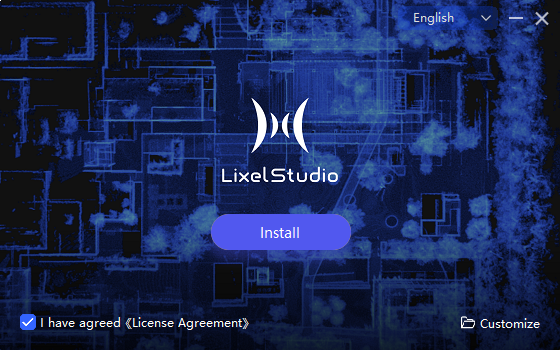
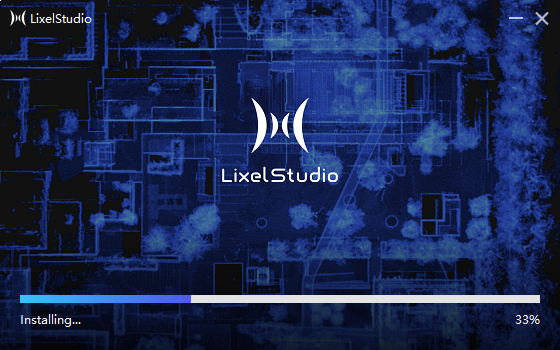
- Run the installer and click Quick Install. The program installs to the default C drive path.
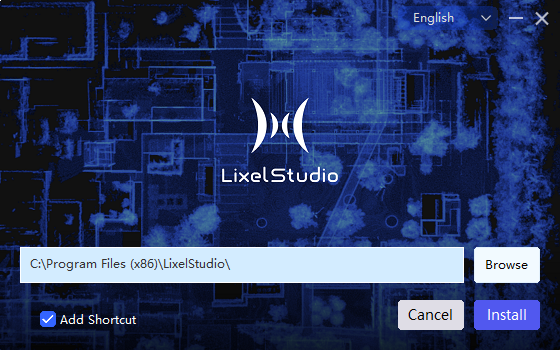
- To choose a different path, click Custom in the lower-right corner of the installation window, select a target path, and choose whether to create a desktop shortcut.
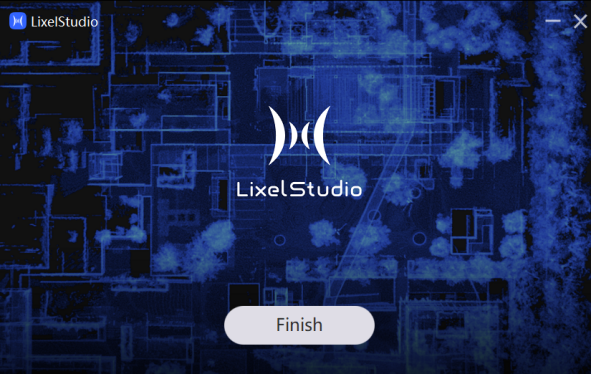
- Click Finish once installation completes.
- Double-click the desktop icon to launch the software.
Authorization and Activation
Offline activation is supported. By default, the basic features can be used for free. After entering the software, log in or activate to gain access to additional features.
Offline Activation
- Click Offline. The software generates a request code for the current computer.
- Copy the request code in full and send it to your sales manager or distributor, who will generate a license file for your computer.
- Once you receive the license file, click Import License, select the correct file, and complete activation.
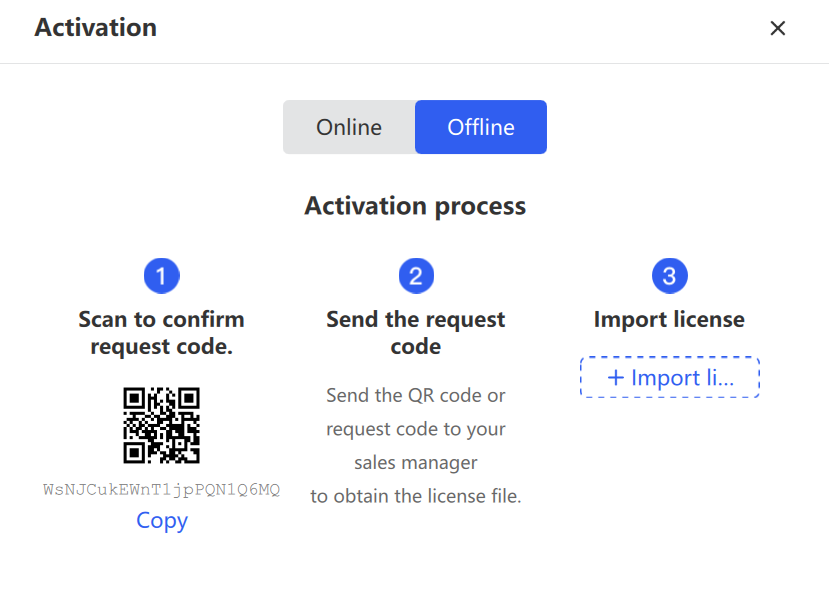
Note: Make sure the request code is copied completely and accurately, otherwise the generated license may not work.