
Download and Installation
Installation Package Download
Obtain the software installation package through the official download link: https://xgrids.com/intl/support/download
System Requirements
Reconstruction Configuration Reference
Supported operating systems: Windows 10/11 Professional and Home editions.
Hardware configuration:
Important Notice
- Starting from v1.9.0, scan data from Lixel L2 devices is not compatible and can only be reconstructed in v1.8.1 or earlier versions.
Basic Configuration:
| Item | Requirement |
|---|---|
| CPU | Intel Core i7 10700K or AMD Ryzen 7 3700X (8-core desktop CPU) |
| RAM | 64GB |
| GPU | NVIDIA GeForce RTX 3060 12GB or NVIDIA Quadro RTX A4000 16GB |
| Storage | At least 120GB available space |
| OS | Windows 10 19H1 or above |
Recommended Configuration:
| Item | Requirement |
|---|---|
| CPU | AMD Ryzen 9 7950x (16-core desktop CPU) |
| RAM | 64GB or above* |
| GPU | NVIDIA GeForce RTX 4090 24GB or NVIDIA Quadro RTX 6000 Ada 48GB or NVIDIA Tesla L40 48GB |
| Storage | At least 240GB available space on SSD |
| OS | Windows 10 19H1 or above |
GPU Performance Impact on Reconstruction Efficiency
- High-end (e.g., 4090D): Faster reconstruction, especially for high-resolution and large-scale point cloud data; maintains efficiency under heavy loads.
- Mid-range (e.g., 3060): Suitable for standard-scale data; slower than high-end under heavy loads but stable.
Memory vs. Data Processing Capacity
- 64GB RAM: Stably processes up to 30 minutes of capture data. Over 45 minutes risks reconstruction failure.
- 128GB RAM: Stably processes up to 60 minutes of capture data. Over 90 minutes increases the risk of failure.
Map Fusion / Aerial-Ground Map Fusion Recommended Configuration
Map Fusion and Aerial-Ground Map Fusion require higher hardware specs for multi-model high-density stitching and high-compute reconstruction:
- CPU: ≥16-core high-performance desktop CPU (e.g., AMD Ryzen 9 9950X or equivalent)
- RAM: 64GB DDR5 minimum; 96GB or 128GB for larger-scale data
- GPU: NVIDIA RTX 3090 minimum; RTX 4090 or 4090D for best performance
Notes:
- Confirm device resources are sufficient before starting a task to avoid interruption or failure.
- Large models (total length ≥ 150 minutes) at high quality may need 96GB–128GB RAM. If RAM is insufficient, select Standard reconstruction efficiency.
- No definitive reconstruction time estimate. Under the recommended configuration with Standard settings, estimate at a 1:20 ratio (1 minute of capture data ≈ 20 minutes of processing).
Installation
LCC Studio uses a .iso full installation package, supporting offline installation of all LCC functional modules.
Registration and Login
Registration
On opening the software, the login page appears. Click "Register" to open the registration page, fill in the required information, and click "Register" to complete registration and log in.
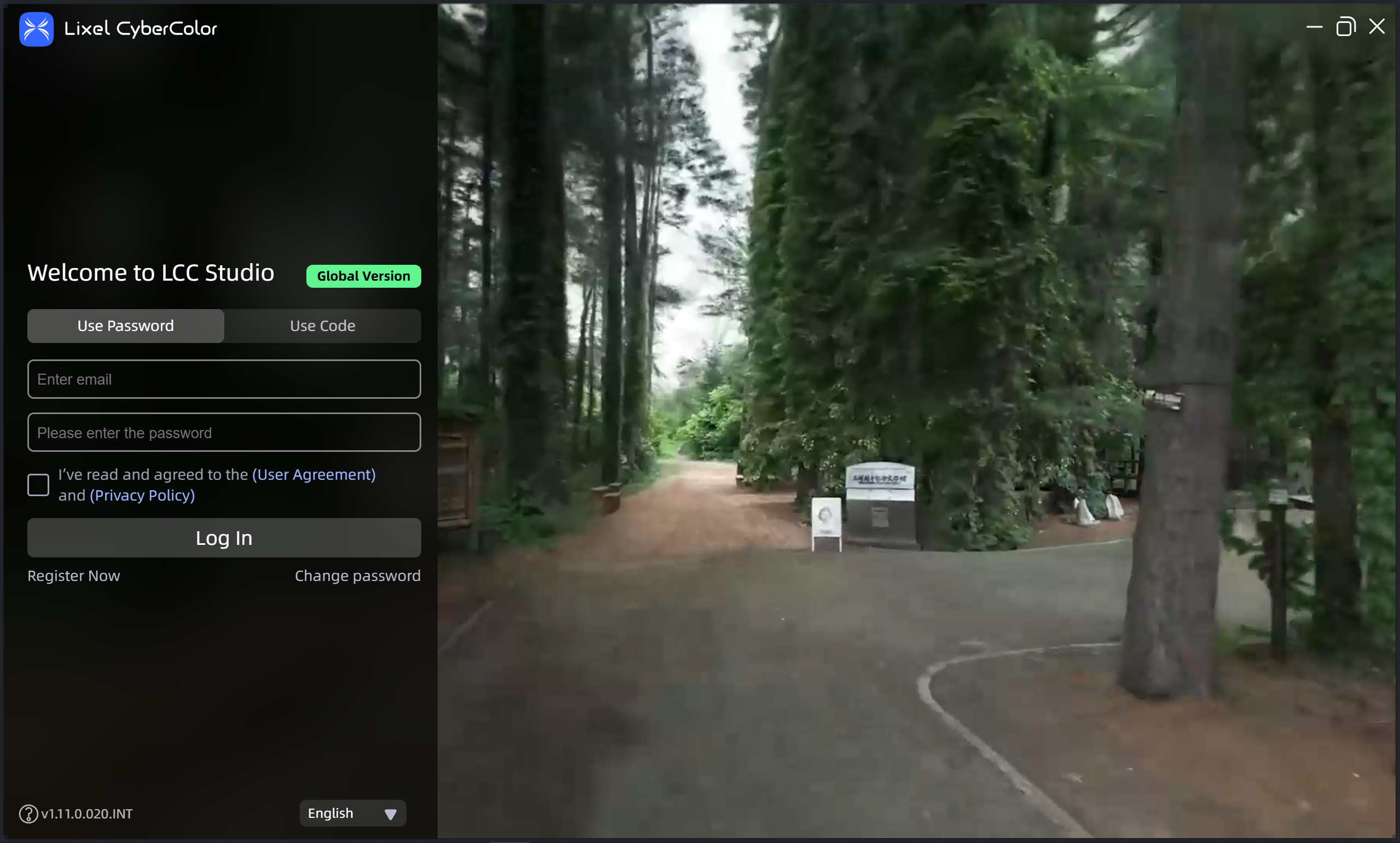
Login page
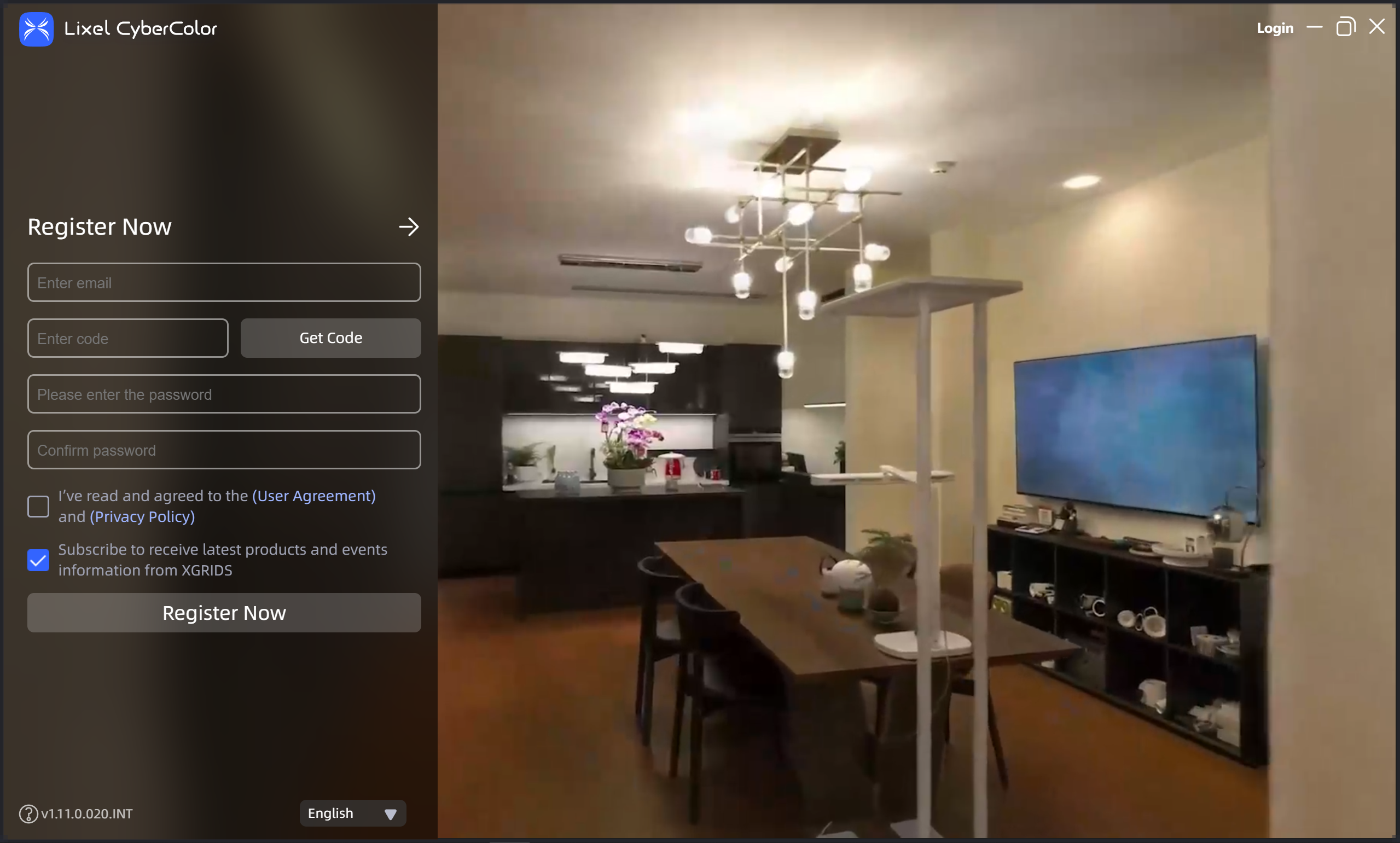
Registration
Check the subscription option during registration to receive XGRIDS product and event updates by email; it takes effect immediately. To unsubscribe later, use the unsubscribe option in any push email.
Login
Log in via password or verification code. After login, all platform features are available.