
Interface Overview and Navigation
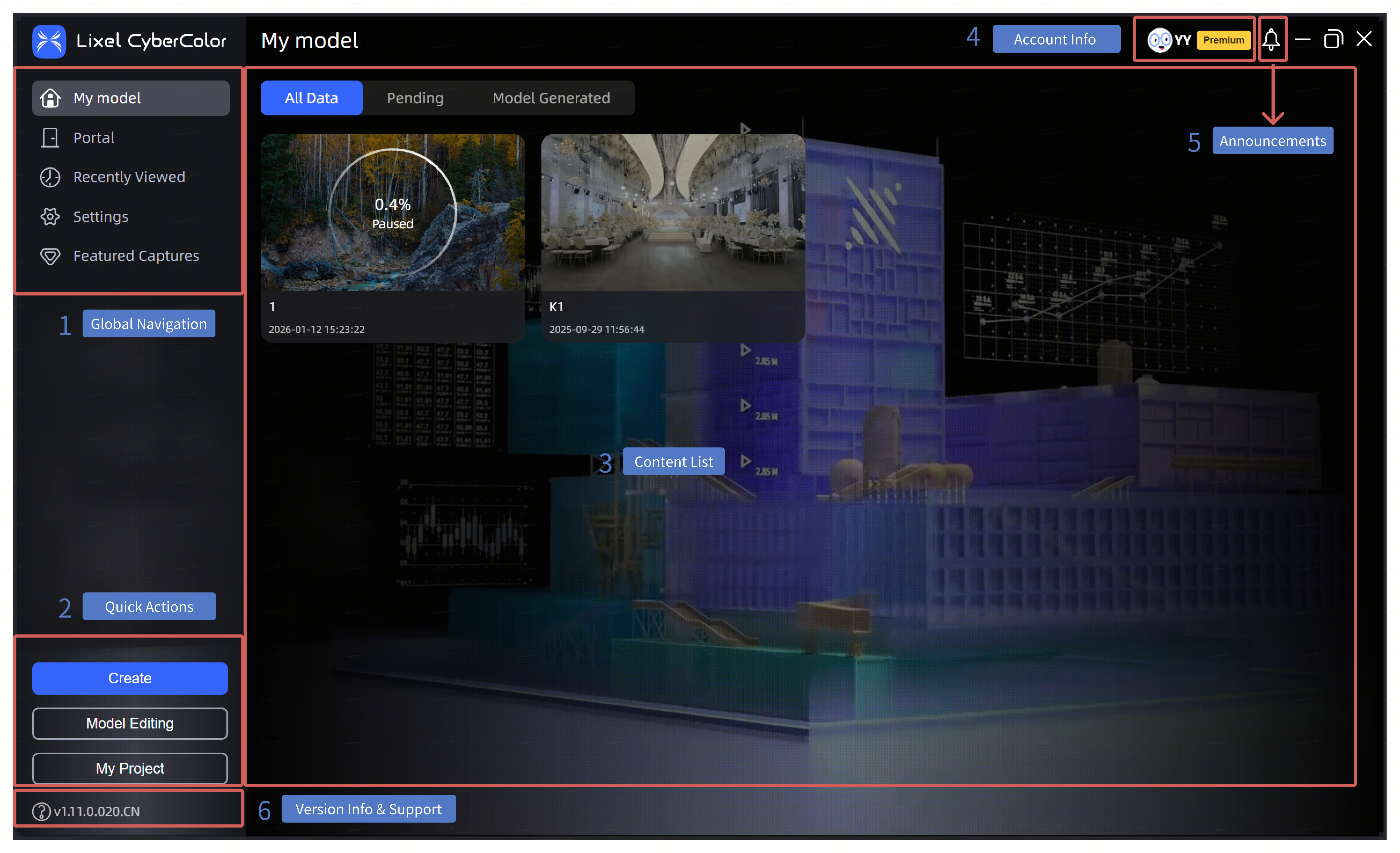
Interface overview
Global Navigation
- My Models: View and manage your models. The content list area displays pending and generated models as model cards.
- Portal: Used to view and manage historical "Portal" data. Starting from version 1.12.0, the Portal entry is only for viewing historical content; creating or importing models on this page is no longer supported. To create/maintain multi-scene and portal relationships, enter "My Projects" in Studio and use the "Project" workflow to complete scene editing and publishing in Editor.
- Recently Viewed: Records all locally reconstructed models you have browsed in the software, distinguishing between .lcc and .ply model formats.
- Settings: Provides viewing and configuration of: Account, Advanced, General, Device, Language, Data & Privacy, About.
- Featured Gallery: View curated model showcases from the LCC team.
Quick Access
Quickly generate and edit models here.
- Create: Click the "Create" button to start the LCC model reconstruction workflow.
- Edit Model: Import exported .lcc model files and .ply format files into Studio for model editing.
- My Projects: Enter LCC Scene Editor for project management and processing.
Content List
Displays the main content collection for the currently selected module.
Account Information
Displays the currently logged-in account and permission information, including subscription status, settings entry, Redeem Authorization Code, and Sign Out.
Announcements
Important notices and system answers: through the announcements feature, we share the latest important information about LCC, including software updates, feature changes, and systematic answers to common questions. This helps you stay informed about the latest developments and provides timely guidance.
Version Info & Help
- Software Version Info: Find the current LCC Studio software version in the lower left corner of the interface. This helps you identify the version in use and provides an accurate reference when technical support is needed.
- User Manual: Click "Help" to open the user manual for the current version. This provides detailed operation guides and FAQ answers to help you quickly master the software.