
Video Reconstruction
LCC Studio supports 3DGS reconstruction from video input. Upload a single video, and LCC Studio automatically extracts frames, estimates camera poses, and reconstructs a 3D model — no structured multi-angle photo capture required.
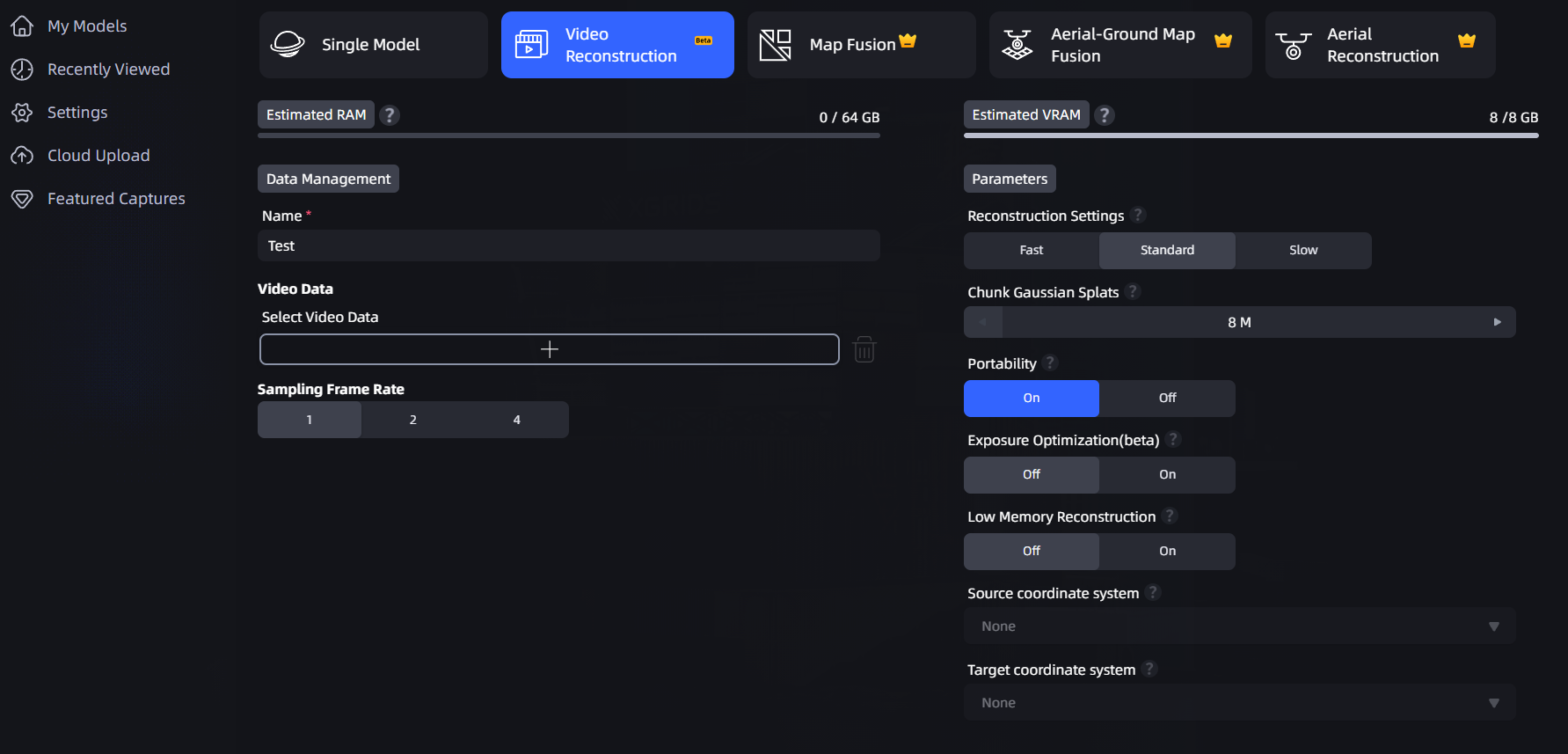
Selecting the Video input type in New Scene
Supported Video Formats
| Item | Supported Range |
|---|---|
| File format | mp4, mov, webm |
| Video duration | Up to ~16 minutes (1000 seconds) |
| Video resolution | 720p – 4K (per side 720px–3840px) |
| Video codec | H.264, H.265, AV1, VP9 |
Note: avi, mkv, and similar formats are not supported. If a video does not meet the conditions above, the interface shows a red prompt and blocks reconstruction.
Workflow
- Click Generate Now → Video Reconstruction.
- Click to select the video file. LCC Studio automatically validates format, duration, resolution, and codec.
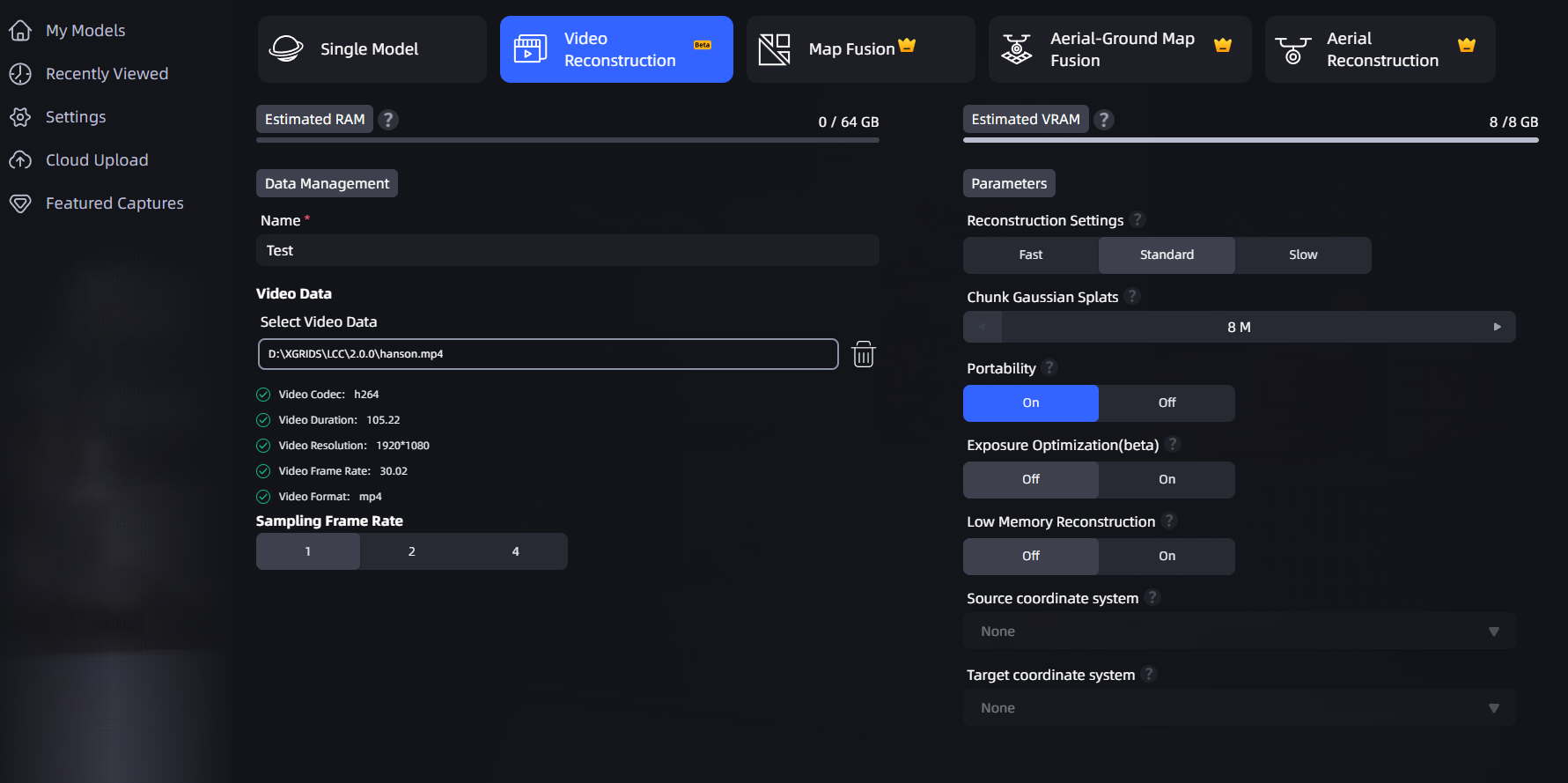
Video validation result (duration, resolution, codec)
- Set the sampling frame rate (frame extraction density):
- 1 frame/sec: suits longer videos (over 250 seconds).
- 2 frames/sec: suits medium-length videos (within 250 seconds).
- 4 frames/sec: suits short videos (within 250 seconds), with richer detail.
- Set the other reconstruction parameters (reconstruction quality, maximum Gaussian points, etc., same as standard reconstruction).
- Click Start Reconstruction.
Note: The longer the video, the fewer frame rate tiers available. Videos over 500 seconds can only use 1 frame/sec; videos over 250 seconds cannot use 4 frames/sec (the corresponding tier is grayed out automatically).
Capture Recommendations
For the best reconstruction results, follow these capture guidelines:
| Recommended | Description |
|---|---|
| ✅ Orbit the subject | Move slowly around the target object or space, covering multiple angles. |
| ✅ Move slowly | Keep movement speed at 0.5–1 meter per second. |
| ✅ Stay continuous | A single continuous video works best; avoid frequent pauses. |
| ✅ Even lighting | Avoid dramatic lighting changes. |
| Avoid | Description |
|---|---|
| ❌ Fixed viewpoint | A purely static shot cannot be reconstructed; LCC Studio reports failure. |
| ❌ Fast movement | Over 2 meters per second may cause reconstruction failure or blur. |
| ❌ Spliced clips | An edited, spliced video reconstructs only the continuous portions; discontinuous portions are skipped. |
Reconstruction Report
After video reconstruction completes, the report shows the following video-specific information:
- Reconstruction type: Video Reconstruction
- Video length
- Sampling frame rate
- Source video codec and resolution
- Source video format