
My Models
This area contains all LCC model data you have created and uploaded, including pending and generated data. View, edit, and manage your personal models here.
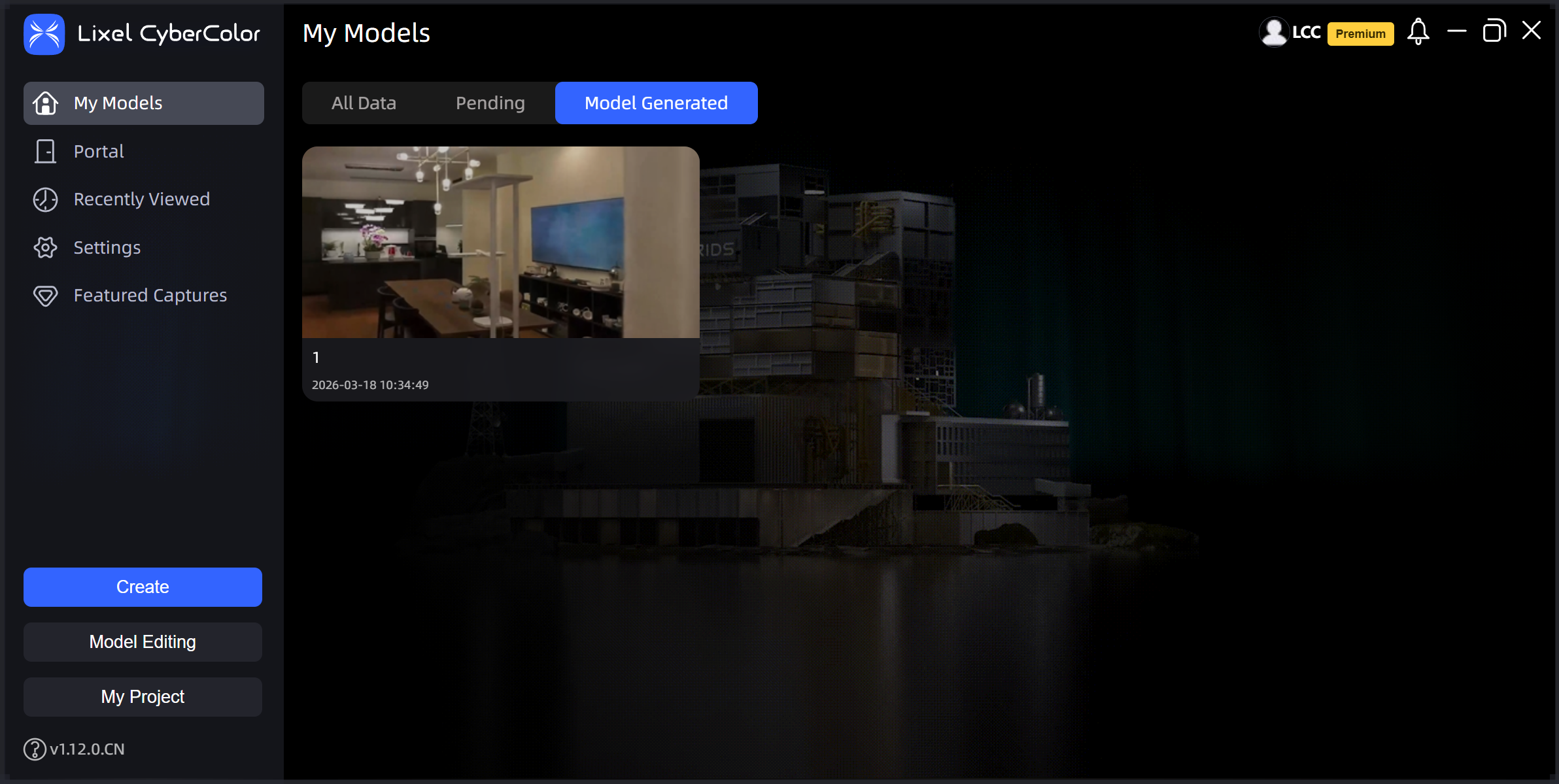
My Models
Model Generation and Editing
- Create: Click the "Create" button to start the LCC model reconstruction workflow.
- Edit Model: Import exported .lcc model files and .ply format files into LCC Scene Editor for model editing.
LCC Model Management
LCC data management includes three data categories:
- All Data: Contains all valid data categories and all dynamic categories, such as reconstructing, exporting, publishing, and paused data.
- To Be Reconstructed: Includes locally failed reconstruction data, pending reconstruction data, currently reconstructing data, and paused reconstruction data.
- Generated: Contains all data that completed reconstruction.
Note: In the "Generated" list, double-click to enter the Edit space to edit or modify completed models, or click View to open the View space.
Model Settings
In the upper right corner of each model card, there is a "..." menu. Click the menu to perform functional operations on different data states in "My Models".
- Reconstructing data: Change Cover, Cancel Reconstruction, Pause, Error Log Upload
- Generated data: Change Cover, Publish, Publish Management, Open File Location, View, Export, Report, Error Log Upload, Delete
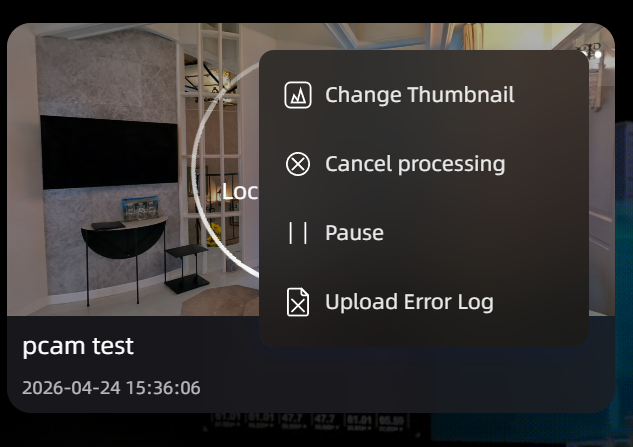
Reconstructing
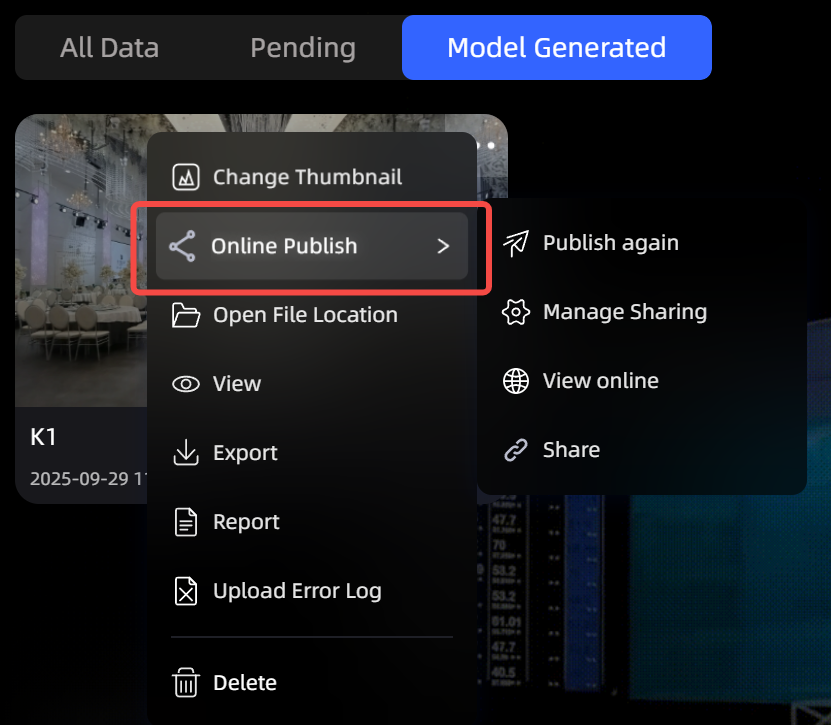
Generated
Change Cover
Supports custom card cover images. Change the cover at any stage of the reconstruction task.
Image requirements:
- Format: Only JPEG / JPG / PNG supported
- Size: ≤ 5 MB
Publish
Share created models with other users or groups. Choose password-free or encrypted sharing to protect model content privacy as needed.
- Password-Free Sharing: Allows any user with the link to access the model without a password or other verification.
- Encrypted Sharing: Password-protected, only allowing users with the password to access the model. The password can be custom or system-generated for enhanced security.
- Model Description (Optional): Add a brief description to the model explaining its content, purpose, or other relevant information for reference during cloud publishing management.
- Create and Share Link: After clicking Create, LCC Studio generates a model link to copy and share.
Publish Management
Click "Publish Management" to open the cloud publishing data management page, where you can view all model publishing links and details and make secondary changes to published link information.
Re-publish
For published models, you can make secondary changes to the published link. These changes include:
- Link Parameters: Change the URL suffix of the model link.
- Sharing Permissions: Adjust sharing link permission settings to control encrypted or password-free access to the model.
- Access Password: Set or change the model's access password.
- Model Description: Modify the model's description information to provide visitors with clearer model background and explanation.
Cloud Publishing Management
Manage the listing and delisting status of links. Log in to the developer platform and click "List" or "Delist" to control whether published links are publicly accessible.
View Online
Access and view published models online.
Share
Click Share to quickly copy the link and access password.
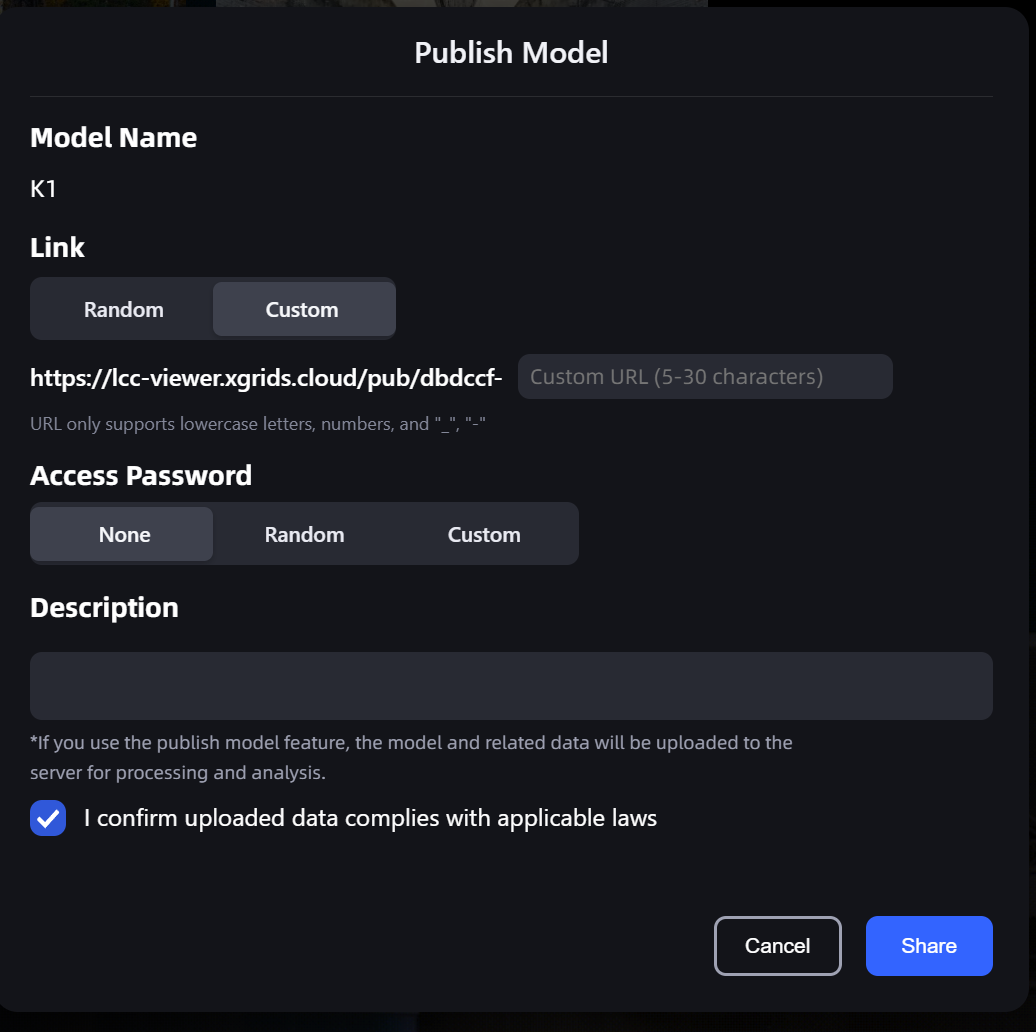
Publish
Open File Location
Quickly locate the model file location.
View
Open the model in view mode.
Export
LCC Studio supports exporting models to different 3DGS data formats, including .lcc data result files, .lcc2 data result files, .ply format data files, .usd format, and 3D Tiles format.
In the export dialog, when selecting .usd format export, it includes USD and USDZ options:
- USD (Recommended): Based on 3DGRUT, supports Omniverse Kit 110.0+, supports ray tracing.
- USDZ (Forward Compatible): Based on 3DGUT, supports Omniverse Kit 107.3+, no ray tracing.
File Format Descriptions
- .lcc: Compressed 70%–90% vs. traditional formats; integrates with XGRIDS Unity and Unreal Engine toolkits. Can export Mesh alongside (triangulated mesh, no texture, .obj/.ply only).
- .lcc2: Next-generation LCC format — smaller files, smoother rendering, faster loading.
- .ply: Universal point cloud format for open-source 3D Gaussian viewers and UE/Unity plugins. Export at different precision levels or all at once.
- USD: NVIDIA 3DGRUT toolchain, ray-traced rendering. Omniverse Kit 110.0+ and Isaac Sim 5.0+ only — not rendered in Blender, Maya, Houdini, or Cinema 4D. Use another format for universal compatibility.
- USDZ: NVIDIA 3DGUT toolchain (NuRec standard), supports non-linear camera projection (fisheye/rolling shutter). Omniverse Kit 107.3+, no ray tracing. Requires firmware ≥ 3.0 and single model reconstruction type. USD is recommended for better quality and compatibility.
- 3D Tiles: Tiled format for WebGIS/digital twin (OGC 3D Tiles 1.1), loads directly in Cesium 131. Supports up to 4 million Gaussian points.
Report
View a detailed data report for each locally generated model to obtain detailed information about LCC reconstructed models.
Error Log Upload
If a spatial project encounters issues, upload logs directly to the LCC team. Choose log files covering the relevant duration, and make sure they contain key information from before and after the issue occurred so the LCC team can diagnose problems faster.
Export Formats
In the My Models list, right-click the model → Export to choose from the following export formats:
| Format | Description | Use Case |
|---|---|---|
| LCC | Legacy LCC format | Compatible with older tools and workflows |
| LCC2 | Next-generation format, supports SOG/SPZ compression | Recommended — small size, ecosystem-compatible |
| PLY | Universal point cloud format | Third-party tool import |
| Mesh | Mesh model | 3D modeling software |
| 3D Tiles | GIS tile format | GIS platforms such as Cesium/ArcGIS |
| USD | NVIDIA Omniverse format | Omniverse ecosystem |
Export LCC2 Format
LCC2 is a next-generation 3DGS data format. Compared with legacy LCC format, it substantially reduces file size (SOG compression reduces size by 8–26×) and supports direct loading on mainstream 3DGS ecosystem platforms (SuperSplat, Arrival.Space, etc.).
Export Steps
- In the My Models list, right-click the model → select "Export".
- In the export dialog, select LCC2 from the "File Format" dropdown.
- Select the compression format:
- SOG (Recommended): smaller size (8–26× reduction), the default format for the LCC ecosystem.
- SPZ: compatible with the Niantic/Scaniverse ecosystem (about 10× reduction).
- Check additional options as needed:
- Include Mesh: includes collision data on export.
- Spatial Recognition results: includes spatial recognition data on export (requires the feature to have been enabled).
- Choose the save location and click Confirm to start the export.
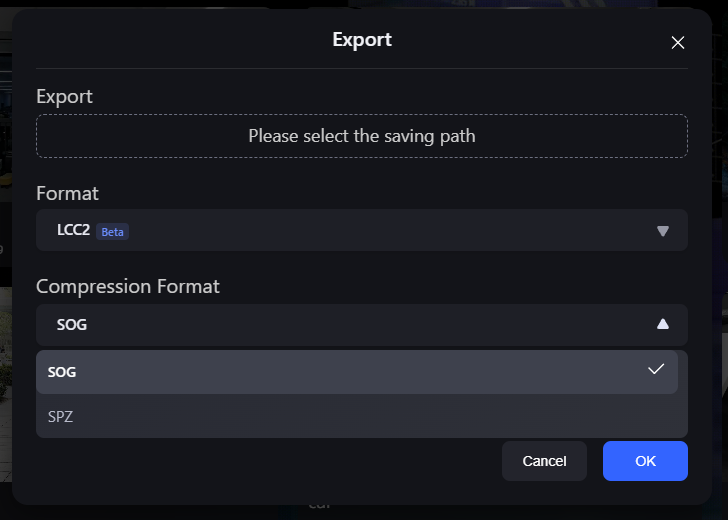
LCC2 export dialog (compression format SOG/SPZ)
Note: Hover over the ? icon next to the compression format to view a detailed comparison of SOG and SPZ. A single LCC2 file uses only one compression format; the two are not mixed.
Convert Legacy Format
If you have models in legacy LCC format, you can convert them to LCC2:
- In the My Models list, right-click a legacy LCC model.
- Select "Convert to LCC2".
- Wait for the conversion to complete (the dialog shows progress).
- Once converted, all subsequent operations are based on the new format.
Note: Converting to LCC2 is a one-way upgrade and cannot be rolled back to legacy LCC format. Legacy LCC models can still be opened and viewed normally.
Export 3D Tiles
Export a reconstructed model to 3D Tiles format to load and browse it directly in GIS platforms such as Cesium and ArcGIS, with no secondary conversion.
Export Steps
- In the My Models list, right-click the model → select "Export" → select "3D Tiles".
- In the export dialog, select the version:
- 3D Tiles v2 (Recommended): uses SPZ v2 compression for smaller files; requires Cesium 1.31 or later.
- 3D Tiles v1 (Legacy): compatible with older systems running Cesium 1.20–1.30.
- Choose the save location and click Confirm to start the export.
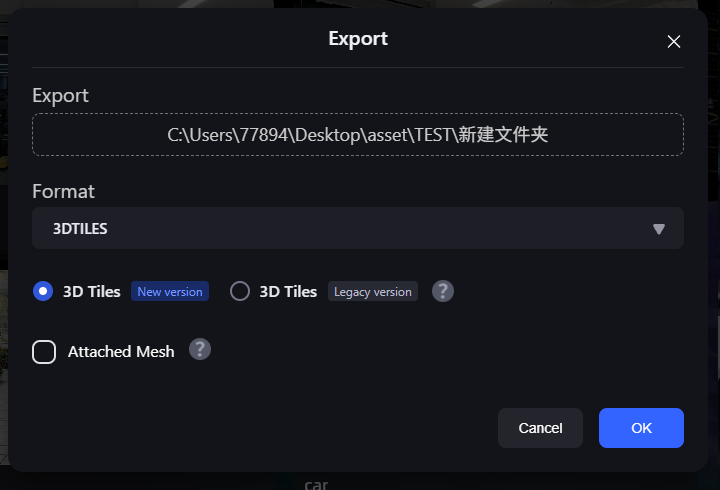
3D Tiles export dialog (v2 recommended / v1 legacy)
After the export completes, the save directory contains a tileset.json entry file and several .glb tile files. Deploy the entire directory to Cesium to load it.
Note: If your GIS platform uses a Cesium version below 1.31, select v1 (Legacy). Selecting v1 shows an orange prompt; upgrading Cesium and using the recommended version gives a better compression ratio and rendering result.