
Viewpoint
The Viewpoint module presets key observation points and automatic flythrough paths in the scene. Three types: Guided Tour / Flythrough Path / Area View.
Note: Viewpoint data is incompatible with older versions. If a project contains old viewpoint data, it cannot be read and must be recreated.

Viewpoint module
Enter Viewpoint Editing
Click Viewpoint in the left toolbar to open the bottom sidebar. The sidebar top has tabs for Guided Tour, Flythrough Path, and Area View.
Guided Tour
Preset multiple observation points. In preview mode, click one to jump to that view.
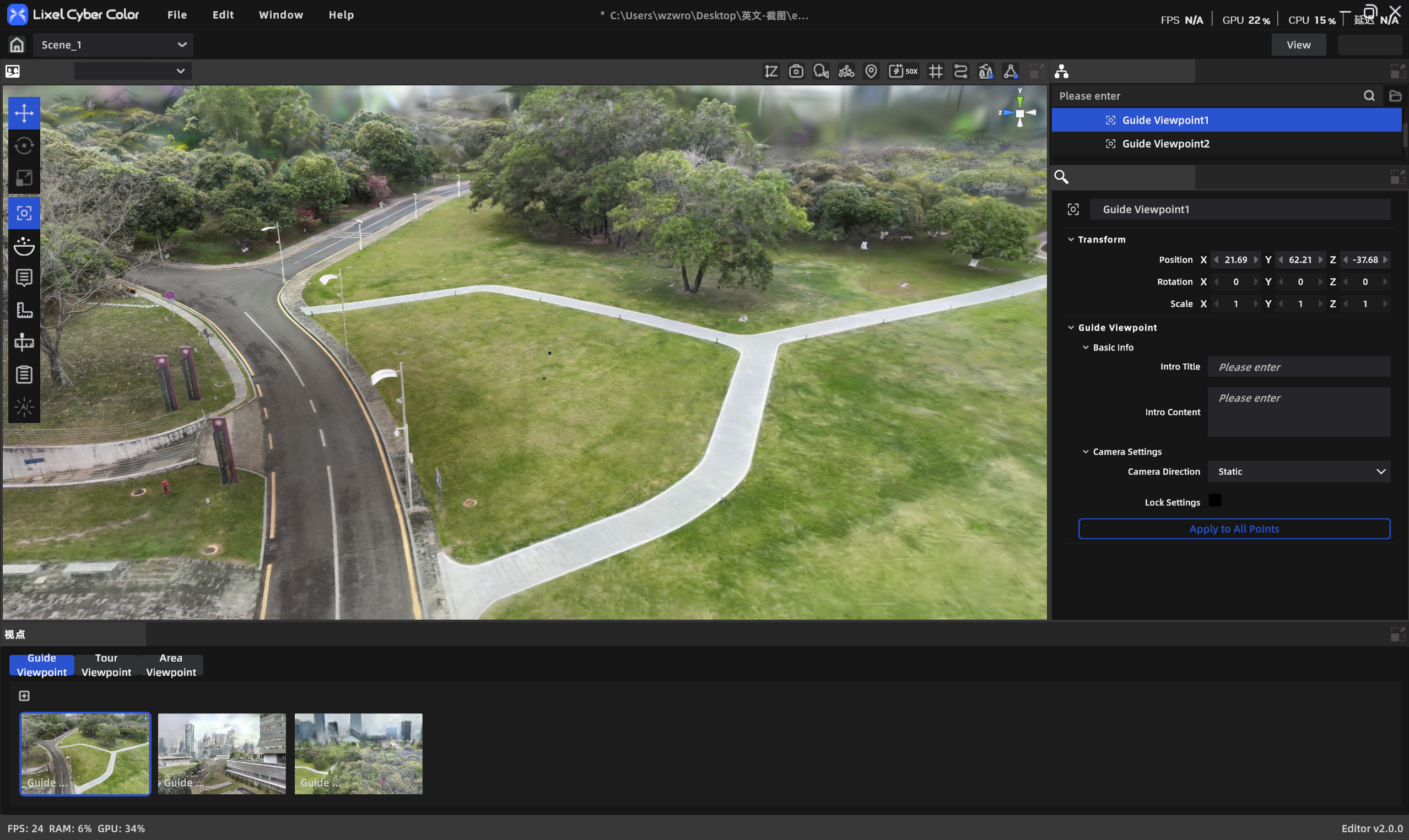
Guided Tour
Create a Tour Point
- Switch to the Guided Tour tab.
- Move the camera to the target position and orientation.
- Click Add Point.
- Set parameters in the properties panel.
Tour Point Properties
| Property | Description |
|---|---|
| Point name | Required, ≤50 characters |
| Title | Optional, ≤50 characters |
| Description | Optional, ≤300 characters |
| Camera motion | Static (default) / Left to right / Right to left |
| Motion angle | 0°–360° |
| Position | x, y, z |
| Lock point | When locked, unaffected by "Apply settings to all tour points" |
- Click "Apply this point's settings to all tour points" to apply the current settings to other unlocked points.
Guided Tour in Preview Mode
- Marker points in space indicate tour viewpoints.
- Hover to show the title.
- Click to move the camera to that viewpoint.
Flythrough Path
Draw a continuous tour path to generate an automatic flythrough animation.
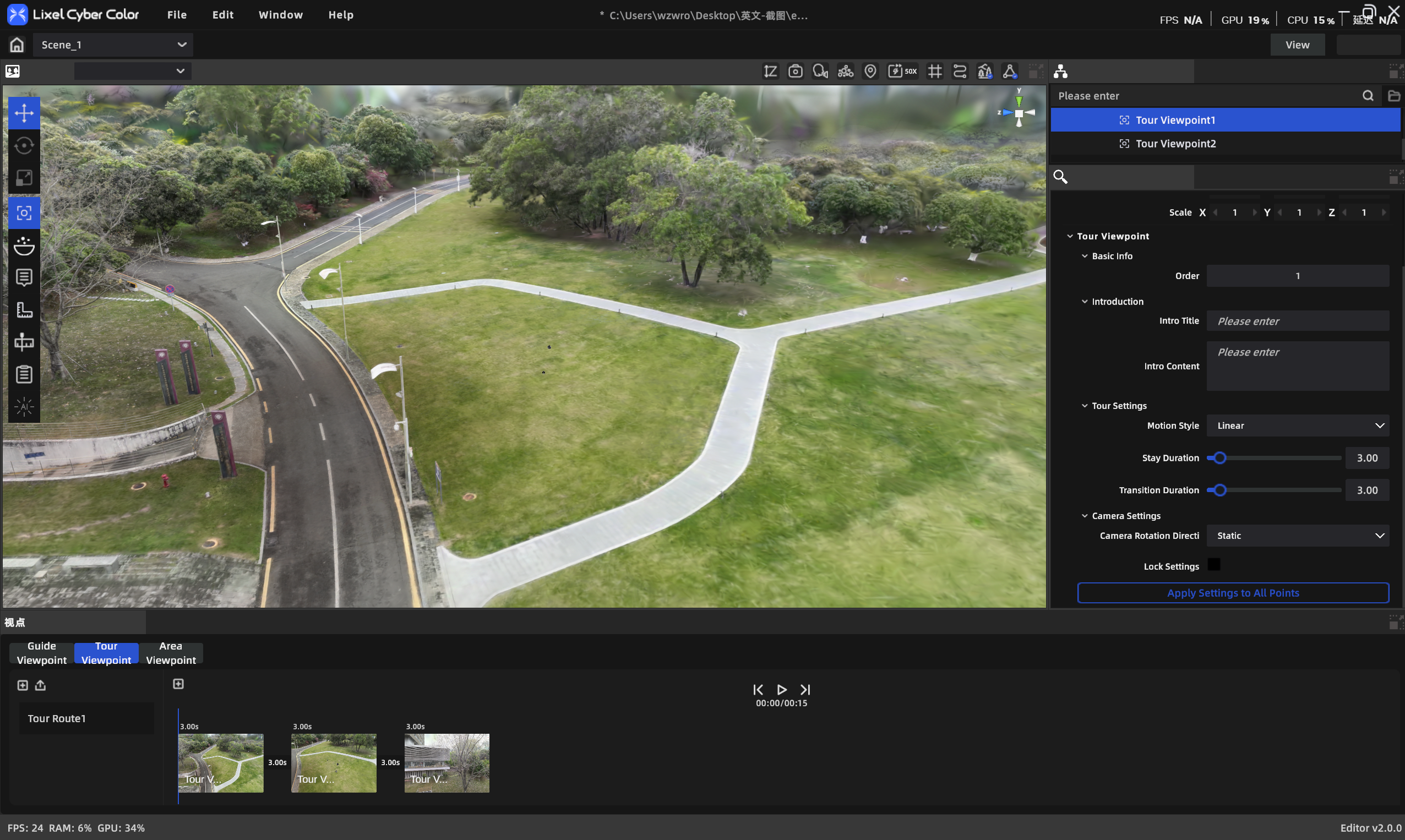
Flythrough Path
Route Management
- A vertical list shows all flythrough routes.
- Click New Route at the top to create one (up to 10 routes).
- Hover a route to delete it (confirmation required).
Route Properties
With a route selected, the properties panel shows:
| Property | Description |
|---|---|
| Route name | ≤50 characters |
Draw a Flythrough Path
- Select a route.
- Adjust the camera to the desired position and orientation.
- Click Add Point to save the current view as a path point (a thumbnail is captured automatically).
- Repeat steps 2–3 to add more points.
- New points are added to the end of the route, with a smooth connection to the previous point.
Point List
- A horizontally scrolling thumbnail list appears at the bottom of the sidebar.
- Click a thumbnail: the camera flies to that point's view.
- Press and drag: reorder points.
- Hover: a delete button appears at the top right.
Flythrough Point Properties
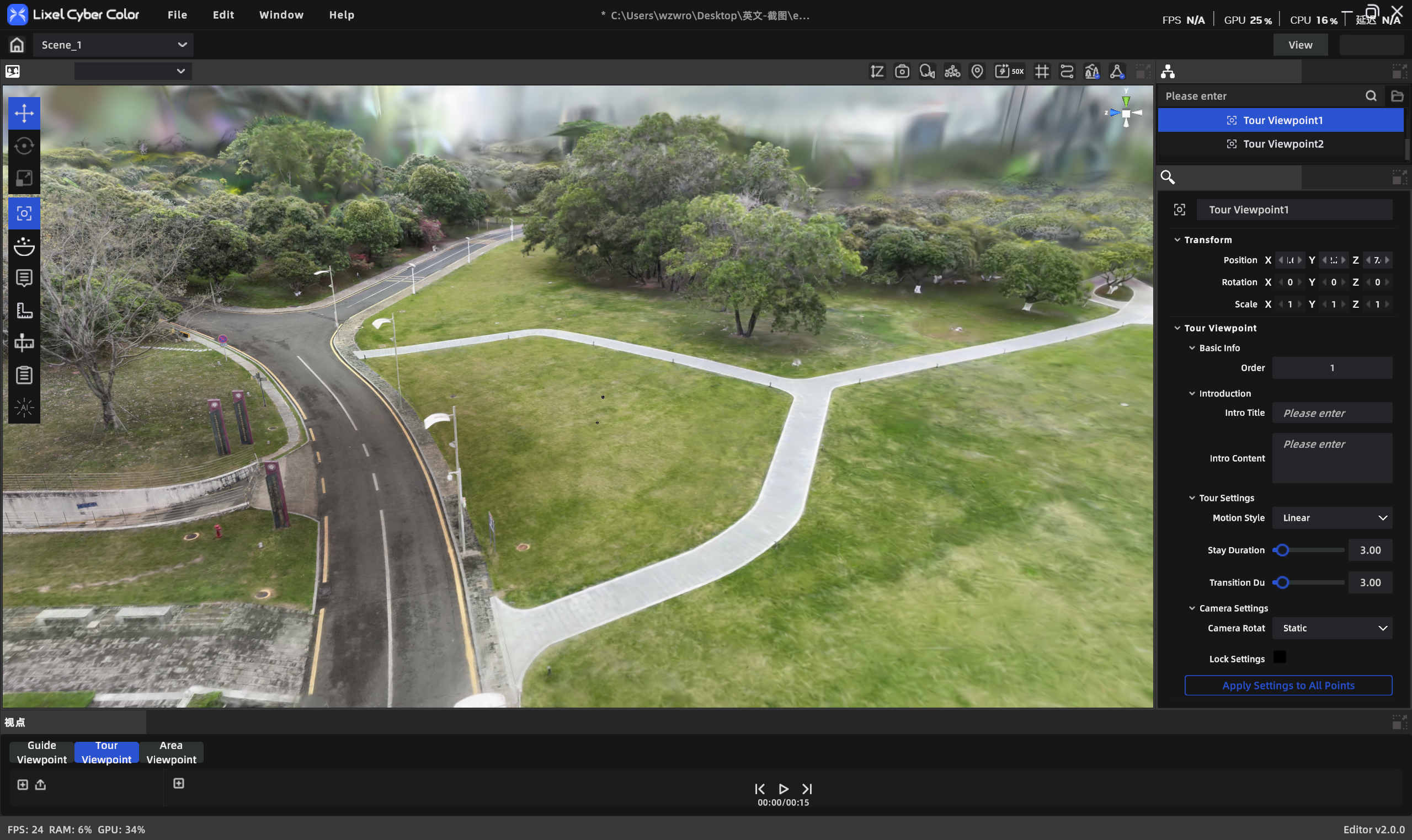
Flythrough point properties
| Category | Property | Description |
|---|---|---|
| Basic | Point name | ≤50 characters, required |
| Caption | Title | Optional, ≤50 characters |
| Caption | Description | Optional, ≤300 characters |
| Flythrough | Dwell time | Seconds, min 0.1, default 3 |
| Flythrough | Transition time | Time to transition to the next stop |
| Flythrough | Transition type | Linear (smooth move) / Jump (instant cut) |
| Camera | Camera motion | Static / Left to right / Right to left |
| Camera | Motion angle | 0°–360° |
| — | Lock point | When locked, unaffected by batch apply |
Timeline
The timeline at the bottom of the editor visualizes and edits the flythrough path's timing.
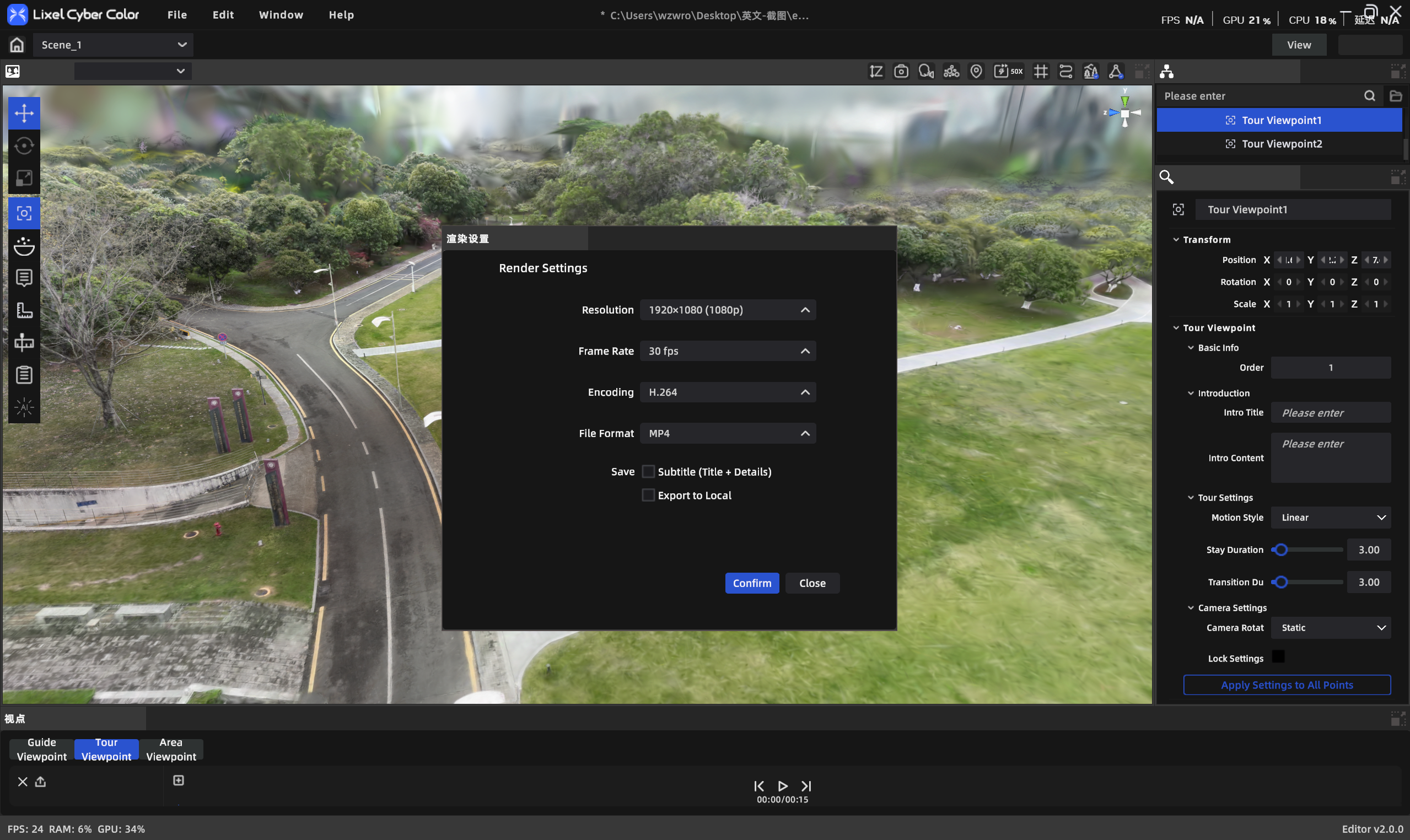
Timeline
Playback controls:
- Play / Pause / Stop
- Total duration label
Render Video
With a route selected, export the flythrough path as a video file.
| Parameter | Options |
|---|---|
| Resolution | 1080p / 2K / 4K |
| Frame rate | 30 / 60 FPS |
| Format | MP4 |
| Codec | H.264 / H.265 |
| Save to | Local folder / render queue |
| Mode | Gaussian / Point cloud |
Note: The render button is grayed out when a route has no points.
Flythrough in Preview Mode
- The flythrough path plays automatically on entering preview mode (if present).
- Pause: click Pause.
- Resume: after pausing, click Play to continue from the nearest point.
- Loop: after the last viewpoint, playback restarts from the beginning.
Note: Flythrough playback and annotation are mutually exclusive. Annotation functions turn off during playback.
Area View
Records a positioned view with a sightline range; can serve as a screenshot source for scene reports.
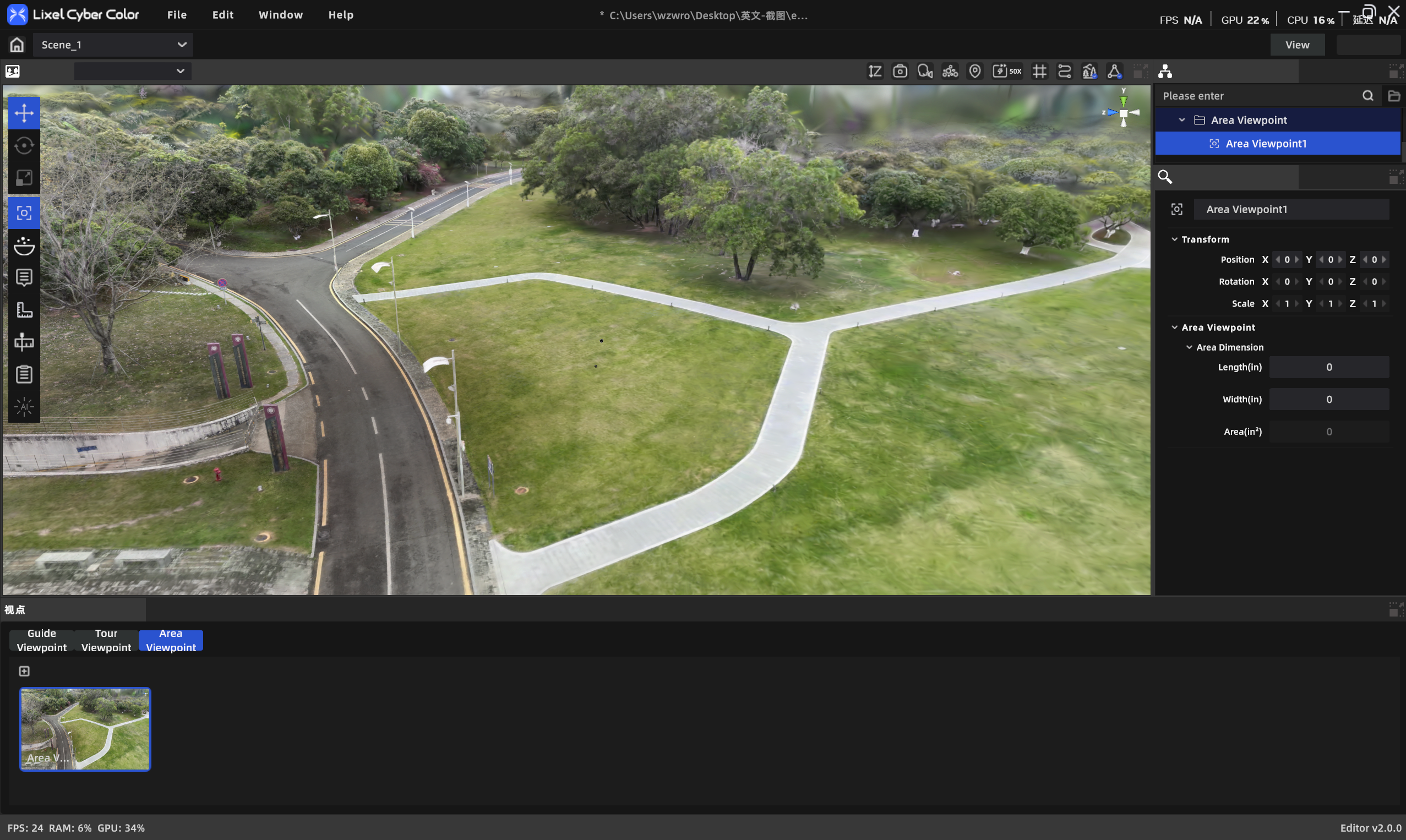
Area View
Area View Properties
| Property | Description |
|---|---|
| Title | ≤50 characters |
| Position | x, y, z |
| Area length/width | Numeric stepper |
| Area | Read-only, auto-calculated |