
Assets and Properties
Asset List
The asset list, on the right, manages all objects and data in the current scene (models, annotations, viewpoints, measurements, etc.).
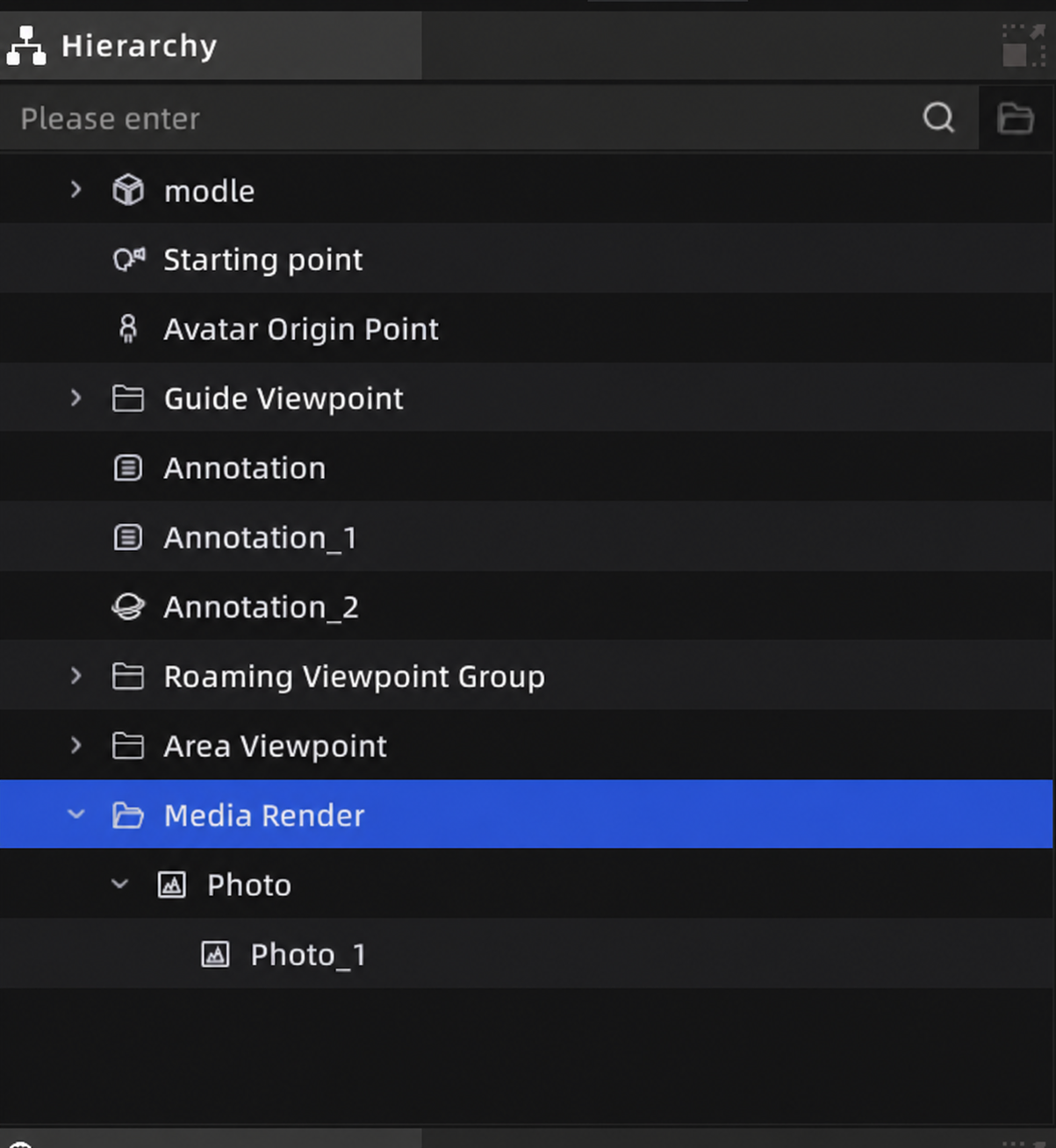
Asset list
Select Assets
- Click: select an asset; the properties panel switches to it
- Ctrl + click: multi-select individually
- Shift + click: range-select in sequence
- Double-click: locate the asset (3D view jumps to it)
- Click empty space: deselect
Note: Selecting an asset highlights it in the 3D view and shows the gizmo handles.
Add Assets
Assets are added to the list automatically when you create them in the scene.
Delete Assets
Select an asset and press Delete, or right-click → Delete. The asset list and 3D view update together.
Non-deletable assets:
- Colliders (cannot be deleted on their own; follow the model)
- Origin Point, Avatar Origin Point
Note: Deletion supports undo (Ctrl + Z).
Show / Hide
Click the eye icon to the left of an asset entry to toggle visibility:
- Hidden state is saved with the project.
Drag to Reorder
Drag an asset entry to reorder it or move it into a folder:
- Same-level drag: drop at the same level; a guide line shows placement
- Child drag: drop under a parent asset to group it there
Non-draggable assets: colliders, environment data, media files under annotations, 3D Layout sub-components, AI recognition data, minimap, multi-floor, Area View, Guided Tour
Note: Nesting cannot exceed 4 levels.
Search
Type a keyword in the search box at the top of the asset list to filter by name. Results show matching assets and their parent path. Hidden assets are searchable too.
Right-Click Menu
Right-click an asset for these actions (options vary by asset type):
| Action | Description |
|---|---|
| Locate | 3D view jumps to the asset |
| Rename | Change the asset's display name |
| Delete | Delete the asset |
| Hide / Show | Toggle visibility |
| Export | Export the asset as a file |
| Copy / Paste | Duplicate (models and 3D Layout components) |
| Create folder | New grouping folder |
| Ungroup | Move folder contents up one level |
| Relink | Reassign the file path when an asset file is missing |
Missing Resources and Relinking
When an asset's file is moved or deleted, its name turns red.
Fix:
- Right-click the missing asset → Relink.
- Select the correct file in the file manager.
- Confirm to restore the link.
Properties Panel
The properties panel, at the lower right, shows the editable parameters of any selected asset.
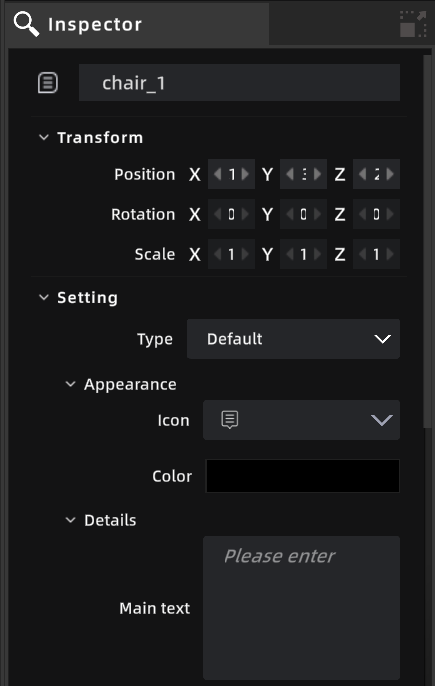
Properties panel