XGRIDSDocs
  • 简体中文
  • English
  • 繁體中文
  • 日本語
  • Deutsch
  • Español
  • Italiano
  • 简体中文
  • English
  • 繁體中文
  • 日本語
  • Deutsch
  • Español
  • Italiano
  • Lixel CyberColor

    • LCC Studio

      • Getting Started
      • Version and Updates
      • Download and Installation
      • Interface Overview and Navigation
      • Pre-Reconstruction Work
      • Model Reconstruction
      • Single Model Reconstruction
      • Map Fusion
      • Aerial-Ground Map Fusion
      • Aerial Reconstruction
      • My Models
      • Other Features
      • Settings and Account
      • Video Reconstruction
    • LCC Scene Editor

      • Version and Updates
      • Account and Sign-In
      • Product Overview and Home
      • Editor Interface
      • Navigation Modes
      • File
      • Settings
      • Edit
      • Window
      • Global Toolbar
      • Assets and Properties
      • Left Toolbar
      • Viewpoint
      • Skybox
      • Annotation
      • Measure
      • Flythrough
      • Scene Report
      • 3D Layout
      • Preview Mode (Viewer)
      • Help
      • FAQ
    • LCC Model Editor

      • Overview and Interface
      • File Operations
      • Selectors
      • Editing Models
      • Measurement
      • Color Grading
      • Asset Management
      • Settings and Help
    • Version History

Scene Report

Scene Report organizes the project's 3D Layout and Guided Tour content into a template and generates a viewable, publishable report.

  • Export locally as JPEG or PDF.
  • Optionally include viewpoint and measurement data.
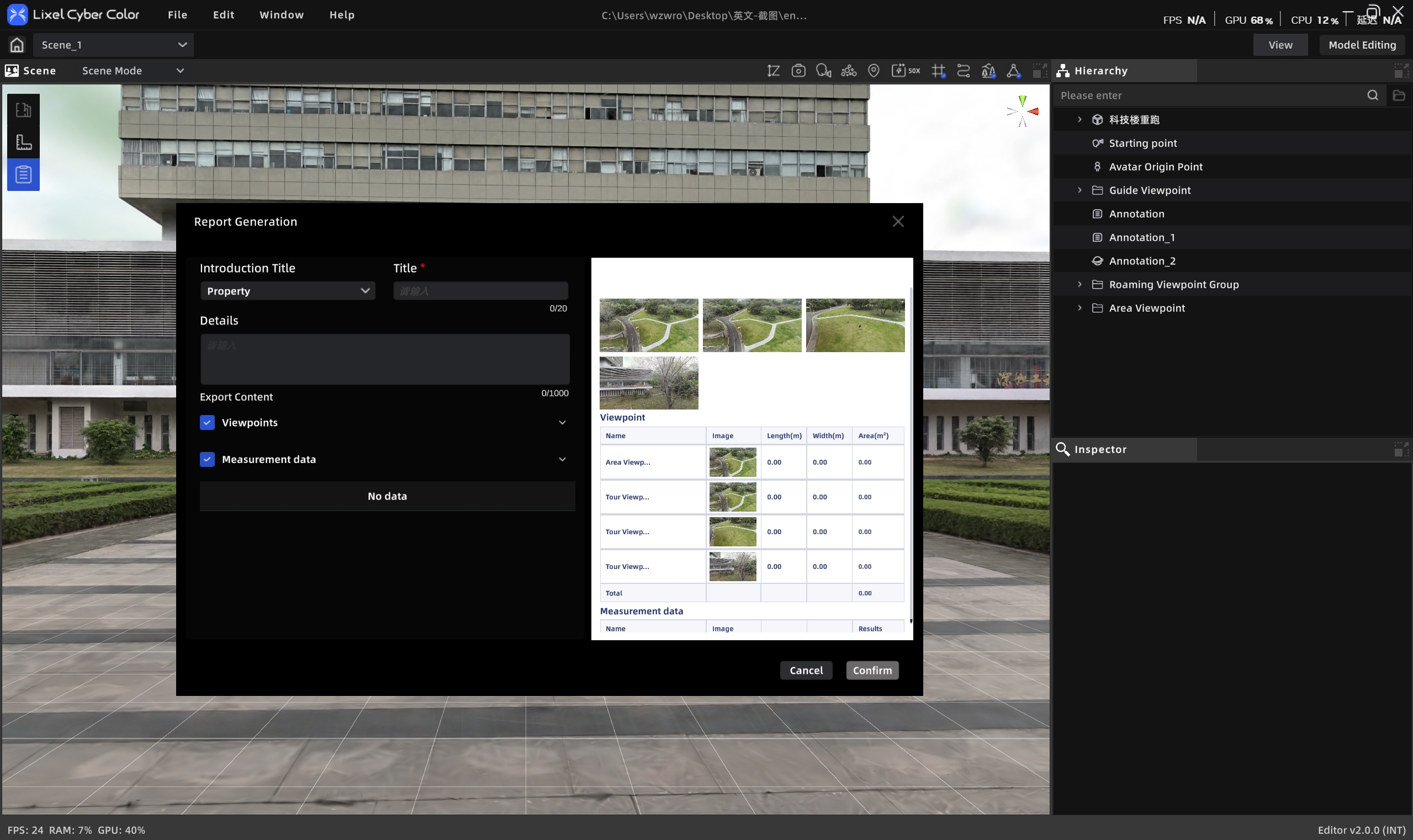
Scene report

Scene report

Workflow

Create a Scene Report

  1. Click Scene Report to open the report editing panel.
  2. Title (required, ≤50 characters).
  3. Details (≤1000 characters).
  4. Check 3D Layout (if present).
  5. Optionally select viewpoint or measurement data.
  6. Click Confirm to create.

Manage Scene Reports

  • View and edit: click the scene report entry in the asset list; preview and edit in the properties panel.
  • Export: export from the properties panel as JPEG or PDF.
  • Delete: select the report entry in the asset list, press Delete or right-click → Delete.
  • Update after publishing: after editing a report on a published project, use Update to sync the latest report to preview mode.
Prev
Flythrough
Next
3D Layout