
Pre-Reconstruction Work
Data Capture
Before using LCC Studio for 3D spatial reconstruction, you must first use an XGRIDS device to perform a comprehensive spatial scan.
Warning
Since LCC Studio features Map Fusion and Aerial-Ground Map Fusion capabilities, data capture has specific requirements. Strictly follow the capture guide during scanning to ensure data compliance. RTK data capture has additional details to note for scan data quality and applicability. Refer to the relevant capture guide and quick start guide for more detailed guidance.
- 📖 Capture Guide: LCC Capture Guide (PDF)
- 🎬 LCC Quick Start Guide Video: https://xgrids.com/intl/support/tutorials?page=LCCStudio
LCC Data with Absolute Coordinate Information: LCC files generated from data captured with RTK devices now support absolute coordinate information, with default support for CGCS2000 and WGS84 coordinate systems. You can apply these files to geographic information platforms (such as Cesium) for 3D visualization. Developers can log in to the XGRIDS Developer Platform to access Web SDK developer documentation for detailed operational procedures and integration guidance.
- 🔗 XGRIDS Developer Platform: https://developer.xgrids.com/
Upload Capture Data
Click "Create" to enter the data reconstruction page. Based on your reconstruction needs, you can select Single Model, Map Fusion, Aerial-Ground Map Fusion, Aerial Reconstruction, and other reconstruction types. After selection, follow the interface workflow to upload capture data.
Supports uploading capture data from local storage, as well as external USB mode for directly reading raw capture files.
Warning
USB mode for uploading capture data only supports reading data from local storage devices (including internal hard drives, SSDs, USB drives, and mobile storage devices connected via USB); reading from network storage (such as OneDrive, NAS, etc.) is not supported.
Tip
Before starting data reconstruction with LCC Studio, it is recommended that you first set the project storage path and capture data backup path. Separate the LCC data storage location from the software installation directory. Set the storage path on a solid-state drive (SSD) to significantly improve data generation and processing efficiency.
- Set LCC project path: Settings - General - Project Path - Select Directory
- Set capture data backup path: Settings - General - Capture Data Backup Path - Select Directory
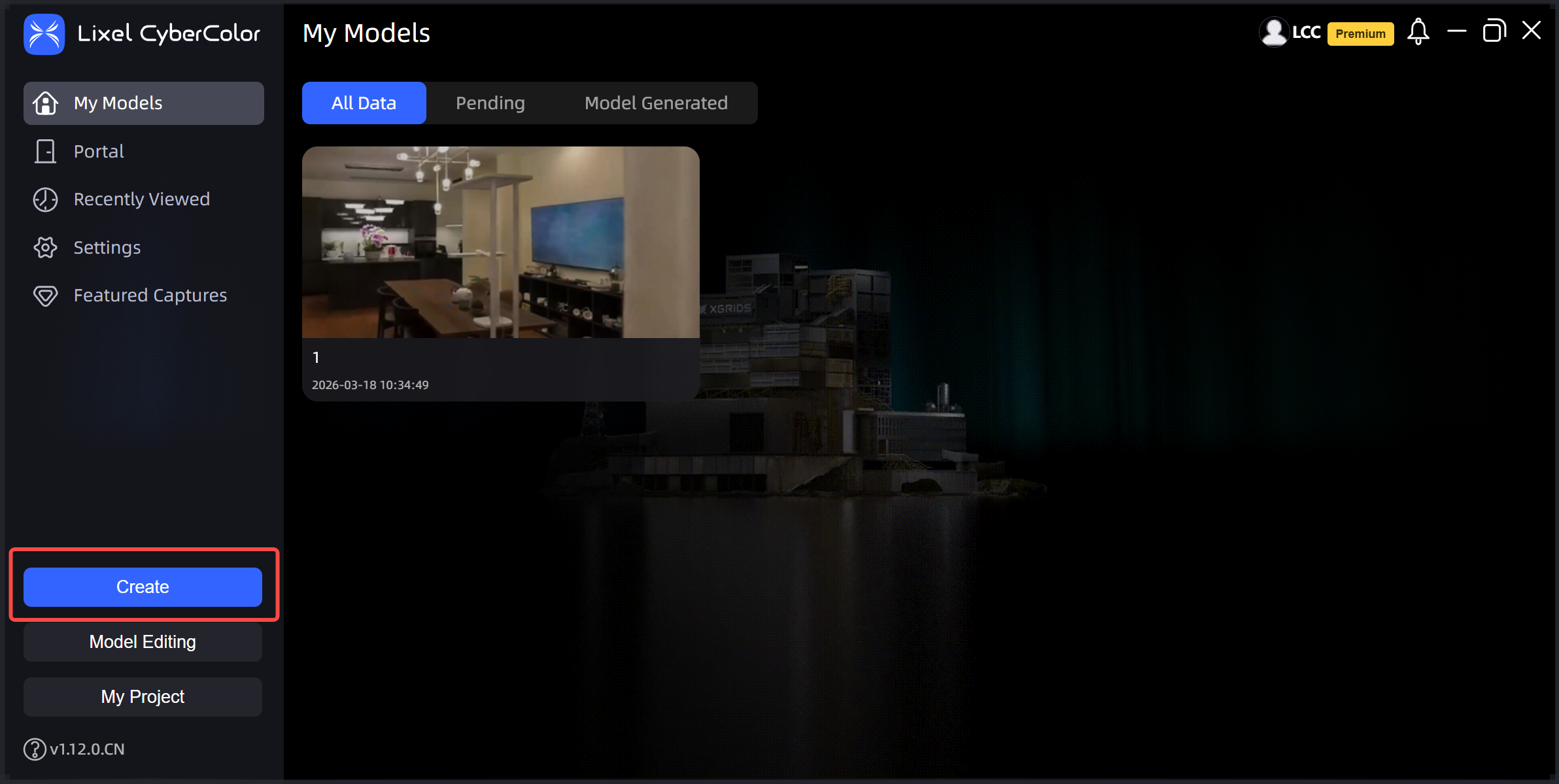
Create
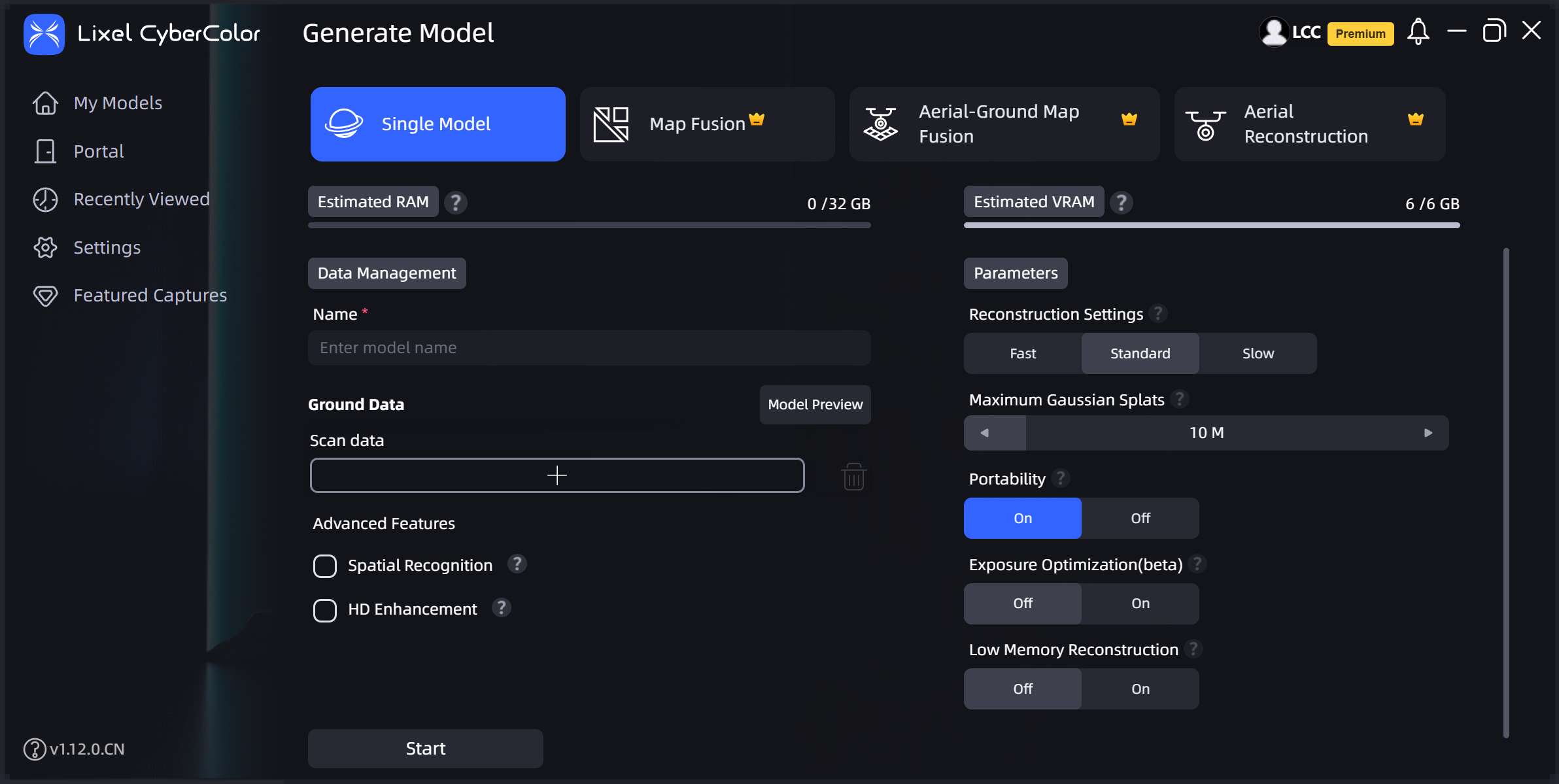
Reconstruction type selection
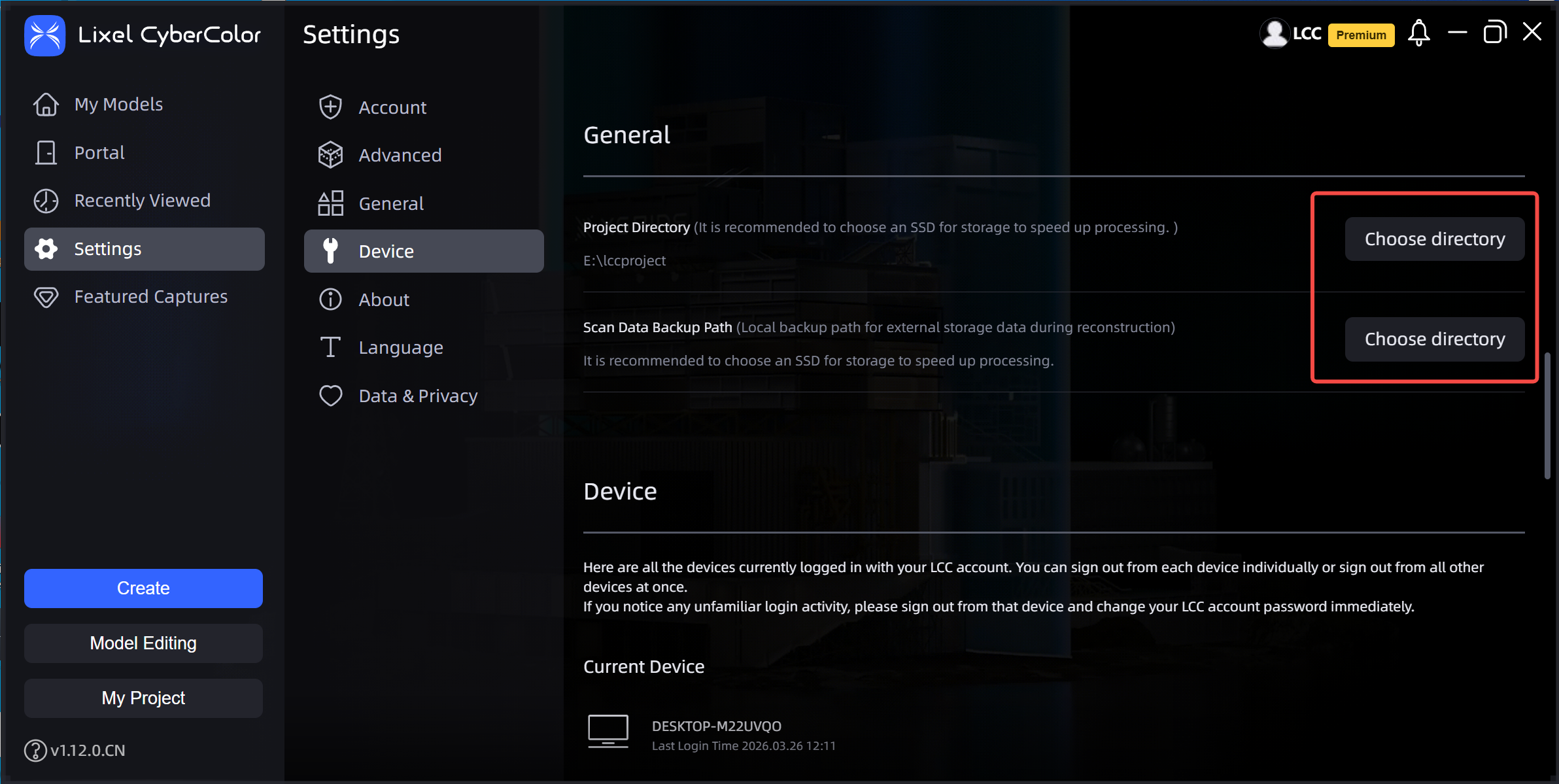
Set LCC project path
Automatic Device File Reading
In addition to the above methods for uploading capture data, LCC Studio v1.13.0 introduces automatic device file reading. When you connect an XGRIDS device to your computer via USB, LCC Studio automatically detects and reads project information, simplifying the data import.
Workflow
- Connect the XGRIDS device to your computer via USB.
- Once the device is detected, a notification appears in the lower right corner. Click it to open the device dialog.
- In the device dialog, you can view the following information:
- Device model and SN number
- List of importable projects (including project name, file size, capture date)
- Previously imported projects will be displayed in gray and cannot be re-imported
- Select the reconstruction method.
Warning
Automatic device file reading currently only supports quick import and reconstruction for single scenes.
- Set the file storage path (defaults to the capture data backup path).
- Click "Reconstruct Now" — the project will directly enter the reconstruction queue.
Disable Auto-Detection
The auto-detection feature is enabled by default. If you do not need auto-detection, you can disable it in Settings:
- Go to Settings - General.
- Find the "Device" option.
- Click to disable the auto-detect device feature.