
Single Model Reconstruction
Workflow
Upload Capture Data
- Capture Data: Upload data files captured by XGRIDS scanner devices. The interface displays the corresponding device type.
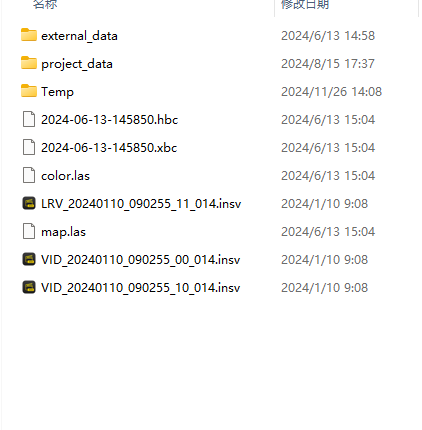
Capture data
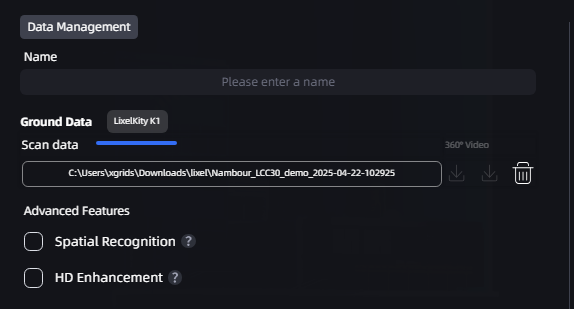
Device type display
Set Model Name and Parameters
- Low-Memory Mode: When device memory is insufficient, enable Low-Memory Mode. This writes some intermediate data to disk instead of keeping it in memory, reducing peak memory usage. This mode may extend reconstruction time but improves operational stability and reduces failures caused by insufficient memory.
Note: The Low-Memory Mode option only appears in Single Model reconstruction mode.
Advanced Features
Spatial Recognition
When reconstructing indoor environments, enable the "Spatial Recognition" feature. LCC Studio automatically identifies indoor structures such as walls, doors, and windows and organizes them into a clear intelligent floor plan — useful for understanding room layouts and suitable for indoor spatial analysis, renovation planning, or BIM modeling preparation.
HD Enhancement
During scanning, some key areas (such as landmark buildings, machinery, decorative details, etc.) may require higher detail and texture quality. In such cases, use the HD Enhancement feature by taking additional photos of these areas with high-definition devices such as smartphones or DSLR cameras. These high-definition photos can be combined with the original scan data to enhance detail and texture quality in key areas, making the reconstructed model clearer.
Notes:
- Device performance: HD Enhancement and Spatial Recognition have certain requirements for computer performance — GPU VRAM must be greater than 8GB for normal operation. Insufficient GPU VRAM will prevent these features from functioning.
- HD Enhancement photos: All supplementary photos must be taken with the same device, otherwise recognition may be affected or fail. Supported image formats include JPG, PNG, JPEG.
- Supported photo count:
- Lixel L series: 20–500 photos
- PortalCam: 20–1000 photos with HD Enhancement control points; 20–500 photos without control points
K2 Device Notes
K2 devices support the following reconstruction types:
| Reconstruction Type | Support | Notes |
|---|---|---|
| Single-Scene Reconstruction | ✅ Supported | Maximum single-scene capture duration 90 minutes |
| Map Fusion | ✅ Supported | Fusion and stitching across multiple K2 single-scene models |
| Aerial-Ground Map Fusion | ✅ Supported | Joint reconstruction from ground scan + drone aerial imagery + takeoff/landing point photos |
| Aerial Reconstruction | Coming soon | Enabled in a future version |
| Spatial Recognition | Coming soon | Enabled in a future version |
| HD Enhancement | Coming soon | Enabled in a future version |
Note:
- K2 Map Fusion supports up to 10 sub-scenes per run.
- K2 Aerial-Ground Map Fusion requires ground scan data, drone imagery, and takeoff/landing point photos together; reconstruction cannot start if any one is missing.
- Aerial Reconstruction, Spatial Recognition, and HD Enhancement will be enabled in future versions and currently appear grayed out.
Reconstruction Progress Display
After reconstruction begins, the model card in the My Models list shows reconstruction progress in real time:
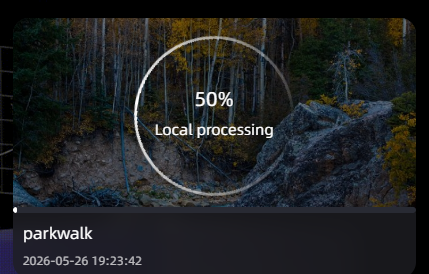
Reconstructing model card (overall ring progress + stage progress bar)
- Overall progress (ring): Shows overall reconstruction progress from 0% to 100%; progress only increases.
- Stage progress bar: The bottom of the card shows detailed progress for the current stage.
- Status text: Shows the current state, such as "Reconstructing locally", "Paused", or "Queued".
After reconstruction completes, the card switches to the model thumbnail.
Note: To pause during reconstruction, click the pause button; the progress ring grays out and shows a "Paused" label. Resuming continues from the breakpoint.