
Preview Mode (Viewer)
Preview mode browses an open LCC scene. It supports basic navigation, viewpoints, and scene reports, and provides distance and area measurement.
Interface Overview
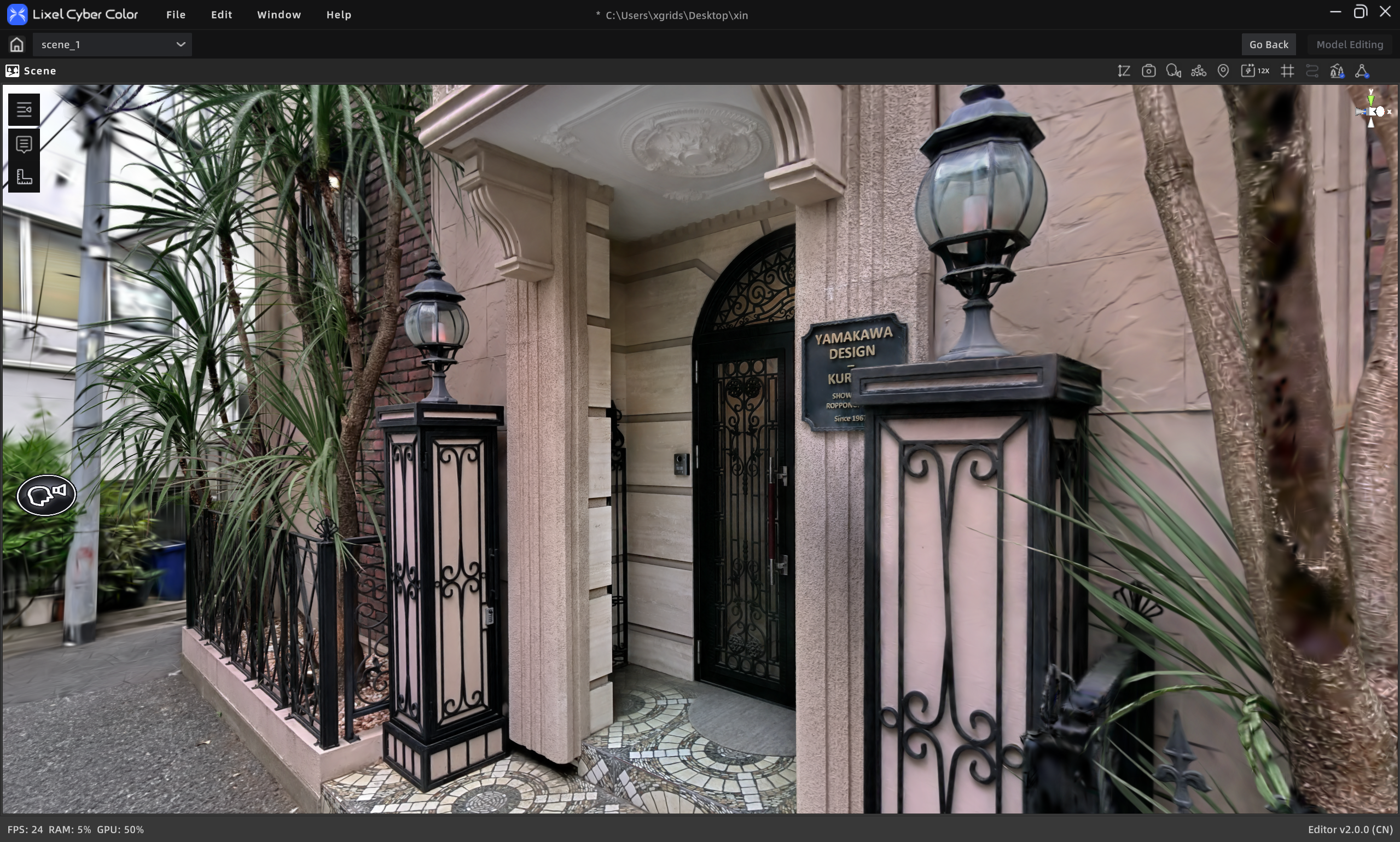
Preview mode interface
View Toolbar
| # | Button | Description |
|---|---|---|
| 1 | Height Filter | Toggle Z-axis height filter |
| 2 | Screenshot | Capture the current view |
| 3 | Switch View | First-Person / Pivot / Avatar |
| 4 | Point Cloud | Toggle point cloud / Gaussian rendering |
| 5 | Origin Point | Reset the camera to the start position |
| 6 | Camera Speed | Adjust camera movement speed |
| 7 | Grid | Show/hide grid |
| 8 | Capture Trajectory | Show/hide capture trajectory |
| 9 | Environment Data | Toggle environment data |
| 10 | Collider | Toggle collider |
Professional Toolbar
| # | Button | Description |
|---|---|---|
| 1 | Viewpoint | View/jump to tour viewpoints |
| 2 | Annotation List | View/jump to annotations |
| 3 | Measure | Temporary measurement (not saved) |
| 4 | Scene Report | Open scene report (hidden when none exists) |
View Toolbar Details
Height Filter
Control model visibility by Z-axis height.
- Click Height Filter to enter.
- Drag the top/bottom sliders to adjust.
- Click again to exit (the current height state is remembered).
Screenshot
Capture the current view as an image file.
Switch View
Three navigation modes:
- First-Person: walk freely in first person
- Pivot: orbit around a target point
- Avatar: browse as a virtual character
Point Cloud
Switch the model view to point cloud to inspect structure, data density, or scan precision. You can still move and observe in all modes.
Origin Point
Reset the camera near the scanner's initial position at capture time.
Camera Speed
Adjust camera movement speed, for navigation and pivot modes.
Adjust:
- Slider: drag to adjust, range 1–100
- Shortcut: Ctrl + scroll wheel
Speed is global and applies across projects.
Grid
Show/hide the scene grid for spatial alignment.
Capture Trajectory
Show/hide the scan trajectory recorded at capture time.
Environment Data
Toggle environment data display.
Collider
Toggle the collider. When on, the camera collides with scene colliders during navigation, simulating real movement.
Professional Toolbar Details
Viewpoint
Open the viewpoint tool, click [Tour], then click the thumbnail under [Tour] to quickly navigate to that viewpoint. Click to switch to the preset angle and reach the corresponding position.
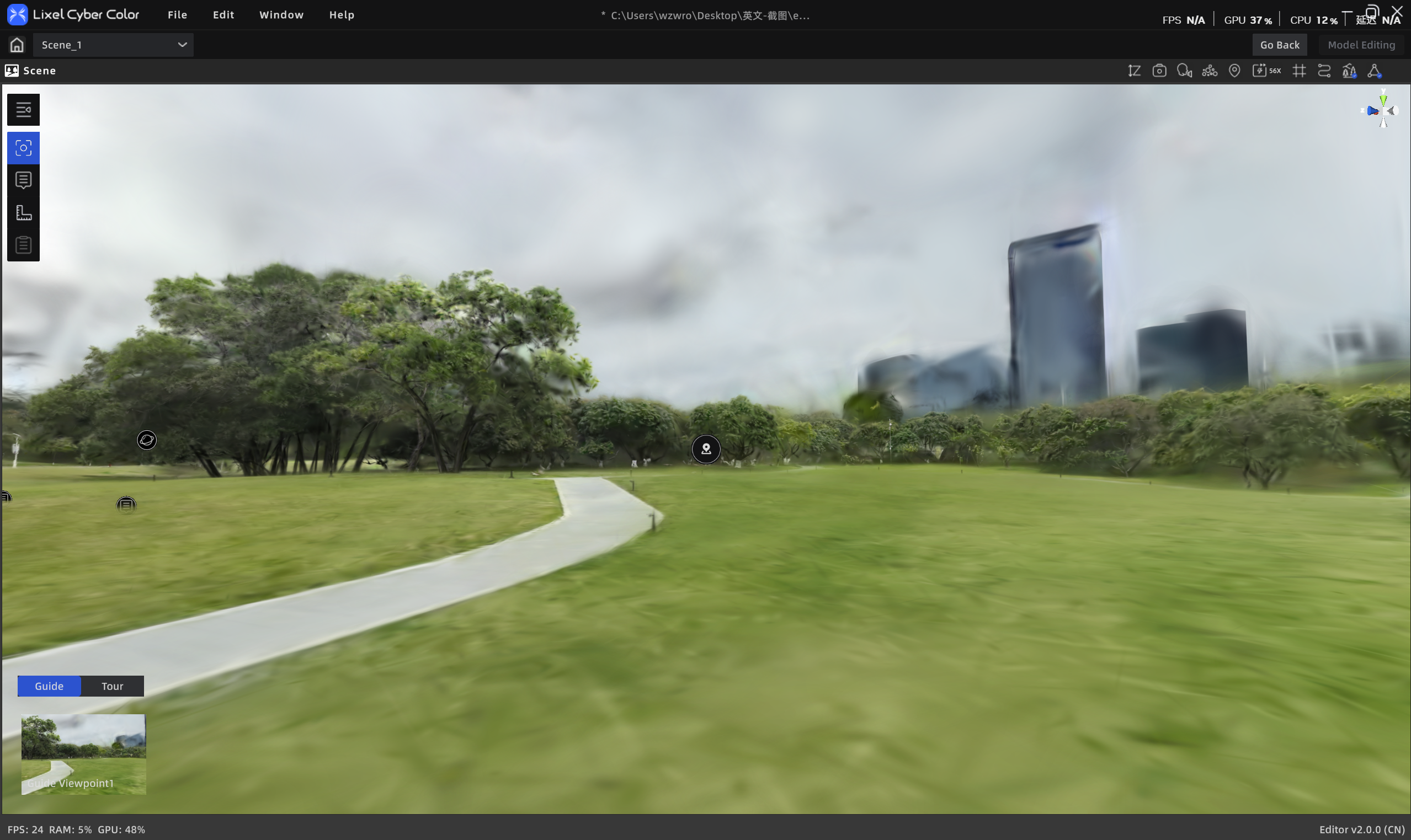
Tour viewpoints
A flythrough route consists of multiple flythrough viewpoints set by the editor, in order, for automatic browsing of key areas.
Annotation List
View annotation content (photos/videos/links/text) in the scene.
- Click Annotation in the toolbar to open the list.
- Hover over an in-scene annotation for brief info.
- Click an annotation for details.
- Show/hide individual annotations.
Measure
View measurement data.
Scene Report
Scene Report displays the project's generated reports: 3D Layout, viewpoints (screenshots and dimension/area info), and more. The button is hidden when no report exists.