
Editor Interface
Panels can be dragged, docked, and floated. Adjust the layout to your workflow.
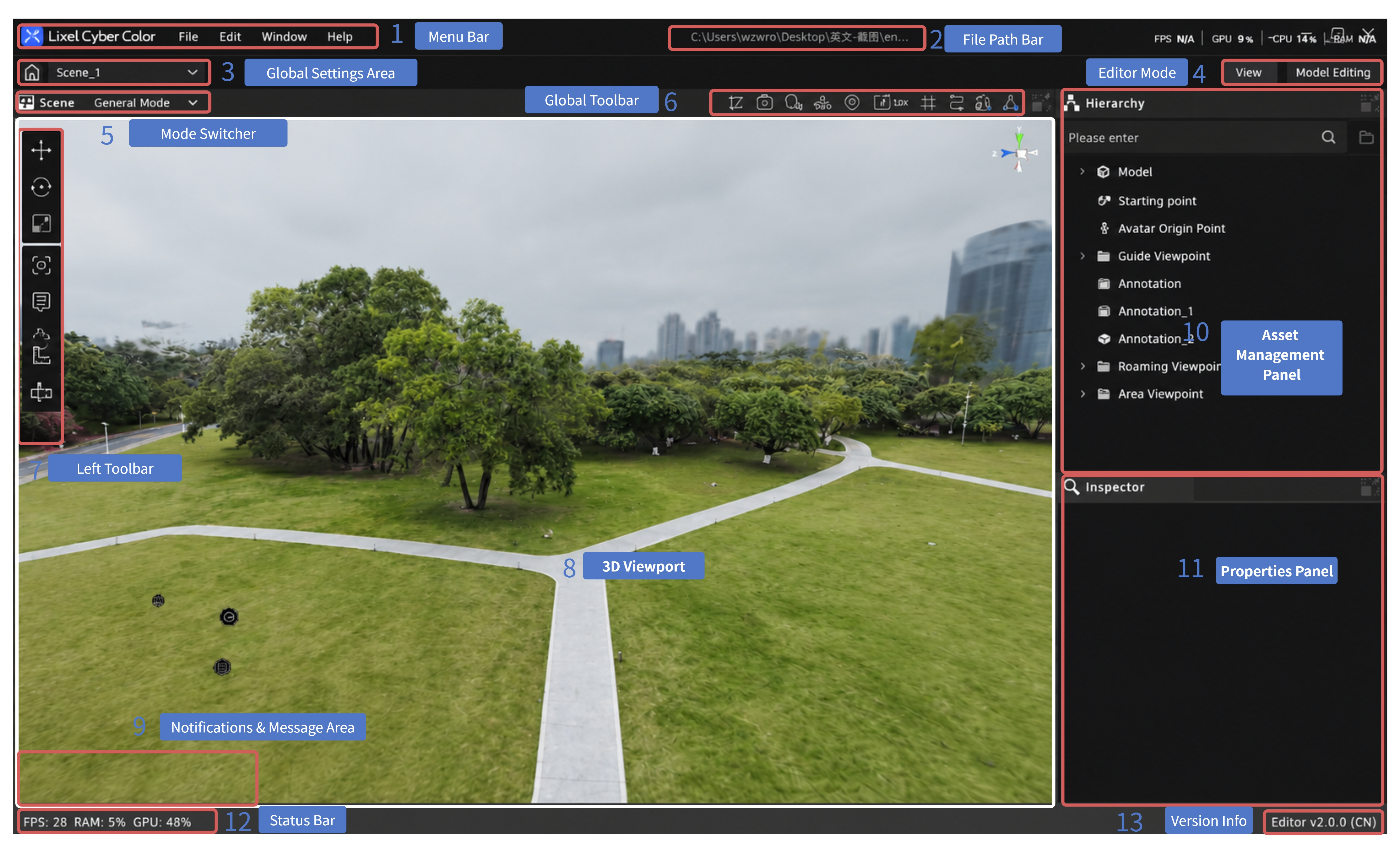
LCC Scene Editor interface layout
Default layout:
- Menu Bar: File, Edit, Window, Help
- File Path Bar: show/copy the file location
- Global Settings Area: return to home, switch scenes
- Editor Mode: switch between Model Editor and Preview
- Mode Switcher: switch between General Mode, Scene Mode, and others; the toolbar differs by mode
- Global Toolbar: global shortcuts
- Left Toolbar: editing tools
- 3D Viewport: scene editing and preview
- Asset Management Panel: manage assets in the current project
- Properties Panel: edit parameters of the selected asset
- Message Area: operation messages and notifications
- Status Bar: version, frame rate, memory usage, etc.
- Version Info: version number and region
Global Settings Area
Top toolbar, left side. Provides scene-level shortcuts.
| Action | Description |
|---|---|
| Click the home icon | Return to home (project list) |
| Scene dropdown | Switch between scenes in the current project |
Editor Mode
Right of the secondary menu bar. Switches the Editor's working mode.
| Mode | Description |
|---|---|
| Preview | Preview the final result end users see after publishing |
| Model Editor | Enter fine editing of a single model: point-cloud-level operations like selection, color grading, and cropping |
Mode Switcher
Above the left toolbar. Switches the current working mode. The left toolbar shows different tools per mode.
| Mode | Description |
|---|---|
| General Mode | Default. Transform tools (Move / Rotate / Scale) and common tools (Viewpoint, Skybox, Annotate, Measure, Flythrough, Scene Report) |
| Scene Mode | Tools for scene structure (3D Layout, Measure), for spatial analysis and floor-plan plotting |
Switch method: click the mode-switch button at the top of the left toolbar.
Note: Later versions may add more modes here.