
Global Toolbar
The Global Toolbar sits at the top right of the 3D Viewport, with shortcuts for scene display and common functions.
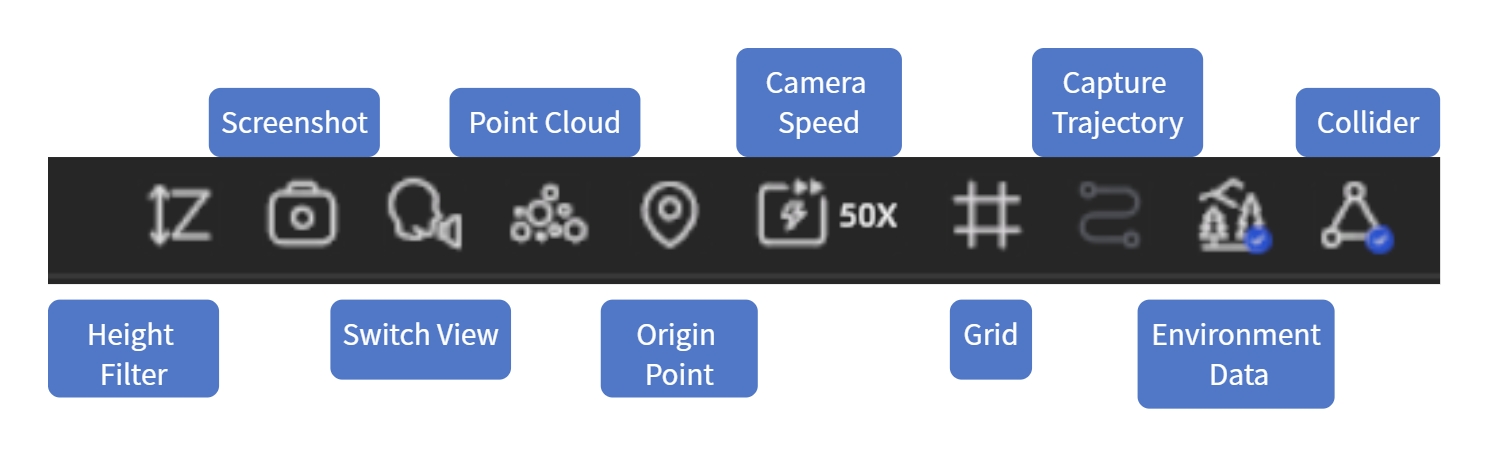
Global Toolbar
Collider
When on, walking through the scene simulates real movement: walls, floors, and other objects block you. When off, you pass through everything freely.
Environment Data
Show or hide the model's built-in lighting information. When on, the scene shows more realistic lighting.
Note: Only one model's environment data can be active per scene. Enabling Skybox turns environment data off automatically.
Capture Trajectory
Show or hide the scanning device's capture path to see which areas were covered.
Grid
Show a reference grid at the model base to gauge position and scale.
Camera Speed
Adjust movement speed in the scene. Increase it for large scenes; decrease it for close inspection.
Adjust:
- Drag the speed slider (1–100)
- Shortcut: Ctrl + scroll wheel
Note: Speed is saved automatically and persists across projects.
Origin Point
The Origin Point is the start position each time you enter a scene. Click to jump back to it.
Point Cloud
Switch the scene from normal rendering to point-cloud display to inspect data distribution and scan density. Click again to return to normal display.
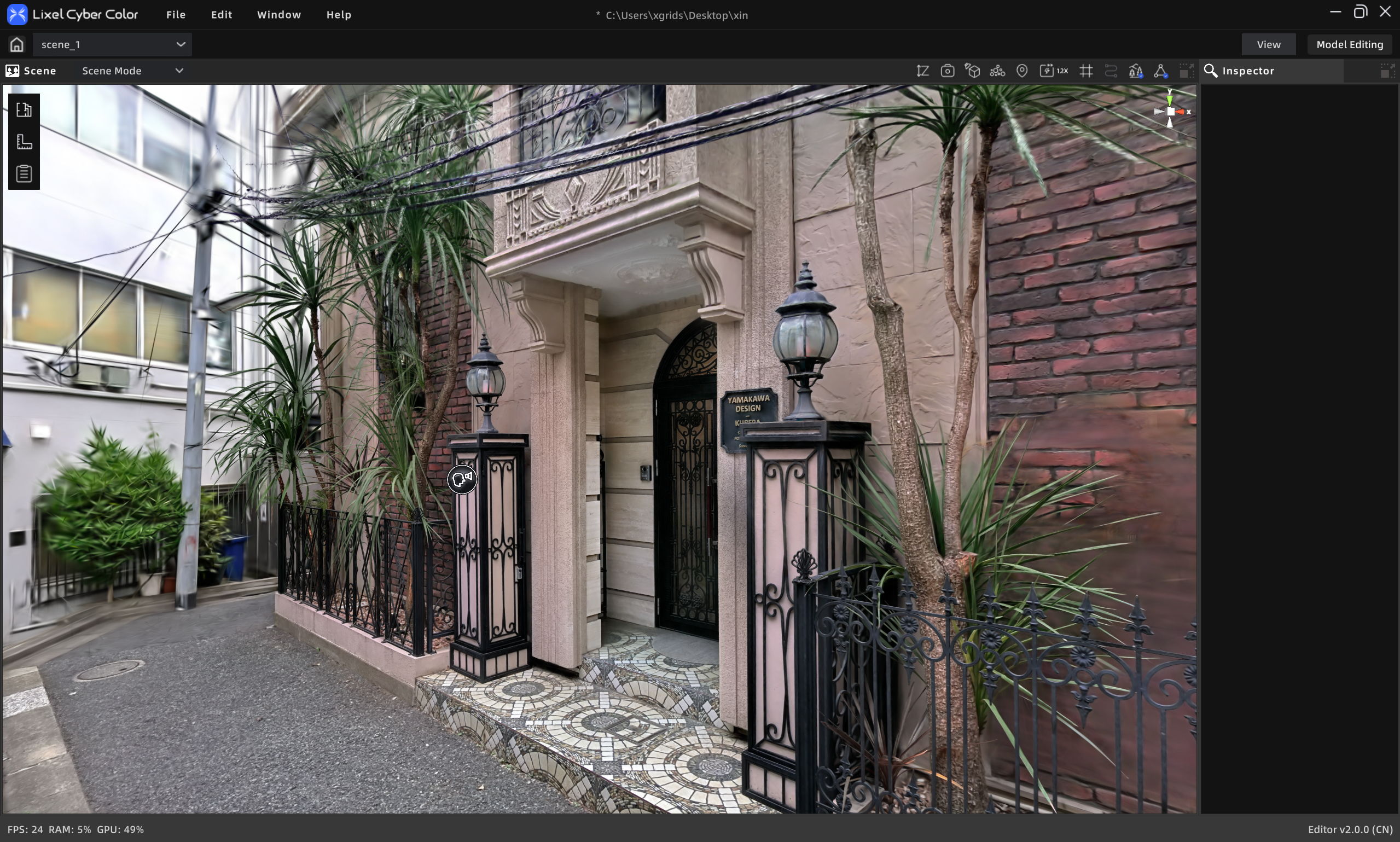
Normal display
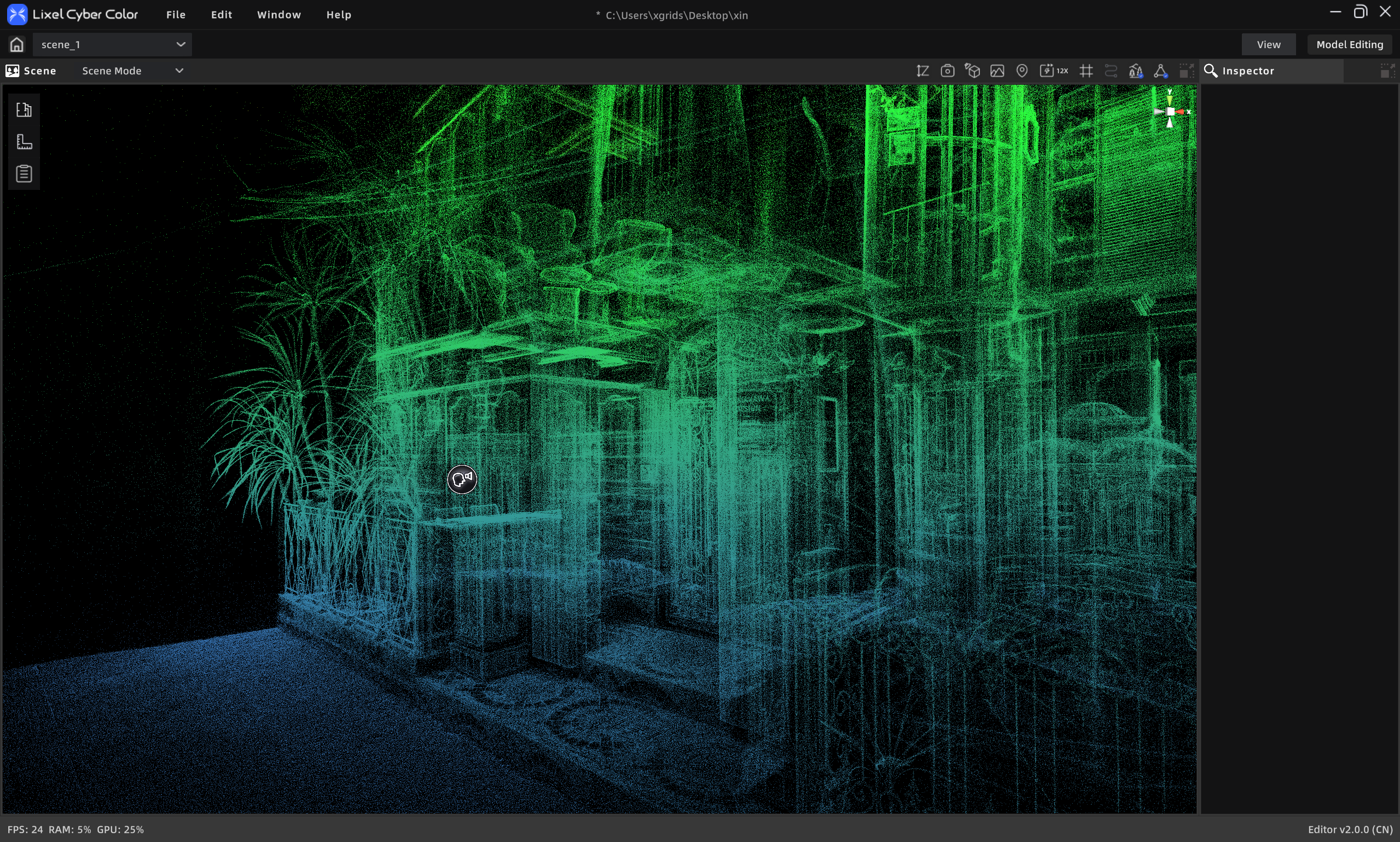
Point cloud display
Switch View
Switch the scene navigation mode:
| Mode | Best for | Controls |
|---|---|---|
| First-Person | Immersive browsing, simulated walking | W A S D to move, mouse to steer |
| Pivot | Inspecting detail around a point | Left-drag rotate, right-drag pan, scroll zoom |
| Avatar | Browsing as a virtual character | Click ground to move, auto-navigate |
Screenshot
Save the current view as an image for reports or sharing.
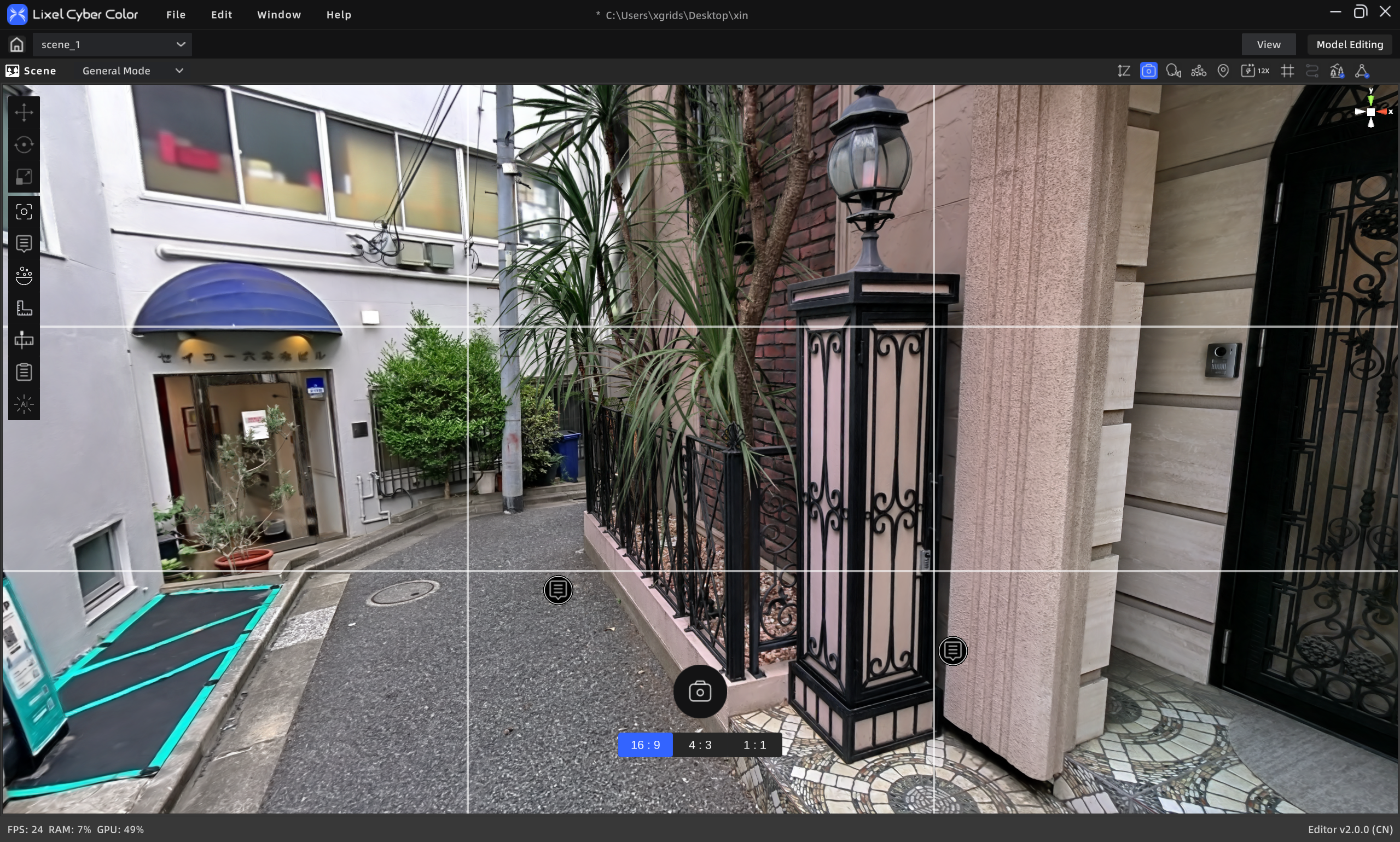
Screenshot tool
Steps:
- Click Screenshot.
- Choose an aspect ratio.
- Adjust the view, then capture.
- The photo saves to the Media folder in the asset list; right-click to export.
Height Filter
Adjust the height range to hide content at certain heights and isolate a floor or area.
Steps:
- Click Height Filter.
- Drag the top/bottom sliders to set the visible height range.
- Click again to exit.
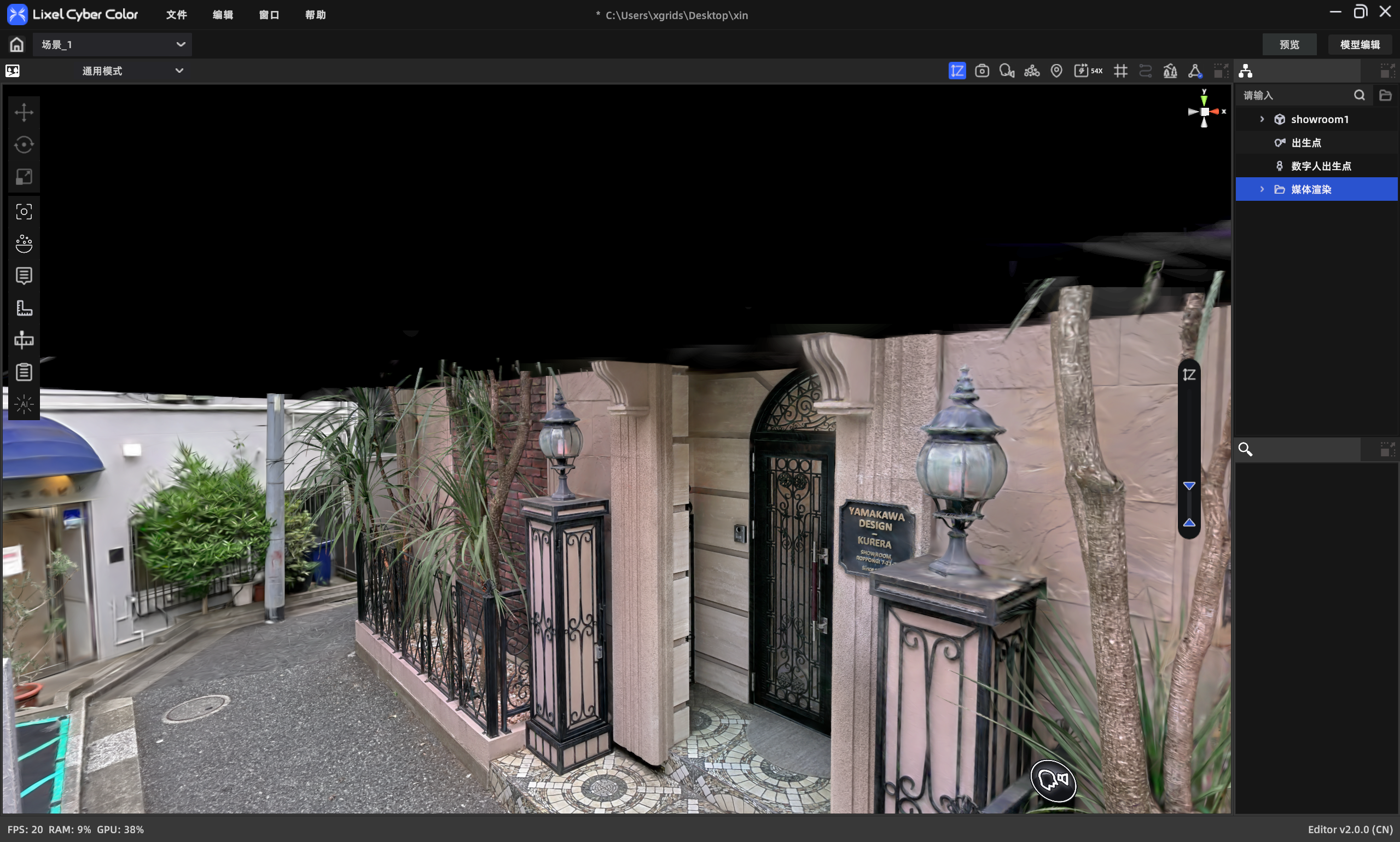
Height Filter