XGRIDSDocs
  • 简体中文
  • English
  • 繁體中文
  • 日本語
  • Deutsch
  • Español
  • Italiano
  • Français
  • Русский
  • Polski
  • Nederlands
  • 简体中文
  • English
  • 繁體中文
  • 日本語
  • Deutsch
  • Español
  • Italiano
  • Français
  • Русский
  • Polski
  • Nederlands
  • PortalCam

    • Product Overview
    • Basic Operation
    • Using the LCC Scan App
    • Maintenance and Care
    • FAQ
  • Lixel K Series

    • Lixel K1

      • Product Overview
      • Basic Operation
      • Device Activation and Connection
      • Scanning Workflow
      • Acquire Point Cloud Data with Absolute Coordinate
      • Map Fusion
      • Route Planning Suggestions for Typical Scenes
      • Precautions
      • FAQ
    • Lixel K2

      • Product Overview
      • Basic Operation
      • Device Activation and Connection
      • Scanning Workflow
      • Acquire Point Cloud Data with Absolute Coordinate
      • Map Fusion
      • Route Planning Suggestions for Typical Scenes
      • Precautions
      • FAQ
  • Lixel L Series

    • Lixel L2 Pro

      • Product Overview
      • Basic Operation
      • Device Activation and Connection
      • Scanning Workflow
      • Acquire Point Cloud Data with Absolute Coordinate
      • Measure Point
      • Appendix
      • FAQ
    • Lixel L3

      • Product Overview
      • Basic Device Functions
      • Device Activation and Connection
      • Data Capture
      • Capturing Absolute Coordinates
      • Appendix
  • Accessories

    • Stick Light

      • Installation Guide
      • Basic Operation
      • FAQ
  • Lixel Studio

    • Version and Copyright
    • Installation and Activation
    • Software Interface
    • File Operations
    • Project Processing
    • Tools
    • 2D Drawing
    • Applications
    • Settings
    • Device Connection
    • FAQ
  • Lixel CyberColor

    • LCC Studio

      • Getting Started
      • Version and Updates
      • Download and Installation
      • Interface Overview and Navigation
      • Before Reconstruction
      • Model Reconstruction
      • Single Model Reconstruction
      • Map Fusion
      • Aerial-Ground Fusion
      • Aerial Reconstruction
      • My Models
      • Other Features
      • Settings and Account
      • Converter
      • Video Reconstruction
      • FAQ
    • LCC Scene Editor

      • Version & Updates
      • Account & Login
      • Product Overview & Home
      • Editor Interface
      • Scene Navigation Modes
      • File
      • Settings
      • Edit Operations
      • Window
      • Global Toolbar
      • Assets & Properties
      • Left Toolbar
      • Viewpoints
      • Portal
      • Skybox
      • Annotations
      • Measurement
      • Flythrough
      • Scene Report
      • 3D Layout
      • Mini-Map
      • Preview Mode (Viewer)
      • Help
      • FAQ
      • Spawn Point
    • LCC Model Editor

      • Version and Updates
      • User Guide
      • Overview and Interface
      • File Operations
      • Selectors
      • Editing Models
      • Measurement
      • Color Grading
      • Asset Management
      • Settings and Help
      • FAQ
    • Capture Guide

      • Overview
      • Capture Devices Overview
      • General Capture Principles
      • Indoor Scene Capture
      • Outdoor Scene Capture
      • Large-Scale Capture (Map Fusion)
      • Aerial-Ground Map Fusion Capture
      • Object Capture
      • People Capture
      • Video Reconstruction Capture
      • HD Enhancement
      • Control Points (Lixel P1)
      • FAQ and Troubleshooting
    • LCC Studio Linux

      • Product Overview
      • Architecture Guide
      • Installation and Deployment Guide
      • Container Startup Parameters Guide
      • CodeMeter Offline Licensing Deployment Guide
      • API Reference
      • Appendix - Developer Data Guide
      • Appendix - Error Code List
      • Single-Machine Multi-GPU Cluster Deployment QuickStart
    • Best Practices

      • Merging Multiple Large 3DGS Models
    • Version History
  • Plugin & SDK

    • Unreal

      • Introduction
      • Quick Start - Windows
      • Quick Start - Linux
      • Quick Start - Quest3
      • Editions and Licensing
      • Rendering
      • Tiled Rasterization (Experimental)
      • Visual Settings
      • Normals and Lighting
      • Scene Editing
      • Performance Parameters
      • Performance Guide
      • Third-party and Engine Plugin Integration
      • Proxy Mesh
      • Loading Animation
      • Collision
      • Navigation System Support
      • Single Layer Water Support
      • Localization
      • FAQ
      • Troubleshooting
      • Logging and Diagnostics
      • Contact Us
      • Best Practices

        • Relighting 3DGS with a LixelStudio Mesh
      • API Reference

        • ALCCActorBase
        • ULCCComponentBase
        • ULCCComponent
        • ULCC2Component
        • SOG / SPZ / PLY Actors
        • ALCC2ProxyMesh
        • ALCCClippingVolume
        • ALCCSectionPlane
        • ALCCLoadVolume
        • ULCCUtilLibrary
        • Enums
        • Structs
      • Changelog

        • v3.4.0
        • v3.3.1
        • v3.0.0
        • v2.2.1
        • v1.0.0
        • v0.9.0
        • v0.8.0
        • v0.7.1
        • v0.6.1
        • v0.5.2
        • v0.4.1
        • v0.4.0
        • v0.3.0
        • v0.0.5
        • v0.0.4
        • v0.0.3
        • v0.0.2
        • v0.0.1
    • Web

      • Introduction
      • Rendering Performance Optimization Guide
      • Graphics Configuration
      • FAQ
      • API Reference

        • LCCRender::clearIndexDB
        • LCCRender::dispose
        • LCCRender::load
        • LCCRender::setCamera
        • LCCRender::unload
        • LCCRender::update
        • LCCObject::checkRenderNextFrame
        • LCCObject::clearRenderNextFrame
        • LCCObject::ecef2Prj
        • LCCObject::getBounds
        • LCCObject::getEnvInstancedMesh
        • LCCObject::getInstancedMesh
        • LCCObject::getLodInfos
        • LCCObject::getOriginPosition
        • LCCObject::getProjectionCoordinateSystemInfos
        • LCCObject::hasCollision
        • LCCObject::hasEnvironment
        • LCCObject::hasShcoef
        • LCCObject::intersectsCapsule
        • LCCObject::intersectsRayExt
        • LCCObject::intersectsRayFromOriginExt
        • LCCObject::intersectsSphere
        • LCCObject::lowerToBottom
        • LCCObject::prj2Ecef
        • LCCObject::raiseToTop
        • LCCObject::raycast
        • LCCObject::raycastFromOrigin
        • LCCObject::setAlpha
        • LCCObject::setClipBox
        • LCCObject::setClipPlane
        • LCCObject::setEndLod
        • LCCObject::setLodAutoLevelUp
        • LCCObject::setMaxDistance
        • LCCObject::setMaxNodeSplats
        • LCCObject::setMaxSplats
        • LCCObject::setOriginPosition
        • LCCObject::setPointsColor
        • LCCObject::setRenderState
        • LCCObject::setRotation
        • LCCObject::setScale
        • LCCObject::setSemantic
        • LCCObject::setSemanticColor
        • LCCObject::setSmooth
        • LCCObject::setStartLod
        • LCCObject::setTranslation
        • LCCObject::setVisible
        • LCCObject::togglePointsDisplayMode
        • LCCObject::useEnvironment
        • LCCObject::useShcoef
      • Changelog

        • v0.6.3
        • v0.6.2
        • v0.6.1
        • v0.6.0
        • v0.5.5
        • v0.5.4
        • v0.5.3
        • v0.5.2
        • v0.5.1
        • v0.5.0
        • v0.4.1
        • v0.4.0
        • v0.3.1
        • v0.3.0
        • v0.2.0
    • Lixel OpenAPI

      • Overview
      • Connection & Authentication
      • Message Model & Codec
      • Interface Catalog
      • Real-time Data
      • Project File Access
      • Error Codes
      • Python

        • Quick Start
        • Client Wrapper & Tools
        • FAQ
      • C++

        • Quick Start
        • Client & Examples
        • FAQ

Data Capture

This chapter covers GNSS settings, project naming and scan settings, scanning, rendering modes, Scan Assist, model viewing, and data export.

GNSS Settings
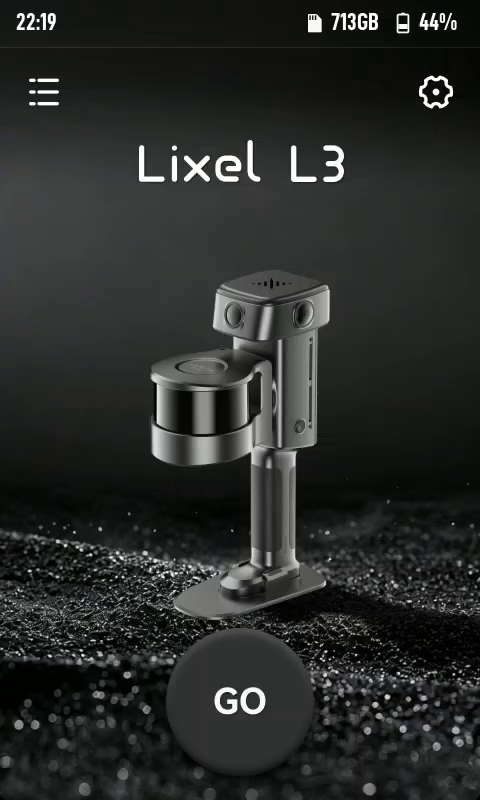
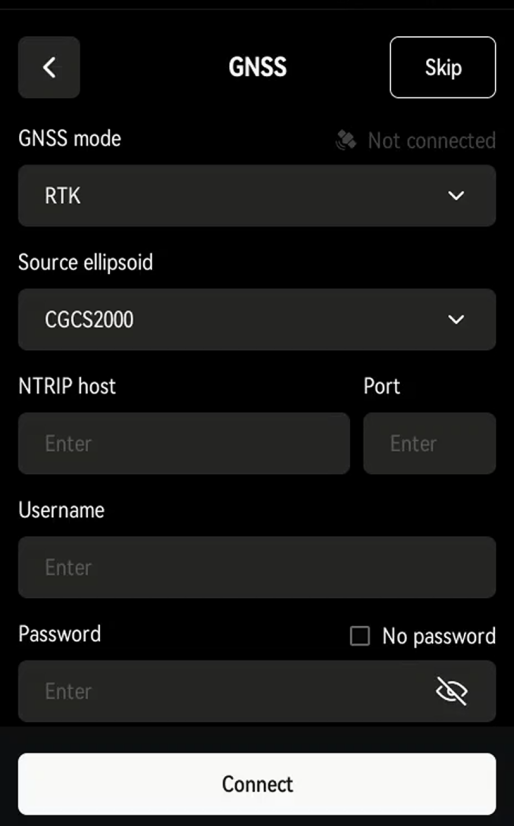
Tap GO to open GNSS settings
Tap GO
GNSS settings screen
GNSS settings
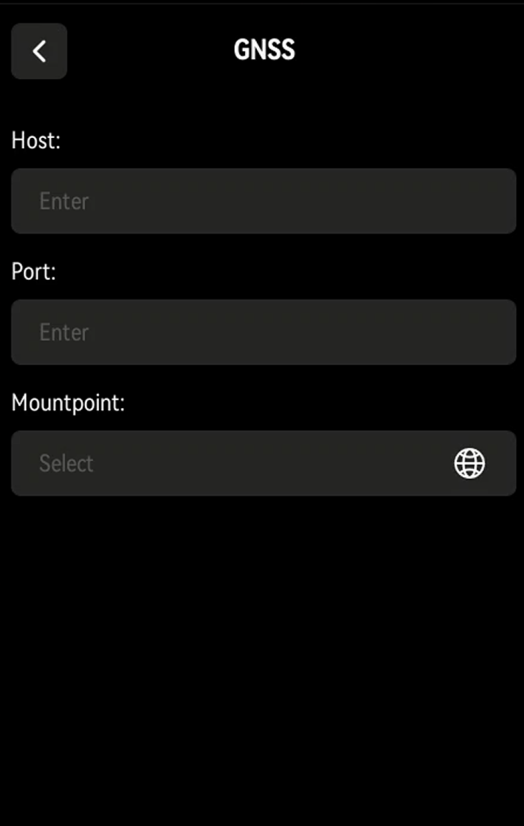
RTK account details
RTK account details

Tap GO to open GNSS settings.

Note

To skip GNSS, tap "Skip" in the upper-right corner, or turn off GNSS in Settings to skip this screen by default.

GNSS mode

GNSS ModeFunctionHow to Use
RTKReceives correction data through the RTK module for real-time positioning; saved to the project fileSelect RTK mode; process with the RTK module in LixelStudio
PPKRecords raw satellite observations through the RTK module; saved to the project fileSelect PPK mode; process with the PPK module in LixelStudio

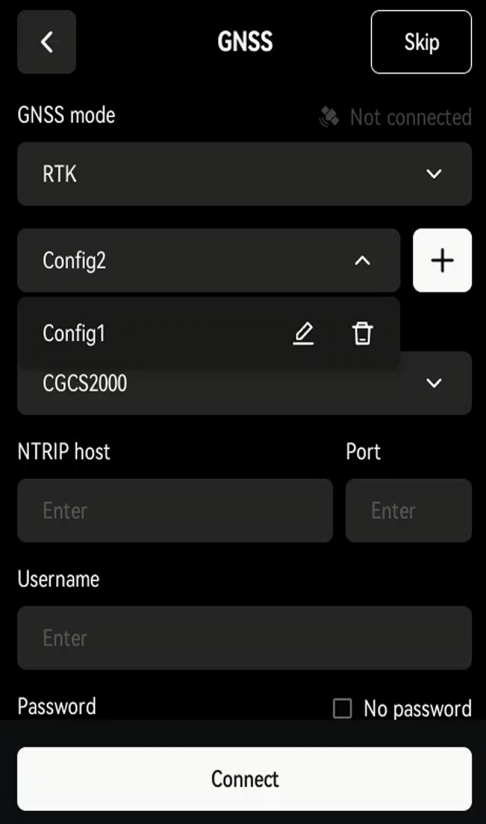
RTK account management

Tap Connect to save frequently used accounts to the device. Manage them from the account list under GNSS Mode.
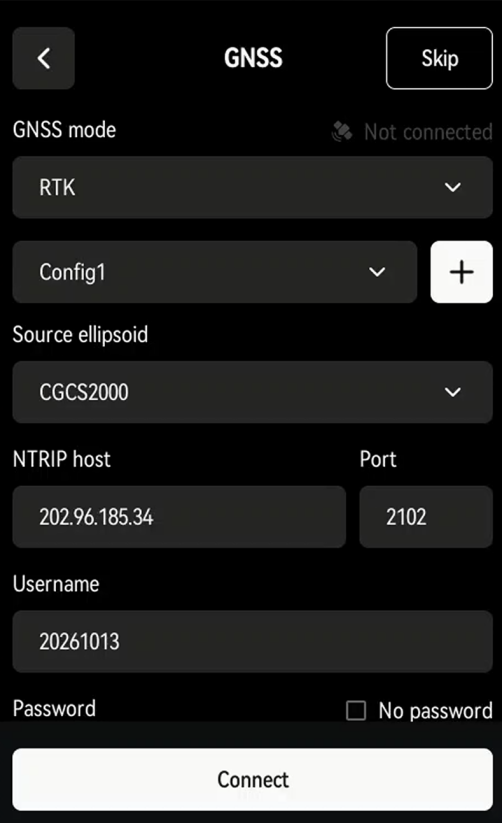
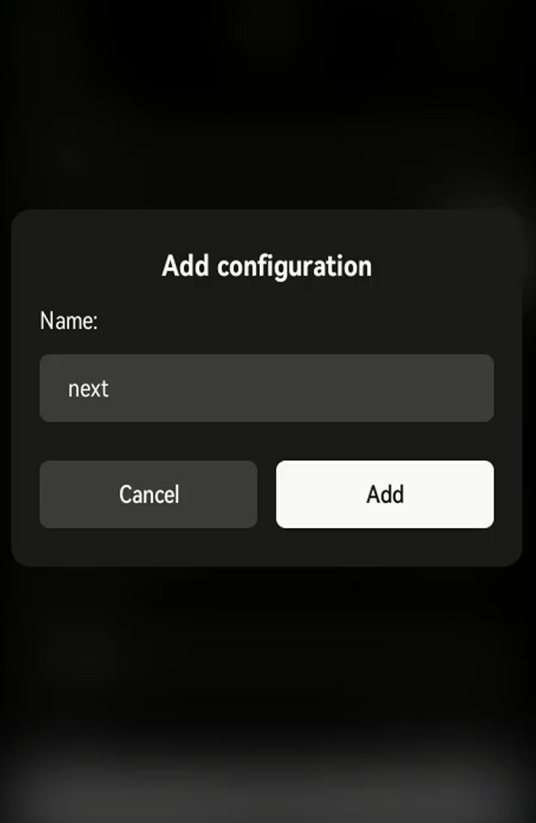
GNSS settings with a saved account selected
GNSS settings
Add an account
Add an account
Manage accounts
Manage accounts

Note

  • Custom RTK services must use a standard data format.
  • After first setup, the device saves your RTK account and stays signed in until you disconnect.
  • Disconnecting can take 1–2 minutes.
  • Coordinate system changes take about 5 minutes to apply. Wait 5 minutes before starting work.
  • The RTK module supports WGS 84, CGCS2000, and ITRF2008. Heights are ellipsoidal.

RTK status indicator

ColorStatus
RedRTK not connected
BlueRTK connected, not fixed
GreenRTK connected, fixed solution

RTK connection status and satellites

Once connected, a confirmation appears and the "Connect" button changes to "Disconnect". RTK status and satellite count show in real time below Mountpoint. Tap Next.

Project Naming and Scan Settings

Mounting ModeFunctionDescription
HandheldHandheld operationLixelStudio reads the mounting mode automatically; no need to reselect it during processing

Scan mode

ModeFunctionSupported Rendering Modes
Guided modeEvaluates scan quality in real timeScan Assist and scan quality rendering; no true-color rendering
RGB modeShows the true-color point cloud in real timeTrue-color rendering; no Scan Assist or scan quality rendering

Custom naming

Example: Enter "park" as the project name and start scanning. In USB storage mode, the project folder appears as "park_2026-01-15-1622026", where "2026-01-15-1622026" is the scan time.

With no project name, the folder appears as default_2026-01-15-1622026.

Naming Assistant

Naming Assistant builds names in a "Name_Floor_Count" format, for example BlockA_1_1. In USB storage mode, the project folder appears as BlockA_1_1_2026-01-15-1622026.

Tap Done to open the start screen.

Start Scanning

Start the Device

  1. Place the Lixel L3, with the base mount attached, on stable, level ground.
  2. On the start screen, press and hold anywhere to start scanning.
  3. The LiDAR starts spinning, the indicator flashes green rapidly, and a startup tone plays. The device then enters static initialization.
  4. Keep the device still until initialization completes. A tone plays and normal scanning begins.
  5. Slowly lift the scanner, then slowly detach the base mount, and begin scanning.

Recommended Handheld Posture

  • Goal: Keep your body out of the camera view for better colorization.
  • Recommended: Hold the device out in front of your chest.
  • Avoid: Holding the device against your body.

Scan Route Recommendations

Lighting

  • Choose even lighting.
  • Avoid strong contrast between light and shadow.

Field of view

  • Prefer open routes (such as the middle of a road) for better color coverage and accuracy.

Narrow spaces (such as gaps between buildings or alleys)

  • Walk slower than normal.
  • Wait for people and moving objects to clear.
  • This keeps the point cloud accurate and well colorized.

Notice

Narrow spaces are harder to capture well. Take your time.

Rendering Mode

Tap "Rendering Mode" in the lower-right corner of the screen to switch display modes:

ModeDescription
EL ElevationColors points by height to show terrain
RGB True colorShows true color for easy object identification
QUAL Scan qualityShows point density in real time to check coverage

Notice

Available modes depend on the scan mode (Guided or RGB). For RGB display, set the scan mode to "RGB mode" on the project start screen.

About scan quality display

  • Purpose: Checks point cloud density to prevent rework from missed or sparse areas.
  • Note: Does not indicate scan accuracy or LCC scan quality.

Switch to QUAL regularly while scanning to catch missed areas.

Scan Assist

Purpose

  • Checks whether point cloud density meets the threshold.
  • Prevents rework from missed or sparse areas.

Note

Does not indicate scan accuracy or LCC scan quality.

How to Use

  1. After starting a scan, tap "Scan Assist" below the stop button.
  2. The settings screen opens.
  3. Set the step distance for the site.

Notice

Match the step distance to scene complexity for complete coverage.

Stop Scanning

Press and hold the red button at the bottom center of the screen to save data.

Saving runs in two stages: storing the data, then generating a viewable point cloud model.

The point cloud model then opens automatically for on-site checking.

View Model

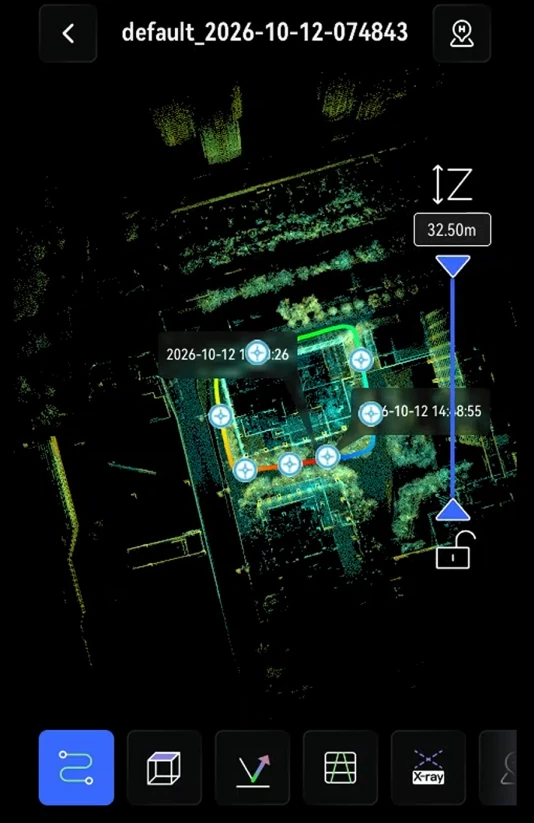
After scanning, view the point cloud model on the device screen.

View model
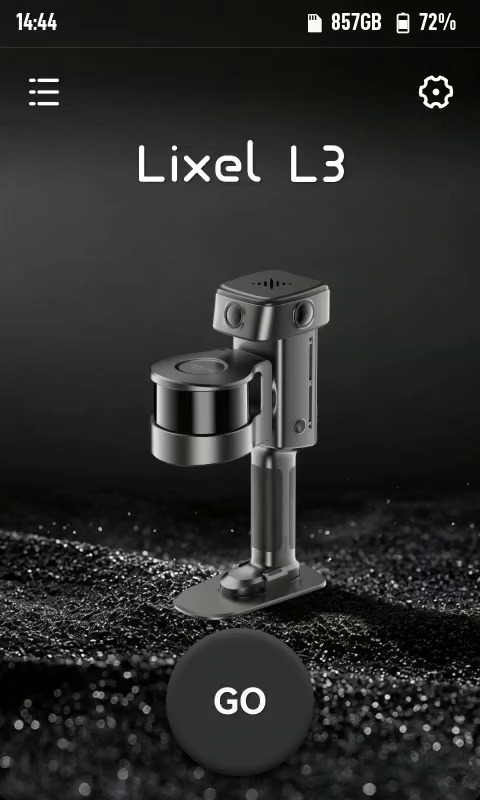
Device home screen
Device home screen
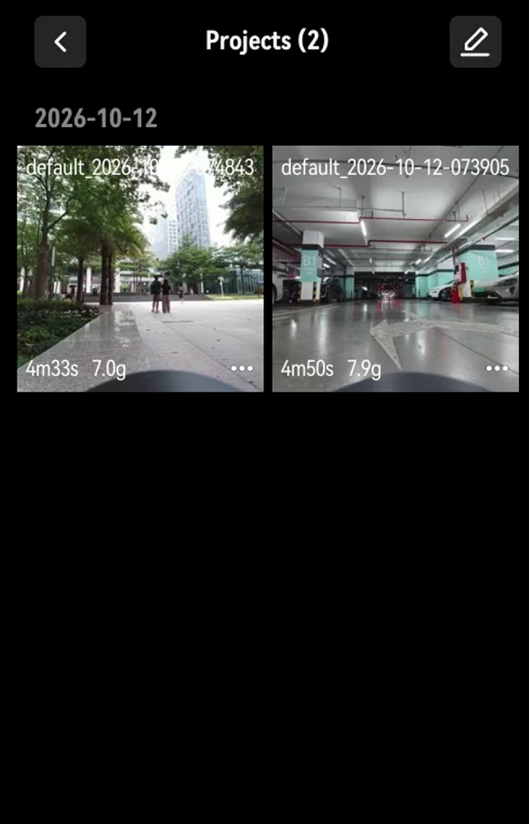
Project list
Project list
Model view screen
Model view screen

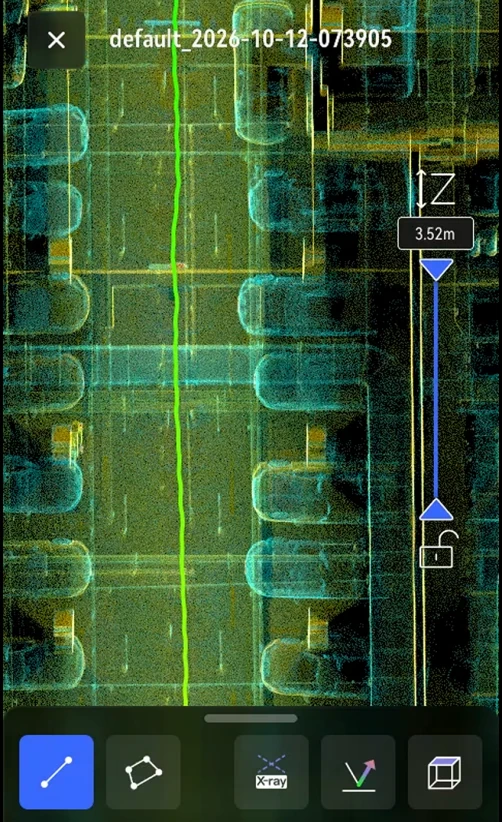
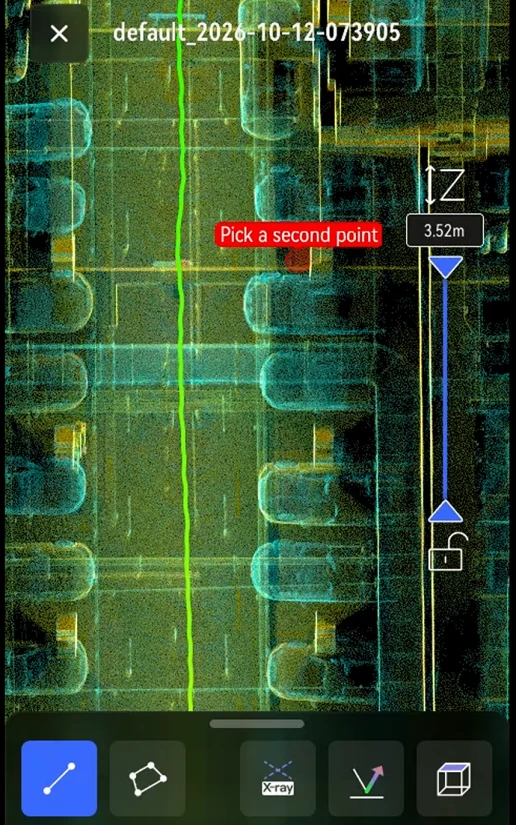
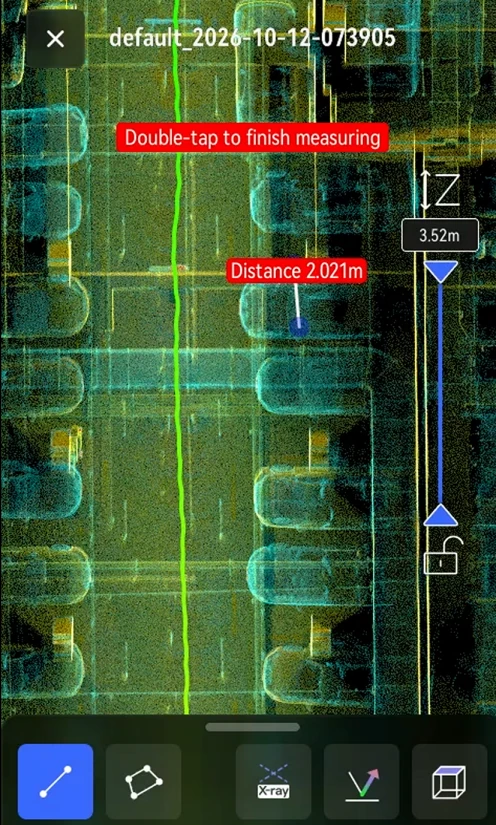
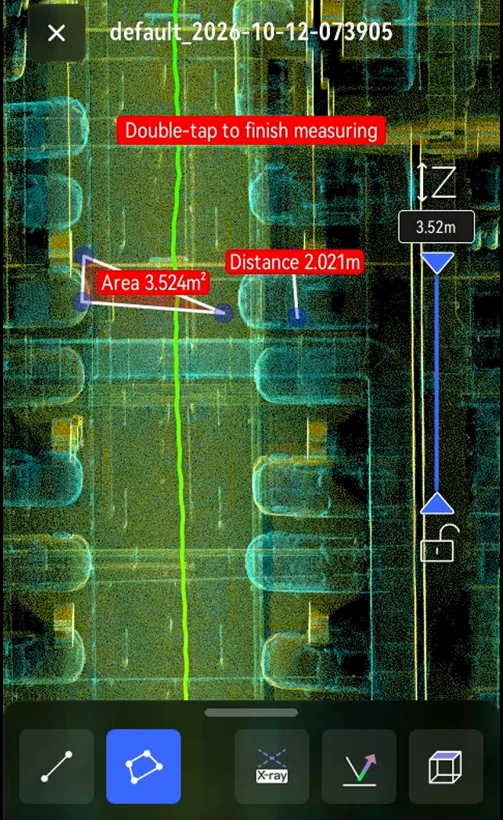
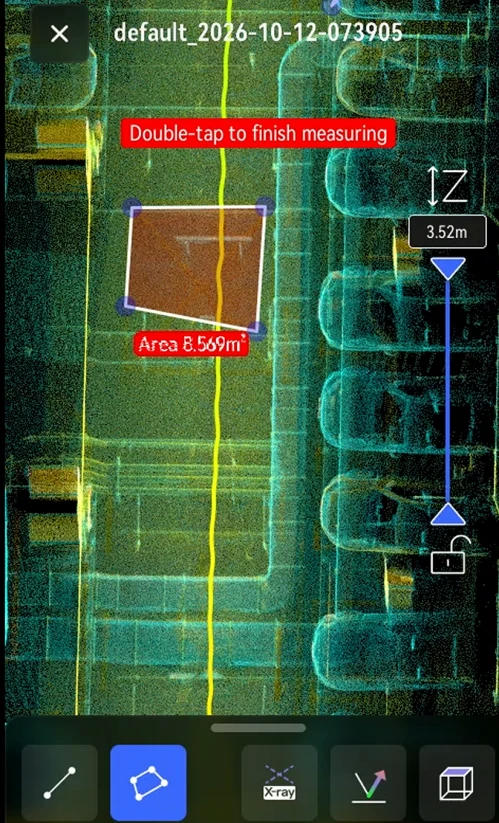
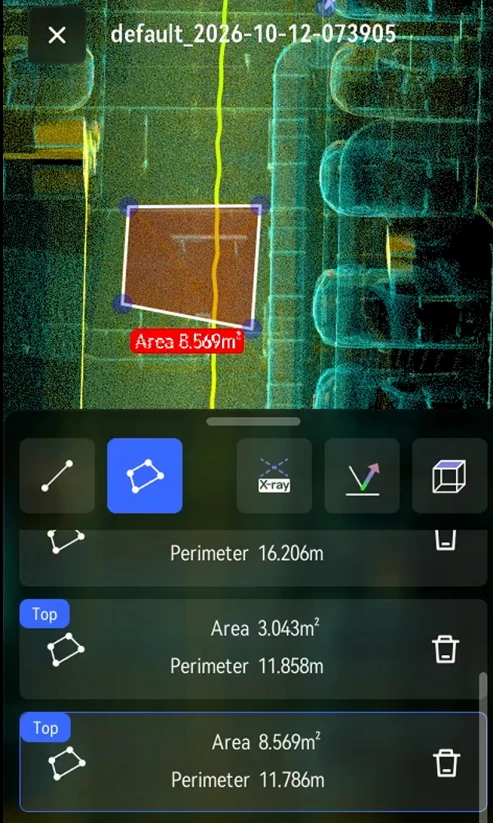
Measure

Measure
Measure
Measure
Measure
Measure
Measure

Point info

Point info
Point info
Point info

Export Scan Data

Steps
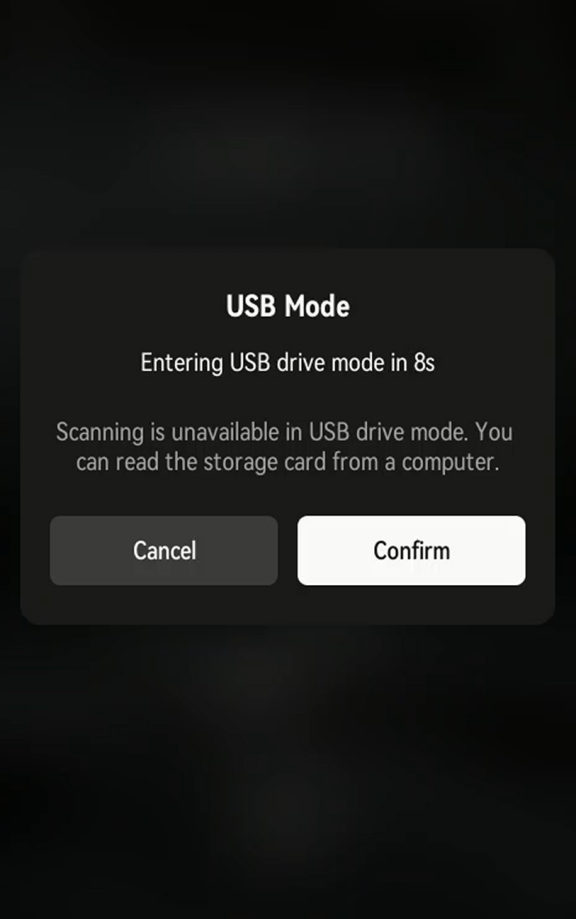
USB storage mode prompt
  1. Connect to a computer: Power on the device and connect it with a USB-C cable. Tap Confirm on the USB storage mode prompt, or wait for the countdown.
  2. Copy project files: Open the device storage, go to the model folder, and copy the project files to your computer.

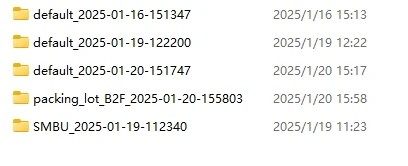
Project File Naming

File name format: ProjectName_YYYY-MM-DD-Time. Examples:

  • ParkingB2F_2025-01-15-162026
  • default_2025-01-15-143520

Notice

Files are named by scan start time for easy identification.
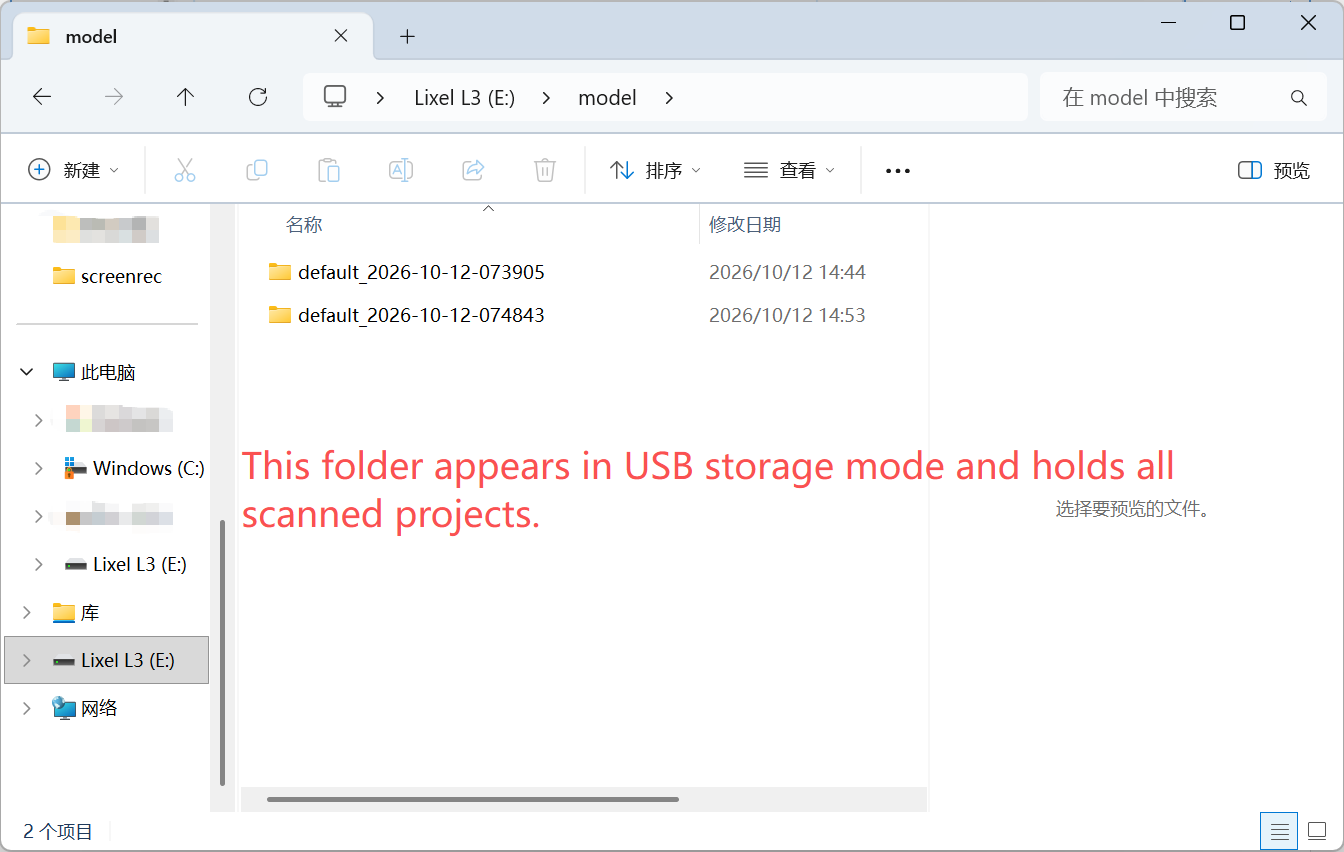
Device storage
Device storage
Project folder naming

Project File Structure

Project files:
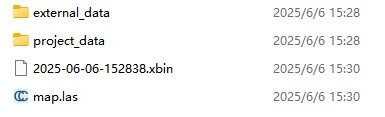
Project file structure
FileSubfileDescription
xxx.xbin-Raw sensor data
map.las-Real-time point cloud from the device.
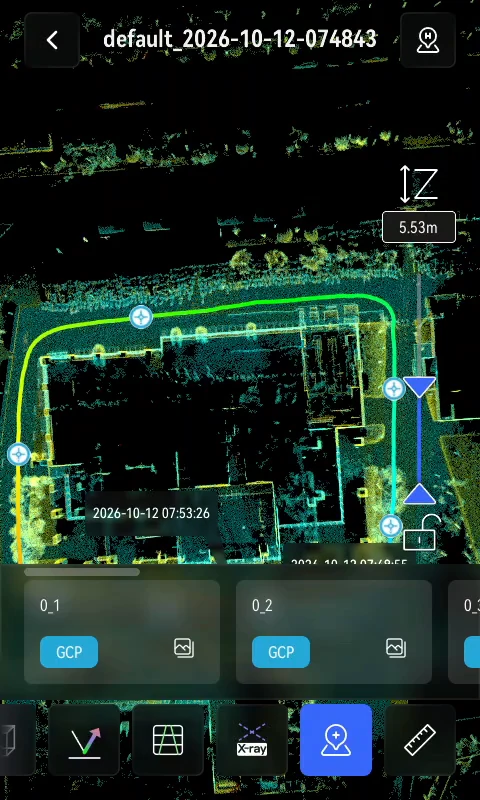
project_datacontrol_points.csvControl point information recorded during the scan.
gnss.csvGNSS data recorded when using RTK.
poses.csvScan trajectory.
photoCamera images taken when control points are added
modelModel preview files
thumb.jpgLixelGO preview image
preview_photo.jpgDevice preview image
logScan log
external_data-Empty when first copied. Holds external files for LixelStudio post-processing, such as the coordinate-transformed gnss.csv.