
FAQ
1. How to activate PortalCam?
- Turn on PortalCam. The device indicator light will show yellow.
- Enable Wi-Fi and Bluetooth on your phone.
- Open the LCC Scan app, tap the "Camera" icon on the home page to connect to the device, and follow the on-screen instructions.
- Once activation is complete, the indicator light will change from yellow to green.
Additional notes:
- Yellow light: Device is not activated.
- Green light: Device has been successfully activated.
2. What to do if PortalCam fails to connect to the app?
Please troubleshoot in the following order:
Check if the device Wi-Fi is visible:
- Open your phone's Wi-Fi settings and check if you can find the PCAMAAxxxx network.
- If not found: Open the LCC Scan app, go to "App Settings, then Device Region", change the device region and try again.
Confirm app version and permissions:
- Update the LCC Scan app to the latest version.
- Confirm that network permissions, Bluetooth permissions, and local network permissions are enabled.
Check phone system permissions:
- Confirm that GPS location and Bluetooth are enabled at the system level.
Keep the device close to the phone:
- Ensure PortalCam is close to the phone to avoid signal interference and maintain stable Bluetooth and Wi-Fi connections.
3. How to upgrade PortalCam firmware?
You can upgrade the device firmware via the app prompts. Firmware upgrades are divided into major package upgrades and minor package upgrades. Minor package upgrades can be performed directly on the device through the app. If the app prompts that a major package upgrade is required, the upgrade process is as follows:
- Download the major firmware package from the official website (typically larger than 1GB). Ensure the current device battery level is above 50%.
- Connect the device to a computer using the USB data cable. The device will automatically enter USB Mode. Copy the firmware file to the device disk root directory, then disconnect the USB cable from both the computer and the device.
- Power off the device and restart it. After restarting, it will automatically enter firmware upgrade mode (alternating red and green flashing lights). Once the upgrade is successful, the indicator light will return to a steady green.
Important notes:
- Do not power off the device or remove the battery during the upgrade process.
- Do not extract, rename, or modify the firmware package filename.
- Use the official Type-C data cable for copying to avoid incomplete files caused by cable damage.
4. What is the positioning of PortalCam (P1)?
PortalCam (P1) is a 3D spatial camera that outputs 3D Gaussian models. It is suitable for scenarios where visual presentation is the core requirement, such as film production, spatial showcases, virtual property tours, and similar applications. If you need point cloud or Mesh engineering data, consider the Lixel K series or L2 Pro instead.
5. What app does PortalCam work with?
PortalCam works with the LCC Scan app. Download link: https://www.xgrids.com/support/download?page=LCCScan
Device requirements:
- Android: System version Android 12 or above, with a processor equivalent to Qualcomm Snapdragon 765G / MediaTek Dimensity 8000-MAX or higher.
- iOS: System version iOS 13 or above.
6. What output formats does PortalCam currently support?
PortalCam supports exporting LCC and PLY formats. Pure point cloud file export is not currently supported.
7. What are the button operations for PortalCam?
PortalCam uses the body button for basic operations:
- Power on: Long press the power button.
- Power off: Long press the power button.
- Start/Stop scanning: Operate via the LCC Scan app, or double-click the device button.
- Add a point (control point/fusion point, etc.): Single-click the device button during scanning.
The specific button type can be modified in the app to better suit your operating preferences.
8. What do the PortalCam indicator lights mean?
- Steady yellow: Device is not activated.
- Steady green: Device is powered on, in standby mode.
- Steady blue: USB Mode (data transfer in progress).
- Flashing green: Scanning mode.
9. How to copy data from the PortalCam device?
Connect the device:
- Ensure the device is in standby mode (steady green light).
- Connect the device to a computer using the included USB 3.0 data cable.
Enter USB Mode:
- After connecting, wait approximately 5 seconds. The device will automatically enter USB Mode (automatic entry is only supported on computers).
Copy data:
- Once the computer recognizes the device, you can copy data just like a regular USB drive.
Exit USB Mode:
- After copying is complete, unplug the USB data cable. The device will automatically exit USB Mode and return to standby mode.
Additional notes:
- When connecting via phone/tablet, you need to manually switch to USB Mode using the app or device button.
- USB Mode will automatically turn off after the device restarts.
- If you need to continue scanning without powering off, you must manually disable USB Mode.
- Please use the included USB 3.0 data cable. Using other cables may result in slower transfer speeds or only work when inserted in one direction.
10. How to choose the PortalCam recording mode?
Swipe the mode display area on the recording interface to select different modes:
- Portrait: For shooting people, mannequins, or other figures in a stationary state.
- NIGHT: For scenes with low ambient light or weak lighting. For example, outdoor low-light scenes (early morning, dusk, weak sunlight, low ambient brightness); indoor areas with few light sources and dim lighting; transitioning from a bright area into a dim area and then back to a well-lit area.
- INDOOR: Common indoor environments with adequate lighting, such as apartments and offices.
- NATURE: Common outdoor natural light during sunny periods.
Choose the mode that best matches your current lighting conditions and subject.
11. What capture guidelines should be followed when using PortalCam?
Standard environment scanning:
- Keep movement speed below 0.5 meters per second. In indoor environments, dim lighting, doorway transitions, and turning corners, slow down to approximately 0.3 meters per second.
- Use a tripod to support the device and place it on a flat area to complete initialization. Avoid initializing on uneven ground, as this may cause initialization failure or increased mapping thickness.
- Do not move the device during initialization, as this may cause model tilting or reconstruction failure.
Portrait mode scanning:
- Select "Portrait" mode on the scanning interface before shooting.
- During initialization, avoid pointing the device directly at the subject to give them time to prepare.
- The recommended shooting order is to start from the head and face, then gradually move to the body and lower limbs.
- Keep the total shooting time within 2 minutes.
Scene limitations:
- Scenes with fine wire mesh, carbon fiber, or other special reflective/transparent materials currently have limited capture quality. It is recommended to avoid them or understand the expected results in advance.
12. How to use PortalCam auxiliary features to add special points?
During device scanning, you can add points by single-clicking the button. Supported point types include:
- Map Fusion point: Used for multi-segment data fusion.
- Air-ground fusion point: Used for UAV and ground data fusion.
- HD re-capture point: Marks positions that need high-definition re-capture.
- POI point: Marks points of interest.
You can modify the point type settings in the app to better suit your preferences.
13. What should I be aware of when stopping a PortalCam scan?
It is recommended to return to the vicinity of the starting point of the current scan before stopping. Stand still at the starting point for several seconds before stopping the recording. This allows the system to complete loop closure optimization, reducing data layer separation and improving accuracy.
14. What does "Record-Only Mode, unable to function normally" mean on PortalCam?
This indicates the device is currently in an abnormal mapping state, only recording data without generating real-time point cloud.
Symptoms:
- Unable to preview real-time point cloud; only the camera feed is visible.
Possible causes:
- Environmental factors: Entering open areas with few or uniform features (degraded scenes), commonly seen in tunnels, utility corridors, mine passages, extremely narrow walkways, or large flat areas without elevation changes.
- Operational factors: Extreme operations such as rapidly moving the device, intense shaking or vibration, sharp turns, prolonged angle limit violations, LiDAR being blocked, or the device suddenly moving into a different space.
Impact:
- Current data may not be properly reconstructed in LCC.
- Continuing to scan for an extended period may be ineffective.
Recommended actions:
- Stop recording and restart with proper scanning technique.
- Do not exceed 20 minutes of collection time for the current data.
- Stop scanning and check the environment or operating method.
- Restarting the app will clear this status message.
The 20-minute limit prompted by the app is designed to prevent collecting invalid data and reduce time waste.
15. What are the safety and usage precautions for PortalCam?
- Prevent drops and impacts: PortalCam is a precision device. Dropping it or subjecting it to external impacts may cause damage, leading to operational anomalies or accuracy deviations.
- Operating environment and cleaning: Do not use the device in dusty environments or rain. Clean with a soft dry cloth or the included cleaning cloth, ensuring the LiDAR window and lens surfaces remain clean. Do not touch the lenses directly with your hands.
- Temperature safety: The device generates heat during operation. Avoid direct contact with the device body to prevent burns.
- Heat dissipation protection: Do not cover or block the heat dissipation areas (air intake and exhaust vents) during use. If heat dissipation is obstructed, cooling efficiency will decrease, and in severe cases the device may automatically stop working.
16. What are the battery precautions for PortalCam?
- After daily use, charge the battery to full promptly.
- Batteries that are fully charged but unused for a long period should be recharged periodically.
- Batteries with very low or completely depleted charge should be recharged as soon as possible.
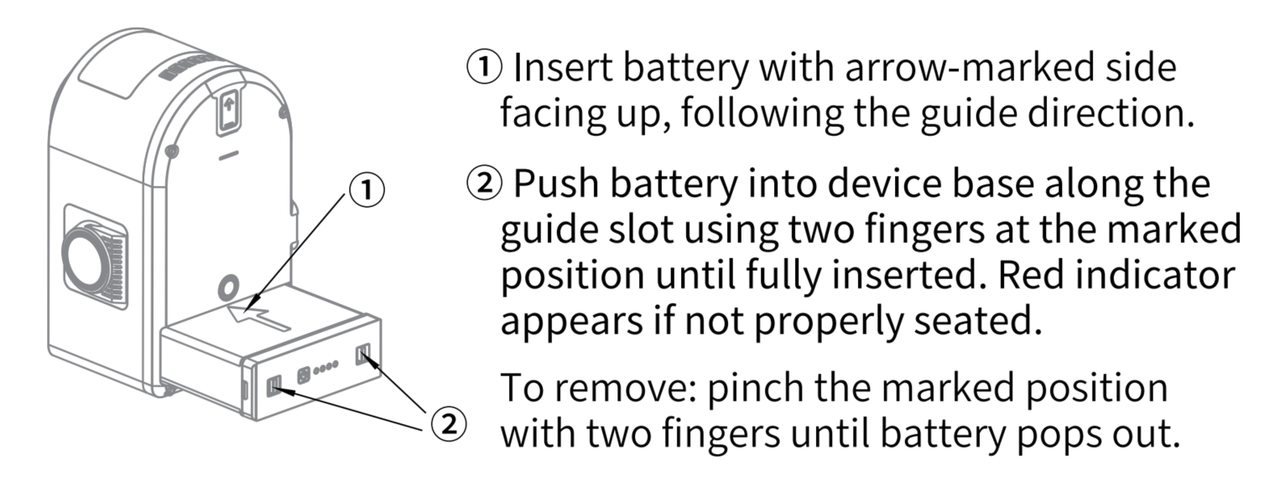
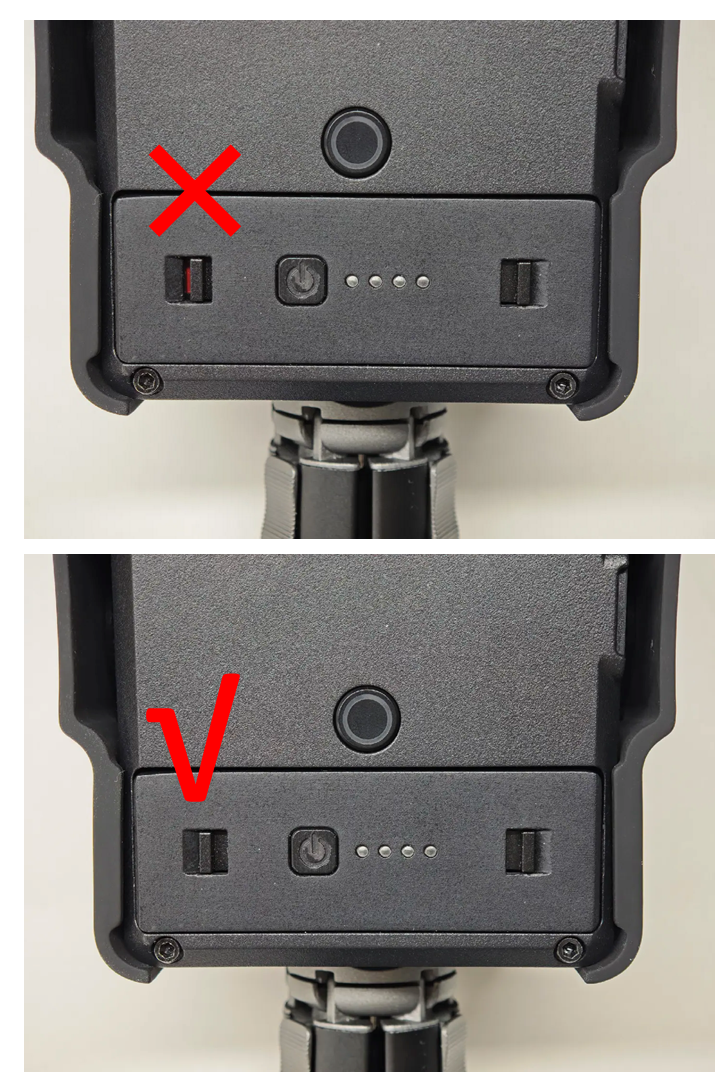
The standard charger is a TYPE-C single port 45W. When using both ports simultaneously, it delivers 25W+20W. Battery capacity is 23.04Wh. Charging from 0% to 90% takes approximately 70 minutes, and 0% to 100% takes approximately 90 minutes. Recommended charging ambient temperature is 5 to 30 degrees Celsius.
17. How to clean the PortalCam LiDAR?
The LiDAR light shield must be kept clean, otherwise it will affect environmental perception. Clean promptly when in dusty or harsh environments.
Required materials:
- Lint-free cloth (clean and soft).
- Neutral cleaning solution (such as soapy water, distilled water, or 99% ethanol).
Cleaning methods:
For dust or fine particles on the surface:
- Dampen a lint-free cloth with a small amount of cleaning solution and gently wipe the LiDAR surface.
- Dry with a clean lint-free cloth.
For mud or other adhered substances on the surface:
- Rinse or spray with clean water to dislodge the debris (do not dry-wipe directly to avoid scratching the surface).
- Spray warm soapy water on the soiled area and gently wipe with a lint-free cloth.
- Rinse with clean water to remove residual cleaning agent.
- If residue remains, use 99% ethanol for additional cleaning.
- Dry with a clean lint-free cloth.
18. What is the operating temperature range of PortalCam?
The operating ambient temperature of the device is -20 to 45 degrees Celsius (without solar radiation).
19. What is the scanning duration of PortalCam?
A single fully charged battery provides approximately 60 minutes of operation. Following capture guidelines that recommend no more than 30 minutes per single map collection, one fully charged battery can complete at least two map segments.
20. What is the scanning distance of PortalCam?
The scanning distance is 0.1m to 30m at 10% reflectivity, and 60m at 90% reflectivity. Laser classification is Class 1 / 940nm, field of view is 180 degrees azimuth by 180 degrees elevation, and point cloud frequency is 856,000 points per second.
21. What is the storage capacity and data interface of PortalCam?
Internal storage is 512GB, with a USB 3.0 data interface. An optional 512GB/1TB external SSD is available.
22. What are the camera specifications of PortalCam?
PortalCam is equipped with 4 cameras (2 fisheye, 2 front-facing), all with a resolution of 4000x3000:
- Fisheye camera field of view: 200 degrees by 200 degrees.
- Front-facing camera field of view: 100 degrees by 85 degrees.
- CMOS size: 1/2 inch.
- Shutter type: Rolling shutter.
23. What are the overall device specifications of PortalCam?
- Weight: 870g (without tripod).
- Dimensions: 130mm x 90mm x 77mm.
- Housing material: Aviation-grade aluminum.
- Power consumption: Less than 19W.
- Wireless connectivity: WiFi a/b/g/n/ac/ax + Bluetooth BT5.2.
- App WiFi communication range: 20 meters.