
3DGS Performance Parameters Item by Item
This document describes what each parameter does, its values, and the actual result of changing it, for looking up the meaning of a single parameter. For the step-by-step workflow of locating a bottleneck and tuning, see Performance Guide.
The table under each parameter heading gives the group it belongs to, its range, its default, the pipeline it applies to, and how it takes effect. When the pipeline is "LCC" or "LCC2", the parameter only takes effect on that pipeline; parameters marked "Common" work on both. For the pipeline concept, see Introduction.
Actor Panel Parameters
These live under the Performance category in the Details panel of the Actor and are grouped by scope:
- Base group: common to both pipelines, present on every LCC Actor
- Pipeline-specific group: shown only on Actors of the matching pipeline, with the group named after the pipeline. In the current version only the LCC pipeline has a specific group (named LCC), and LCC2 Actors show the Base group only
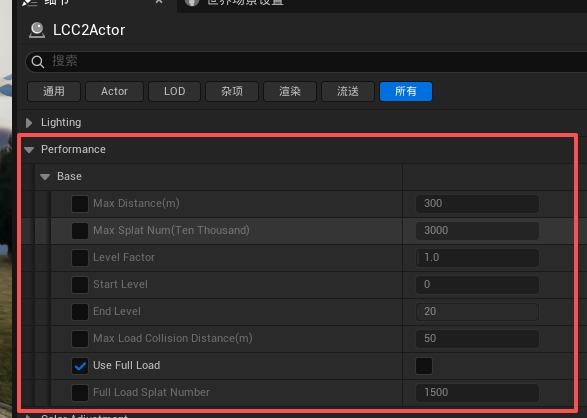
Base group: performance parameters common to both pipelines

LCC group: shown only on Actors of the LCC pipeline
Note: every parameter under the Performance category has a checkbox on its left. While the box is unchecked, the parameter uses the built-in default of the plugin and the entered value has no effect. When an adjustment does nothing, confirm the checkbox is ticked first.
Max Distance
| Group | Range | Default | Pipeline | Takes effect |
|---|---|---|---|---|
| Base | Any positive integer | 300 | Common | Immediately |
Maximum render distance, in meters. Nodes beyond this distance are neither rendered nor loaded. This is the parameter with the most direct benefit: lowering it reduces traversal, load, upload, and rendering cost at the same time.
Lowering it raises the frame rate noticeably and reduces memory and video memory usage, at the price of distant content disappearing and an obvious cutoff at the boundary. Read it together with Range For Level: if the maximum distance is smaller than the distance of a given Level, that Level and every farther one are never used.
Max Splat Num
| Group | Range | Default | Pipeline | Takes effect |
|---|---|---|---|---|
| Base | 0 ~ 10000 (unit: 10,000) | 3000 | Common | Immediately |
Maximum number of points rendered per frame. After traversal, nodes are culled from far to near until the total point count falls within this limit. It is a hard gate: no matter how much content the view contains, the per-frame render amount never exceeds this value.
Lowering it caps the workload and prevents frame drops in open views, at the price of distant nodes being dropped, so missing background may appear while turning the view. Values that are too large are automatically clamped to the amount actually renderable in a single frame.
Level Factor
| Group | Range | Default | Pipeline | Takes effect |
|---|---|---|---|---|
| Base | 0.01 ~ 20 | 1 | Common | Immediately |
Scale factor for Level selection, controlling "how far out precision starts to drop". The two pipelines implement it differently: the LCC pipeline uses it to scale the global Range For Level distance table, and the LCC2 pipeline uses it to scale the screen-space error threshold, with the same directional effect.
Above 1 it switches to lower-precision Levels earlier, reducing detail and improving performance; below 1 it drops precision later, giving a sharper image at a higher cost. Keep it at 1 and raise it in small steps only under real performance pressure.
Start Level
| Group | Range | Default | Pipeline | Takes effect |
|---|---|---|---|---|
| Base | 0 ~ 20 | 0 | Common | Immediately |
Start Level, limiting the highest precision that can be used. The default of 0 allows the highest-precision Level.
At 1 or above, the finest Level is never loaded even up close, so nearby content becomes blurrier while the load amount and video memory usage drop noticeably. Consider raising it on low-end devices or mobile.
End Level
| Group | Range | Default | Pipeline | Takes effect |
|---|---|---|---|---|
| Base | 0 ~ 20 | 20 | Common | Immediately |
End Level, limiting the coarsest Level that can be used. The default of 20 applies no limit, so the coarsest Level in the data itself can be used.
Lowering it prevents coarser Levels in the data from being used, so distant content can only stay at End Level. No gaps appear in the image, but more points are rendered than needed and performance drops instead. It is therefore not a way to speed things up, and normally stays at the default of 20.
Max Load Collision Distance
| Group | Range | Default | Pipeline | Takes effect |
|---|---|---|---|---|
| Base | Any positive integer | 300 | Common | Immediately |
Maximum load distance for collision data, in meters. Only takes effect once collision is enabled.
Both pipelines load collision data in chunks: only the collision chunks within this distance around the camera are loaded, and they are swapped in and out dynamically as the camera moves. This value therefore determines how much collision data is resident at any moment.
Lowering it directly reduces the Collision Data Usage memory footprint and the Update Collision time, at the price of no collision far away.
When used with the navigation system, it usually needs to be raised so that the collision of the target area is fully loaded in one pass. Otherwise collision keeps updating as the camera moves at runtime, which continually triggers navigation data rebuilds and causes noticeable stutter. See Navigation System Support.
Use Full Load
| Group | Range | Default | Pipeline | Takes effect |
|---|---|---|---|---|
| Base | Enabled / Disabled | Enabled | Common | Reload the data |
Whether full load rendering is allowed. When enabled, if the Level 0 point count does not exceed Full Load Splat Number, the entire dataset is loaded at once and stays resident in video memory, skipping per-frame traversal and upload; otherwise it falls back to on-demand loading.
Enabling it gives a more stable frame rate in small scenes with no node borders or detail popping, at the price of the entire dataset staying resident in video memory. Disabling it always loads on demand.
Video memory behavior after disabling it differs between the pipelines:
- The LCC pipeline allocates video memory per node, so usage changes with the visible range
- The LCC2 pipeline pre-allocates its video memory buffer by budget, so usage does not change with the visible range; only the amount of data actually filled into the buffer changes
See Rendering.
Full Load Splat Number
| Group | Range | Default | Pipeline | Takes effect |
|---|---|---|---|---|
| Base | Any positive integer (unit: 10,000) | 1500 | Common | Reload the data |
Upper limit of the Level 0 point count that allows full load rendering.
Raising it lets larger scenes use full load rendering, so confirm video memory is sufficient. Lowering it makes more scenes fall back to on-demand loading.
Sort Factor
| Group | Range | Default | Pipeline | Takes effect |
|---|---|---|---|---|
| LCC | 0.2 ~ 5 | 1 | LCC only | Immediately |
Scale factor for the sorting frequency. It applies to the global Sort Frequency For Level table and controls how often the nodes of each Level are re-sorted.
Raising it reduces the number of sorts and improves performance, but the translucent overlap order updates later when the view changes, which can cause brief interpenetration errors. Lowering it sorts more promptly at a higher cost. Keep it at 1.
Add Extra Preload Nodes
| Group | Range | Default | Pipeline | Takes effect |
|---|---|---|---|---|
| LCC | Enabled / Disabled | Enabled | LCC only | Immediately |
Whether to append extra preload nodes to the load queue. When enabled, some nodes outside the frustum edge are preloaded.
Enabling it mitigates holes at the screen edge while turning the view quickly, at the price of more nodes to render. Disabling it lowers the node count but makes edge gaps more likely during fast turns.
ProjectSettings Global Configuration
These live under ProjectSettings > Plugins > LCC4Unreal. They apply to every LCC Actor in the scene and cannot be configured per Actor.

Configuring the LCC4Unreal global parameters in ProjectSettings
Language
| Category | Range | Default | Pipeline | Takes effect |
|---|---|---|---|---|
| General | Follow Editor / Always English | Follow Editor | Common | Immediately |
Language of the plugin interface. Follow Editor follows the editor language setting, Always English forces English. See Localization.
AutoExposure Enable
| Category | Range | Default | Pipeline | Takes effect |
|---|---|---|---|---|
| LCC | Enabled / Disabled | Disabled | Common | Requires an editor restart |
Whether auto exposure is enabled. Disabled by default, because auto exposure makes 3DGS brightness fluctuate with the content in view. Once enabled, image brightness adjusts automatically as the camera moves.
SceneCaptureComponent Support
| Category | Range | Default | Pipeline | Takes effect |
|---|---|---|---|---|
| LCC | Enabled / Disabled | Enabled | LCC only | Immediately |
Whether SceneCapture can render LCC content.
Enabling it makes 3DGS visible in SceneCapture, at the price of every Capture counting as an independent view, which increases traversal cost. Disable it to save that cost in projects that do not use SceneCapture.
SingleLayerWater Support
| Category | Range | Default | Pipeline | Takes effect |
|---|---|---|---|---|
| LCC | Enabled / Disabled | Disabled | LCC2 only | Requires an editor restart |
Enable it when 3DGS is occluded by a single layer water material.
Enabling it makes 3DGS display correctly on the water surface, at the price of water pixels losing virtual shadow map shadow quality. This option writes r.Water.SingleLayer.DepthPrepass into the DefaultEngine.ini of the project. See Single Layer Water Support.
Splat Number For Discard Per Node
| Category | Range | Default | Pipeline | Takes effect |
|---|---|---|---|---|
| LCC | Any positive integer | 5 | LCC only | Reload the data |
Discards the data of a node when its point count is below this value, decided while parsing index.bin to build nodes. Some datasets contain many fragment nodes holding only one or two points, and the scheduling cost of these nodes far exceeds their render value.
Raising it reduces the total node count and lowers traversal and load cost, at the price of more discarded points, so sparse areas may show gaps.
Anti-aliasing Methods
| Category | Range | Default | Pipeline | Takes effect |
|---|---|---|---|---|
| AntiAliasing | Anti-aliasing methods supported by the engine | See the table below | Common | Immediately |
Anti-aliasing removes the stair-stepping at object edges. Regular meshes have well-defined geometric edges where aliasing is obvious and needs anti-aliasing; 3DGS is composed of many semi-transparent splats layered together, so its edges are already gradients and aliasing is not obvious.
The four settings correspond to the 3DGS and point cloud modes of each pipeline, and the plugin applies them automatically once bAffectAntiAliasingMethod is enabled on the Actor.
| Setting | Default | Applies to |
|---|---|---|
| LCC1 Splat Anti-aliasing Method | FXAA | LCC pipeline 3DGS mode (no depth) |
| LCC2 Splat Anti-aliasing Method | TSR | LCC2 pipeline 3DGS mode (with depth) |
| LCC1 Point Cloud Anti-aliasing Method | MSAA | LCC pipeline point cloud mode |
| LCC2 Point Cloud Anti-aliasing Method | TSR | LCC2 pipeline point cloud mode |
The LCC pipeline avoids TSR / TAA by default because both produce ghosting while the camera moves when depth information is missing.
The GPU cost of anti-aliasing is not low, and TSR is especially noticeable. When the scene contains only 3DGS and no regular meshes, set the matching option to None to turn anti-aliasing off; image quality usually loses very little while the frame rate gain is substantial. In scenes that mix regular models, UI, or wireframes, turning it off makes the edges of that content visibly aliased.
Measure the real cost difference between methods with ProfileGPU on the target scene, since the gap varies widely across resolutions and hardware.
Note: when Actors of both pipelines exist in the scene at the same time, which method takes effect depends on execution order, so configure them to the same value manually. See Visual Settings.
Enable Post Process
| Category | Range | Default | Pipeline | Takes effect |
|---|---|---|---|---|
| Rendering | Enabled / Disabled | Enabled | Common | Immediately |
Whether LCC pixels take part in the engine post-processing pipeline.
When enabled, 3DGS receives tone mapping, Bloom, exposure, and other post-processing along with the regular objects in the scene for a consistent look. When disabled, 3DGS keeps its original colors and is unaffected by tone mapping and the stages after it. Disabling it requires alpha channel output in the engine. See Visual Settings.
Apply Tonemap Inverse
| Category | Range | Default | Pipeline | Takes effect |
|---|---|---|---|---|
| Rendering | Enabled / Disabled | Disabled | Common | Immediately |
Whether FilmToneMapInverse is applied during the color space conversion.
Enabling it cancels the engine tone mapping in advance so the final image restores the original contrast and colors of the data. Disabling it makes 3DGS and regular objects share the same tone mapping.
Quad Extent Threshold
| Category | Range | Default | Pipeline | Takes effect |
|---|---|---|---|---|
| Rendering | 0.001 ~ 0.1 | 0.006 | LCC2 only | Immediately |
Controls how far the splat quad extends outward from the Gaussian center. Every splat is rasterized into a quad, and a larger quad covers more pixels.
Raising it makes quads tighter, reduces overdraw, and lowers the pixel fill cost, but it may cut the edges of semi-transparent splats, showing up as harder outlines or missing edges. Lowering it keeps edges more complete at a higher fill cost.
Small Splat Threshold
| Category | Range | Default | Pipeline | Takes effect |
|---|---|---|---|---|
| Rendering | 0.0 ~ 4.0 | 0 (off) | LCC2 only | Immediately |
Splats smaller than this pixel size on screen are collapsed into a single pixel and skip the SH calculation.
Raising it skips the shading calculation of many small distant splats and lowers GPU cost noticeably, at the price of the background losing view-dependent color variation, which may show up as graininess or slight flickering.
Frustum Cull Margin
| Category | Range | Default | Pipeline | Takes effect |
|---|---|---|---|---|
| Rendering | 1.0 ~ 2.0 | 1.2 | LCC2 only | Immediately |
Margin factor for per-splat frustum culling.
Above 1.0 the frustum expands outward, preventing splats at the screen edge from popping in as the camera turns; a larger value keeps more edge splats at a slightly higher cost. At 1.0 culling follows the frustum strictly and the edge may show popping.
Max CPU Usage Percetage For Free
| Category | Range | Default | Pipeline | Takes effect |
|---|---|---|---|---|
| Usage | 50 ~ 100 | 90 | Common | Immediately |
Node release is triggered when memory usage reaches this percentage.
Lowering it starts releasing earlier and keeps memory usage more conservative, but swapping in and out becomes more frequent. Raising it uses more memory and risks a crash when approaching the system limit.
CPU Release Percetage
| Category | Range | Default | Pipeline | Takes effect |
|---|---|---|---|---|
| Usage | 10 ~ 100 | 30 | Common | Immediately |
Percentage of data cleared on each release trigger.
Raising it releases more per trigger and triggers less often, but the released data must be loaded again, which easily causes a one-off stutter. Setting it to 100 is not recommended.
Max GPU Usage Percetage For Free
| Category | Range | Default | Pipeline | Takes effect |
|---|---|---|---|---|
| Usage | 50 ~ 100 | 80 | Common | Immediately |
Release is triggered when video memory usage reaches this percentage. On release, nodes are ranked by a combination of last render time, access frequency, data size, and Level, and the least recently used ones are released first, while high-Level nodes are protected.
Lowering it is safer: once the video memory available on the card is exceeded, the driver swaps data to system memory, and the frame rate drop is far worse than swapping in and out.
GPU Release Percetage
| Category | Range | Default | Pipeline | Takes effect |
|---|---|---|---|---|
| Usage | 10 ~ 100 | 30 | Common | Immediately |
Percentage of video memory data released on each trigger. The ranking criteria match CPU Release Percetage.
LCC2 GPU Memory Budget
| Category | Range | Default | Pipeline | Takes effect |
|---|---|---|---|---|
| Usage | 2048 ~ 8192 | 2048 | LCC2 only | Requires an editor restart |
Video memory budget for the splat data of a single model. Sorting buffers are not counted in this budget; each resident splat costs an extra 16 bytes per view.
Raising it lets more data stay resident in video memory at once and reduces the holes and blurriness caused by swapping in and out. But the budget is only the upper limit the plugin requests, and exceeding the video memory actually available on the card makes things slower instead. The loadable amount for single-file formats already reaches its limit at 4096 MB, so raising it further has no effect. See Rendering.
Range For Level
| Category | Range | Default | Pipeline | Takes effect |
|---|---|---|---|---|
| Level | Fixed float array of 11 items | 15, 50, 80, 110, 140, 170, 190, 220, 250, 280, 350 | LCC only | Immediately |
Distance range of each Level, in meters. Item N is the distance boundary at which Level N takes effect.
This is the baseline LOD table, and changing it directly affects every LCC Actor. Normally it is not edited directly; use Level Factor on the Actor to scale it as a whole instead. Mind the relationship between the maximum render distance and this table: if the maximum distance is smaller than one of these values, the corresponding Level is never used.
Sort Frequency For Level
| Category | Range | Default | Pipeline | Takes effect |
|---|---|---|---|---|
| Level | Fixed float array of 11 items | 5, 15, 25, 40, 50, 70, 90, 110, 130, 150, 170 | LCC only | Immediately |
Sorting frequency of each Level. The higher the Level and the greater the distance, the longer the interval between re-sorts.
Raising the values overall reduces sorting cost, at the price of the translucent order of distant nodes updating later. Normally use Sort Factor on the Actor to scale it rather than editing this table directly.
Note: the LCC2 pipeline selects Levels by screen-space error and does not use Range For Level; its sorting is a global per-splat sort inside the single Buffer and does not use Sort Frequency For Level.
Default Traversal Type
| Category | Range | Default | Pipeline | Takes effect |
|---|---|---|---|---|
| Traversal | Sector / Circle | Sector | Common | Requires an editor restart |
Node traversal mode. Sector filters visible nodes by the frustum, Circle filters by distance in a circle.
Sector only processes nodes inside the view at a lower cost and is the recommended value. Circle brings in every node in a ring around the camera at a higher cost, but nodes never fail to load in time just because they have only just entered the frustum. Try Circle in scenes with multiple viewports or fast turning.
Thread Pool Settings
| Category | Range | Default | Pipeline | Takes effect |
|---|---|---|---|---|
| Loader / Traversal / Sort / Exporter | See the table below | See the table below | LCC only | Requires an editor restart |
These thread pools are used by the load, traversal, and sorting modules of the LCC pipeline. The LCC2 pipeline loads data through the engine thread pool and is unaffected by these settings; the exception is collision data loading, where both pipelines share the Loader thread configuration.
The thread pools are created from the configuration when the module initializes, so an editor restart is required after changing them.
Each of the four thread types has a "maximum thread count" and a "pre-created thread count" setting:
| Setting | Range | Default | Purpose |
|---|---|---|---|
| Max Loader Thread Number | 5 ~ 100 | 20 | Data loading |
| Pre-Create Loader Thread Number | 0 ~ 100 | 5 | Pre-created loader threads |
| Max Traversal Thread Number | 5 ~ 100 | 20 | Node traversal |
| Pre-Create Traversal Thread Number | 0 ~ 100 | 5 | Pre-created traversal threads |
| Max Sort Thread Number | 5 ~ 100 | 20 | Sorting |
| Pre-Create Sort Thread Number | 0 ~ 100 | 5 | Pre-created sort threads |
| Max Exporter Thread Number | 5 ~ 100 | 20 | Data export, unrelated to runtime rendering |
| Pre-Create Exporter Thread Number | 0 ~ 100 | 5 | Pre-created exporter threads |
More threads is not always better. When the bottleneck is disk IO, adding loader threads does not help and only increases contention. Consider raising a limit only when stat xgrids shows the queue of the matching thread continuously backing up and the CPU still has headroom.
Pre-created threads avoid the cost of creating threads at runtime, and raising the count reduces the latency when a scene starts loading.
Statistics
Open the statistics panel with the console command stat xgrids, or click Stats under the Developer category in the Actor panel.
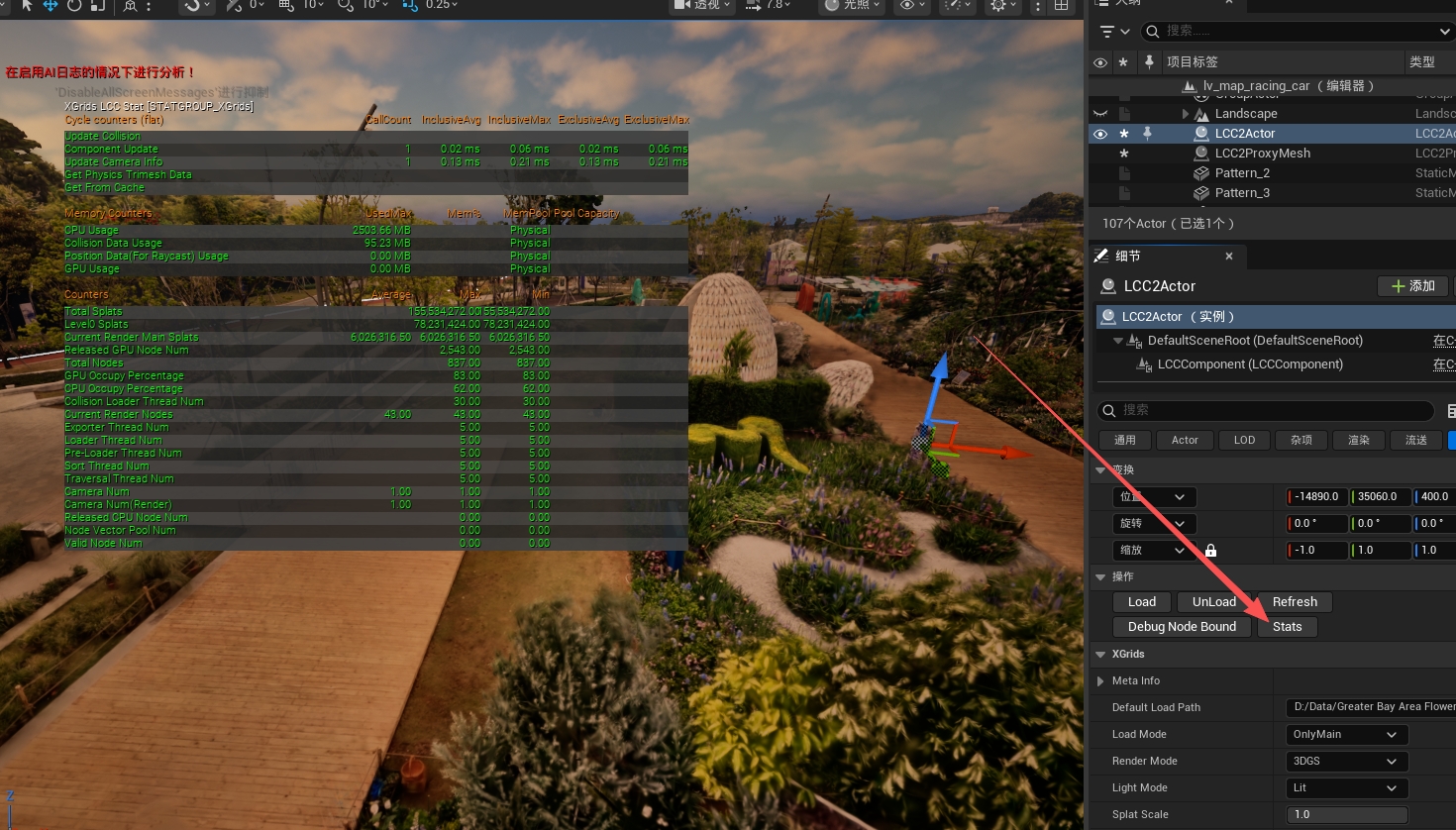
Viewing real-time performance statistics with stat xgrids
The panel has three sections:
| Section | Columns | Meaning |
|---|---|---|
| Cycle counters (flat) | CallCount, InclusiveAvg, InclusiveMax, ExclusiveAvg, ExclusiveMax | Timing items. Inclusive includes child calls, Exclusive counts only itself |
| Memory Counters | UsedMax, Mem%, MemPool, Pool Capacity | Memory and video memory usage, where Physical means the physical memory pool |
| Counters | Average, Max, Min | Count items |
Cycle counters (timing items)
| Metric | Meaning and usage |
|---|---|
| Update Collision | Time spent updating collision data. Only has a value once collision is enabled; a high value means collision is being rebuilt frequently, so reduce the collision load distance |
| Update Camera Info | Time spent collecting camera information each frame. The more views there are, the higher this gets; compare it with Camera Num |
| Component Update | Time spent updating components each frame, a Game thread cost. It accumulates when several LCC Actors share a scene |
| Get Physics Trimesh Data | Time spent providing collision triangle meshes to the physics system. It appears only during physics baking and is the direct source of collision stutter |
| Get From Cache | Time spent fetching data on a cache hit. This is the fast path compared with disk reads, so a high share here is a good sign |
Memory Counters (memory and video memory)
| Metric | Meaning and usage |
|---|---|
| CPU Usage | System memory used by LCC. Read it together with CPU Occupy Percentage to judge how close the release threshold is |
| Collision Data Usage | Memory used by collision data. The larger the collision distance, the higher this gets, and it is the most direct gain from turning collision off |
| Position Data(For Raycast) Usage | Memory of the position data used for ray tests. It is 0 when no ray tests are performed |
| GPU Usage | Video memory used by LCC. It is measured differently from GPU Occupy Percentage |
Counters (count items)
| Metric | Meaning and usage |
|---|---|
| Total Splats | Total point count of the dataset, a fixed value |
| Level0 Splats | Point count of Level 0, which decides whether the full load rendering criteria are met |
| Current Render Main Splats | Main point count rendered in the current frame. Compare it with Max Splat Num to tell whether the point limit was hit |
| Current Render Nodes | Node count rendered in the current frame |
| Total Nodes | Total node count of the dataset, a fixed value |
| Released GPU Node Num | Number of nodes released from video memory. Continuous growth means frequent swapping in and out, which usually indicates an insufficient video memory budget |
| Released CPU Node Num | Number of nodes released from memory. Judged the same way as above |
| GPU Occupy Percentage | Video memory usage percentage. Release is about to trigger when it approaches the Max GPU Usage threshold |
| CPU Occupy Percentage | Memory usage percentage |
| Loader Thread Num | Number of loader threads. Consider raising the limit only when the queue backs up and the CPU still has headroom |
| Pre-Loader Thread Num | Number of preload threads |
| Collision Loader Thread Num | Number of collision loader threads |
| Sort Thread Num | Number of sort threads |
| Traversal Thread Num | Number of traversal threads |
| Exporter Thread Num | Number of exporter threads, unrelated to runtime rendering |
| Camera Num | Number of cameras taking part in updates |
| Camera Num(Render) | Number of views taking part in rendering, the direct basis for judging SceneCapture, split screen, and nDisplay cost |
| Node Vector Pool Num | Number of objects in the node vector pool, an internal object reuse statistic |
| Valid Node Num | Number of valid nodes, an internal state statistic |
Debug Tools
| Tool | Description |
|---|---|
| Debug Node Bound | Visualizes octree node bounds, with color indicating the Level (red is the highest precision, white the lowest). Use it to confirm the LOD parameters take effect as expected |
| Stats | Shows real-time render statistics, equivalent to stat xgrids |
| FreezeRendering | Freezes the current render state. Once frozen, moving the camera no longer triggers traversal, so it can be used to inspect which nodes the current frame actually submitted |