
3DGS Appear and Disappear Animations
Overview
The loading animation plays while LCC data loads. In the editor, click the Refresh button to trigger a reload and preview the animation.
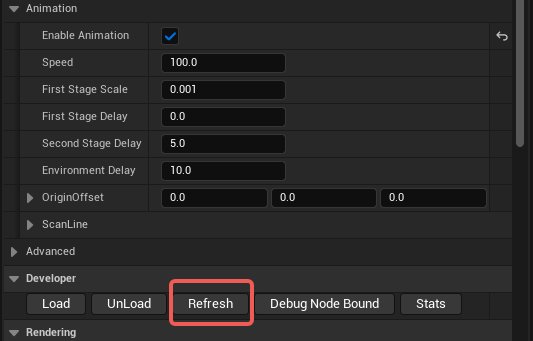
Clicking the Refresh button to preview the loading animation
- 3DGS mode: two-stage animation (nothing → point cloud → 3DGS)
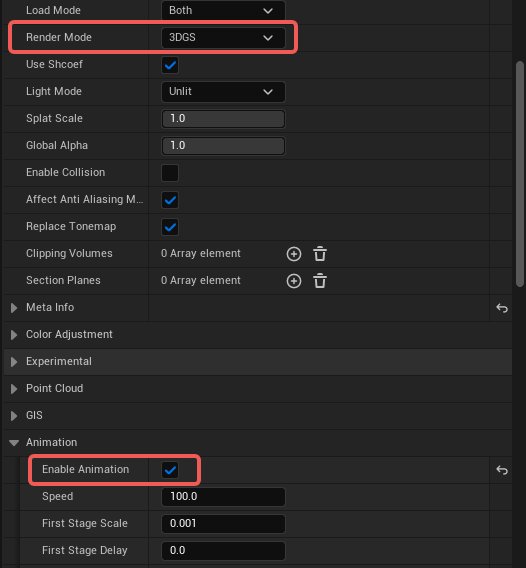
The 3DGS loading animation transitions from point cloud to 3DGS
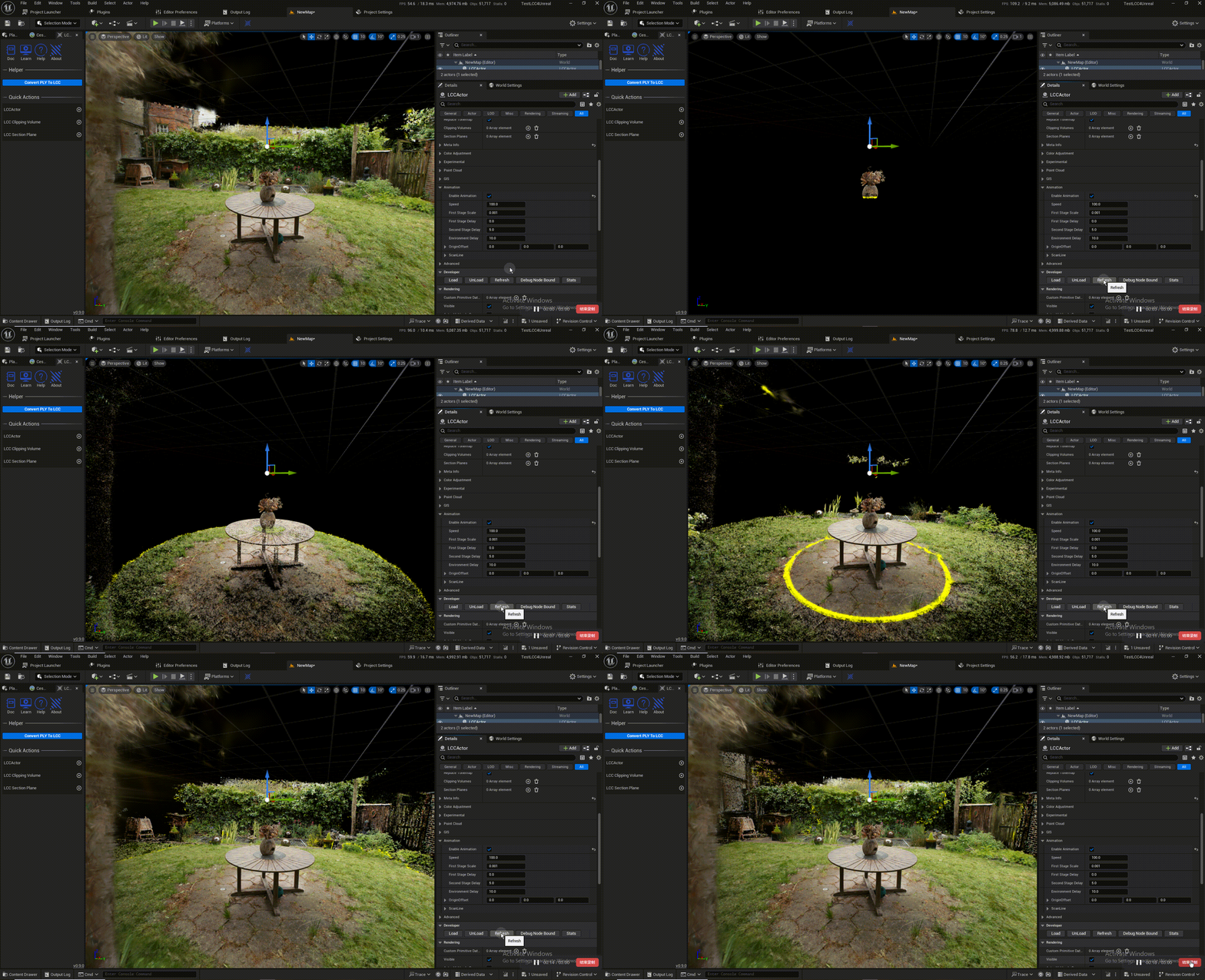
Demonstration of the two-stage 3DGS loading animation
- Point cloud mode: one-stage animation (nothing → point cloud)
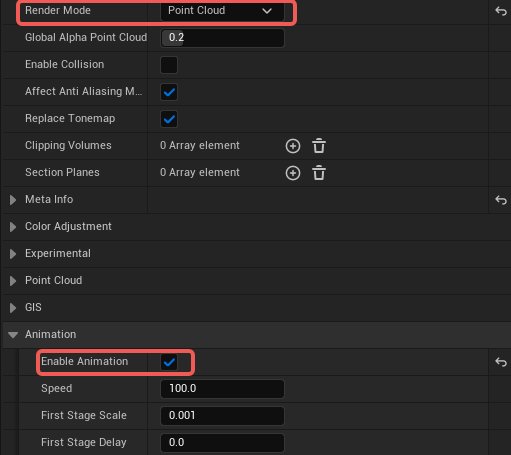
The one-stage loading animation of point cloud mode
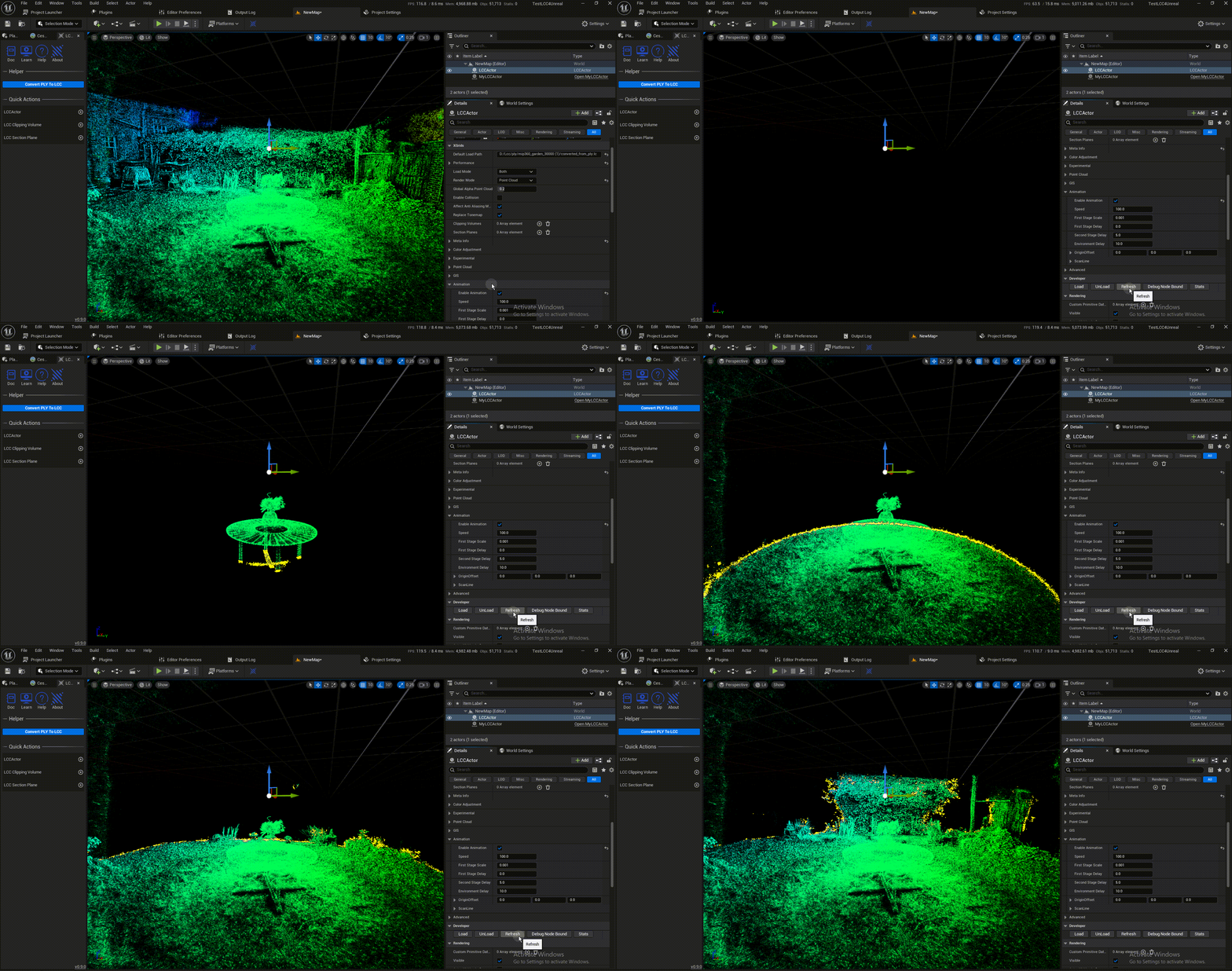
Demonstration of the point cloud mode loading animation
Parameters
The control parameters live under the Animation category of LCCComponent:
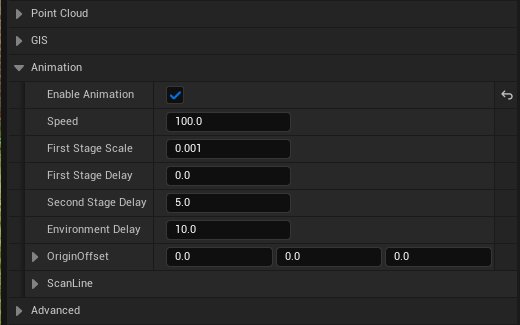
Configuring the loading animation parameters in the Animation category
| Parameter | Default | Description |
|---|---|---|
| bEnableAnimation | false | Enables the loading animation |
| AnimationSpeed | 100 | Animation speed |
| AnimationMinScale | 0.001 | Point size of the first stage (3DGS mode only) |
| FirstStageDelay | 0 | First stage delay in seconds. The data is not displayed before it starts |
| SecondStageDelay | - | Second stage delay (point cloud → 3DGS). Equal to FirstStageDelay skips the first stage |
| EnvironmentDelay | - | Environment node delay. The environment does not take part in the animation and appears directly when the time is reached |
| AnimationOriginOffset | (0,0,0) | Offset of the scan origin |
| FirstStageColor | Gold | Scan line color of the first stage (an alpha of 0 hides the scan line) |
| SecondStageColor | - | Scan line color of the second stage |
| ScanLineThickness | 5 | Scan line width |
Inverse Animation
With inverse animation enabled, the animation contracts from the distance toward the center and disappears.
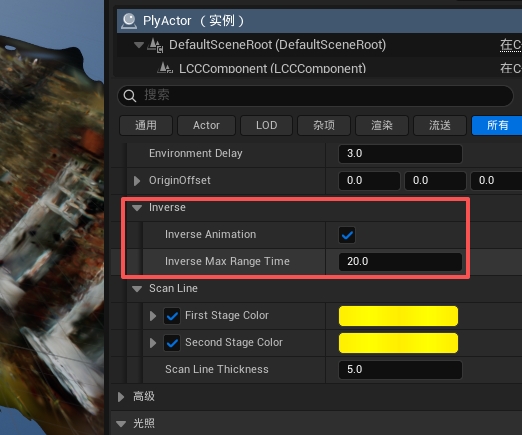
Configuring the inverse animation parameters in the Animation category
| Parameter | Default | Description |
|---|---|---|
| Inverse Animation | false | Enables inverse animation. Once enabled, the animation contracts from the distance toward the center and disappears |
| Inverse Max Range Time | 30 | Sets the initial visible range of the inverse animation. The value needs to cover the whole scene |
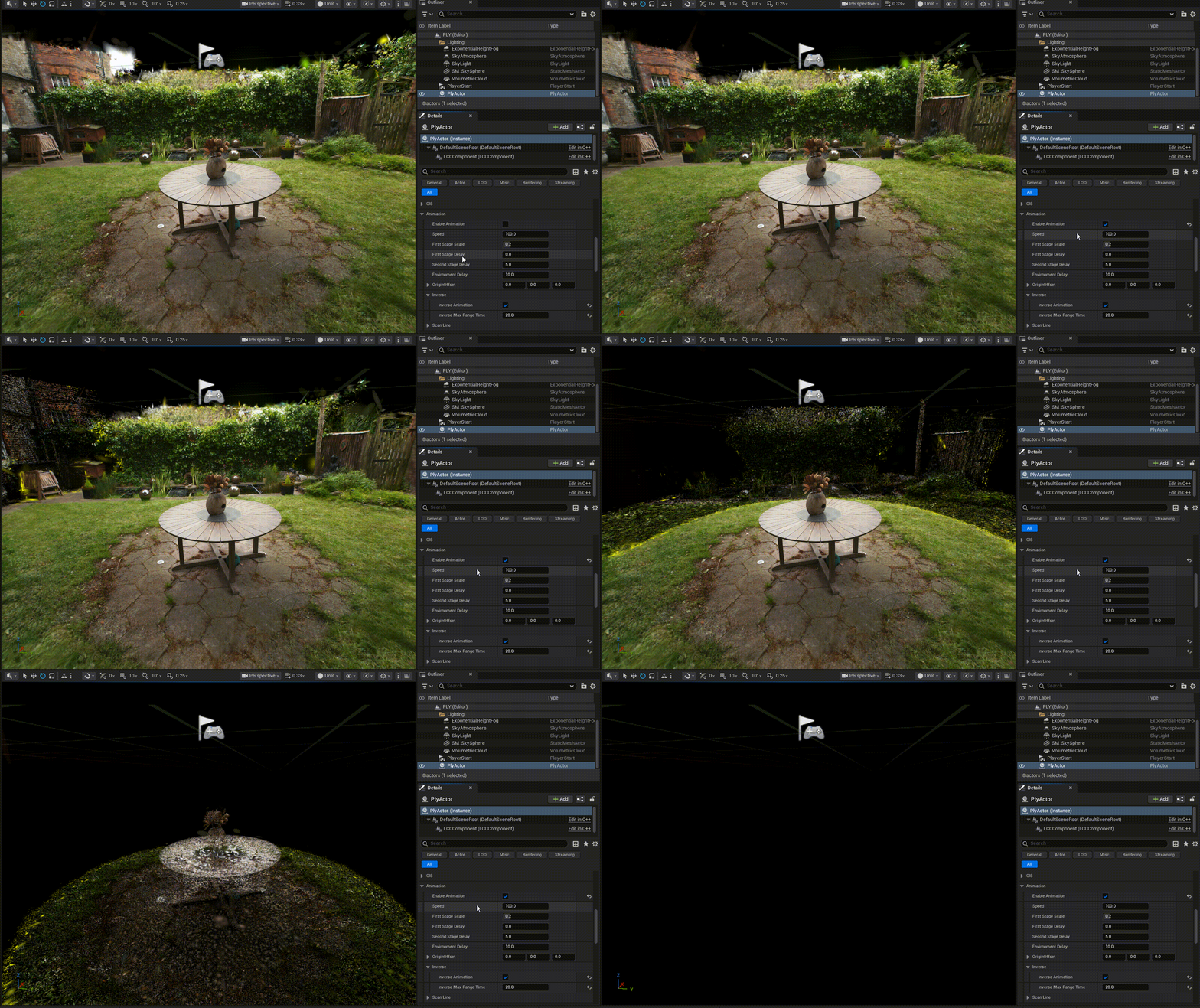
Demonstration of the two-stage 3DGS inverse animation
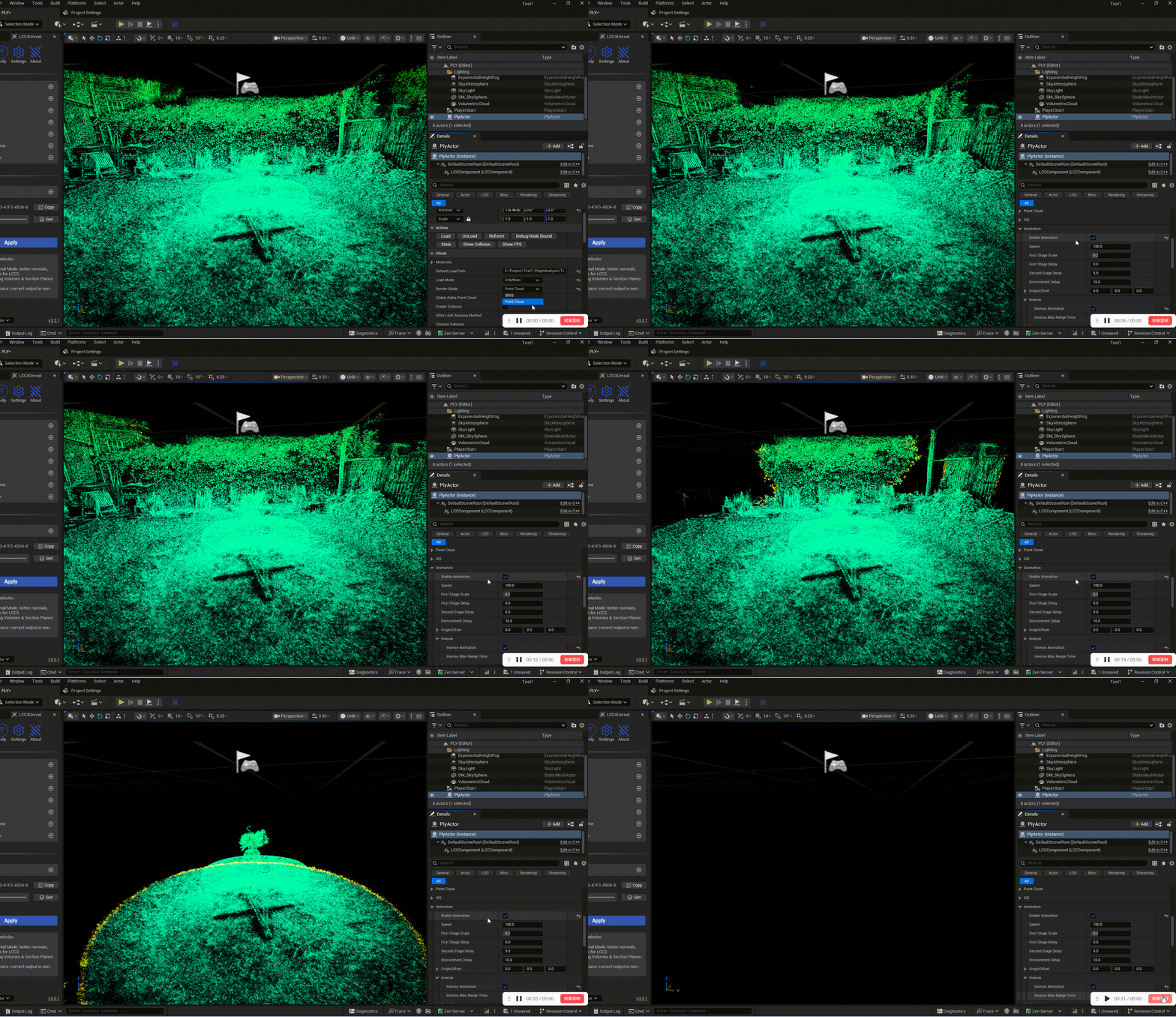
Demonstration of the point cloud mode inverse animation
Controlling the Animation at Runtime
Besides configuring it in the Details panel, the animation can also be controlled at runtime from code or Blueprint.
Replaying the Animation
Besides switching the animation on and off, SetEnableAnimation also resets the animation timing origin to the current time. It is therefore not limited to the loading stage: calling it at any moment replays the animation from the beginning.
// Replay the animation on an already loaded scene without reloading the data
Component->SetEnableAnimation(true);
The matching Blueprint node is Set Enable Animation.
Order of Parameters and the Switch
Once the animation starts, it follows the current parameters. Parameters can still be changed after it starts and the change takes effect on the next frame, but that is a mid-play adjustment and the animation does not restart from the beginning.
To make parameters apply to the whole animation, set the parameters first and call SetEnableAnimation last:
// Set the parameters first
Component->AnimationSpeed = 30.0f;
Component->AnimationMinScale = 0.1f;
Component->SecondStageDelay = 1.0f;
Component->bUseFirstStageColor = true;
Component->FirstStageColor = FLinearColor(0.f, 0.8f, 1.f, 1.f);

// Turn on the switch last; the animation starts at this moment with the parameters above
Component->SetEnableAnimation(true);
To change a parameter during playback (adjusting the speed in real time, for example), change the property directly without calling SetEnableAnimation again. Conversely, calling SetEnableAnimation(true) during playback restarts the animation, so avoid repeated calls in normal mode.
Playing the Disappear Animation
Set bInverseAnimation to true, then call SetEnableAnimation(true) to reset the timeline:
// Disappear
Component->bInverseAnimation = true;
Component->SetEnableAnimation(true);

// Appear again
Component->bInverseAnimation = false;   // remember to reset
Component->SetEnableAnimation(true);
Text Blueprint:
[Custom Event: PlayDisappear]
        │
        ▼
[Set Inverse Animation]
        Target = (LCC Component)
        bInverse Animation = true
        │
        ▼
[Set Enable Animation]
        Target = (LCC Component)
        b In Enable Animation = true
Practical Notes
- Set
bInverseAnimationbeforeSetEnableAnimation. In the reverse order the timeline is reset before the direction changes, and the animation plays once in the old direction. - Reset
bInverseAnimationtofalseafter each appear animation finishes. Otherwise the same object stays in inverse mode the next time it is used. - The default 30 seconds of
InverseMaxRangeTimeis too large for fast interaction and needs lowering. This value multiplied byAnimationSpeedgives the initial visible radius, which must be large enough to cover the whole scene, but too large a value makes the disappear process drag. - Avoid repeated calls to
SetEnableAnimation(true)in normal mode. Every call resets the timeline and the animation keeps restarting from the beginning.