
3DGS Scene Clipping and Sectioning
Clipping Volumes
A clipping volume can be scaled, moved, and rotated freely, which helps developers clip an LCC scene spatially.
- A single Actor supports up to 65536 clipping volumes, limited to 50 in the free edition; see Editions and Licensing
- Box and sphere shapes are supported, and both can be scaled, moved, and rotated
Note: clipping only affects the final rendering. Clipped-away areas still take part in node traversal, load, and video memory upload as usual. Clipping therefore cannot reduce the load amount or video memory usage; use the methods in the Performance Guide to control those costs.
Steps
- Place an LCCActor/LCC2Actor and load the scene.
- Drag
LCC Clipping Volumeinto the scene.
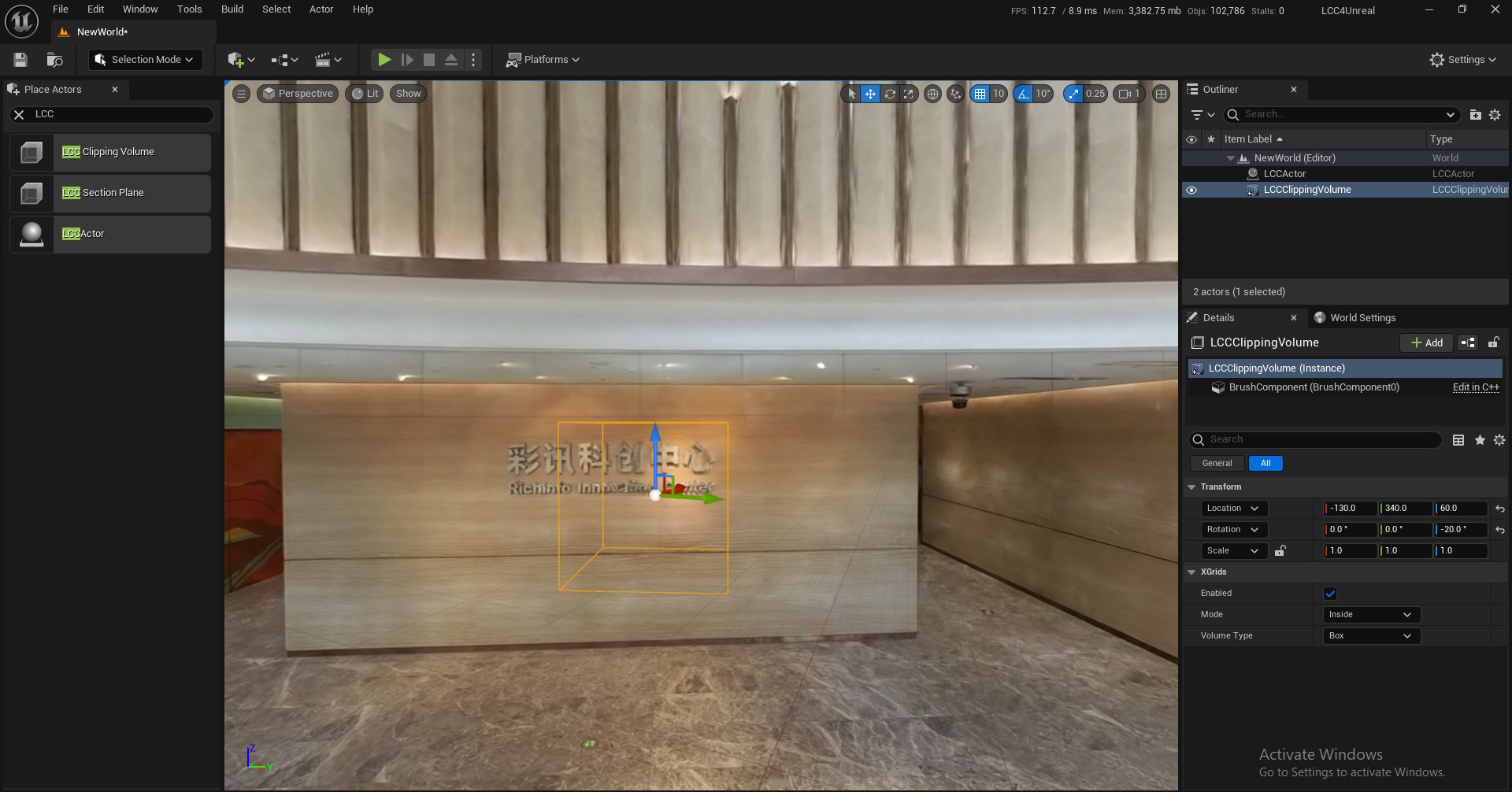
Dragging an LCC Clipping Volume into the scene
- Move the clipping volume to the target position.
- Add the Clipping Volume to the
ClippingVolumesarray in the Details panel of the Actor.
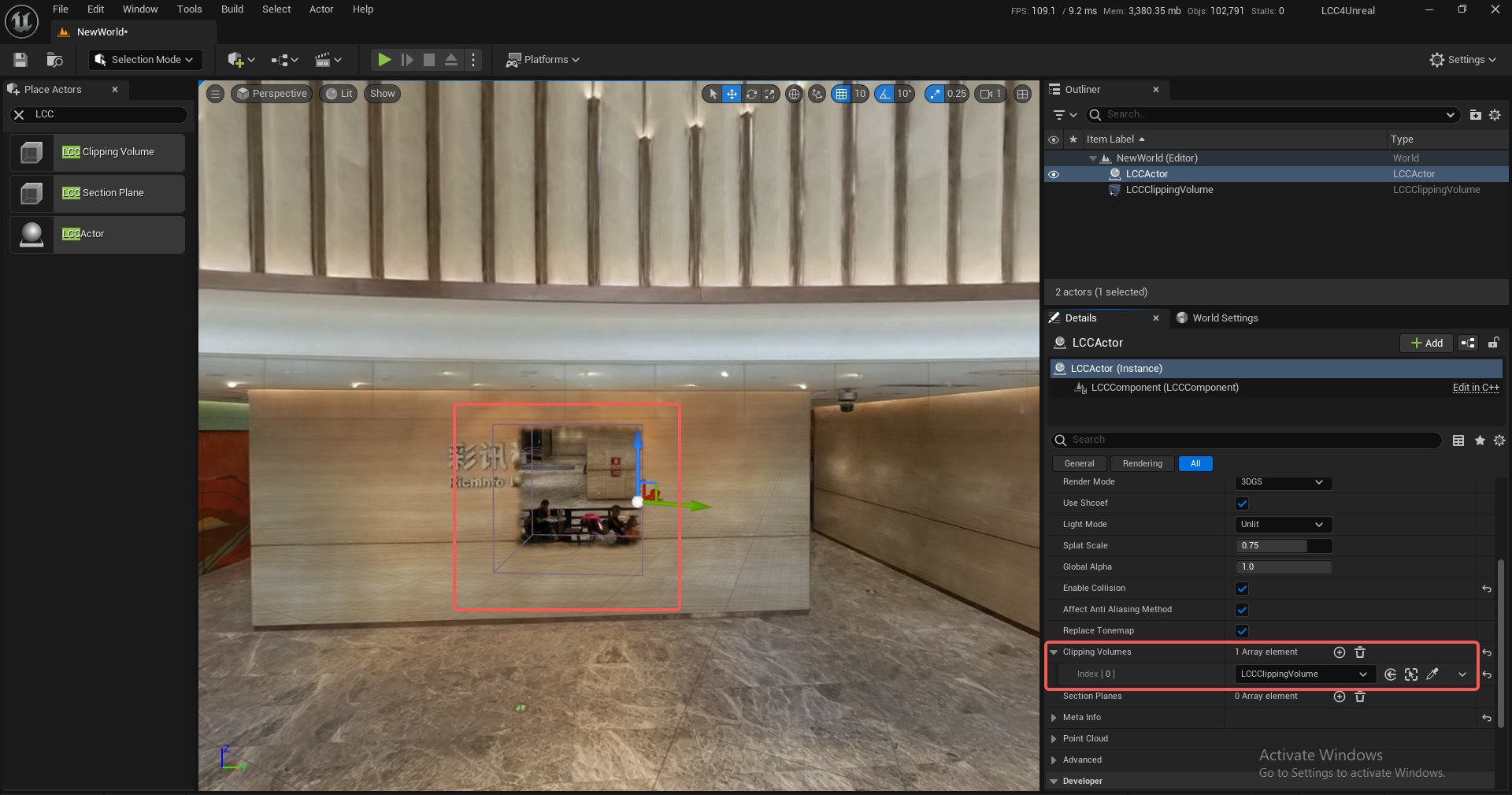
The Inside clipping result of a clipping volume
Demo
Moving a clipping volume and observing the clipping in real time
Properties
| Property | Description |
|---|---|
| bEnabled | Whether it is enabled |
| Mode | Inside (clip inside) or Outside (clip outside) |
| VolumeType | Box or Sphere |
Blueprint Methods
LCCComponent → AddClippingVolume
LCCComponent → RemoveClippingVolume
ClippingVolume → Refresh()
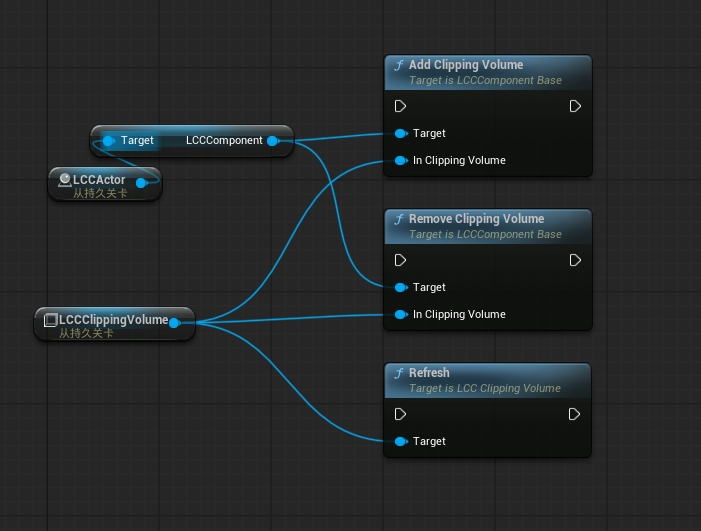
Adding, removing, and refreshing a clipping volume with Blueprint nodes
Section Planes
A section plane can be scaled, moved, and rotated freely to section the scene along a plane.
- A single Actor supports up to 65536 section planes, limited to 50 in the free edition; see Editions and Licensing
- Sectioning upward or downward is supported, and the count is tracked separately from clipping volumes
Note: sectioning only affects the final rendering. Sectioned-away areas still take part in node traversal, load, and video memory upload as usual. Sectioning therefore cannot reduce the load amount or video memory usage.
Steps
- Place an LCCActor/LCC2Actor and load the scene.
- Drag
LCC Section Planeinto the scene.
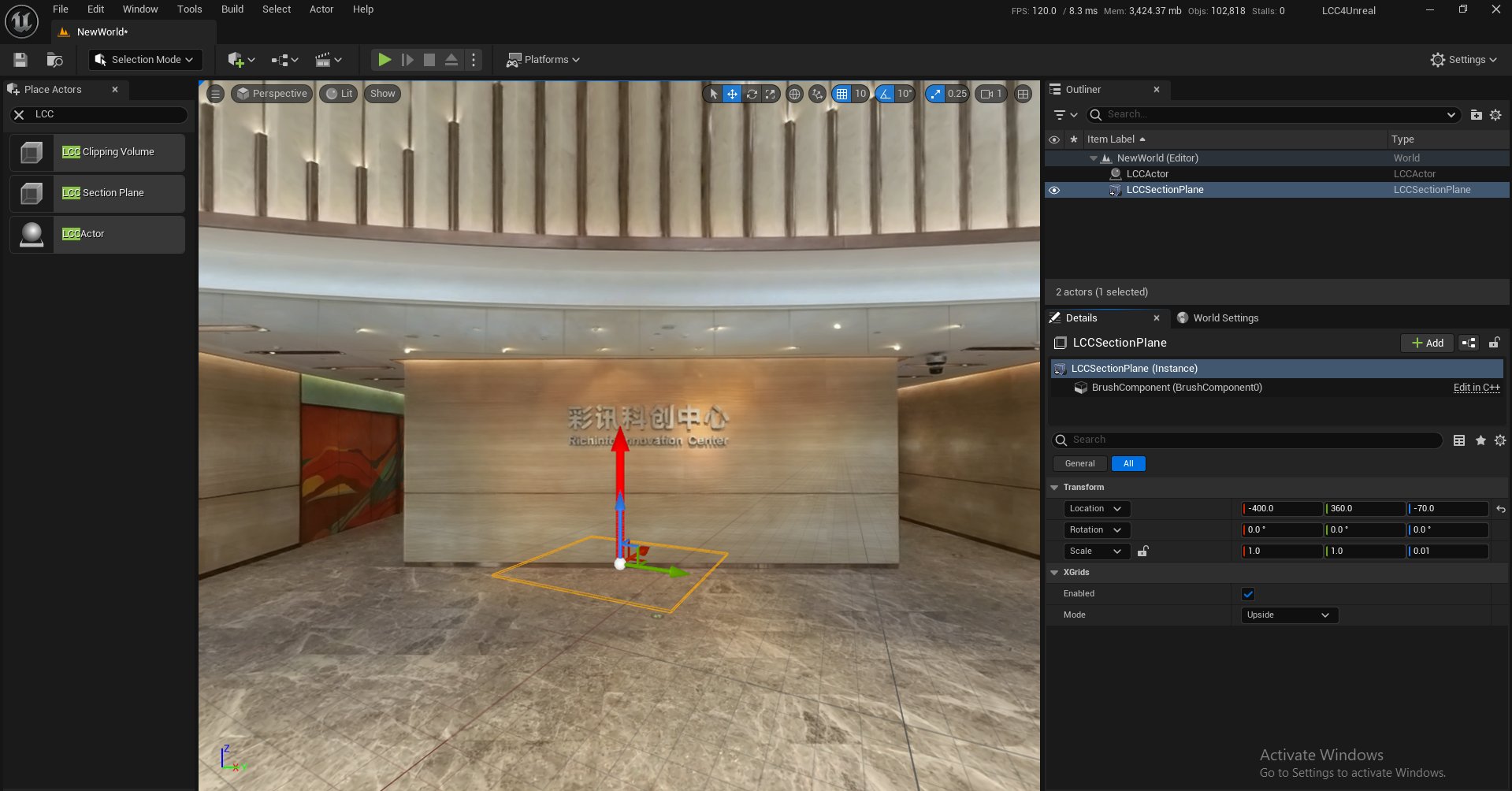
Dragging an LCC Section Plane into the scene
- Move it to the target position.
- Add the Section Plane to the
SectionPlanesarray in the Details panel of the Actor.
Demo
Moving a section plane and observing the sectioning in real time
Properties
| Property | Description |
|---|---|
| bEnabled | Whether it is enabled |
| Mode | Upside (section upward) or Downside (section downward) |
Blueprint Methods
LCCComponent → AddSectionPlane
LCCComponent → RemoveSectionPlane
SectionPlane → Refresh()
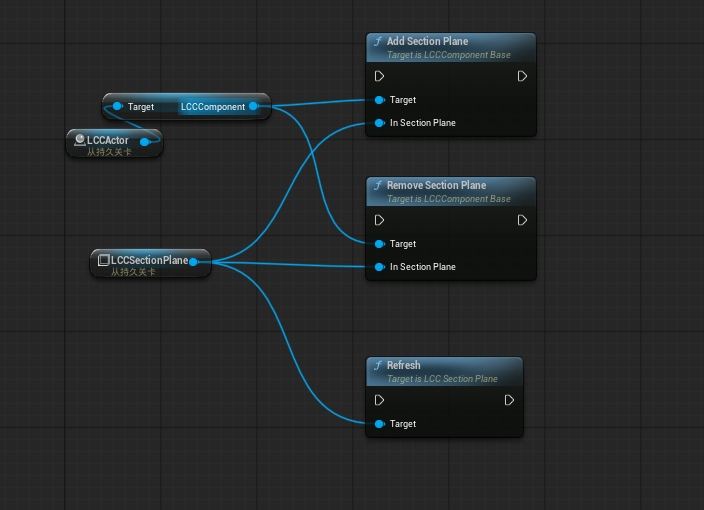
Adding, removing, and refreshing a section plane with Blueprint nodes