XGRIDSDocs
  • 简体中文
  • English
  • 繁體中文
  • 日本語
  • Deutsch
  • Español
  • Italiano
  • 简体中文
  • English
  • 繁體中文
  • 日本語
  • Deutsch
  • Español
  • Italiano
  • PortalCam

    • Product Overview
    • Basic Operation
    • Using the LCC Scan App
    • Maintenance and Care
    • FAQ
  • Lixel K Series

    • Lixel K1

      • Product Overview
      • Basic Operation
      • Device Activation and Connection
      • Scanning Workflow
      • Acquire Point Cloud Data with Absolute Coordinate
      • Map Fusion
      • Route Planning Suggestions for Typical Scenes
      • Precautions
      • FAQ
    • Lixel K2

      • Product Overview
      • Basic Operation
      • Device Activation and Connection
      • Scanning Workflow
      • Acquire Point Cloud Data with Absolute Coordinate
      • Map Fusion
      • Route Planning Suggestions for Typical Scenes
      • Precautions
      • FAQ
  • Lixel L Series

    • Lixel L2 Pro

      • Product Overview
      • Basic Operation
      • Device Activation and Connection
      • Scanning Workflow
      • Acquire Point Cloud Data with Absolute Coordinate
      • Measure Point
      • Appendix
      • FAQ
  • Lixel Studio

    • Version and Copyright
    • Installation and Activation
    • Software Interface
    • File Operations
    • Project Processing
    • Tools
    • 2D Drawing
    • Applications
    • Settings
    • Device Connection
    • FAQ
  • Lixel CyberColor

    • LCC Studio

      • Getting Started
      • Version and Updates
      • Download and Installation
      • Interface Overview and Navigation
      • Pre-Reconstruction Work
      • Model Reconstruction
      • Single Model Reconstruction
      • Map Fusion
      • Aerial-Ground Map Fusion
      • Aerial Reconstruction
      • My Models
      • Other Features
      • Settings and Account
      • Video Reconstruction
      • FAQ
    • LCC Scene Editor

      • Version and Updates
      • Account and Sign In
      • Product Overview and Home
      • Editor Interface
      • Three Navigation Modes
      • File
      • Settings
      • Edit
      • Window
      • Global Toolbar
      • Assets and Properties
      • Left Toolbar
      • Viewpoint
      • Skybox
      • Annotation
      • Measurement
      • Flythrough
      • Scene Report
      • 3D Layout
      • Preview Mode (Viewer)
      • Help
      • FAQ
    • LCC Model Editor

      • Version and Updates
      • User Guide
      • Overview and Interface
      • File Operations
      • Selectors
      • Editing Models
      • Measurement
      • Color Grading
      • Asset Management
      • Settings and Help
      • FAQ
    • Version History

Settings

Settings include General, Rendering Display, Authorization Activation, Update, About, and User+ (the Improvement Program).

Preferences

Configure the base interaction environment, units, and point cloud rendering.
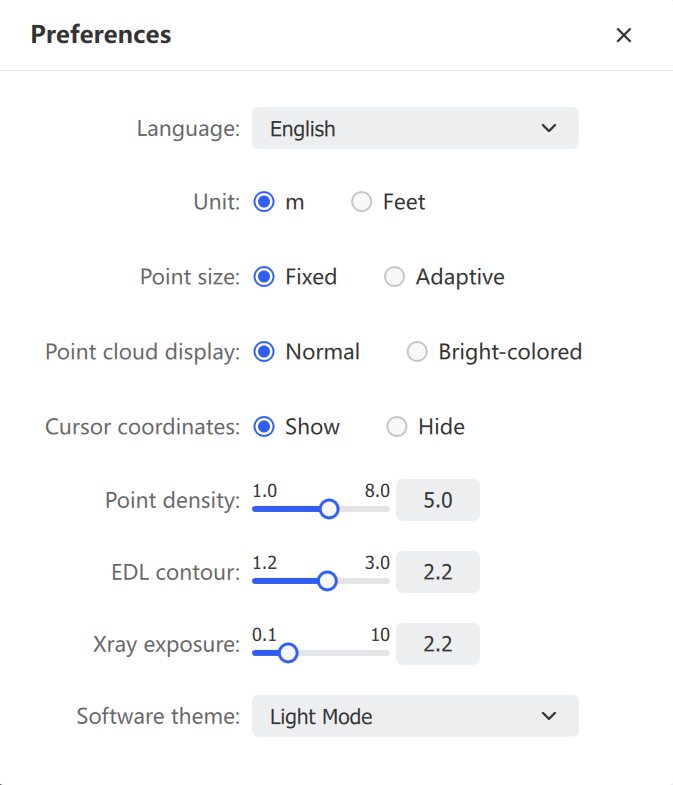
Preferences
SettingDescription
LanguageSimplified Chinese, Traditional Chinese, English, Italian, German. Restart required
UnitMeter or Foot. Measurement values and the scale bar update accordingly
Point SizeFixed — constant pixel size regardless of zoom. Adaptive — scales with viewing distance
Point Cloud DisplayNormal — standard color rendering. Vivid — higher saturation and contrast for distinguishing subtle features
Point DensitySlider controls the displayed thinning ratio
EDL ContourEye-Dome Lighting strength; higher values enhance edge shading
Xray ExposureAdjusts Xray transparency and exposure gain
Software ThemeLight Mode or Dark Mode

Help and Support

Access the Improvement Program, Open Log Path, Check for Updates, and About LixelStudio.

Improvement Program

Collects information about software usage and encountered problems to help identify user behavior patterns for product planning and improvement. Participation is voluntary.
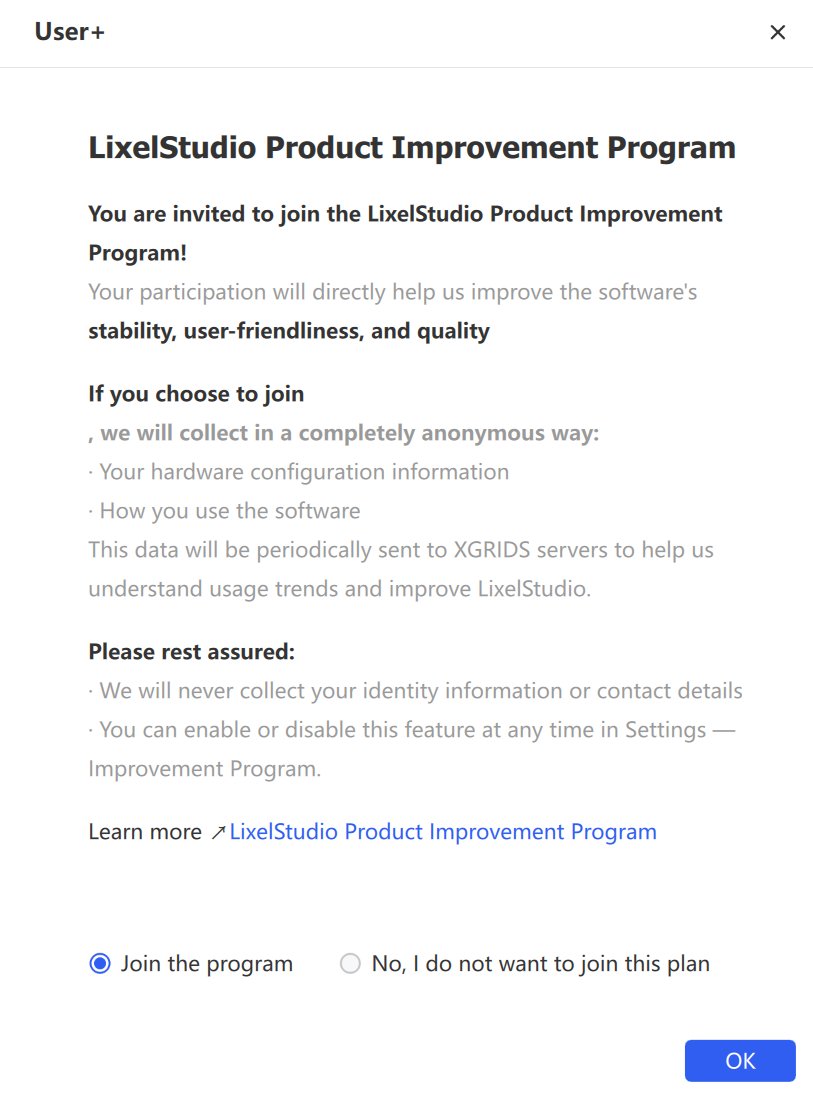
Improvement program

Open Log Path

Locates the system log files generated during software operation. These files record startup status, task execution, error messages, and crash causes — the core reference for troubleshooting and technical support.

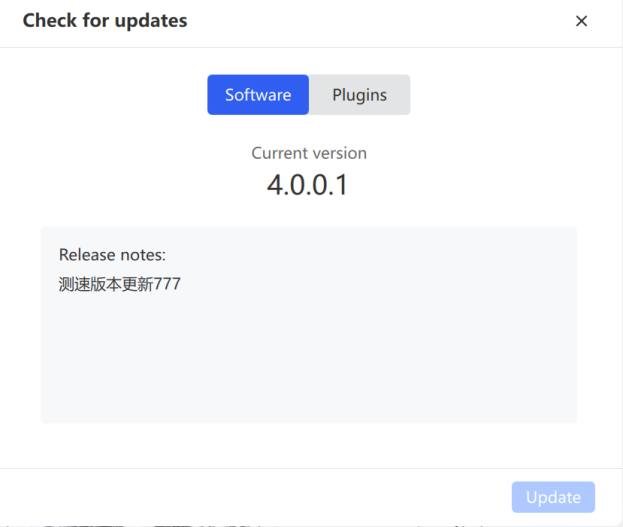
Check for Updates

Manages the lifecycle of the software and its plugins.
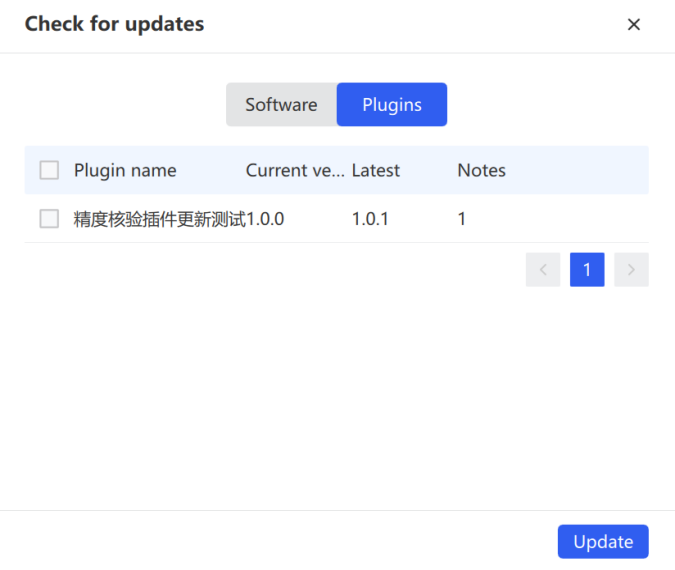
Check for updates
Check for updates

About LixelStudio

Displays the current version number. Click the available links to open Version Notes, Privacy Policy, and Terms of Service.

Prev
Applications
Next
Device Connection