
Three Navigation Modes
LCC Scene Editor provides three navigation modes: First-person mode, Pivot Mode, and Digital human mode. Click the view switch button to freely switch between them.
- In Edit mode, you can switch between First-person mode and Pivot Mode
- In Preview mode, you can switch between First-person mode, Pivot Mode, and Digital human mode
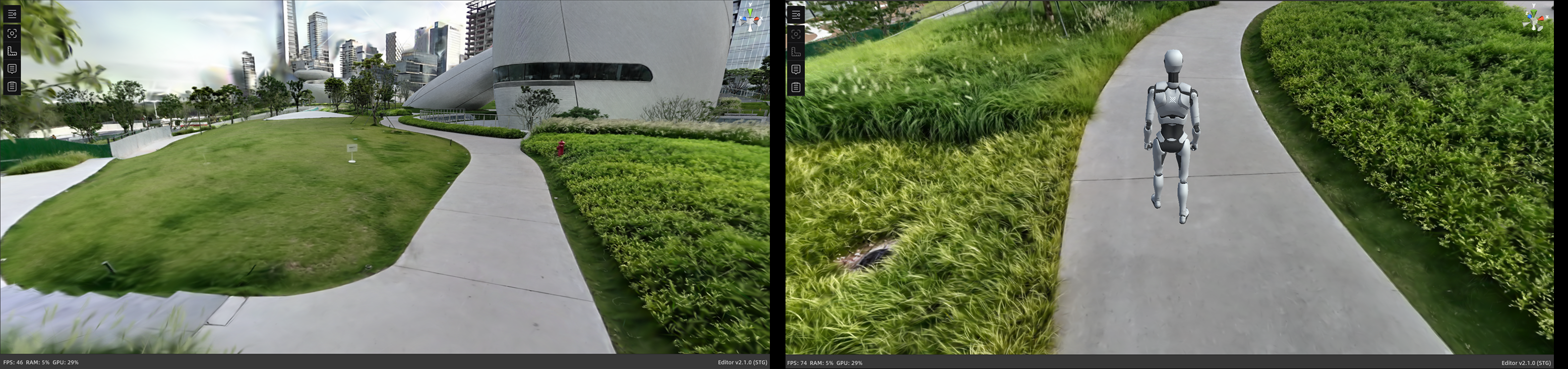
First-person mode (left) and Digital human mode (right)
First-Person Mode
Navigate through the space in first person, simulating a "what you see" experience. Ideal for immersive browsing in indoor areas or detailed regions.
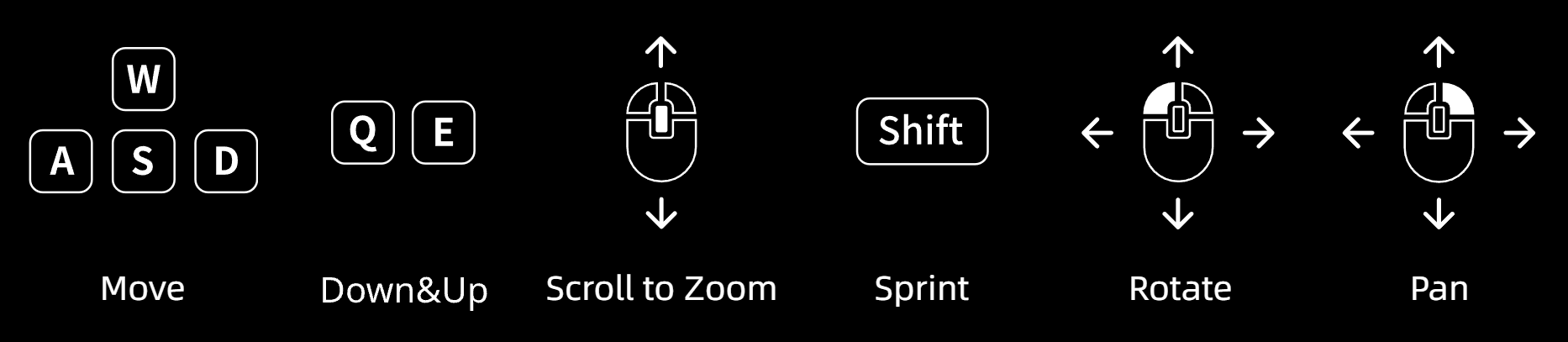
First-person controls
| Control | Function |
|---|---|
| W / A / S / D / Q / E | Move forward / Left / Backward / Right / Down / Up |
| Shift | Sprint |
| Scroll wheel | Adjust movement speed |
| Left-click drag | Rotate view |
| Right-click drag | Pan view |
Pivot Mode
In Pivot Mode, the camera orbits around a fixed "pivot point" in the scene. Suitable for viewing models from all angles.
Since panning the camera also shifts the pivot point, suddenly switching from First-person mode to Pivot Mode may cause the center point to offset, resulting in erratic rotation. Therefore, the Origin Point button is defined as "Reset Center Point" — click it to quickly re-calibrate the camera position and restore the model center.
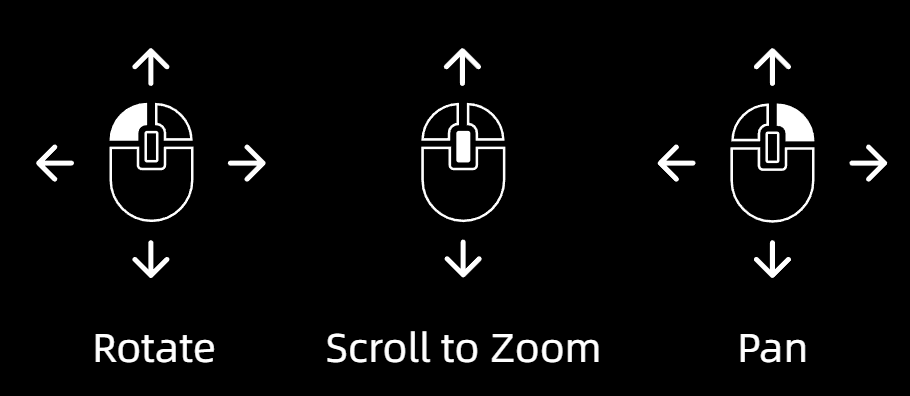
Pivot Mode controls
| Control | Function |
|---|---|
| Scroll wheel | Zoom in/out |
| Left-click drag | Rotate around the pivot point |
| Right-click drag | Pan view |
| Double-click | Quickly switch pivot center point |
Digital Human Mode (Preview Mode Only)
Digital human mode navigates the scene as a virtual character. In this mode, only immersive roaming is available — Measurement and Annotation features are not supported.
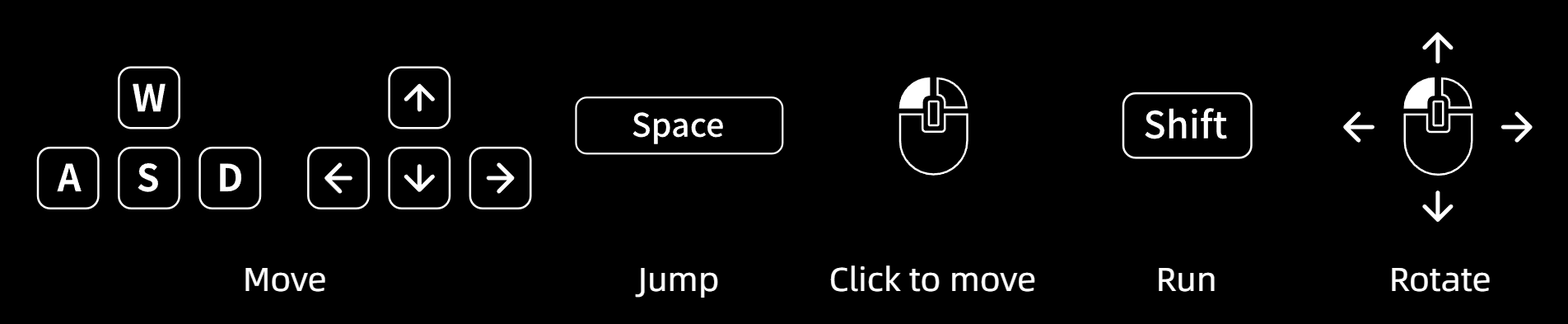
Digital human mode controls
| Control | Function |
|---|---|
| W / A / S / D | Move forward / Left / Backward / Right |
| Space | Jump |
| Shift | Sprint |
| Left-click on target location | Navigate (auto-walk) |
| Left-click drag | Rotate view |