XGRIDSDocs
  • 简体中文
  • English
  • 繁體中文
  • 日本語
  • Deutsch
  • Español
  • Italiano
  • 简体中文
  • English
  • 繁體中文
  • 日本語
  • Deutsch
  • Español
  • Italiano
  • PortalCam

    • Product Overview
    • Basic Operation
    • Using the LCC Scan App
    • Maintenance and Care
    • FAQ
  • Lixel K Series

    • Lixel K1

      • Product Overview
      • Basic Operation
      • Device Activation and Connection
      • Scanning Workflow
      • Acquire Point Cloud Data with Absolute Coordinate
      • Map Fusion
      • Route Planning Suggestions for Typical Scenes
      • Precautions
      • FAQ
    • Lixel K2

      • Product Overview
      • Basic Operation
      • Device Activation and Connection
      • Scanning Workflow
      • Acquire Point Cloud Data with Absolute Coordinate
      • Map Fusion
      • Route Planning Suggestions for Typical Scenes
      • Precautions
      • FAQ
  • Lixel L Series

    • Lixel L2 Pro

      • Product Overview
      • Basic Operation
      • Device Activation and Connection
      • Scanning Workflow
      • Acquire Point Cloud Data with Absolute Coordinate
      • Measure Point
      • Appendix
      • FAQ
  • Lixel Studio

    • Version and Copyright
    • Installation and Activation
    • Software Interface
    • File Operations
    • Project Processing
    • Tools
    • 2D Drawing
    • Applications
    • Settings
    • Device Connection
    • FAQ
  • Lixel CyberColor

    • LCC Studio

      • Getting Started
      • Version and Updates
      • Download and Installation
      • Interface Overview and Navigation
      • Pre-Reconstruction Work
      • Model Reconstruction
      • Single Model Reconstruction
      • Map Fusion
      • Aerial-Ground Map Fusion
      • Aerial Reconstruction
      • My Models
      • Other Features
      • Settings and Account
      • Video Reconstruction
      • FAQ
    • LCC Scene Editor

      • Version and Updates
      • Account and Sign In
      • Product Overview and Home
      • Editor Interface
      • Three Navigation Modes
      • File
      • Settings
      • Edit
      • Window
      • Global Toolbar
      • Assets and Properties
      • Left Toolbar
      • Viewpoint
      • Skybox
      • Annotation
      • Measurement
      • Flythrough
      • Scene Report
      • 3D Layout
      • Preview Mode (Viewer)
      • Help
      • FAQ
    • LCC Model Editor

      • Version and Updates
      • User Guide
      • Overview and Interface
      • File Operations
      • Selectors
      • Editing Models
      • Measurement
      • Color Grading
      • Asset Management
      • Settings and Help
      • FAQ
    • Version History

Settings

Open the Settings panel to manage various editor configurations.

Entry: Menu bar → File → Settings
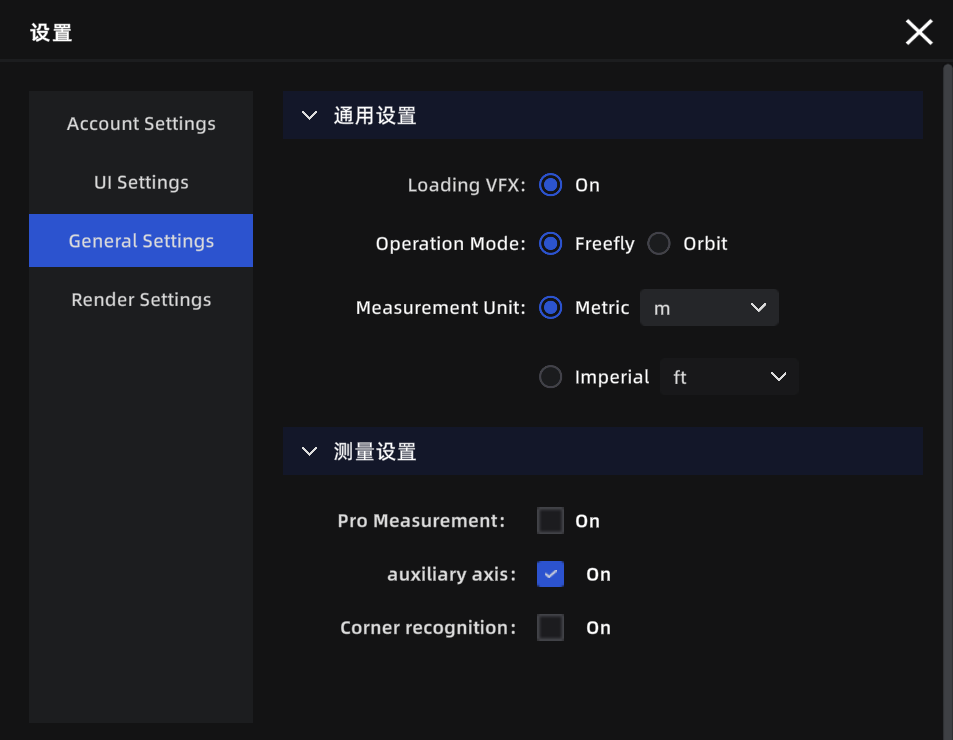
Settings panel

Settings panel

Account Settings

SettingDescription
User InfoView the currently logged-in account name and avatar
User AgreementView user agreement content
Privacy PolicyView privacy policy content
LCC Improvement ProgramChoose whether to participate in the product experience improvement program
Sign OutSign out of the current account

UI Settings

SettingDescription
LanguageSwitch the interface display language (Chinese/English/Japanese/Traditional Chinese/Italian/German/Spanish)
Show GridDisplay a reference grid at the bottom of the 3D view to help judge model position and scale
Grid OpacityAdjust grid transparency. 0% is fully transparent, 100% is fully opaque

General Settings

SettingDescriptionDefault
Default Operation ModeThe default view navigation mode used each time a project is openedRoaming
Measurement Unit SystemSwitch the display unit for measurement data (Metric/Imperial)Metric
Metric UnitSelect the metric length unit (Meter/Centimeter)Meter
Imperial UnitSelect the imperial length unit (Feet/Inch)Feet
Professional MeasurementWhen enabled, measurement results additionally display X/Y/Z component valuesOff
Auxiliary AxisWhen measuring, automatically snaps to X/Y/Z axis directions for precise horizontal or vertical measurementsOff
Corner DetectionAutomatically detects model edges and corners during measurement for improved point-selection accuracyOff

Note: Auxiliary Axis and Corner Detection can also be toggled in real-time during measurement using the Ctrl / Tab shortcut keys.

Render Settings

SettingDescriptionDefault
Render QualityAdjust image quality. Higher quality produces clearer visuals but requires more hardware performanceAuto-recommended based on hardware
Graphics APIIf screen tearing or flickering occurs, try switching this optionDirect12

Note: All settings above are global configurations that apply across all projects.

Prev
File
Next
Edit