XGRIDSDocs
  • 简体中文
  • English
  • 繁體中文
  • 日本語
  • Deutsch
  • Español
  • Italiano
  • 简体中文
  • English
  • 繁體中文
  • 日本語
  • Deutsch
  • Español
  • Italiano
  • PortalCam

    • Product Overview
    • Basic Operation
    • Using the LCC Scan App
    • Maintenance and Care
    • FAQ
  • Lixel K Series

    • Lixel K1

      • Product Overview
      • Basic Operation
      • Device Activation and Connection
      • Scanning Workflow
      • Acquire Point Cloud Data with Absolute Coordinate
      • Map Fusion
      • Route Planning Suggestions for Typical Scenes
      • Precautions
      • FAQ
    • Lixel K2

      • Product Overview
      • Basic Operation
      • Device Activation and Connection
      • Scanning Workflow
      • Acquire Point Cloud Data with Absolute Coordinate
      • Map Fusion
      • Route Planning Suggestions for Typical Scenes
      • Precautions
      • FAQ
  • Lixel L Series

    • Lixel L2 Pro

      • Product Overview
      • Basic Operation
      • Device Activation and Connection
      • Scanning Workflow
      • Acquire Point Cloud Data with Absolute Coordinate
      • Measure Point
      • Appendix
      • FAQ
  • Lixel Studio

    • Version and Copyright
    • Installation and Activation
    • Software Interface
    • File Operations
    • Project Processing
    • Tools
    • 2D Drawing
    • Applications
    • Settings
    • Device Connection
    • FAQ
  • Lixel CyberColor

    • LCC Studio

      • Getting Started
      • Version and Updates
      • Download and Installation
      • Interface Overview and Navigation
      • Pre-Reconstruction Work
      • Model Reconstruction
      • Single Model Reconstruction
      • Map Fusion
      • Aerial-Ground Map Fusion
      • Aerial Reconstruction
      • My Models
      • Other Features
      • Settings and Account
      • Video Reconstruction
      • FAQ
    • LCC Scene Editor

      • Version and Updates
      • Account and Sign In
      • Product Overview and Home
      • Editor Interface
      • Three Navigation Modes
      • File
      • Settings
      • Edit
      • Window
      • Global Toolbar
      • Assets and Properties
      • Left Toolbar
      • Viewpoint
      • Skybox
      • Annotation
      • Measurement
      • Flythrough
      • Scene Report
      • 3D Layout
      • Preview Mode (Viewer)
      • Help
      • FAQ
    • LCC Model Editor

      • Version and Updates
      • User Guide
      • Overview and Interface
      • File Operations
      • Selectors
      • Editing Models
      • Measurement
      • Color Grading
      • Asset Management
      • Settings and Help
      • FAQ
    • Version History

Scene Report

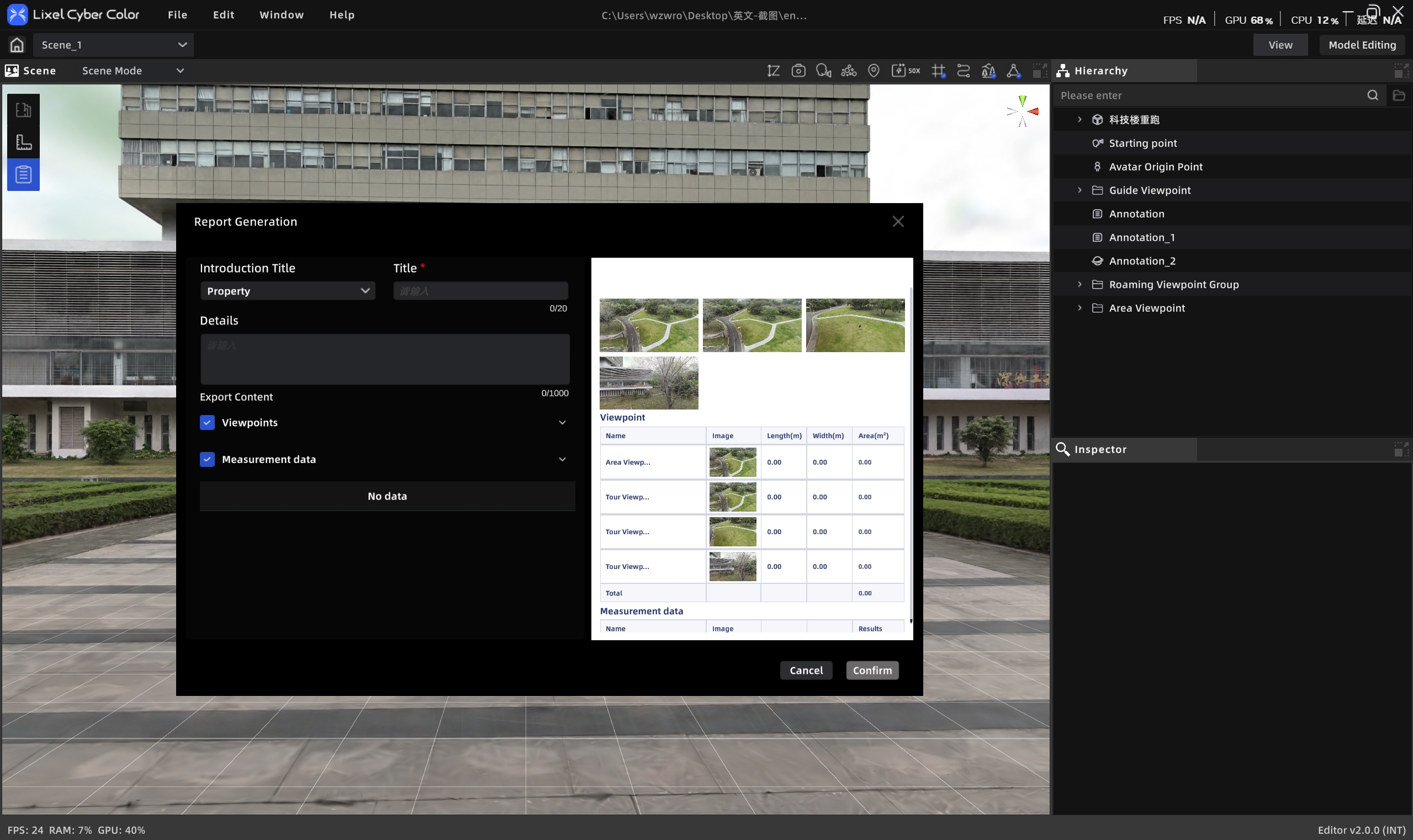
The Scene Report tool organizes the current project's 3D Layout and tour content into a template-based report that can be viewed and published.

  • Supports export to local storage in JPEG and PDF formats
  • Optionally includes viewpoint and measurement data in the export
Scene Report

Scene Report

Workflow

V2.1 optimized the Scene Report generation process to "select data scope first, then generate," with added progress feedback and instant unit update capabilities.

Creating a New Scene Report

  1. Click the "Scene Report" entry point
  2. The system displays a data scope selection interface. Check the content to include in the report:
    • Title (required, ≤50 characters)
    • Details (≤1000 characters)
    • 3D Layout (if available)
    • Viewpoint data
    • Measurement data
  3. After confirming selections, click "Start Generating"
  4. The system displays generation progress (e.g., "3/10 viewpoints completed, estimated 20 seconds remaining")
  5. After generation is complete, the report editing panel opens

Note: During generation, the button is greyed out and cannot be triggered again. If you exit during generation, a confirmation prompt appears: "Generation in progress. Exiting will cancel the operation."

Scene Report Management

  • View and Edit: Click the Scene Report entry in the Assets list; the Property panel allows previewing and editing
  • Export: Export from the Property panel in JPEG or PDF format
  • Delete: Select the report entry in the Assets list and press Delete or right-click → Delete
  • Update After Publishing: After publishing the project, if the report is modified, use "Update" to sync the latest report to Preview Mode
Prev
Flythrough
Next
3D Layout