
FAQ
1. What should I do if the system says "Please enter a valid SN" when applying for a permanent activation code?
- Make sure the SN belongs to a purchased device. Loaner/demo device SNs cannot be used for activation contact your sales representative for a trial activation code.
- Confirm the SN is entered completely (connect the device via Lixel Go and check the "Device Code").
- Watch for common typos: letter O vs. digit 0, letter l vs. digit 1. Remove any extra spaces.
- Make sure you are using the international edition of LixelStudio downloaded from the official XGRIDS website. Using a mismatched regional edition will cause activation to fail.
- If you still cannot apply, contact your sales representative or official technical support.
2. What should I do if LixelStudio activation fails or shows "License expired"?
- Verify that the installed software edition and activation code region match your device SN.
- Disable any VPN on the computer.
- If the software still shows "License expired" after activation, go to System Settings Date & Time Sync Clock, click "Sync now," then restart the software.
- Reinstalling the OS without migrating the license first will make the original activation code unrecoverable.
- If importing an offline license file shows "License invalid," that activation code will be invalidated. Make sure the request code is entered accurately (type it manually do not use OCR tools). Contact technical support for confirmation before retrying.
3. How do I transfer a LixelStudio license to another computer?
- License migration requires version 3.5.0.0 or above. Go to Settings License Activation Migrate Out Generate. The new activation code is saved to a txt file keep it safe and use it promptly.
- If the software was activated before version 3.2.0.0 was released, migration may fail. Contact your sales manager for a new activation code.
- There is no limit on the number of migrations, and the license expiration date does not change.
- Always migrate the license out before reinstalling the OS.
4. What should I do if a popup says "A CodeMeter license is required to run this software"?
- This applies to version 2.5.2.1 and earlier, which use USB dongle (Ukey) licensing. Make sure CodeMeter is installed and the Ukey is plugged in.
- CodeMeter download: https://www.wibu.com/support/user/user-software/file/download/16912.html
5. What should I do if activation fails or there are permission conflicts on a multi-user computer?
- Install and run LixelStudio with administrator privileges.
- If it was previously activated under a different user account, delete the old activation data at
C:\Users\<admin_username>\AppData\Local\XGrids\LixelStudio\config, then re-activate.
6. Can LixelStudio be installed on a virtual machine or virtual server?
- No. Virtual machines (VM), Linux, macOS, and Windows Server are not supported.
7. What should I do if LixelStudio crashes on launch or becomes unresponsive on Windows 11?
- The system may be missing the WMIC tool. Go to Settings System Optional Features, search for "WMIC," install it, then restart the computer.
- If still unresponsive, check whether the UTF-8 (Beta) option is enabled under Region Settings.
- System libraries may be outdated see item 9 below.
8. What should I do if installation reports a missing msvcp140.dll, MSVCP140_1d.dll, or combase.dll?
- The system is missing runtime libraries, which is common on new computers or those that haven't been updated in a while.
- Download and install the Visual C++ Redistributable from Microsoft: https://learn.microsoft.com/en-us/cpp/windows/latest-supported-vc-redist
- If combase.dll is missing, update the system to the latest version via Windows Update.
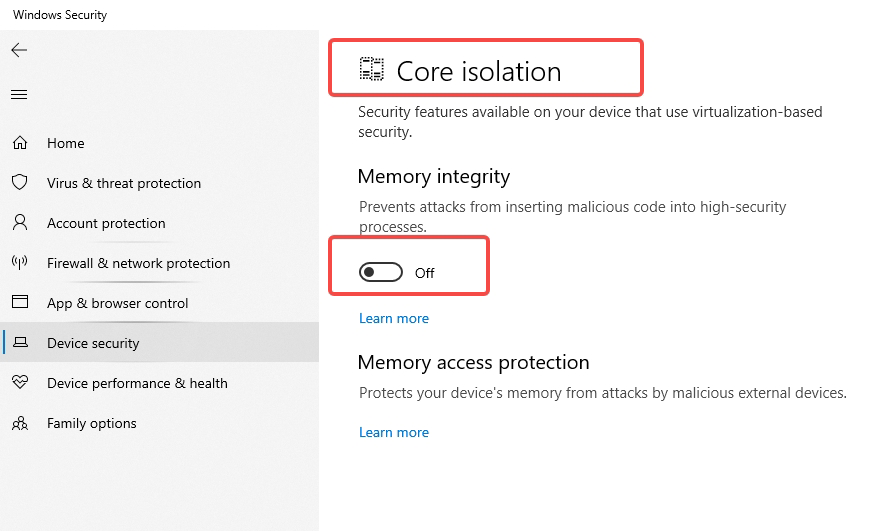
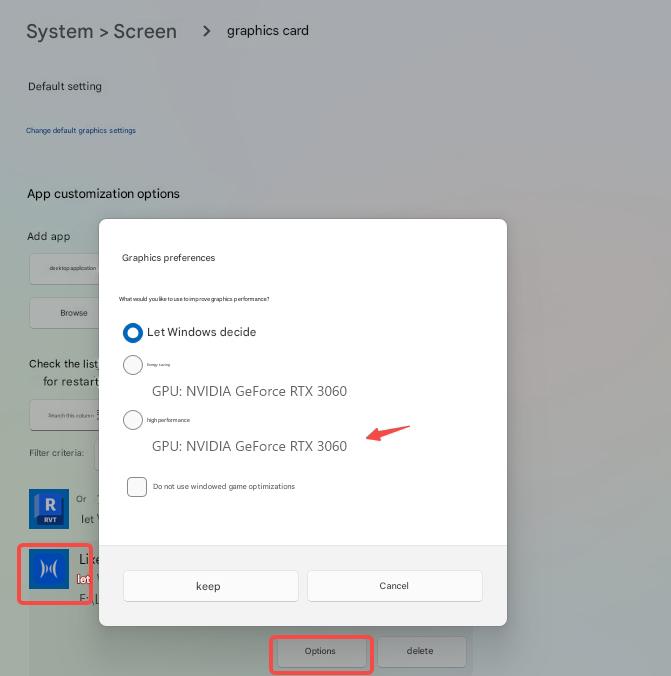
9. What should I do if LixelStudio or LCC shows a white/blank screen after opening or creating a project?
- This occurs when accessing a host without a monitor via remote desktop software. Tools like Sunflower or ToDesk rely on GPU rendering.
- Try updating system .dll libraries: https://learn.microsoft.com/en-us/cpp/windows/latest-supported-vc-redist
- Try updating the NVIDIA GPU driver (AMD and Intel GPUs are not supported): https://www.nvidia.com/en-us/drivers/
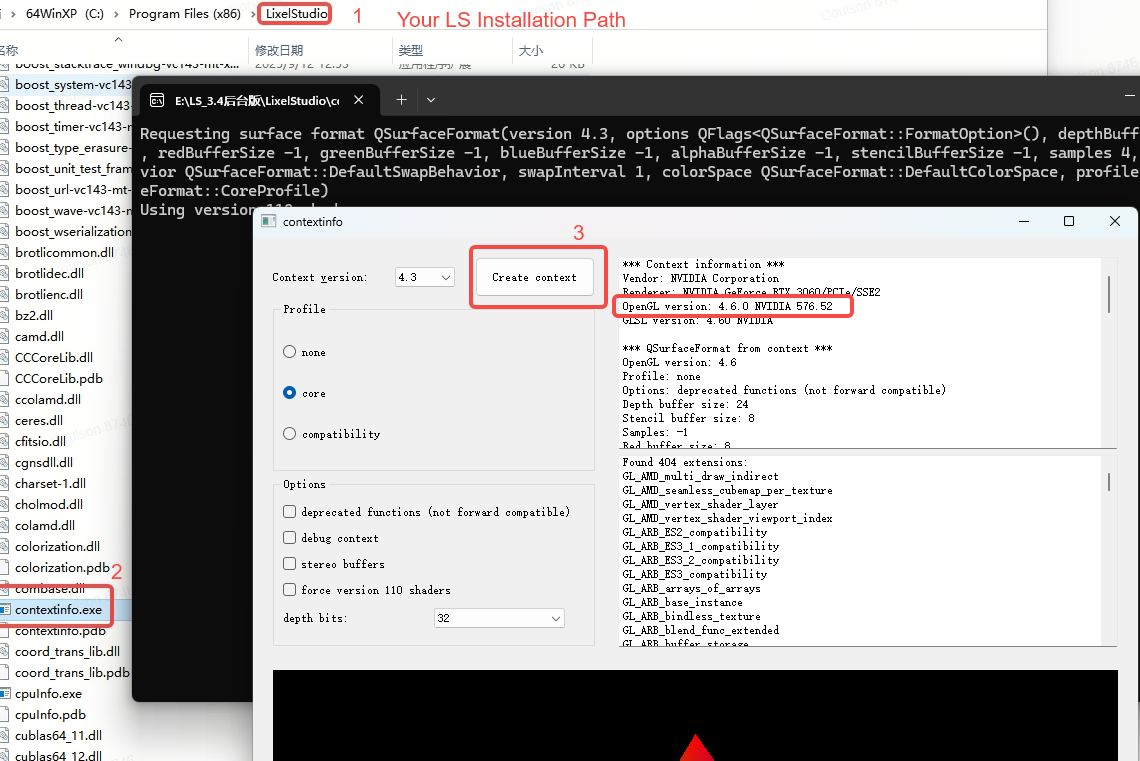
- Double-click
contextinfo.exein the installation directory and verify that OpenGL 4.0 or above is reported.
10. What does "HBC/Xbin file parsing failed" mean in the report?
- Make sure the data copied from the device is complete and no errors occurred during transfer.
- Files uploaded to or downloaded from cloud storage may be incomplete or corrupted.
- Recording was interrupted unexpectedly or the device stopped automatically during capture.
- The device was powered off without saving the recording.
- L1/L2 older firmware (1.3.2 and earlier): the app had data latency during capture if the trajectory had not returned to the actual position before recording was stopped, the file may be invalid.
- Version mismatch: data captured with L1/L2 firmware 1.4+ cannot be processed in LS 2.4.5 or earlier.
11. What should I do if the report says "Too few valid points or trajectory drift try Robust Mode"?
Enable "Robust Mode" in Project Processing and reprocess. Common causes:
- Open or degenerate scenes causing point cloud drift.
- The device was not kept strictly still during initialization.
- The LiDAR field of view was obstructed during initialization, or too many moving objects were in front of it.
- The device was tilted at a steep angle for an extended period (e.g., continuously exceeding 30掳).
- Sudden sharp turns while passing through narrow spaces.
- The LiDAR field of view faced large amounts of moving objects for a prolonged time (e.g., dense pedestrian areas).
- Note: for tunnels and other narrow environments, use "Narrow Scene" mode first rather than Robust Mode.
12. What should I do if the report shows "Point Cloud Mapping startup failed"?
- Make sure you are using LixelStudio 3.0.2.1 or above.
- Do not place raw data on the C: drive or create projects on the C: drive.
- Try logging out of the computer or clearing background processes to free resources, then launch the software with administrator privileges.
- The system may be missing the WMIC tool: go to Settings System Optional Features, install WMIC, then restart.
- A routine Windows 11 update may have changed the UTF-8 setting. Search for "Region Settings" and enable the UTF-8 option.
13. What should I do if Project Processing shows "Version not applicable"?
The compatible software versions for older devices are listed below:
| L1 | L2 | L2 Pro | K1 | |
|---|---|---|---|---|
| Firmware | 1.4.3 | 1.4.3/1.4.5 | 3.2.1 | 3.2.1 |
| APP | 1.1.9 | 1.1.9 | Latest from official website | Latest from official website |
| LS | 2.5.2.1 | 3.2.0.0 | Latest from official website | Latest from official website |
| LCC | 1.8.0 | 1.8.1 | Latest from official website | Latest from official website |
L2 Pro, K1, K2, and PortalCam devices should always use the latest version from the official website.
14. What should I do if the report says processing failed due to insufficient RAM?
The computer does not have enough RAM, usually because the raw data is too large.
- Close background programs that consume large amounts of memory, then retry.
- Consider using a computer with more RAM.
15. What causes "crash" errors during Point Cloud Mapping, Global Optimization, filtering, or Dynamic Object Removal, and how do I fix them?
- Intel 13th/14th Gen CPUs without the latest motherboard BIOS (microcode patch 0x12B). Contact your motherboard manufacturer for a BIOS update.
- Too many programs running simultaneously, leaving insufficient available RAM. Close other applications.
- Project directory is on the C: drive, causing access permission issues. Move it to a drive with more available space.
- A temporary system-level conflict triggered the crash. Try restarting the computer.
- Project directory is on a network server path or external disk with an unstable connection.
- Windows virtual memory insufficient: if virtual memory is set on the C: drive and that drive is low on space, crashes are likely. Go to System Properties → Advanced → Performance Settings → Virtual Memory, and move it to a drive with more free space.
- Laptop overheating: prolonged heavy processing on a laptop can cause thermal throttling and crashes. Use a desktop for large datasets.
16. What are common Global Optimization errors and how do I troubleshoot them?
- "Optimization failed control point matching error": Check that control point coordinates are correct and that the coordinate system matches the RTK system.
- "Optimization failed Loop Closure detection failed": Confirm that the start/end overlap is sufficient (~5 m recommended) and that the overlap area has enough features.
- "Optimization failed RTK data anomaly": Check RTK parameters and confirm that the fixed-solution duration meets requirements.
- "Optimization failed insufficient memory": Close background programs or use a computer with 64 GB+ RAM.
- "Optimization failed project file corrupted": Re-import the raw data and create a new project.
- "Optimization timed out": Check that the computer's power settings are set to "Never sleep," and close resource-intensive background processes.
17. Why does the point cloud become blurry after applying a Bursa-Wolf 7-parameter transformation?
- Check the format and units of the seven parameters. In LixelStudio, the scale parameter unit is ppm.
- If the scale parameter you obtained uses the unit k, convert it to ppm:
ppm = (k - 1) * 1000000
18. What are pose.csv and pose_no_offset.csv?
- pose.csv is the relative-coordinate trajectory file.
- pose_no_offset.csv is the absolute-coordinate trajectory file (generated only when the project has absolute coordinates after optimization).
19. If "Other" is selected as the source ellipsoid when setting up RTK in the app, what coordinate system is recorded?
- When the source ellipsoid is set to "Other," the coordinate system in gnss.csv is recorded as "platform," and LixelStudio will default to WGS84. If the actual CORS port corresponds to a different source ellipsoid, you need to manually change the source ellipsoid during post-processing.
20. What should I do if RTK had a green-light fix during capture, but LixelStudio shows RTK as invalid during processing?
The software applies additional filtering to RTK data during processing. Ensure the following:
- The Lixel Go app shows more than 10 satellites.
- While RTK status shows "Fixed," the device has moved at least 10 m in a straight line.
- When handheld, the RTK antenna tilt does not exceed 15掳.
- Follow the device capture guidelines.
21. What is the format requirement for external control point files?
- Make sure the software is updated to the latest version.
- Download the template from the Project Processing interface. If unavailable, request it from official technical support.
- Enter data in this order: point name, easting, northing, elevation.
- Do not include a header row the first row should be usable GCP data.
22. What is a geoid undulation value?
- The geoid undulation is the difference between the ellipsoidal height and the normal height at a point on the ground.
- Ellipsoidal height is referenced to the reference ellipsoid; normal height is referenced to the quasi-geoid.
23. How do I perform a start-end Loop Closure in the field?
- Return to within 1 meter of the starting point to complete a Loop Closure.
- Enable the "Loop Closure" option during Project Processing.
- Note: enabling this option without an actual Loop Closure may cause layer separation in the point cloud.
24. Can the same control point be surveyed multiple times?
- Yes. The same control point can be captured multiple times as you pass it, using the same point name each time. This improves post-processing constraint accuracy.
- Note: coordinates for identically-named control points must be exactly the same. Aim precisely at the target center, remain still during capture, and maintain the same orientation each time.
25. What should I do if post-processing Coloring crashes?
When coloring crashes, check the following:
- Software version
- L1 devices: if crashes occur repeatedly with LixelStudio 2.5, try upgrading to version 3.0 or 3.1.
- L2 devices: use LixelStudio 3.2 (higher versions are not supported).
- K1 / L2 Pro devices: use the latest version from the official website.
- L1/L2 external camera recording guidelines
- When using an Insta360 Studio 360掳 camera, use time-lapse mode for recording.
- Ensure the capture duration is at least 2 minutes to avoid processing errors due to insufficient data.
- Computer performance and environment
- Make sure the disk used for post-processing has sufficient free space.
- Set the system power plan to "High Performance" to prevent sleep or power-saving modes from interrupting processing.
- Avoid running other resource-heavy software during processing.
- GPU requirements:
- Only NVIDIA GPUs are supported: RTX 20 series or above, driver version 580 or above.
- AMD and Intel GPUs are not supported. If all of the above check out, contact official technical support for further assistance.
26. Why does the L2 point cloud appear blue-green after on-body Coloring?
- The protective film on the on-body camera lens was not removed. Check whether the device camera lens still has a protective film.
27. What are the overlap requirements for map merging?
- The overlap path length between adjacent maps should be > 15 m (15 0 m recommended).
- The overlap area should be in feature-rich environments.
- Avoid overlapping in open areas, long corridors, smooth tunnels, or other degenerate scenes.
28. What are the different map merging methods?
- Method 1: RTK capture (sufficient fixed solutions throughout)
- Method 2: Absolute-coordinate control points (at least 3 per map)
- Method 3: Relative-coordinate tie points (at least one identically-named point in the overlap area)
- Method 4: Breakpoint resume scan (L1/L2 devices only; not supported in low-light conditions)
- Limits: maximum 10 maps, each ~20 min, overlap ~15 m.
29. Can data captured by different devices be merged?
- No. Map merging requires data from the same device model. Note: L2 Pro 16/120 and L2 Pro 32/120 are considered different models.
30. How do I check the LiDAR model (number of channels and range) for L-series devices?
- Open the
project.jsonfile in the project directory and look at theLidarTypefield. - This field indicates the number of LiDAR channels and the measurement range.
31. Why does LAS RCP/E57 conversion fail, hang, or crash?
- The LAS filename is too long. Shorten it to 20 characters or fewer.
- If the LAS file contains absolute coordinates, select "pose_no_offset.csv" as the pose file when converting to E57.
32. How do I remove extra noise from the point cloud after Project Processing?
- Use the Crop tool to manually delete unwanted areas.
- Or use "Point Cloud Denoise + Point Cloud Smooth." Recommended parameters: search radius 0.30, neighbor count 6 (isolated points with fewer than 6 neighbors within a 30 cm radius will be removed).
33. Can post-processing point cloud results be imported directly into AutoCAD or 3ds Max?
- No. LAS files must first be converted to RCP format using the data conversion function.
- The converted output supports AutoCAD, 3ds Max, and Recap 2022 or above.
34. What does the "offset" prompt mean when importing point cloud data?
- When loading a point cloud with absolute coordinates, the software displays a coordinate offset prompt. This only changes the display position within the software it does not alter the data's coordinates or accuracy. Click OK to proceed.
35. How do I export a plan view from the point cloud using post-processing software?
- Use the "3D Crop" tool and drag the top/bottom arrows to create a cross-section slice.
- It is recommended to run Project Processing with "Figure Removal" enabled before this operation.
36. Do K1 and L2 Pro support mesh generation in LixelStudio?
- Yes, in LixelStudio 3.0.2 and above. The project must be processed in that version, and "Output Panoramic Photos" must be enabled during Coloring.
37. What should I do if mesh generation says "Cannot find image and position files"?
- Make sure you are pointing to the correct subdirectory within the Project Processing results folder.
- Use the same post-processing version for Coloring.
- For K1/L2 Pro, enable "Output Panoramic Photos" during Coloring.
- L2 on-body camera coloring cannot be used for mesh generation.
38. Can map merging output a combined mesh result?
- No. Mesh generation currently supports single maps only.
39. Can the colorized LAS result be downsampled before generating a mesh?
- Yes, but the LAS file must be downsampled using "Resample" within LixelStudio do not use other software. After resampling, replace the original result LAS file and keep the filename the same.
40. Does OBJ output support merging tiles into a single file?
- No. OBJ output consists of tiled files and cannot be merged within the software.
- To merge tiles, use third-party modeling software such as Blender or MeshLab.
41. Can L2 Pro upsampled tiled data be used to generate a mesh?
- No. Upsampled tiled data cannot be used directly for mesh generation.
- To generate a mesh, use the original (non-upsampled) colorized result.
42. What is the Point Cloud Enhancement feature and what are its hardware requirements?
- Point Cloud Enhancement (upsampling) increases point density, producing more uniform distribution and better Coloring results, but significantly increases data volume and processing time.
- Disk space requirements: 5 mm mode requires at least 25× the original map.las size; 1 mm mode requires at least 465×.
- K1 devices support 5 mm only.
- Reference processing times (RTX 4090 + 64 GB RAM): indoor small area at 5 mm ~1:2 ratio, at 1 mm ~1:8; outdoor large area at 5 mm ~1:5, at 1 mm ~1:41.
43. What are the recommended computer specifications?
- Processor: Intel i7 11th Gen through i9 12th Gen (recommended). Intel 13th/14th Gen processors require the latest motherboard BIOS to fix stability issues.
- RAM: 64 GB or more (required for large-area or long-duration captures).
- Storage: 1 TB or larger SSD with ample free space for processing.
- GPU: NVIDIA only (CUDA 11.6 or above required). AMD and Intel GPUs are not compatible. Avoid older 10-series GPUs.
- OS: Windows 10/11 64-bit (VM, Linux, macOS, and Windows Server are not supported).
- Use a desktop for large dataset processing. Laptops are prone to thermal throttling under sustained heavy loads, which can cause crashes.
44. What are the disk space requirements for post-processing?
- Use an SSD.
- Standard Project Processing: reserve at least 5× the raw project folder size in free space.
- L2 Pro 5 mm Point Cloud Enhancement: reserve at least 25× the original map.las size.
- L2 Pro 1 mm Point Cloud Enhancement: reserve at least 465× the original map.las size.
45. Can project data be processed from an external drive?
- No. External drives are prone to causing post-processing crashes. Process data on a local internal disk. Also avoid USB flash drives and network (LAN) paths.
46. What should I do if LixelStudio Project Processing stages show "Timed out"?
- Check System Settings Power Screen and Sleep and set both to "Never."
- Use Task Manager to end other resource-heavy background processes.
- If installed on the C: drive, confirm the current user has administrator privileges, or install the software on a non-C: drive.
47. Does LixelStudio support multi-GPU parallel processing?
- No. The software automatically selects one GPU to use.
48. When should I use "Narrow Scene" mode and what should I keep in mind?
- Use it for tunnels, pipes, mine shafts, and other environments narrower than 3 m.
- Narrow Scene mode takes priority over Robust Mode and delivers higher accuracy.
- Control point placement: place a control point every 20 0 m, with additional points at turns.
- Walk at a steady pace during capture and avoid sudden sharp turns.
49. Can the stockpile measurement feature calculate weight?
- Yes. Enter the material density in the stockpile measurement result, and the software will automatically calculate weight as volume × density.
- The density unit must be consistent with the volume unit.
50. What should I do if a LAS file cannot be opened or causes a crash when opened?
- Check whether the file path is too long (keep the total path under 200 characters). Move the file to a shorter path and retry.
- Check whether the LAS bounding box is abnormal (coordinate values outside a reasonable range). Use CloudCompare or a similar tool to re-export and verify.
51. What should I do if the LAS file appears incomplete after loading?
- LixelStudio can load up to approximately 4.3 billion points at once.
- For very large datasets, process in chunks or reduce point density using a third-party tool like CloudCompare before loading.
52. What should I do if the software reports a network connection failure?
- Check that your internet connection is stable. Try switching from Wi-Fi to a wired connection.
- Confirm that your firewall or antivirus software is not blocking LixelStudio network access.
- If using the offline version with local authorization configured, some network-check prompts can be safely ignored.
53. Why does the GNSS map page show "Not Available"?
- The most common reason is that RTK Fixed solution was not maintained for a continuous distance of at least 10 meters, which is the hard threshold for GNSS coordinate transformation.
- Check whether tall buildings or dense trees degraded RTK signal quality. Capture RTK-enabled segments in open areas.
- If you consistently get only Float or Single solutions, switch to Ground Control Points (GCPs) for coordinate transformation.